
💡Tip 11 💡
Many users invert iOS' colors to help with light & color sensitivities. But, ensure you aren't degrading rich media in your app, which users likely expect to remain at their true fidelity.
For images & media, you'll likely want them to forgo this setting.
Many users invert iOS' colors to help with light & color sensitivities. But, ensure you aren't degrading rich media in your app, which users likely expect to remain at their true fidelity.
For images & media, you'll likely want them to forgo this setting.

💡Tip 11 Continued 💡
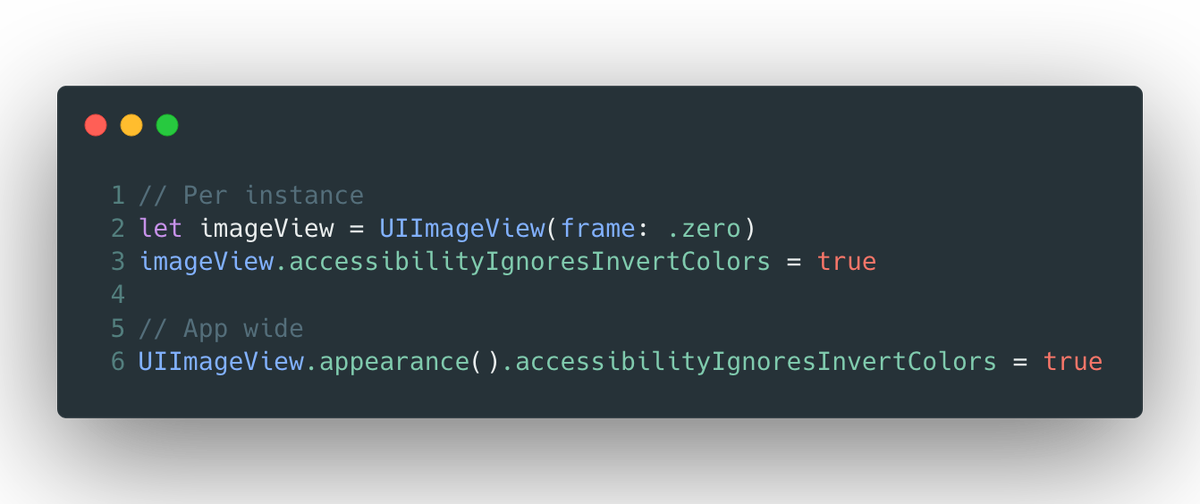
This requires almost zero effort to support - simply set accessibilityIgnoresInvertColors to false (which also will do the same thing for subviews of that view):
This requires almost zero effort to support - simply set accessibilityIgnoresInvertColors to false (which also will do the same thing for subviews of that view):
💡Tip 12 💡
Since iOS 13, users can enable Voice Control which allows one to navigate iOS by calling out prompts on screen.
By default, iOS vends your accessibilityLabel and in some cases, this might be too verbose. Instead, leverage the accessibilityUserInputLabel array.
Since iOS 13, users can enable Voice Control which allows one to navigate iOS by calling out prompts on screen.
By default, iOS vends your accessibilityLabel and in some cases, this might be too verbose. Instead, leverage the accessibilityUserInputLabel array.

💡Tip 12 Continued 💡
To tackle this, go through your app with Voice Control on and see which parts are too verbose to speak out.
Then, assign something that makes a bit more sense to the control's accessibilityUserInputLabels property:
To tackle this, go through your app with Voice Control on and see which parts are too verbose to speak out.
Then, assign something that makes a bit more sense to the control's accessibilityUserInputLabels property:

💡Tip 13 💡
Here's a remix of our very first tip, since with iOS 13 UICollectionView now supports a list style.
As with a table view, you'll want to animate a selection when popping and pushing on the navigation stack:
Here's a remix of our very first tip, since with iOS 13 UICollectionView now supports a list style.
As with a table view, you'll want to animate a selection when popping and pushing on the navigation stack:
💡Tip 13 Continued 💡
The good news is that the technique is extremely similar to how it works with a table view. For my projects, I use an extension to achieve this:
The good news is that the technique is extremely similar to how it works with a table view. For my projects, I use an extension to achieve this:

💡Tip 14 💡
When using the iPadOS hover pointer effect, ensure it looks correct and doesn't expand in unexpected ways.
This can happen, for example, in scenarios where your view's bounds expands out larger than its visible contents.
When using the iPadOS hover pointer effect, ensure it looks correct and doesn't expand in unexpected ways.
This can happen, for example, in scenarios where your view's bounds expands out larger than its visible contents.

💡Tip 14 Continued 💡
To fix this, utilize UIPreviewParameters's visiblePath property to customize the effect's look.
For the example above, I calculate the size of the actual text and apply some padding, and then center it within the control itself.
To fix this, utilize UIPreviewParameters's visiblePath property to customize the effect's look.
For the example above, I calculate the size of the actual text and apply some padding, and then center it within the control itself.

💡Tip 15💡
Sometimes it's contextually relevant for Voice Over to read punctuation literally. For example, when viewing a code sample snippet. You can do this using an attributed string and the accessibilitySpeechPunctuation key.
Here is what happens with and without it:
Sometimes it's contextually relevant for Voice Over to read punctuation literally. For example, when viewing a code sample snippet. You can do this using an attributed string and the accessibilitySpeechPunctuation key.
Here is what happens with and without it:

💡Tip 15 Continued💡
Instead of assigning to the label's text property directly, here we create an attributed string that contains the accessibilitySpeechPunctuation key with an NSNumber with a true boolean value (i.e. 1).
Then, we assign to the attributedText of the label.
Instead of assigning to the label's text property directly, here we create an attributed string that contains the accessibilitySpeechPunctuation key with an NSNumber with a true boolean value (i.e. 1).
Then, we assign to the attributedText of the label.

💡Tip 16💡
Take the time to evaluate which content pointer effect is appropriate for controls in your app.
These effects change the pointer's shape or augment the views it interacts with, so knowing which fit where makes your app feel at home.
Here's a general guide:
Take the time to evaluate which content pointer effect is appropriate for controls in your app.
These effects change the pointer's shape or augment the views it interacts with, so knowing which fit where makes your app feel at home.
Here's a general guide:

💡Tip 16 Continued💡
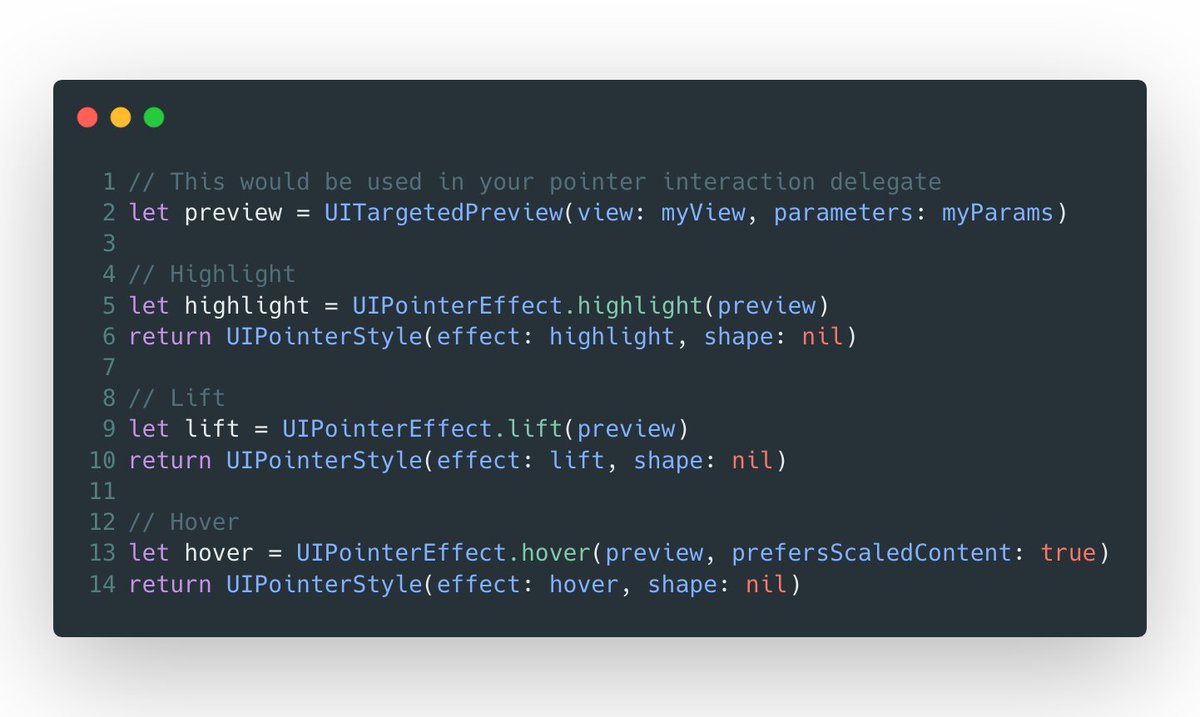
The code for this changes depending on the content effect you are after. In broad strokes, you'd use one of these within the pointer interaction delegate method that asks for the UIPointerStyle.
The code for this changes depending on the content effect you are after. In broad strokes, you'd use one of these within the pointer interaction delegate method that asks for the UIPointerStyle.
💡Tip 17💡
In general, avoid truncation on interactive controls. If you can't expand views, consider variable width strings.
These use a .stringsdict lookup to vend a string based on width. Here, we use "Templates" instead of "Choose from Templates" when the width is tighter.
In general, avoid truncation on interactive controls. If you can't expand views, consider variable width strings.
These use a .stringsdict lookup to vend a string based on width. Here, we use "Templates" instead of "Choose from Templates" when the width is tighter.

💡Tip 17 Continued💡
If you use NSLocalizedString() along with UIKit controls, they'll choose the right one for you based on the presentation width measured in EMs.
If you want to vend one of these to some other component, varirantFittingPresentationWidth() is here.
If you use NSLocalizedString() along with UIKit controls, they'll choose the right one for you based on the presentation width measured in EMs.
If you want to vend one of these to some other component, varirantFittingPresentationWidth() is here.

💡Tip 17 Continued💡
Following the example above, here is what our .stringsdict entry might look like.
The key NSStringVariableWidthRuleType has a dictionary of EM values, which correspond to the string you want used in such an environment.
Following the example above, here is what our .stringsdict entry might look like.
The key NSStringVariableWidthRuleType has a dictionary of EM values, which correspond to the string you want used in such an environment.

💡Tip 18 💡
Moving on to view controller considerations. Ensure you're using the correct UIStatusBarStyle for modally presented controllers.
For example, don't use a dark status bar for a dark interface, which will obscure it:
Moving on to view controller considerations. Ensure you're using the correct UIStatusBarStyle for modally presented controllers.
For example, don't use a dark status bar for a dark interface, which will obscure it:
💡Tip 18 Continued 💡
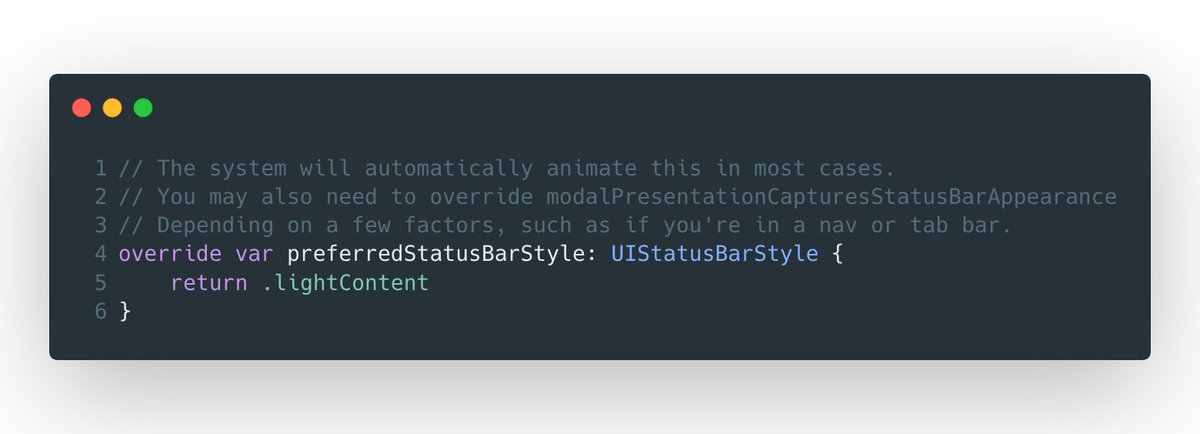
There are a number of properties that control the status bar, but the most common one is preferredStatusBarStyle.
If you find a scenario where the status bar appears hidden and it shouldn't be due to your chrome, return the correct value here:
There are a number of properties that control the status bar, but the most common one is preferredStatusBarStyle.
If you find a scenario where the status bar appears hidden and it shouldn't be due to your chrome, return the correct value here:
💡Tip 19💡
It can be easy to get tripped up when implementing common accessibility practices.
Accessibility label, value and hint? When do you use which?
The graphic below demonstrates this:
It can be easy to get tripped up when implementing common accessibility practices.
Accessibility label, value and hint? When do you use which?
The graphic below demonstrates this:

💡Tip 19 Continued💡
Thankfully, UIKit and SwiftUI do a lot of this for you. And SwiftUI has modifiers equivalent to the UIKit counterparts.
One easy way to think of these:
label: What is this?
value: What value does this have?
hint: What will this do?
Thankfully, UIKit and SwiftUI do a lot of this for you. And SwiftUI has modifiers equivalent to the UIKit counterparts.
One easy way to think of these:
label: What is this?
value: What value does this have?
hint: What will this do?

💡Tip 20 💡
When using Voice Over, iOS travels according to the locale. So if you're grouping UI, be sure to make tweaks so Voice Over reads them in the right order.
On the left, the labels are read left to right. On the right, the grouped labels are read together logically.
When using Voice Over, iOS travels according to the locale. So if you're grouping UI, be sure to make tweaks so Voice Over reads them in the right order.
On the left, the labels are read left to right. On the right, the grouped labels are read together logically.

💡Tip 20 Continued 💡
To mitigate issues like this, disable the labels as an accessibility element. Then, using UIAccessibilityElement you can group them together as one unit for Voice Over. Set the label and tell Voice Over where it's at using frames.
To mitigate issues like this, disable the labels as an accessibility element. Then, using UIAccessibilityElement you can group them together as one unit for Voice Over. Set the label and tell Voice Over where it's at using frames.

💡Tip 21💡
Table and collection views can enter into an editing state for quick selection via a two-finger drag down.
Opting into this behavior is good practice (barring any context specific reason to opt-out) as Apple's stock apps support it too.
Here's how it looks:
Table and collection views can enter into an editing state for quick selection via a two-finger drag down.
Opting into this behavior is good practice (barring any context specific reason to opt-out) as Apple's stock apps support it too.
Here's how it looks:
💡Tip 21 Continued 💡
To opt in, ensure your table or collection view has its allowsMultipleSelectionDuringEditing flag set, and implement the two delegate methods below.
Catalyst apps also get a boost as this bridges over when a user selects multiple rows with a modifier key.
To opt in, ensure your table or collection view has its allowsMultipleSelectionDuringEditing flag set, and implement the two delegate methods below.
Catalyst apps also get a boost as this bridges over when a user selects multiple rows with a modifier key.

💡Tip 22💡
Almost every app has data coming in over the wire, so try to opt to load it in asynchronously in terms of your architecture and, more importantly, your user interface.
Don’t toss up a modal or something similar to block them from continuing:
Almost every app has data coming in over the wire, so try to opt to load it in asynchronously in terms of your architecture and, more importantly, your user interface.
Don’t toss up a modal or something similar to block them from continuing:

💡Tip 22 Continued💡
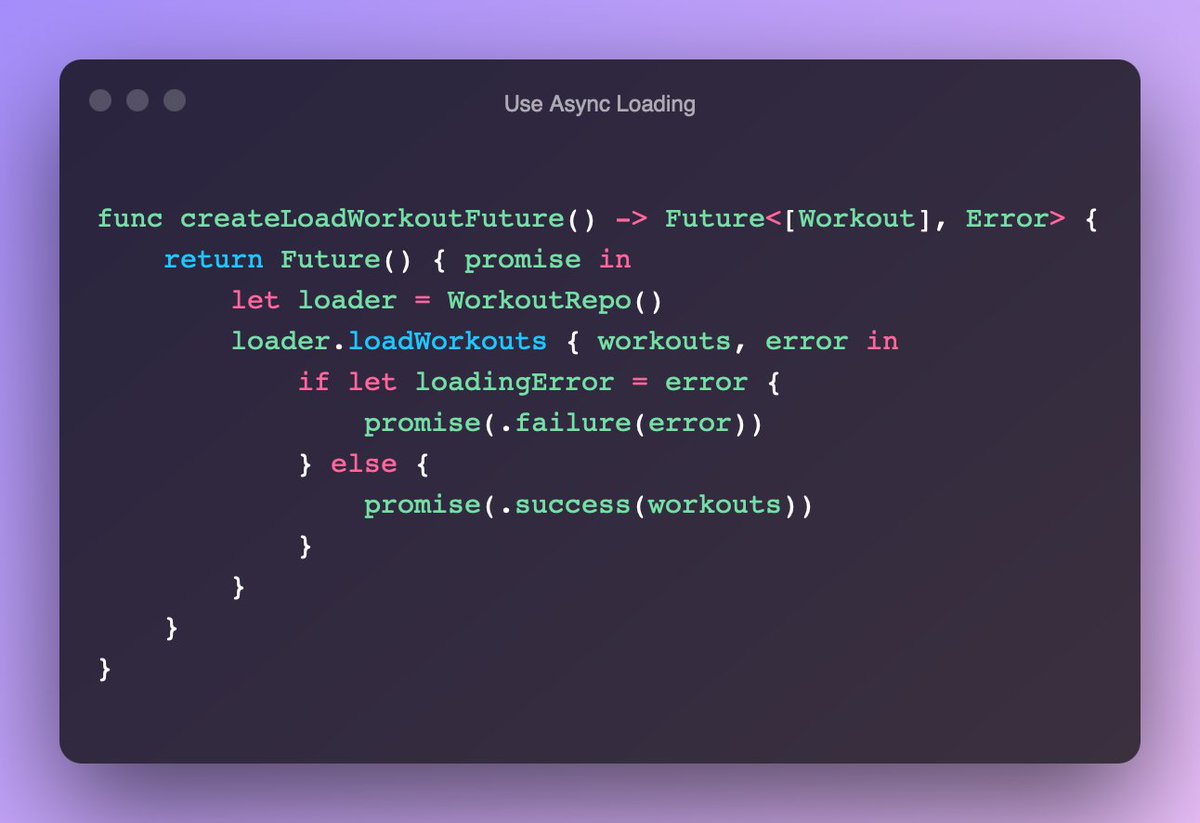
How this looks implementation wise will vary, but for a quick example here is how I did this in my own work.
By using a Combine Future, you can easily handle updating your interface when a new result comes in. But remember, this tip is more UX focused.
How this looks implementation wise will vary, but for a quick example here is how I did this in my own work.
By using a Combine Future, you can easily handle updating your interface when a new result comes in. But remember, this tip is more UX focused.
💡Tip 23💡
Sometimes an interface my have dense information like this table cell, which makes navigation hard for Voice Over.
Here, we only expose the title and favorite rating and let the user get the rest of the data if they want by using the AXCustomContentProvider protocol.
Sometimes an interface my have dense information like this table cell, which makes navigation hard for Voice Over.
Here, we only expose the title and favorite rating and let the user get the rest of the data if they want by using the AXCustomContentProvider protocol.

💡Tip 23 Continued 💡
If the user selects "More Content" using the rotor control, now the rest of the data included here will be used for Voice Over.
To give the user this kind of choice, adopt AXCustomContentProvider and return an array of AXCustomContent:
If the user selects "More Content" using the rotor control, now the rest of the data included here will be used for Voice Over.
To give the user this kind of choice, adopt AXCustomContentProvider and return an array of AXCustomContent:

💡Tip 24💡
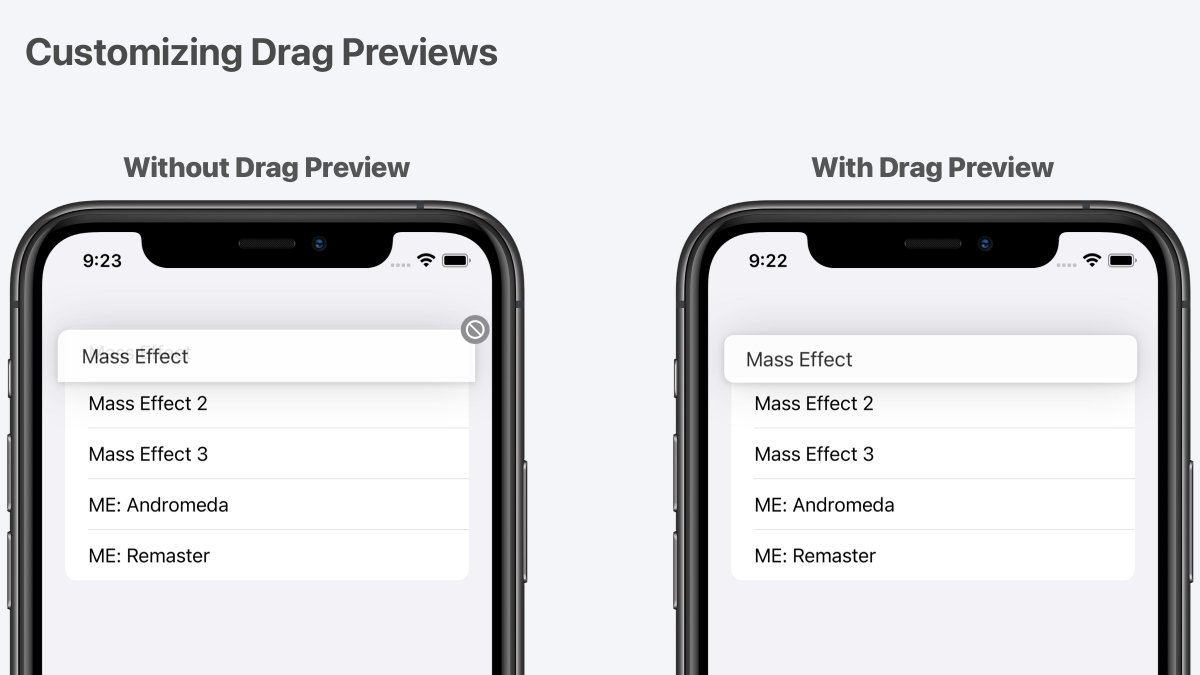
When supporting drag & drop in collection or table views, customize the drag preview to match your app’s aesthetic. For example, you might round the corners of the drag view.
Here, the left side takes the cell's look by default while the right rounds all the corners.
When supporting drag & drop in collection or table views, customize the drag preview to match your app’s aesthetic. For example, you might round the corners of the drag view.
Here, the left side takes the cell's look by default while the right rounds all the corners.
💡Tip 24 Continued💡
To create one, leverage the previewProvider closure on UIDragItem. There, you can return a UIDragPreviewParameters instance with a UIBezierPath describing the look you're after.
Here, the cell's contentView is inset and used for the path.
To create one, leverage the previewProvider closure on UIDragItem. There, you can return a UIDragPreviewParameters instance with a UIBezierPath describing the look you're after.
Here, the cell's contentView is inset and used for the path.

• • •
Missing some Tweet in this thread? You can try to
force a refresh






