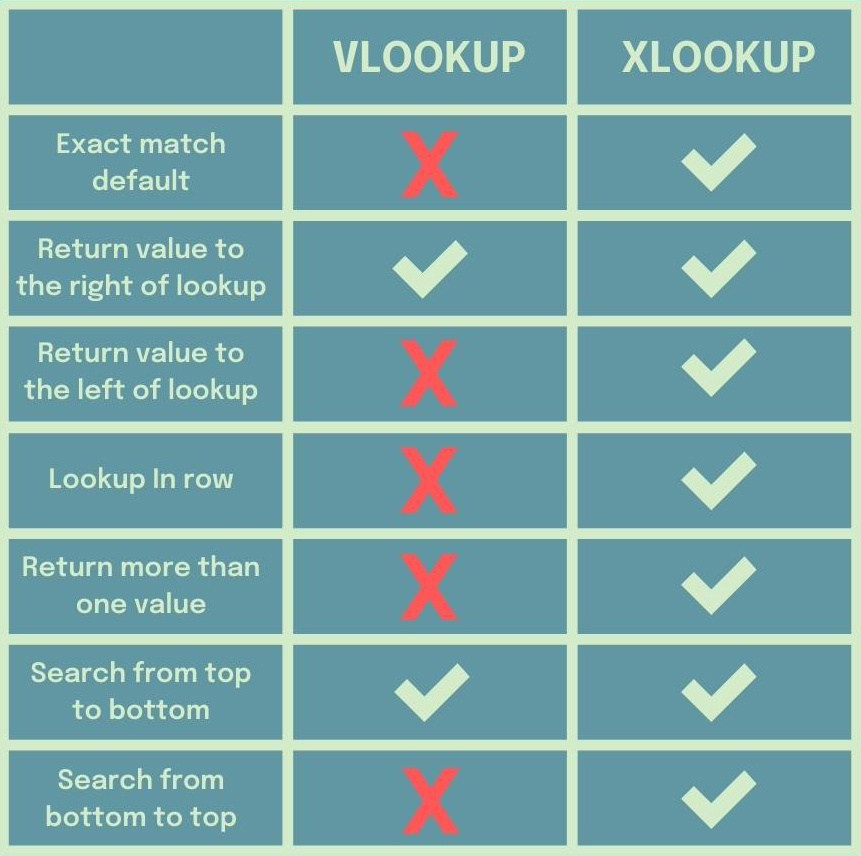
Both XLOOKUP and VLOOKUP are lookup functions used to ‘lookup’ a value from a data table and then return corresponding values. So you might be asking yourself how they work and which one is better?
How VLOOKUP Works:
The VLOOKUP function performs a vertical lookup by searching for the lookup_value from the top of the first column in the table_array and returns a corresponding value to the right based on the col_index_num.
How XLOOKUP Works:
XLOOKUP allows you to look up information in a data table by searching for the lookup_value in the lookup_array and then returning the corresponding value in the return_array.
XLOOKUP is the modern successor of VLOOKUP. It offers more flexibility, improved search features, and can assign default values. But most importantly, XLOOKUP can return values from any direction from the lookup_value while VLOOKUP can only return values to the right.
Here's a full breakdown of the differences:
Hopefully now you know which lookup function to use next time...
5 Excel shortcuts you should learn (even on a Friday):
1. CTRL ALT V
If you’re still selecting a paste option with the mouse, you need CTRL ALT V in your life! CTRL ALT V opens the paste special dialog box, allowing you to quickly choose a paste option with the keyboard to apply to copied cells.
2. CTRL ARROW
You have to navigate through data almost every time you work in Excel, so why not do it most efficiently? Quickly navigate large data sets with CTRL ARROW. CTRL ARROW jumps to the very top, very bottom, far left, or far right of the data.
Save hours of your life with these 10 Excel productivity tips:
1. Custom Lists
If you are repeatedly entering the same list of values, try this instead. Create a custom list that Excel auto-fills for you. Go to File > Options > Advanced > Edit Custom Lists > Enter List > Import > OK. Enter any list item and drag down the fill handle!
2. AutoFormat
If you waste too much time trying to figure out how to format your data table, meet AutoFormat. AutoFormat creates a selection of data formats that can be applied directly to your data. Just select AutoFormat and choose your favorite style!
If your VLOOKUP function isn’t working, don’t panic; here’s why and how to fix it.
1. Lookup_Value doesn't exist within the table_array
If VLOOKUP can’t find the lookup_value in the first column of the table_array, it will return N/A. Double check and ensure that one, the lookup_value actually exists, and two, the table_array isn't omitting any data.
2. A column was inserted in the table_array
If a column was inserted in the table_array, VLOOKUP is no longer referencing the correct indexed column because it's hard coded. If you insert a new column in your data, make sure to update the col_index_num in your VLOOKUP function.
7 Excel Quick Analysis (QA) that analyze your data, so you don't have to:
1. Running Total
Calculating data metrics like running total can be tricky, but not with QA. Select the data you want to calculate > QA > Totals tab > Running Total. As you can see, Excel auto-calculated the running total and even inserted all the formulas for us!
2. % Total
Now that we know how to calculate the running total with QA, let’s learn how to calculate % of the total. Select the data you want to calculate > QA > Totals tab > % Total. Once again, Excel auto-calculated % of the total for each value and inserted all the formulas!
99% of Excel users copy and paste data daily, so why not do it as efficiently as possible? Just select the data you want to copy, hold CTRL, and drag the data to where you want it to be pasted.
2. Moving Data
Now that we know how to quickly copy data, let’s learn how to quickly move it. Instead of cutting and pasting, select the data you want to move, hold SHIFT, and drag the data to its new location.
Spare yourself the google search and let Excel search for you using DT. DT pull real-time data into Excel. To convert text strings into linked DT, just select the data category under the data tab. Now, simply select the attributes you want to pull into Excel.
2. Flash Fill (FF)
Say goodbye to writing complex functions to manipulate data, and hello to FF. FF automatically fills data down a column based on detected patterns. Just enter how you want the data to appear, hit CTRL E, and Excel will auto-fill the pattern down the column!