12 destructive Linux terminal commands every Linux user must be aware of (don't run these):
1. Recursive deletion 🔁🗑️
This is one of the scariest commands. When you run this command, it deletes everything in the root directory forcibly and recursively. As a result, all of your directories and subdirectories will be deleted, and all of your data will be lost.
This is one of the scariest commands. When you run this command, it deletes everything in the root directory forcibly and recursively. As a result, all of your directories and subdirectories will be deleted, and all of your data will be lost.

2. Implode hard drive 🕳️
This command will move all data to a special location in Linux known as the black hole, which is located in your system at /dev/null.
This command will move all data to a special location in Linux known as the black hole, which is located in your system at /dev/null.
Everything that is moved to this location is destroyed.
As a result, if you accidentally move your data to this folder, it will not be recovered
As a result, if you accidentally move your data to this folder, it will not be recovered

3. The fork bomb 🍴💣
This is my personal best, a simple bash recursive function that, when executed, creates copies of itself, which in turn creates another set of copies of itself. This takes up CPU time and memory. As a result, it loops until the system freezes.
This is my personal best, a simple bash recursive function that, when executed, creates copies of itself, which in turn creates another set of copies of itself. This takes up CPU time and memory. As a result, it loops until the system freezes.

Fortunately, you can defend against this attack by limiting the number of processes run by users to around 4000.
You can accomplish this by issuing the following command:
$ ulimit -S -u 4000
You can accomplish this by issuing the following command:
$ ulimit -S -u 4000

4. Overwrite the hard drive ✍️💿
This command writes raw data (command output) to the specified partition. This causes data loss on the hard drive or specified partition.
command - this could be any Linux command.
This command writes raw data (command output) to the specified partition. This causes data loss on the hard drive or specified partition.
command - this could be any Linux command.

5. Blindly download and execute malicious script ☠️📜
Wget and curl are useful Linux commands for retrieving and downloading files from the internet. However, if we blindly download and execute a malicious script, these commands can be dangerous.
Wget and curl are useful Linux commands for retrieving and downloading files from the internet. However, if we blindly download and execute a malicious script, these commands can be dangerous.

Please keep in mind the source from which you are downloading packages and scripts. Use only scripts or applications downloaded from a reputable source.
6. Breach the System 🔓
This command does not physically affect your system in the same way that the other commands do, but it does provide a security breach on the system.
This command does not physically affect your system in the same way that the other commands do, but it does provide a security breach on the system.
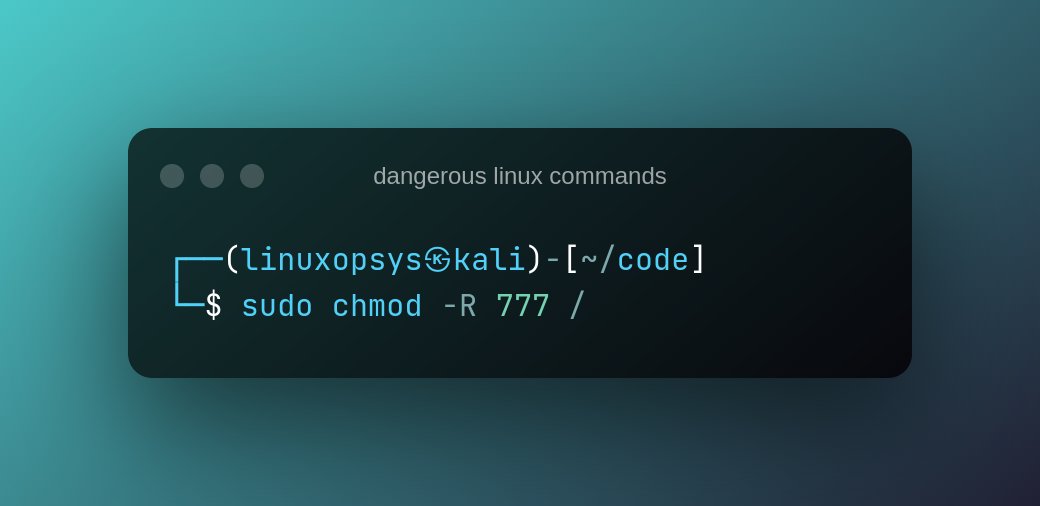
The chmod command changes file permissions to configure user access to a specific file or directory.
By running this command, you grant all system users the ability to read, write, and execute data on your system. In terms of security, this is risky and dangerous.
By running this command, you grant all system users the ability to read, write, and execute data on your system. In terms of security, this is risky and dangerous.
7. The hidden recursive deletion (rm -rf /) 🔁🗑️
The following command is the same as the previously mentioned rm -rf / command. The codes are hidden in hex here to fool an unsuspecting user.
The following command is the same as the previously mentioned rm -rf / command. The codes are hidden in hex here to fool an unsuspecting user.
Running the code below in your terminal will delete your root partition leaving your system unusable.

8. Unknowingly format a hard drive 🧹📀
This command will erase your hard drive and recreate it.
These should only be used when you have a backup of your data on the cloud or an external device.
This command will erase your hard drive and recreate it.
These should only be used when you have a backup of your data on the cloud or an external device.

9. Write random junk to hard drive 🈳📀
This command will write random garbage data to your hard drive.
Your system will not be recovered as a result of this command.
This command will write random garbage data to your hard drive.
Your system will not be recovered as a result of this command.

10. Re-running all the history commands 🔁📜
Because it executes every command from that you have already executed, the history | sh command can be dangerous. The action may cause system instability and the execution of commands that you do not want to repeat.
Because it executes every command from that you have already executed, the history | sh command can be dangerous. The action may cause system instability and the execution of commands that you do not want to repeat.

11. The ^foo^bar Command 📜
The ^foo^bar command has the potential to be both helpful and dangerous. While the command saves time by allowing you to edit a previously run command and re-run it,
The ^foo^bar command has the potential to be both helpful and dangerous. While the command saves time by allowing you to edit a previously run command and re-run it,
it can also cause problems if you don't thoroughly check the changes you make before running it.
The command changes the first occurrence of foo to bar.
The command changes the first occurrence of foo to bar.

12. Blindly deleting the crontabs 🤖📜
The crontab command aids in the automation of routine tasks. All commands and instructions, however, are saved in a single crontab file, which can be removed by using the -r option and the crontab command.
The crontab command aids in the automation of routine tasks. All commands and instructions, however, are saved in a single crontab file, which can be removed by using the -r option and the crontab command.
This can happen if you want to specify the -e flag but accidentally type -r. There is no yes/no prompt before removing the file, so be cautious.
Make a backup of your crontab file because there aren't many recovery options if it gets deleted.
Make a backup of your crontab file because there aren't many recovery options if it gets deleted.

Please DO NOT run any of the above commands in your Linux terminal or shell, or on the computers of your friends or coworkers. Run them in a virtual machine if you want to test them.
Any inconsistency or data loss caused by the execution of the preceding command will bring your system to a halt.
That's a wrap!
Thank you for taking your time to read our thread.
If you know of any other dangerous Linux commands that I have missed, please leave them in the comments.
And be sure to rt, like and follow us (@linuxopsys) for more future Linux content.
Thank you for taking your time to read our thread.
If you know of any other dangerous Linux commands that I have missed, please leave them in the comments.
And be sure to rt, like and follow us (@linuxopsys) for more future Linux content.
• • •
Missing some Tweet in this thread? You can try to
force a refresh