Litmaps Profile picture
Mar 7, 2023 β€’ 9 tweets β€’ 7 min read β€’ Read on X
Find gaps in your research in 2 minutes

See how πŸ‘‡
[Step 1] You might be organizing your library with a research manager – one like Zotero, Mendeley, or EndNote.

To use it with Litmaps, we'll need to export a BibTeX file. These are special files that contain your references.

This only takes a couple of clicks, see below.
@Zotero:
β†’ Right click your collection in the sidebar
β†’ Choose "Export Library"
β†’ Select "BibTeX" from the Format dropdown
@zotero @Mendeley:
β†’ Select the articles you'd like to export
β†’ Click the "Export" button that pops up down the bottom
β†’ Choose the "BibTeX" option
@zotero @Mendeley @EndNote:
(1) First, we'll load the format:
β†’ Click "Tools" from the top bar
β†’ From "Output Styles" select "Open Style Manager"
β†’ Tick the BibTeX Export

(2) Now we can export the BibTeX:
β†’ Select your articles
β†’ Click on the ↗️ Export icon
β†’ Output style: "BibTeX Export"
@zotero @Mendeley @endnote [Step 2] We'll use Discover to find articles that are closely related to your library.

β†’Β Go to app.litmaps.com
β†’ Click on "Discover"
β†’ Click on "New Search"
β†’ Choose "Import from Reference Manager"
β†’ Upload the BibTeX we exported
β†’ Click the ⏩ icon to get started
@zotero @Mendeley @endnote [Step 3] In the outer circle you can see your library's top 20 citing/referenced articles!

Use these to "sense check" for your research. Go through them one by one:

🟒 Familiar with all of them? You're up to date.
πŸ”΄ Something you haven't seen before? You've found a gap!
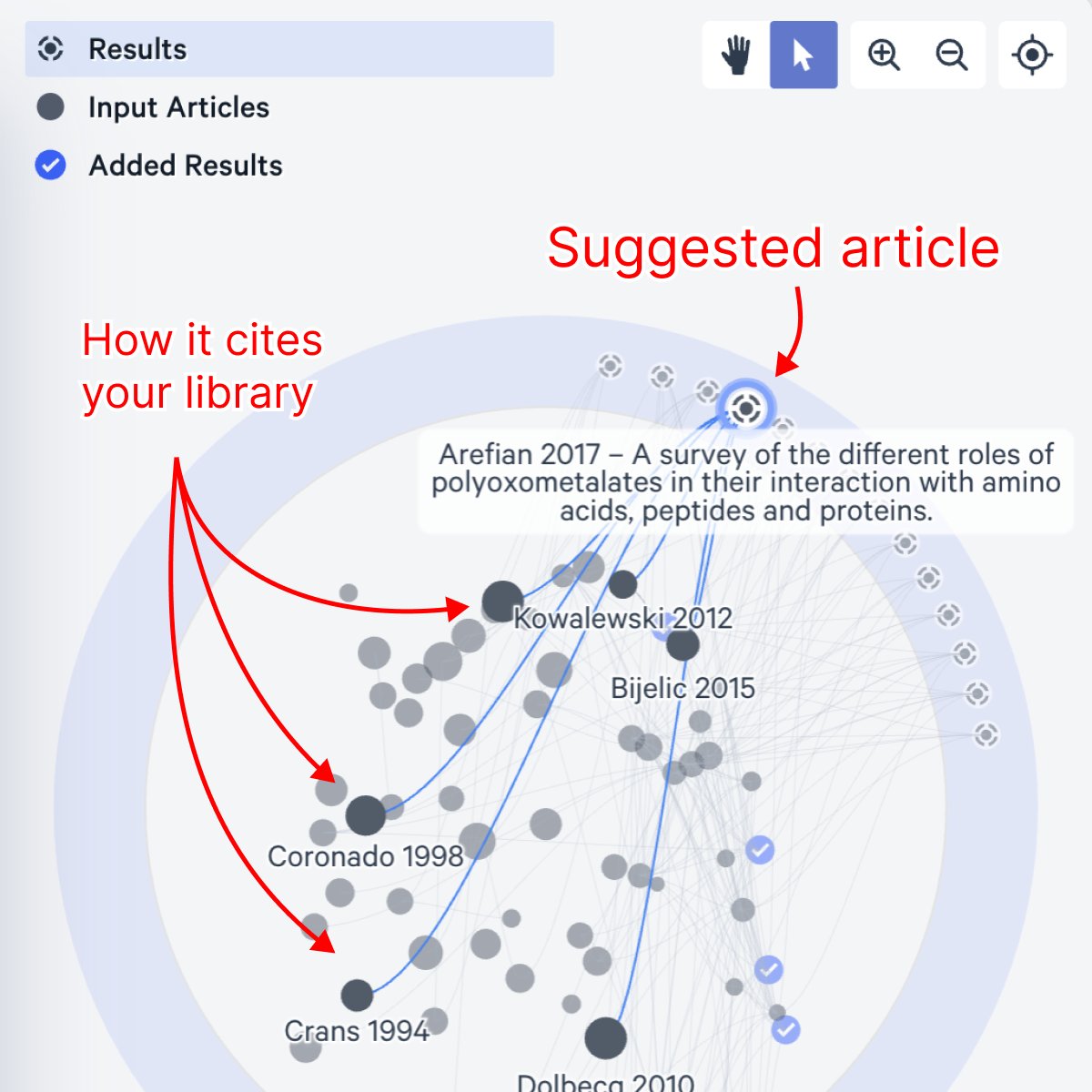
@zotero @Mendeley @endnote [Step 4] In just 2 minutes you searched across 100s of your library's citations and references!

You can save any new articles you found:

β†’ Add results by ticking them
β†’ Click "Finish"
β†’ Click "Export" to download a ✨new✨ BibTeX
β†’ Import it back into your reference manager
@zotero @Mendeley @endnote ps. 🀫

Did you tick any results while using Litmaps Discover?

Click the "Load More" button... We dare you.

β€’ β€’ β€’

Missing some Tweet in this thread? You can try to force a refresh

γ€€

Keep Current with Litmaps

Litmaps Profile picture

Stay in touch and get notified when new unrolls are available from this author!

Read all threads

This Thread may be Removed Anytime!

PDF

Twitter may remove this content at anytime! Save it as PDF for later use!

Try unrolling a thread yourself!

how to unroll video
  1. Follow @ThreadReaderApp to mention us!

  2. From a Twitter thread mention us with a keyword "unroll"
@threadreaderapp unroll

Practice here first or read more on our help page!

More from @LitmapsApp

Aug 4, 2023
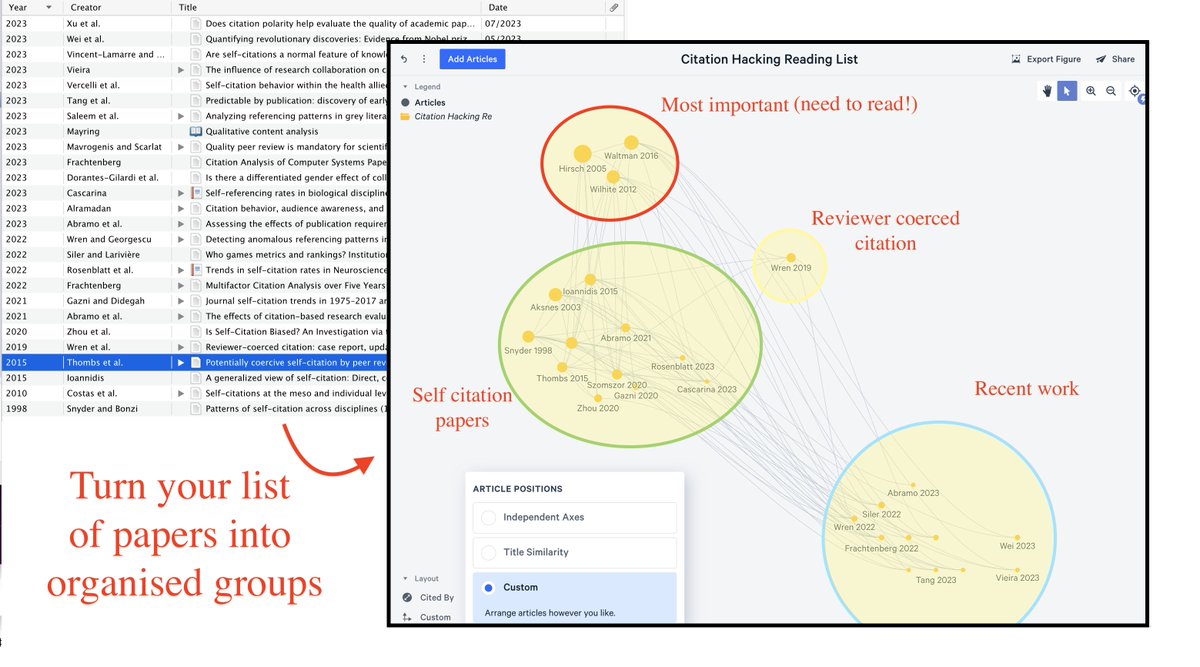
Have a long list of papers to dive into?

Transform that intimidating list into a clear plan using Maps.

Here's how to organise your papers in minutes
(with our new feature, customisable maps!): Image
Millions of papers come out every year - so having a clear priority strategy is critical to not missing the important ones.

Here, we'll use Maps to quickly prioritise the papers we need to read first.

To start, sign up for Litmaps at litmaps (dot) com - it takes a minute.
Step 1 - Locate your reading list

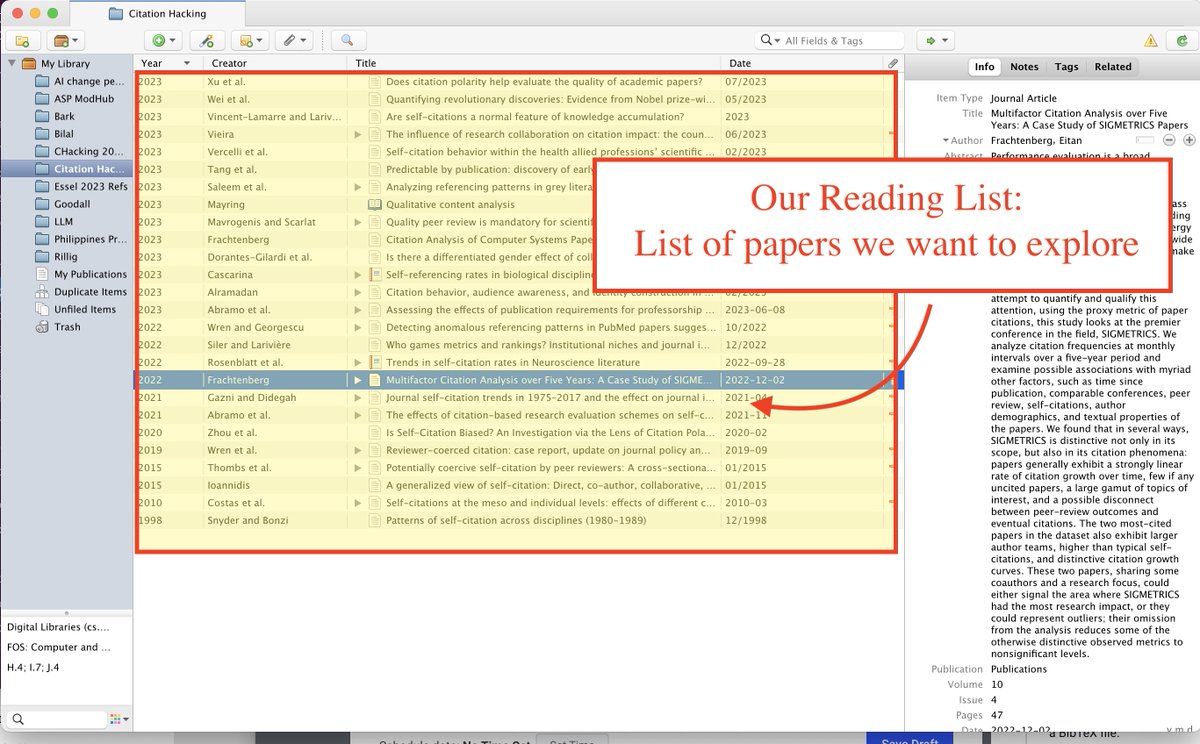
Maybe your advisor sent you a set of PDFs, maybe you have a Zotero collection of 100s of papers.

Our first step is to pull in these papers into a Litmaps collection.

You can do this as a list of DOIs/titles, or as a BibTeX file. Image
Read 11 tweets
Jul 31, 2023
We love seeing researchers optimise their research process with automated tools.

But one thing is often forgotten: keeping it up!

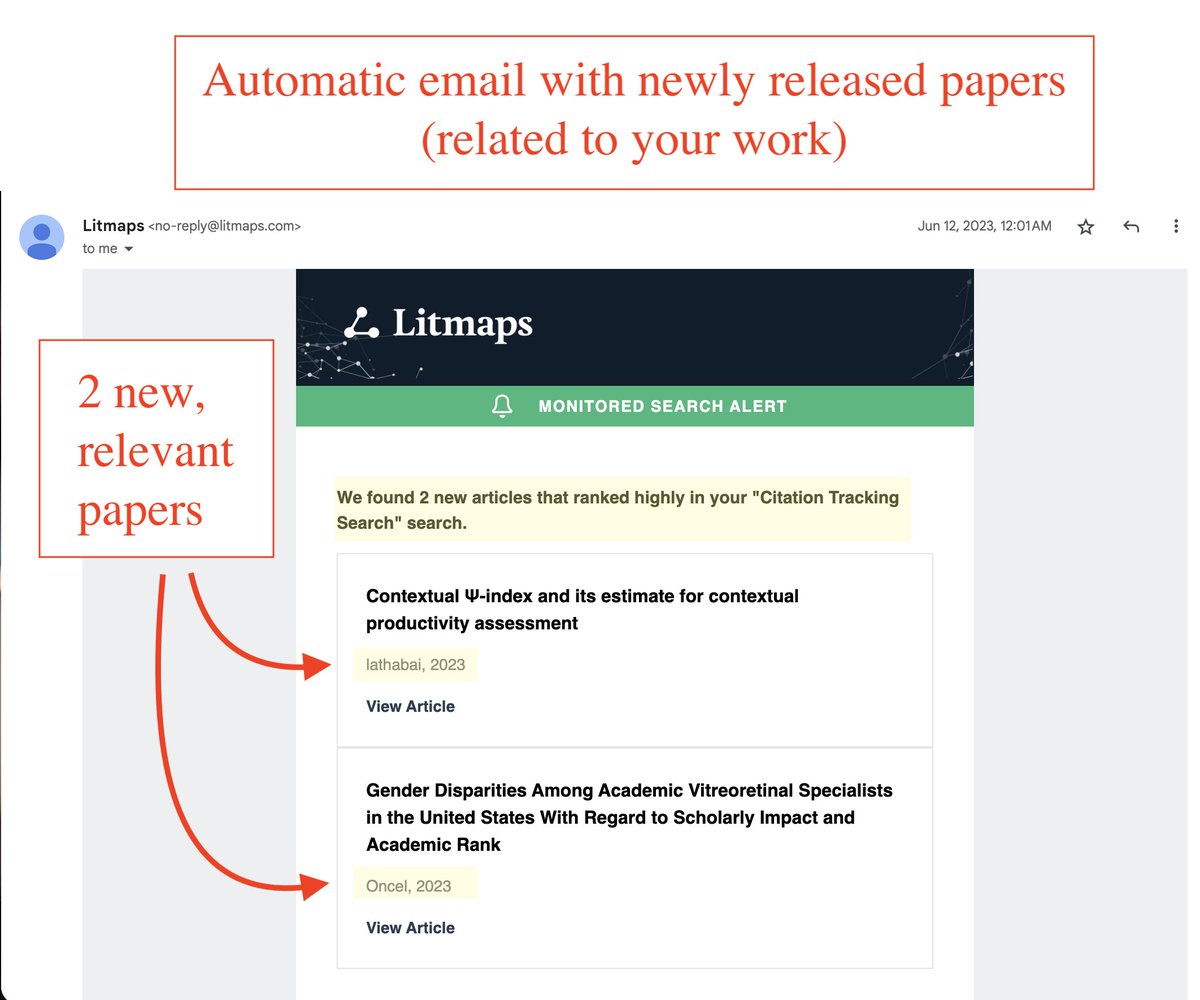
Get automatic emails with new, relevant papers on your topic
(with Litmaps Discover): Image
Searching for literature is almost never a one-time act. New research is always coming out.

But you don't need to check in manually to stay up-to-date. Litmaps Discover lets you do this automatically.

It takes only 2 steps.
Step 1: Set up a Discover Search

Litmaps Discover takes a set of papers and finds the most relevant papers based on how they all connect (through citations and references).

Set up a Search on the topic you want to stay updated on:
Read 5 tweets
Jul 27, 2023
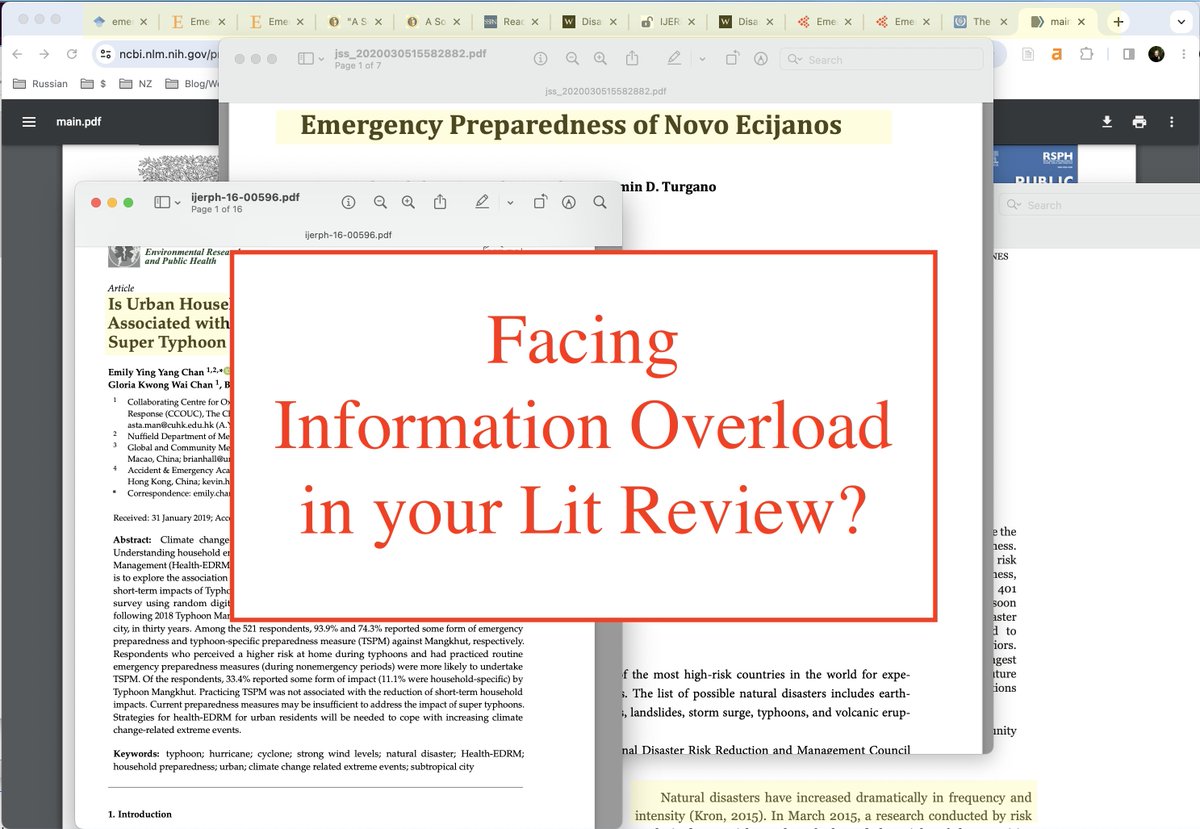
Many students face the same challenge with lit reviews.

Finding papers is fine - it's information overload that's the problem!

Here's how to go from a research question to the 3 best papers to start reading:
(using our free tool - Litmaps Seed): Image
Instead of sifting through 100s of papers manually, use automated tools to find the papers you actually need to read.

We'll go from a research topic, to the 3 most relevant papers to read on it.

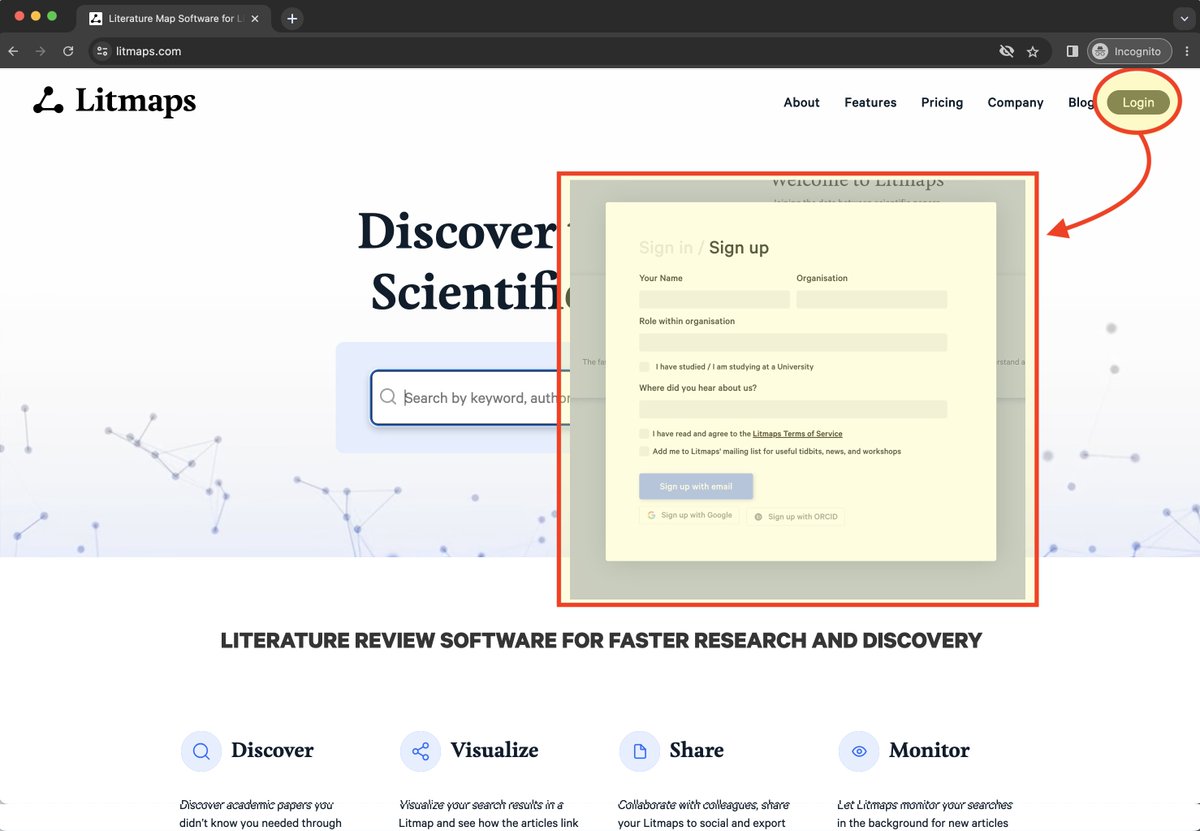
Step 1: Go to litmaps (dot) com and sign in. It takes a minute to make a new acct. Image
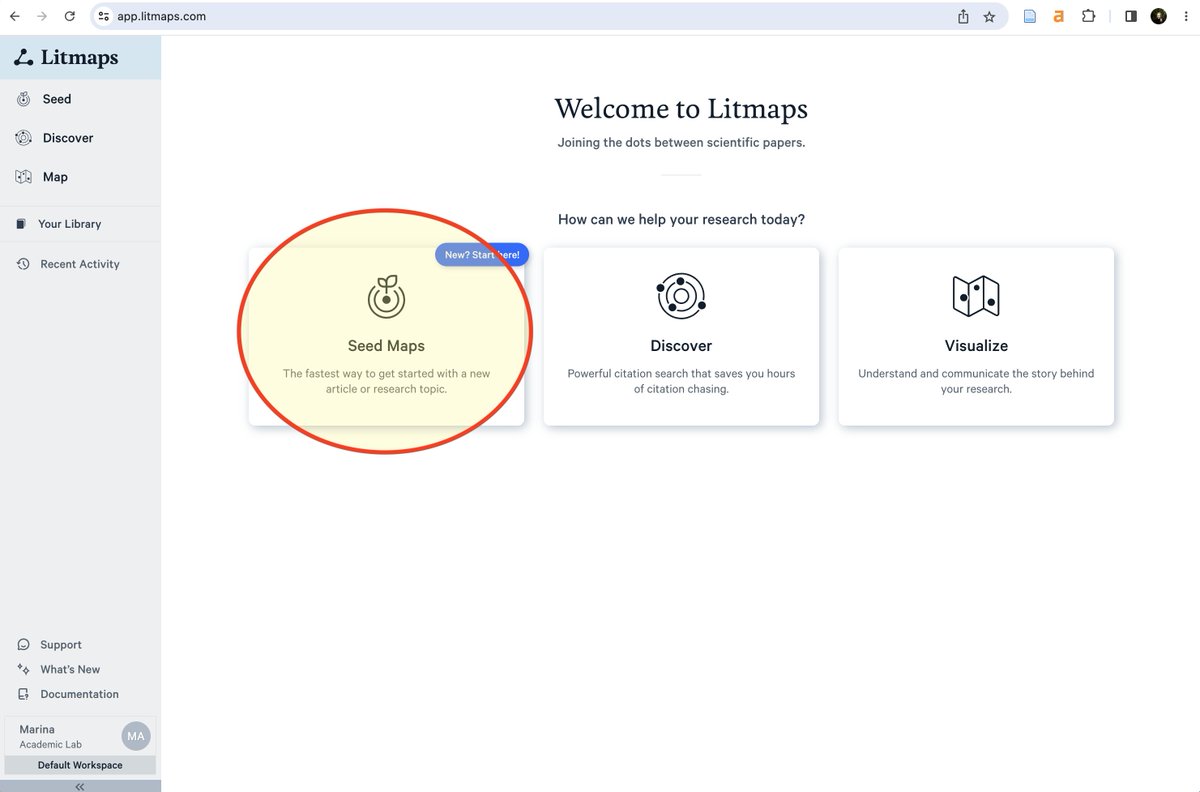
Step 2: Click "Seed"

We'll use the Litmaps Seed tool to look for a starting set of papers.

Seed takes one input paper, and finds the most connected papers to it, based on the citation network. Image
Read 15 tweets
Jul 8, 2023
Tools can help speed up your research workflow, that's pretty obvious.

But using the right tool is key.

Here's how Litmaps integrates with 3 other great tools to get the most out of them:

ChatGPT
SciSpace
Zotero

⬇️
ChatGPT + Litmaps

Use the ChatGPT Litmaps Plugin

Just type in free text like "Show me papers on..." and get instant paper recommendations

Unlike "normal" ChatGPT, it won't hallucinate

SciSpace + Litmaps

Combine @scispace_ with Litmaps to get:

- AI generated answers to research questions
- Collection of relevant research papers to dive into to go further

Read 4 tweets
Jul 4, 2023
Impromptu Wikipedia meets instant deep-dive.

Combine AI-powered SciSpace with Litmaps to answer any question and then dive into the research yourself.

Here's how to explore a new topic in 5 steps:
@scispace_ is an AI-driven tool that provides instant Wikipedia-like entries for any topic. It's great to quickly answer any research question.

But, answers are just the first step. Research is about finding gaps and making NEW contributions.

That's where Litmaps comes in.
@scispace_ 1 - Ask SciSpace a question and get some papers

Type any question into SciSpace, and it'll generate an answer, using relevant papers.

Enjoy the nicely summarised answer!

Then, to dive into the research yourself, export the papers as CSV.
Read 8 tweets
May 25, 2023
Research is much more than searching for papers

Here are 9 ways you can use Litmaps to get research done faster.

And in-depth guides for each! Image
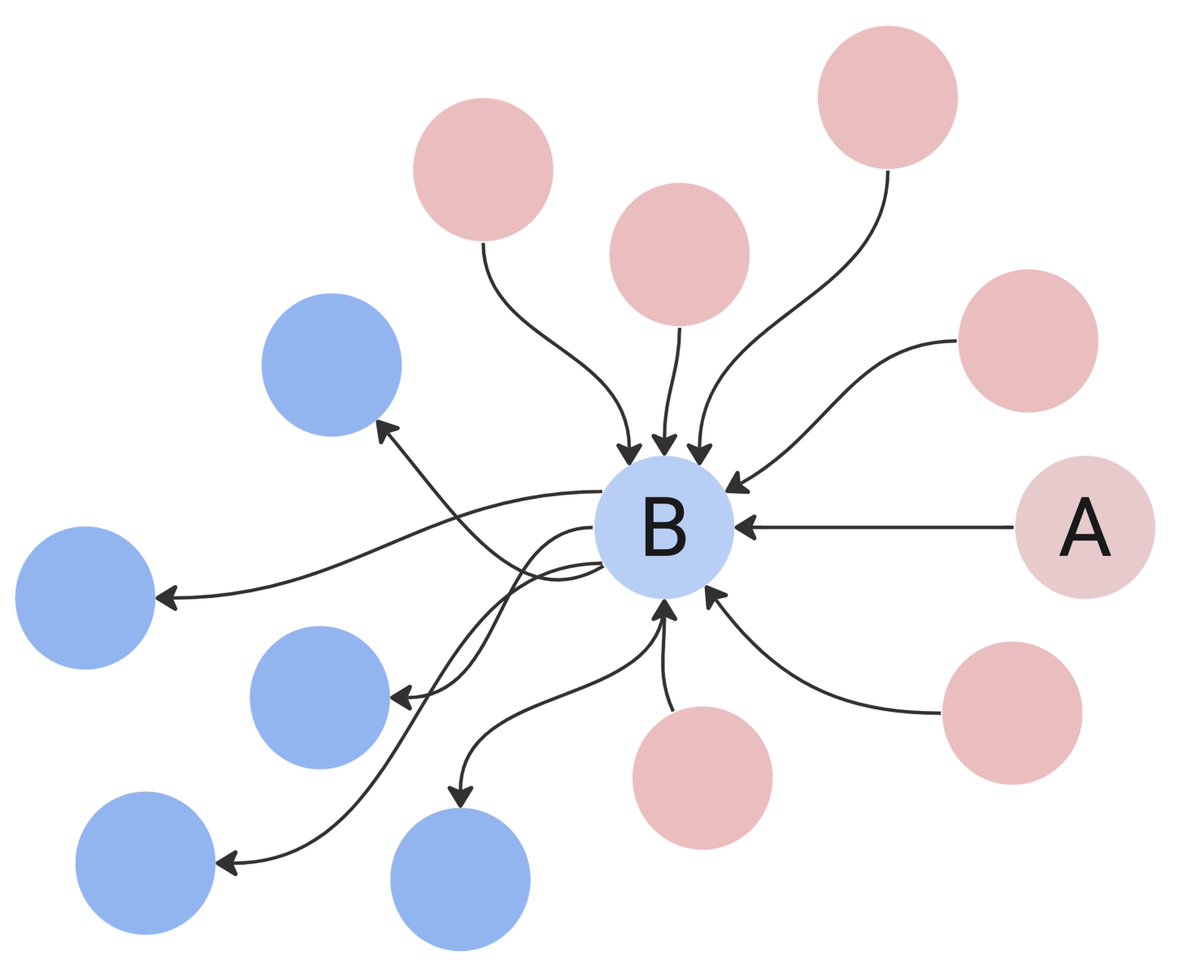
Litmaps apps use the citation network to recommend papers for you.

The citation network is how all papers are connected to each other, by citing one another.

The goal is to make it easy to find relevant papers for your research project.

But Litmaps can do way more than this. Image
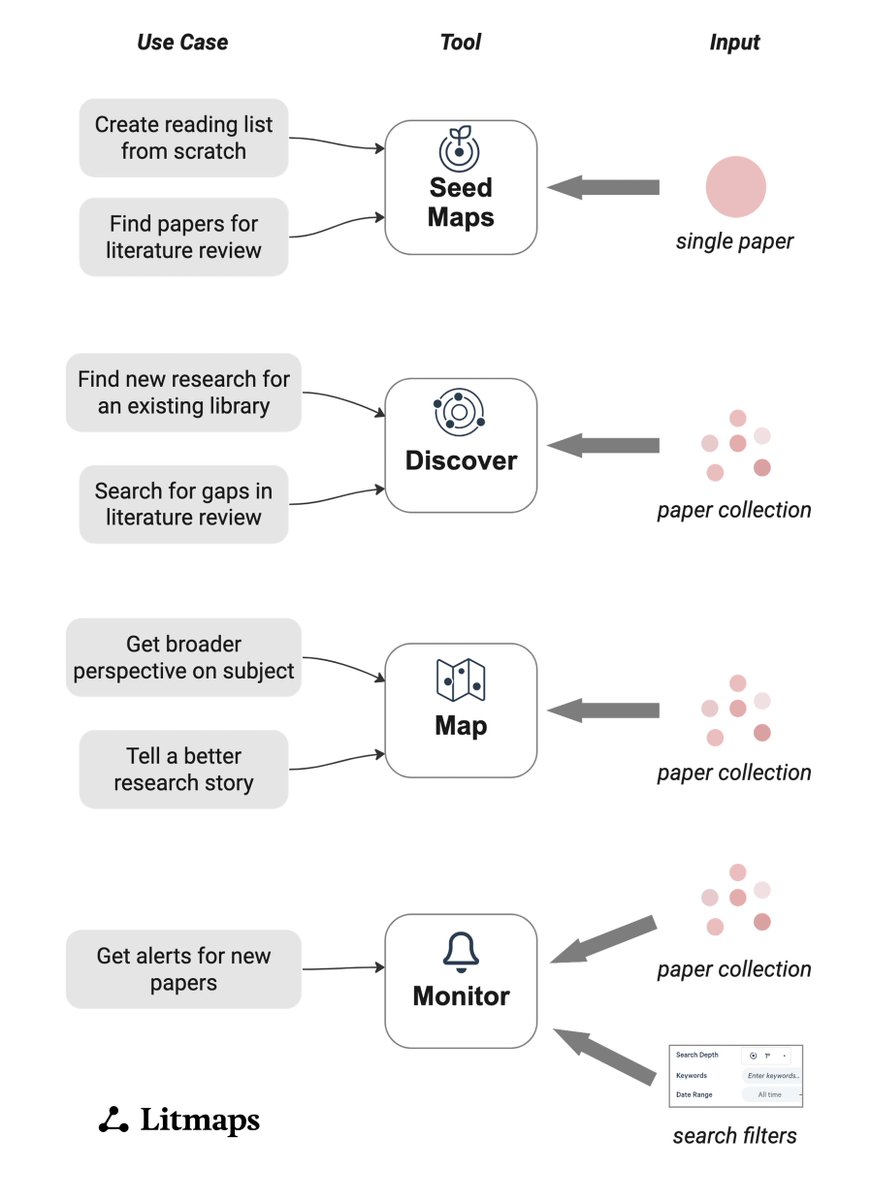
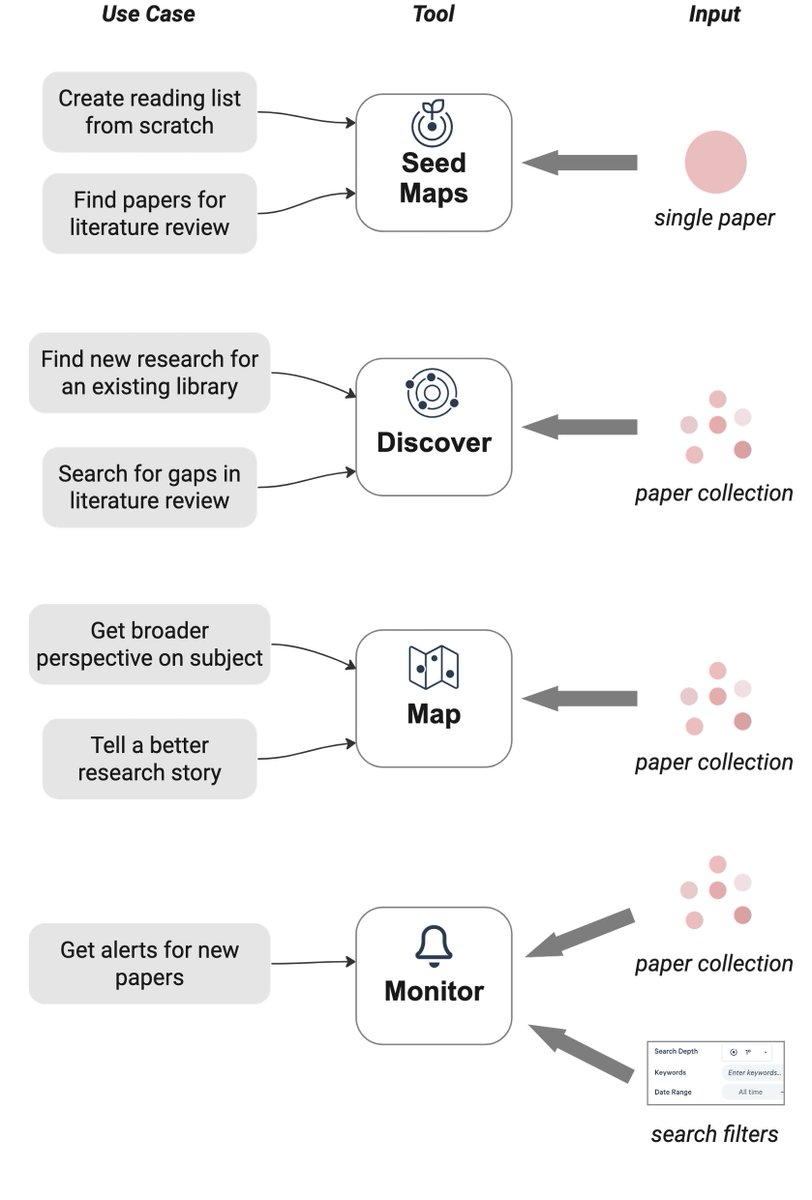
Litmaps offers 4 key tools:

1. Seed Maps
2. Discover
3. Maps
4. Monitor

We'll dive into the most common use-cases for each one.

Guide: buff.ly/433oMn7 Image
Read 17 tweets

Did Thread Reader help you today?

Support us! We are indie developers!


This site is made by just two indie developers on a laptop doing marketing, support and development! Read more about the story.

Become a Premium Member ($3/month or $30/year) and get exclusive features!

Become Premium

Don't want to be a Premium member but still want to support us?

Make a small donation by buying us coffee ($5) or help with server cost ($10)

Donate via Paypal

Or Donate anonymously using crypto!

Ethereum

0xfe58350B80634f60Fa6Dc149a72b4DFbc17D341E copy

Bitcoin

3ATGMxNzCUFzxpMCHL5sWSt4DVtS8UqXpi copy

Thank you for your support!

Follow Us!

:(