

Knowing when and how to stop running processes is a essential skill for sysadmins. When a process becomes stuck, it only takes a gentle nudge to restart or stop it.
At times, a process takes all the system resources. In both cases, you need a cmd that lets you manage a process.
At times, a process takes all the system resources. In both cases, you need a cmd that lets you manage a process.

The Linux operating system includes a number of commands for terminating errant processes (rogue processes), such as pkill, kill, and killall.
This thread will teach you how to use the kill command in Linux.
This thread will teach you how to use the kill command in Linux.
𝗚𝗲𝘁𝘁𝗶𝗻𝗴 𝘁𝗼 𝗸𝗻𝗼𝘄 𝗟𝗶𝗻𝘂𝘅 𝘀𝗶𝗴𝗻𝗮𝗹𝘀
Linux processes use signals to communicate with one another. A process signal is a predefined message that processes can either ignore or respond to. Developers define how a process will handle signals.
Linux processes use signals to communicate with one another. A process signal is a predefined message that processes can either ignore or respond to. Developers define how a process will handle signals.
Below are some of the Linux signals that processes can receive and respond to:
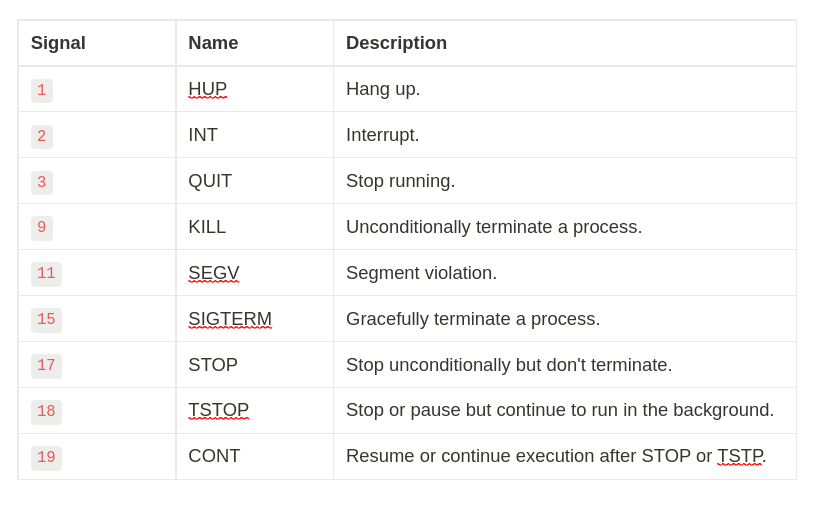
𝗸𝗶𝗹𝗹 𝗰𝗼𝗺𝗺𝗮𝗻𝗱 𝗶𝗻 𝗟𝗶𝗻𝘂𝘅
Most shells, including Bash and zsh, include kill commands. The /bin/kill or /usr/bin/kill executable, as well as the shell's built-in kill, behave in slightly different ways.
Most shells, including Bash and zsh, include kill commands. The /bin/kill or /usr/bin/kill executable, as well as the shell's built-in kill, behave in slightly different ways.
To find out all the locations on your system hwere the kill command is located, use the type command and the -a option:
$ type -a kill
$ type -a kill
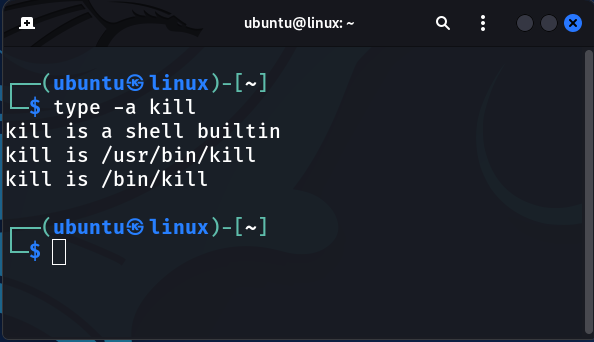
The output above shows that when you type kill on the command line, the shell builtin is used rather than the executable binaries. To use the executable binary, enter its full path (for example, /bin/kill or /usr/bin/kill).
In this thread , we will discuss the bash built-in command, so if you are using another shell, you must switch to bash to get similar results.
𝗸𝗶𝗹𝗹 𝗰𝗼𝗺𝗺𝗮𝗻𝗱 𝗶𝗻 𝘀𝘆𝗻𝘁𝗮𝘅
The kill command has the following syntax:
$ kill [options] <pid> [...]
The kill command has the following syntax:
$ kill [options] <pid> [...]
You can use the kill command to send signals to processes based on their process IDs (PIDs). By default, when the kill command is used without specifying the signal, all of the PIDs specified on the command line receive a SIGTERM signal.
The following are the most commonly used signals:
- 1 (SIGHUP) - Hangs up the process.
- 9 (SIGKILL) - Unconditionally terminates the process.
- 15 (SIGTERM) - Stop a running process gracefully.
- 1 (SIGHUP) - Hangs up the process.
- 9 (SIGKILL) - Unconditionally terminates the process.
- 15 (SIGTERM) - Stop a running process gracefully.
Use the kill command with the -l option to see a list of all the available signals that can be sent with the kill command:
$ kill -l
$ kill -l
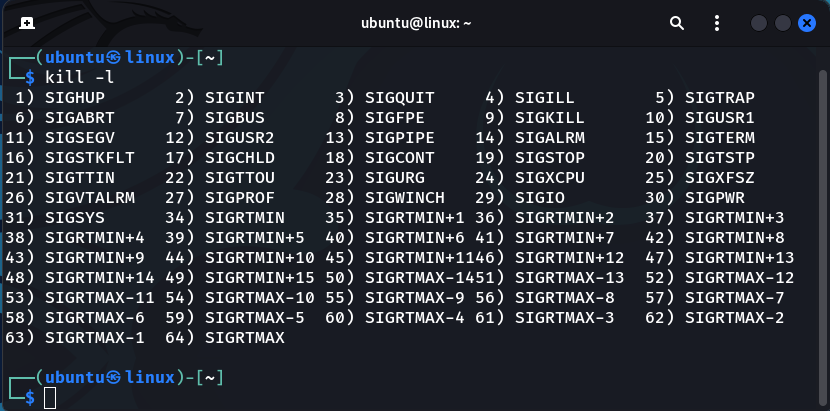
You must be the process owner or logged in as the root user to send a process signal. Ordinary users can only send signals to their own processes. To send signals to the process of other users you must be a root user.
You can use the -s option to specify which process signals to send by using their name or signal number. There are several ways to specify signals, as shown below:
- Using the equivalent signal number (-1 or -s 1).
-Prefixing the signal name with “SIG”(-SIGHUP or -s SIGHUP).
- Using the equivalent signal number (-1 or -s 1).
-Prefixing the signal name with “SIG”(-SIGHUP or -s SIGHUP).
- Omitting the “SIG” prefix (-HUP or -s HUP).
So go ahead and select the option that works best for you.
So go ahead and select the option that works best for you.
𝗛𝗼𝘄 𝘁𝗼 𝗳𝗶𝗻𝗱 𝗟𝗶𝗻𝘂𝘅 𝗽𝗿𝗼𝗰𝗲𝘀𝘀𝗲𝘀 𝗶𝗻𝗳𝗼𝗿𝗺𝗮𝘁𝗶𝗼𝗻
When a program runs on the system, it is referred to as a process. To get a glimpse of these processes, you must first become acquainted with ps command.
When a program runs on the system, it is referred to as a process. To get a glimpse of these processes, you must first become acquainted with ps command.
This command can display a large amount of information about all of the programs currently running on your system.
Here is an example of ps basic syntax:
$ ps
Here is an example of ps basic syntax:
$ ps
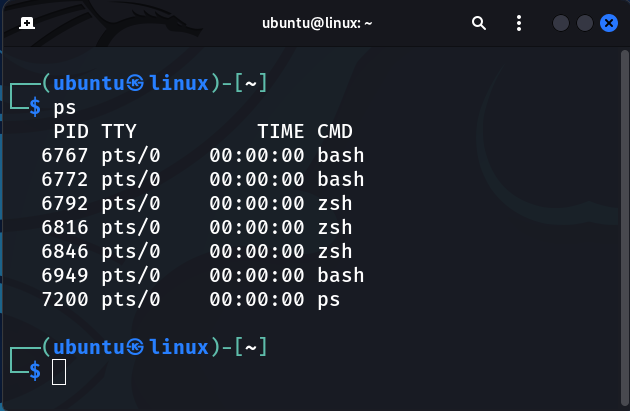
As you can see, the default ps doesn't provide a lot of information. The cmd, by default, only displays processes that are currently running on the current terminal and are owned by the current user. In this case, only the bash shell, the zsh shell, and the ps cmd were running.
The basic output shows the process ID (PID) of the application, the terminal (TTY) from which it is being executed, and the amount of CPU time each process has consumed. To view more information about the programs, combine the ps with several options.
If you want to learn more about the various options available with ps, simply type 'man ps' into your terminal.
$ man ps
$ man ps
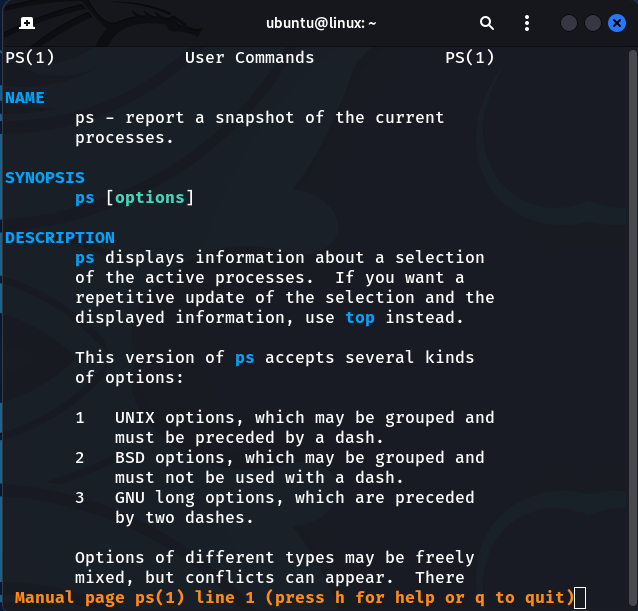
Despite being excellent for learning about the processes that are active on the system, ps has one drawback. This command displays only information for a specific time period.
The ps command makes identifying patterns in processes that switch in and out of memory difficult. Instead, the top command is useful.
The top command, like the ps command, displays process information in real time. Here's an example of a top showing real-time processes.
The top command, like the ps command, displays process information in real time. Here's an example of a top showing real-time processes.
𝗸𝗶𝗹𝗹 𝗰𝗼𝗺𝗺𝗮𝗻𝗱 𝗼𝗽𝘁𝗶𝗼𝗻𝘀
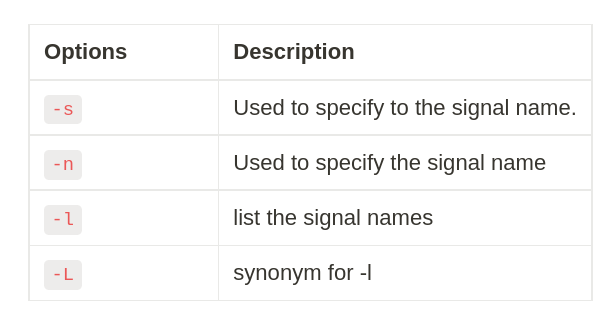
Here is a list of the most common kill command otpions you should be aware of:
Here is a list of the most common kill command otpions you should be aware of:
𝗛𝗼𝘄 𝘁𝗼 𝗸𝗶𝗹𝗹 𝗽𝗿𝗼𝗰𝗲𝘀𝘀𝗲𝘀 𝗶𝗻 𝗟𝗶𝗻𝘂𝘅
To terminate a process with the kill command, you must first obtain its process ID (PID). To accomplish this, various commands such as ps, pgrep, top (or other top variants such as htop, btop++, etc.), and pidof can be used
To terminate a process with the kill command, you must first obtain its process ID (PID). To accomplish this, various commands such as ps, pgrep, top (or other top variants such as htop, btop++, etc.), and pidof can be used
Now that you understand signals and how to locate processes on your system, let's use the kill command to terminate a process.
𝗞𝗶𝗹𝗹 𝗮 𝗽𝗿𝗼𝗰𝗲𝘀𝘀 𝘂𝘀𝗶𝗻𝗴 𝗽𝗿𝗼𝗰𝗲𝘀𝘀𝗲𝘀 𝗜𝗗
Assume you need to terminate zsh process because it is no longer responding. Its PIDs can be found using the pgrep command. The pgrep command is used to determine the process id of a particular process
$ pgrep zsh
Assume you need to terminate zsh process because it is no longer responding. Its PIDs can be found using the pgrep command. The pgrep command is used to determine the process id of a particular process
$ pgrep zsh
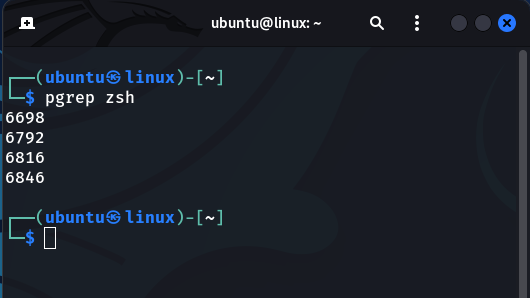
Notice the above command prints the process IDs of all the zsh processes:
You can now then kill all processes once you know their PIDs by sending a KILL signal (SIGKILL or -9) :
$ kill -9 6698 6792 6816 6846
You can now then kill all processes once you know their PIDs by sending a KILL signal (SIGKILL or -9) :
$ kill -9 6698 6792 6816 6846
Here the kill command sends the kill signals to all the processes that belong to the vscode program.
𝗞𝗶𝗹𝗹 𝗮 𝗽𝗿𝗼𝗰𝗲𝘀𝘀 𝘂𝘀𝗶𝗻𝗴 𝘁𝗵𝗲 𝗽𝗿𝗼𝗰𝗲𝘀𝘀 𝗻𝗮𝗺𝗲
The kill command has a significant disadvantage in that you cannot kill processes by name. The pkill command is an excellent tool for terminating processes by name rather than PID number.
The kill command has a significant disadvantage in that you cannot kill processes by name. The pkill command is an excellent tool for terminating processes by name rather than PID number.
However, there is a workaround for the kill command by combining the above command with the kill command.
$ kill -9 $(pgrep firefox)
$ kill -9 $(pgrep firefox)
You can also achieve the same thing with pidoff as shown:
$ kill -9 $(pidof firefox)
This way the kill command will send the specified signal to all vscode processes.
$ kill -9 $(pidof firefox)
This way the kill command will send the specified signal to all vscode processes.
𝗦𝘂𝗺𝗺𝗶𝗻𝗴 𝘂𝗽!
In this tutorial, we learned about the kill command in Linux and how to use it. For more information visit the kill man page or simply type "man kill" from the terminal.
In this tutorial, we learned about the kill command in Linux and how to use it. For more information visit the kill man page or simply type "man kill" from the terminal.
That's it for this thread:
If you found this thread valuable:
1. Toss us a follow for more daily threads on Linux, sysadmin, and DevOps → @linuxopsys
2. Like and RT the first tweet so other Linux folks can find it too.
If you found this thread valuable:
1. Toss us a follow for more daily threads on Linux, sysadmin, and DevOps → @linuxopsys
2. Like and RT the first tweet so other Linux folks can find it too.
• • •
Missing some Tweet in this thread? You can try to
force a refresh






