
Shardeum airdrop could be the next Arbitrum🪂
Run a node and watch the rewards roll in. Don't miss out on this opportunity to turn $20 into $10K💰
Follow this quick guide to set up your node now 👇🧵
Run a node and watch the rewards roll in. Don't miss out on this opportunity to turn $20 into $10K💰
Follow this quick guide to set up your node now 👇🧵

2/ @shardeum is a L1 blockchain that operates on the Proof-of-Stake and Proof-of-Quorum consensus mechanism.
It offers low gas fees and reliable security through dynamic state segmentation while remaining fully decentralized.
It offers low gas fees and reliable security through dynamic state segmentation while remaining fully decentralized.
3/ Why you should run a Shardeum node:
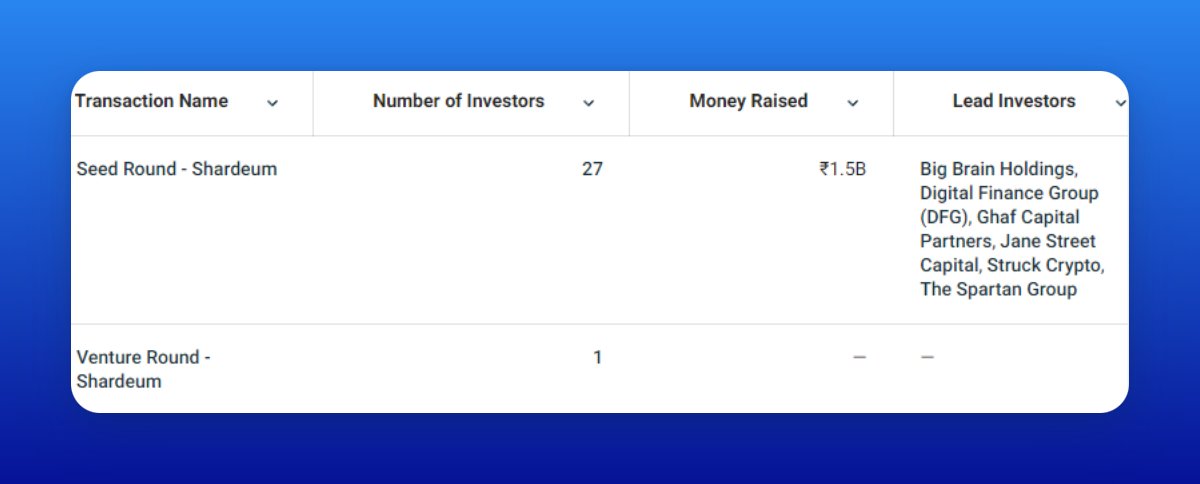
• $18M was raised in a Seed Round led by @TheSpartanGroup
• 51% of tokens will be airdropped to the community for running nodes
The potential rewards are huge, and here's a quick guide on how to run a node 👇
• $18M was raised in a Seed Round led by @TheSpartanGroup
• 51% of tokens will be airdropped to the community for running nodes
The potential rewards are huge, and here's a quick guide on how to run a node 👇

4/ Get a VPS server
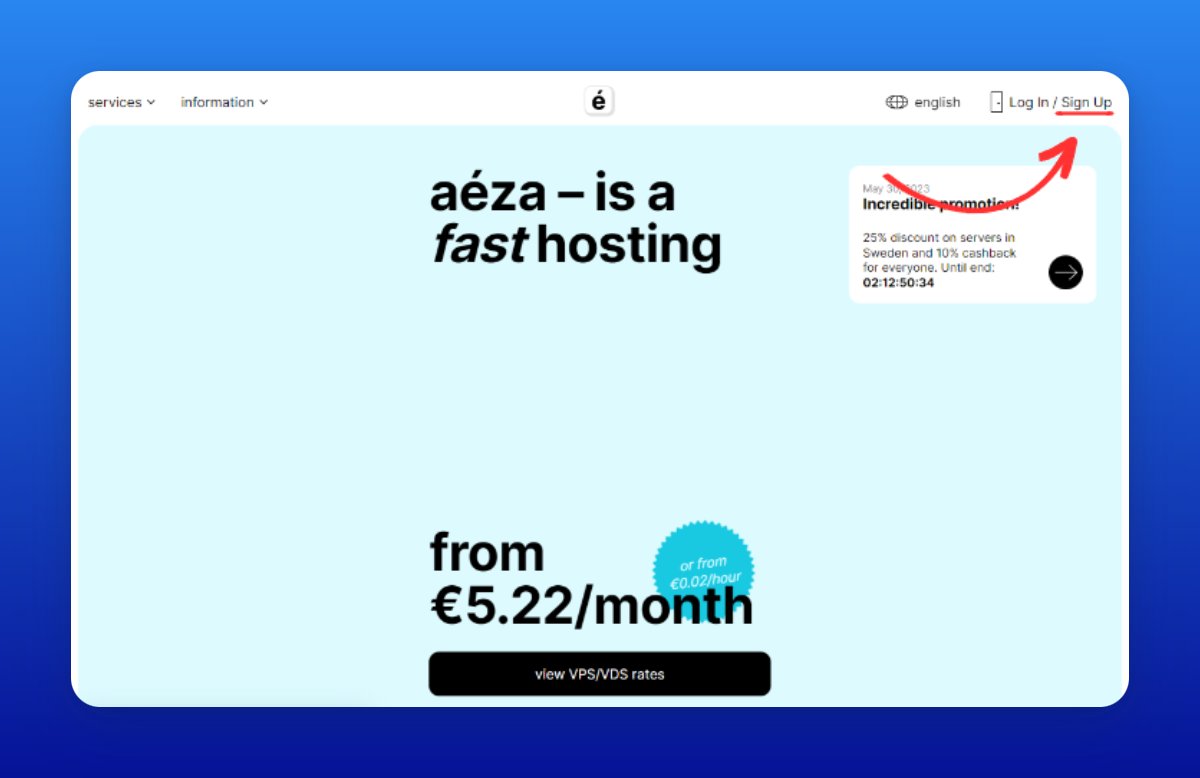
• Go to aeza.net/en?ref=392919
• Click “Sign Up”
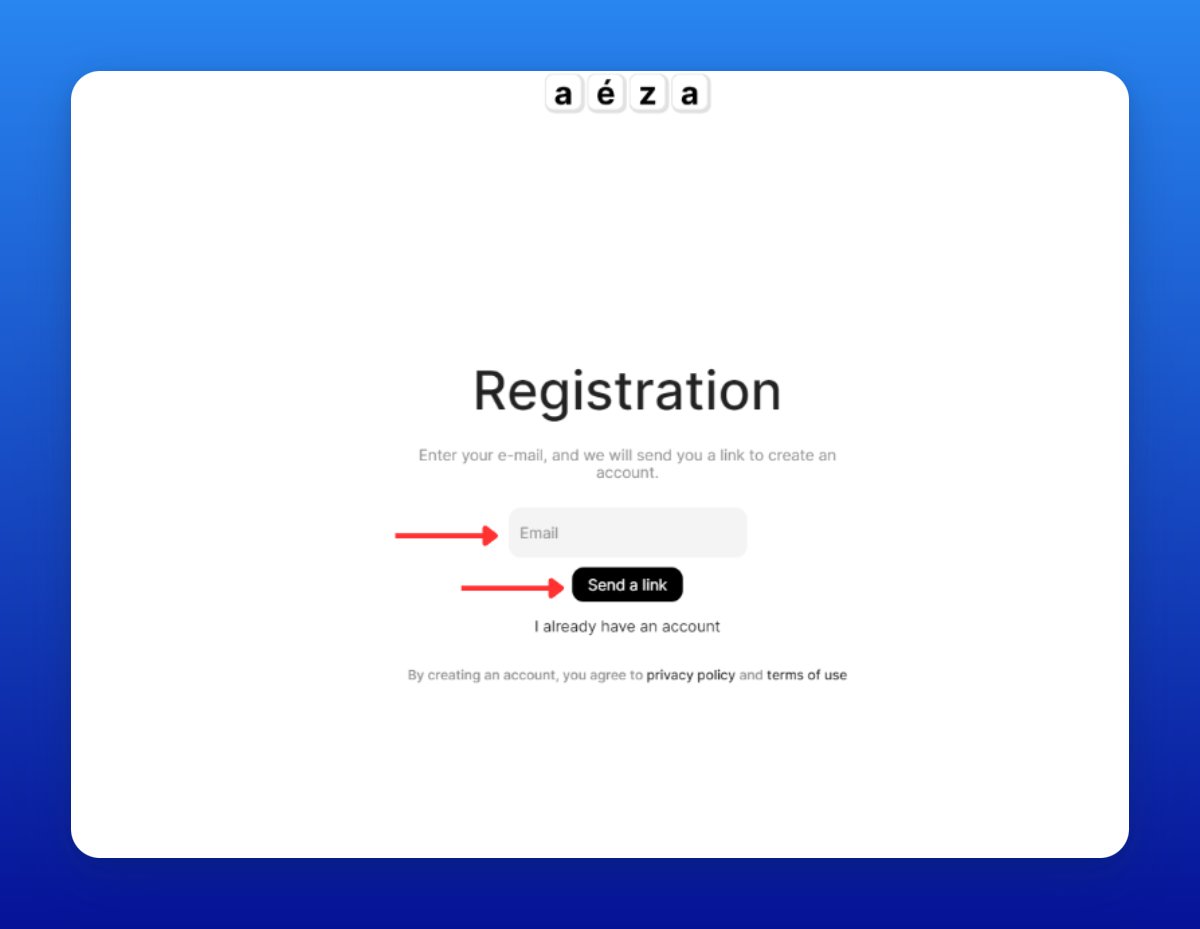
• Enter your email and click “Send link”
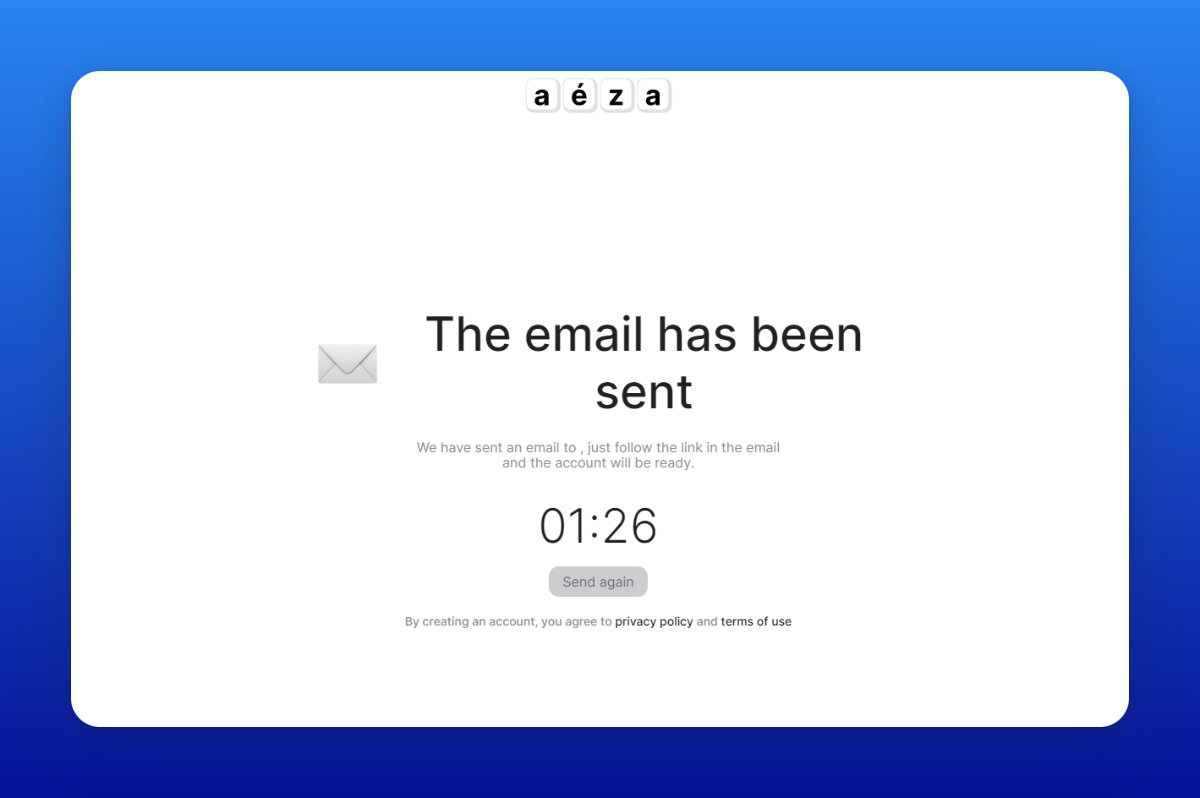
• Check your email inbox and confirm your registration
• Go to aeza.net/en?ref=392919
• Click “Sign Up”
• Enter your email and click “Send link”
• Check your email inbox and confirm your registration

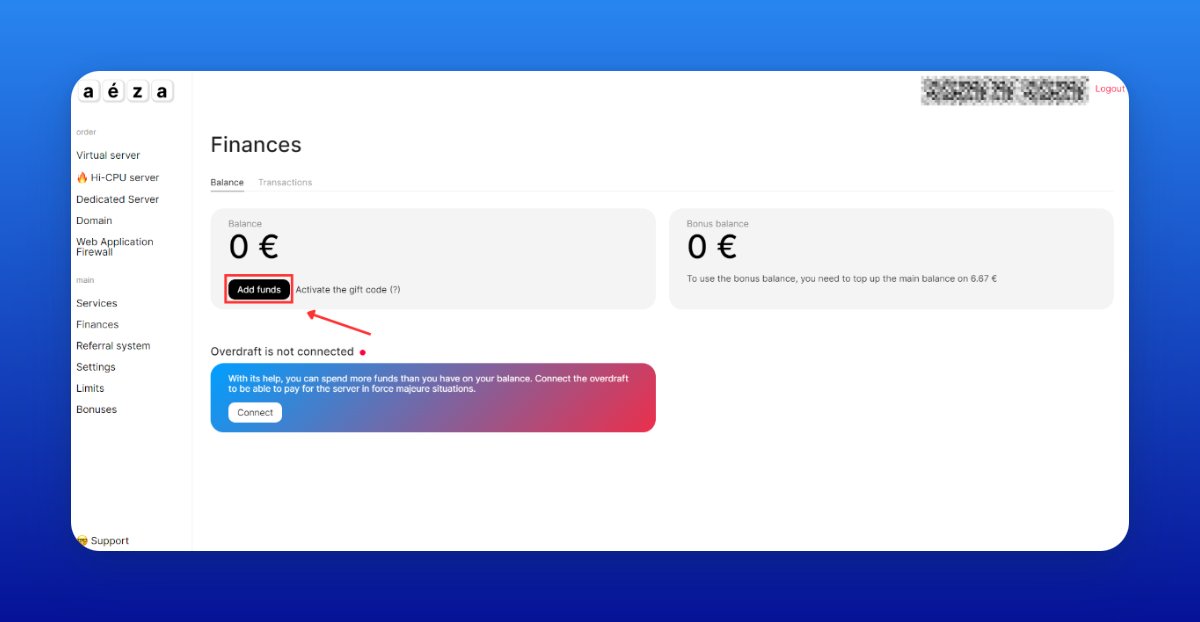
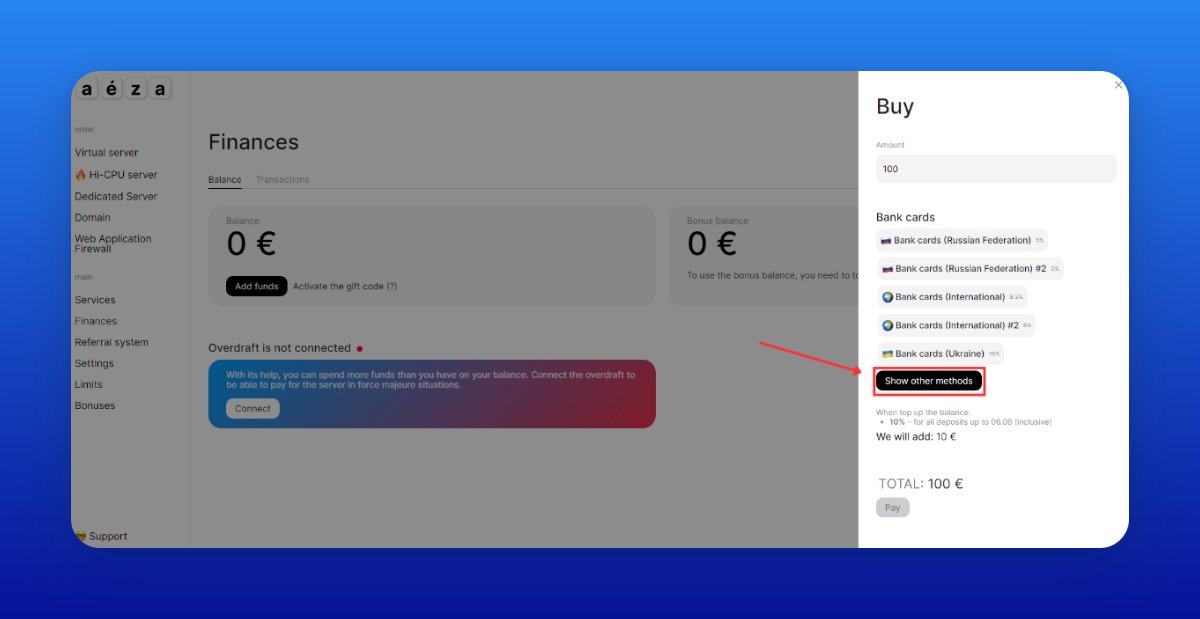
5/ Top-up your balance
• Go to my.aeza.net/payment/balance
• Click “Add funds”
• Then click “Show other methods”
You can make a deposit using crypto.
• Go to my.aeza.net/payment/balance
• Click “Add funds”
• Then click “Show other methods”
You can make a deposit using crypto.

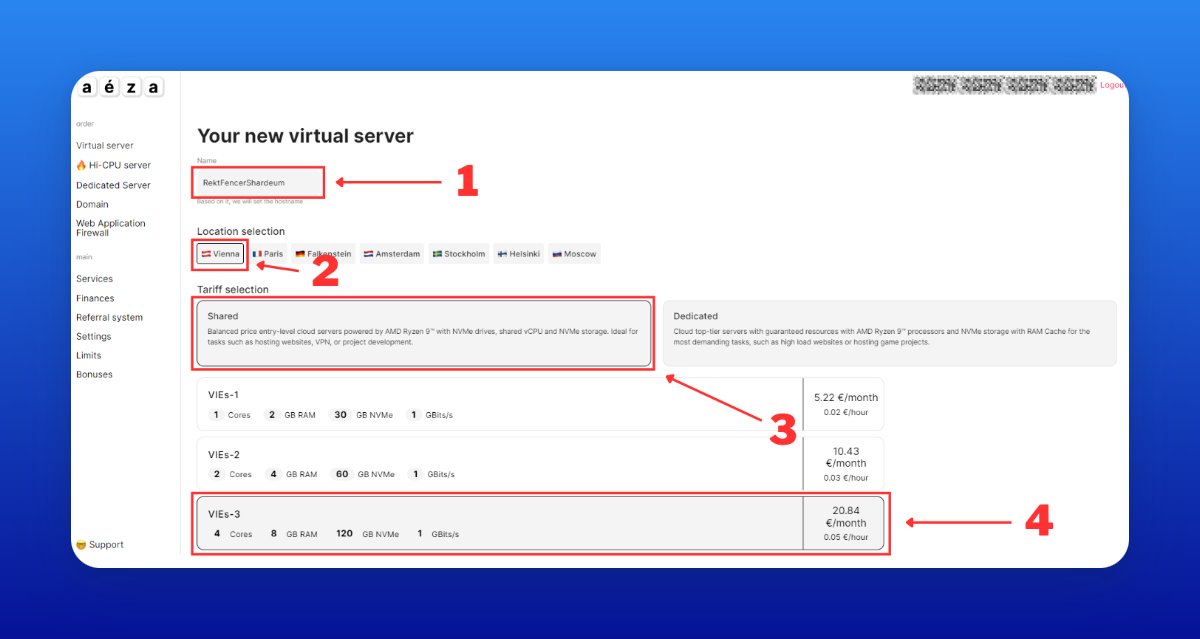
6/ Order a VPS server
• Type the server name
• Choose the Vienna location (the cheapest option)
• Select Shared tariff
• Choose VIEs-3
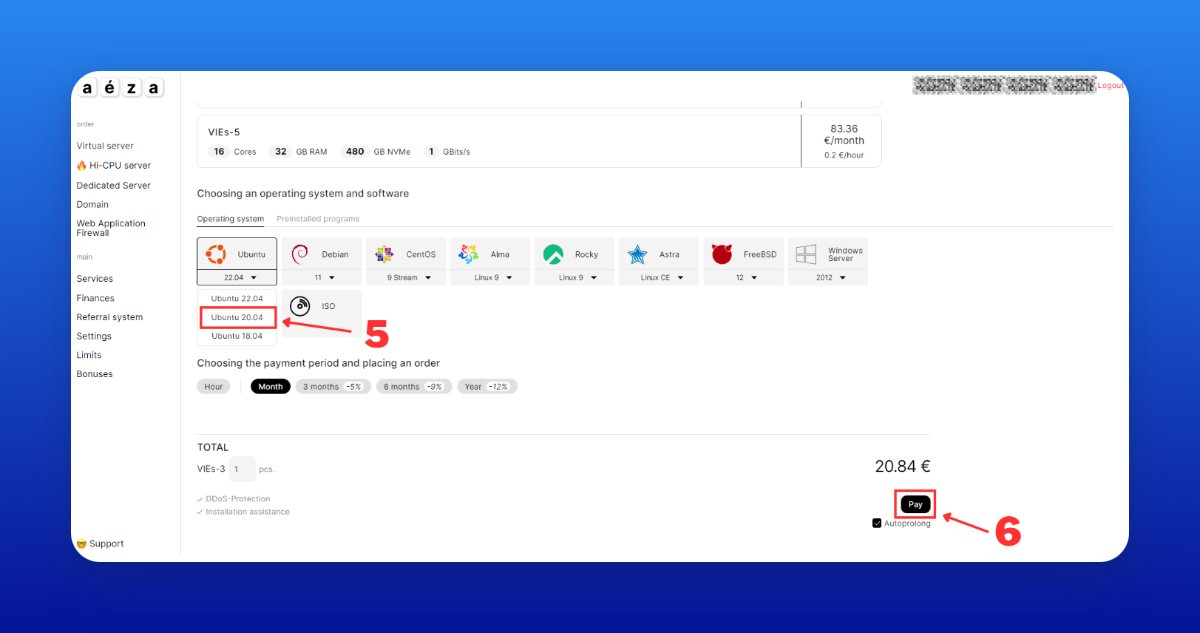
• Select Ubuntu 20.04
• Click “Pay”
Activating the server may take some time, so wait for it to complete.
• Type the server name
• Choose the Vienna location (the cheapest option)
• Select Shared tariff
• Choose VIEs-3
• Select Ubuntu 20.04
• Click “Pay”
Activating the server may take some time, so wait for it to complete.

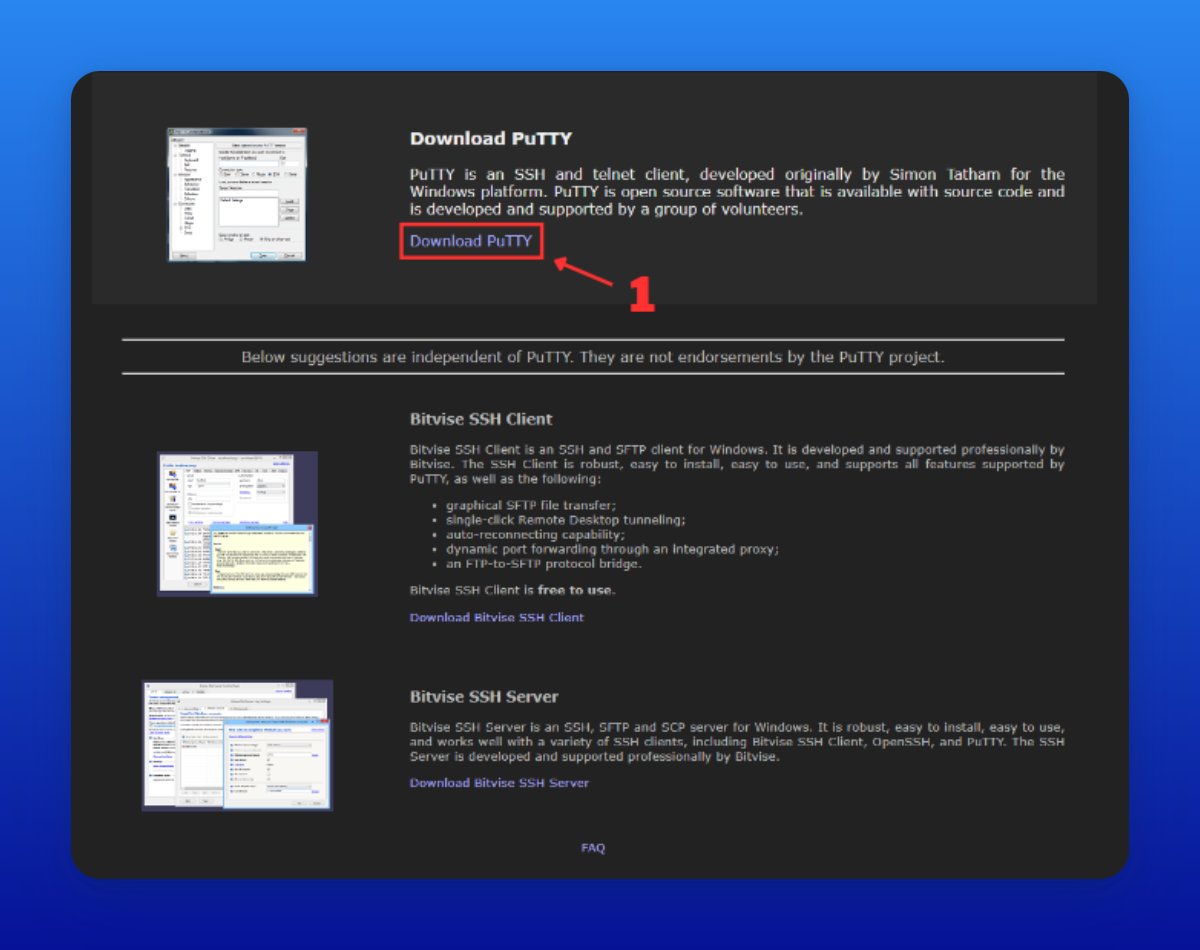
7/ Download PuTTY
• Go to putty.org
• Click “Download PuTTY”
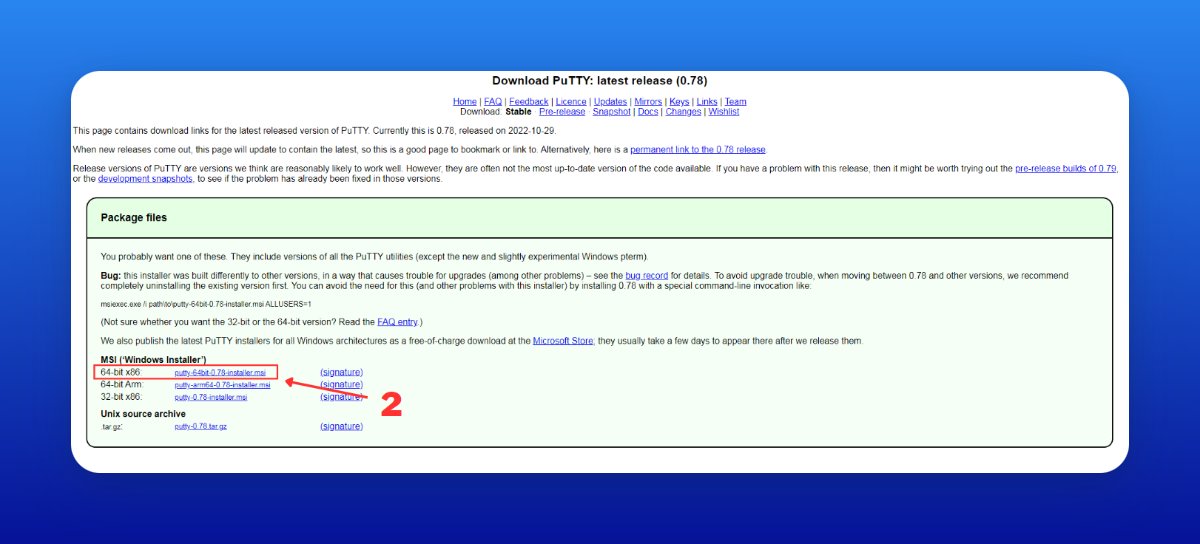
• Select the latest version
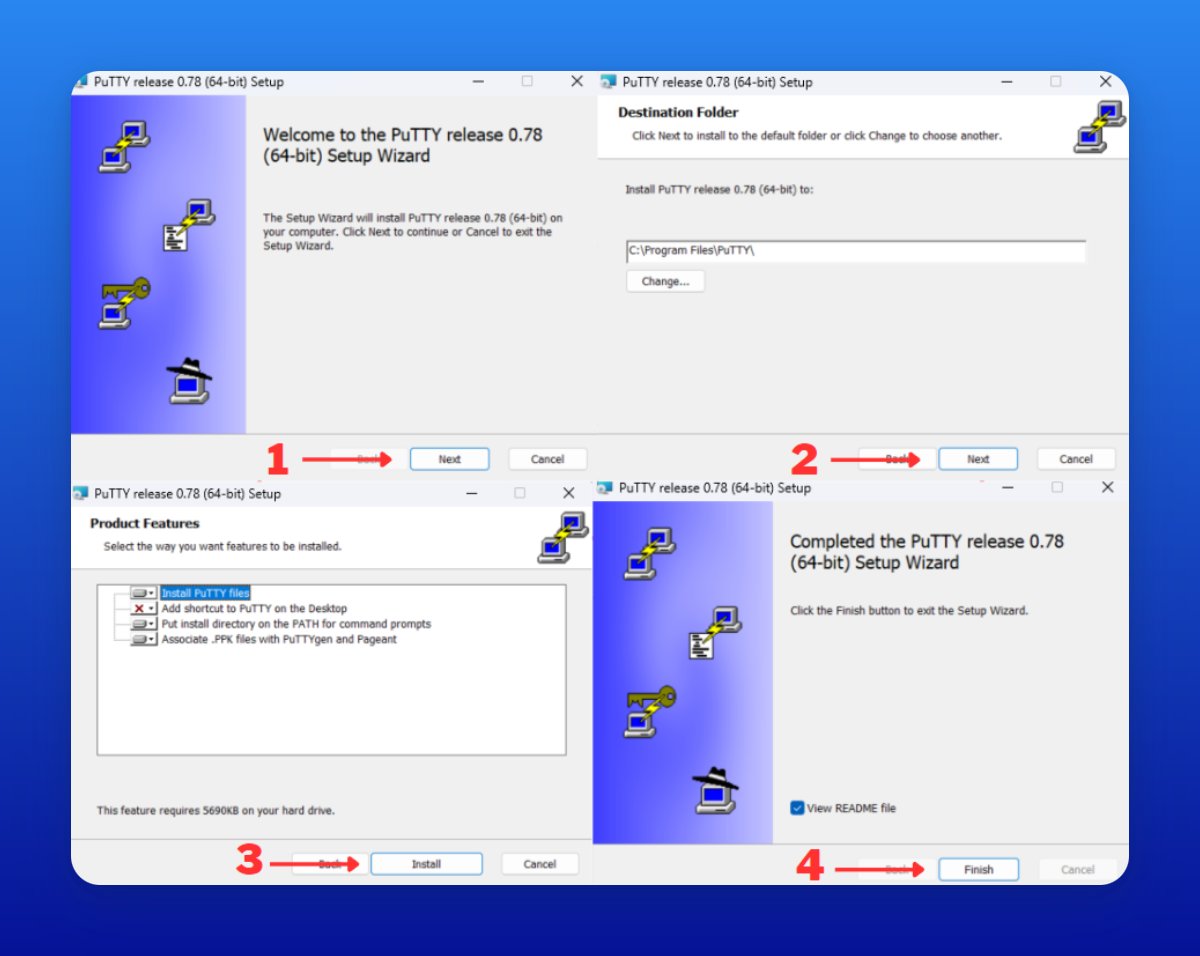
• Follow the installation process
• Go to putty.org
• Click “Download PuTTY”
• Select the latest version
• Follow the installation process
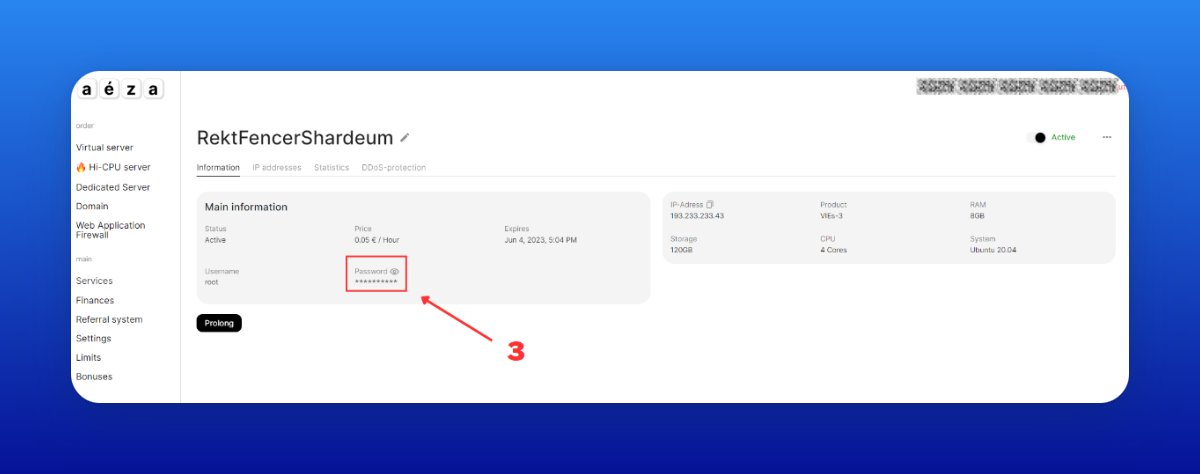
8/ How to find the IP address and password for your server
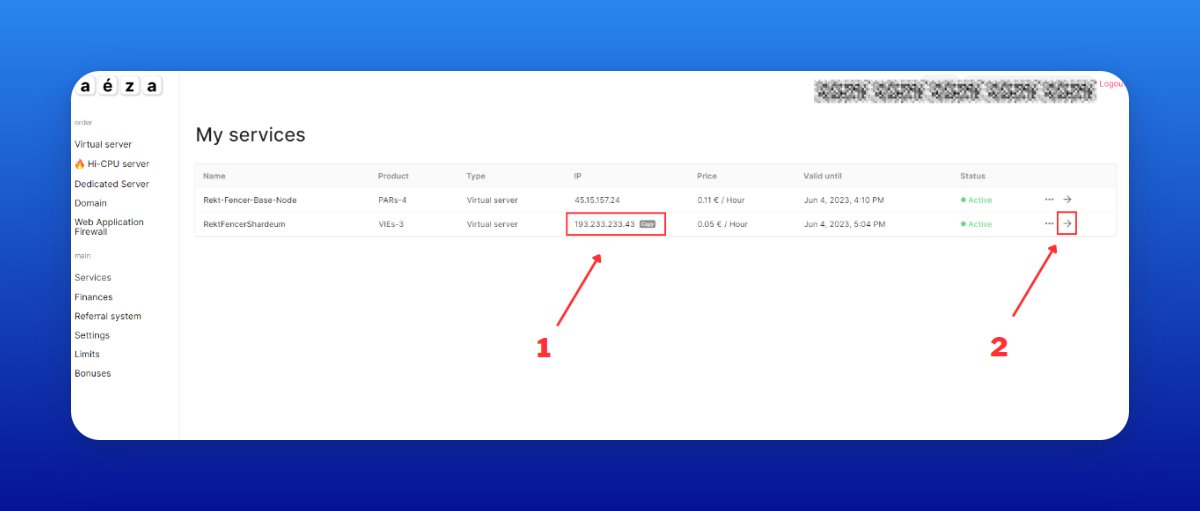
• Go to my.aeza.net/services
• Copy the IP address of your server
• Click on the arrow to expand the server information
• Copy the password of your server
• Go to my.aeza.net/services
• Copy the IP address of your server
• Click on the arrow to expand the server information
• Copy the password of your server
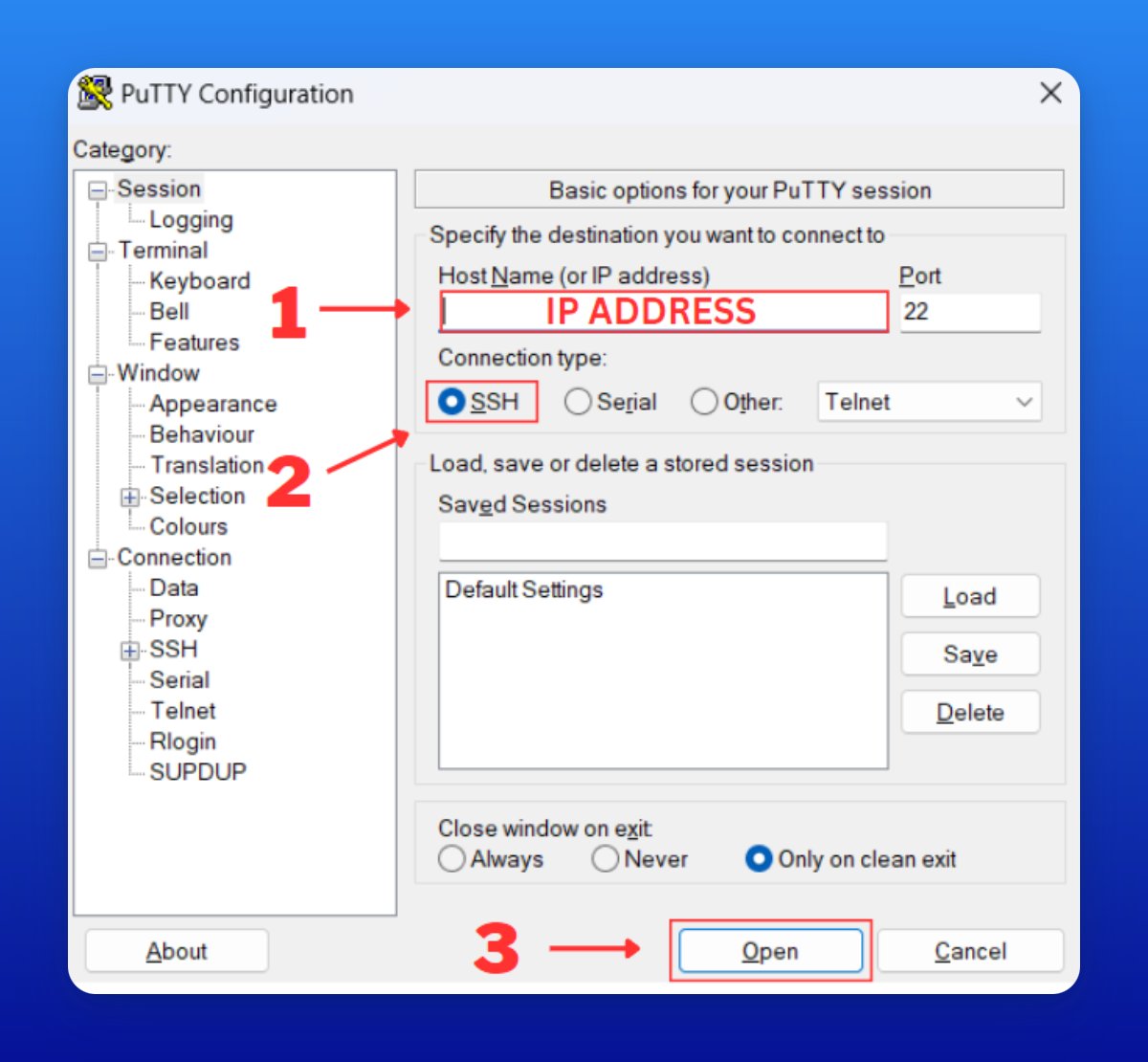
9/ Connect to your server
• Open PuTTY and paste the IP address into the "Host Name" field
• Click "Open" and accept an Alert
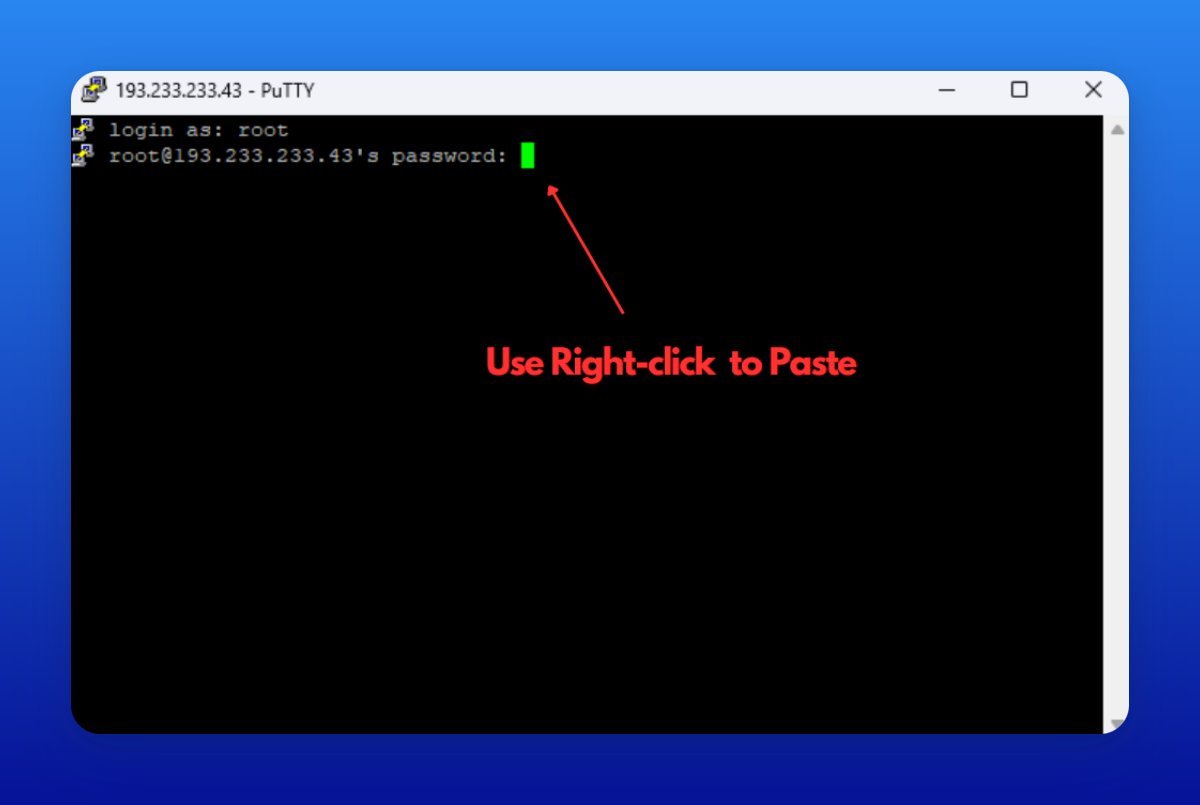
• Type 'root' and hit Enter
• Paste your password and hit Enter
• Open PuTTY and paste the IP address into the "Host Name" field
• Click "Open" and accept an Alert
• Type 'root' and hit Enter
• Paste your password and hit Enter


10/ To use the commands, copy and paste them one at a time.
Wait for each command to finish before moving on to the next one ❗
• sudo apt-get install curl
• sudo apt update
Wait for each command to finish before moving on to the next one ❗
• sudo apt-get install curl
• sudo apt update
11/ Install Docker
• sudo apt install docker.io
• Type “y” when prompted
• sudo curl -L "github.com/docker/compose…$(uname -s)-$(uname -m)" -o /usr/local/bin/docker-compose
• sudo chmod +x /usr/local/bin/docker-compose
• sudo apt install docker.io
• Type “y” when prompted
• sudo curl -L "github.com/docker/compose…$(uname -s)-$(uname -m)" -o /usr/local/bin/docker-compose
• sudo chmod +x /usr/local/bin/docker-compose
12/ Install the validator
• Then paste the command from the screenshot (Twitter blocks it)
> By running this installer, you agree to allow the Shardeum team to collect this data: Y
> Do you want to run the web-based Dashboard: Y
• Then paste the command from the screenshot (Twitter blocks it)
> By running this installer, you agree to allow the Shardeum team to collect this data: Y
> Do you want to run the web-based Dashboard: Y

13/ Set the password and press Enter.
> Enter the port (1025-65536) to access the web-based Dashboard (default 8080): Enter
>This allows p2p communication between nodes. Enter the first port (1025-65536) for p2p communication (default 9001): Enter
> Enter the port (1025-65536) to access the web-based Dashboard (default 8080): Enter
>This allows p2p communication between nodes. Enter the first port (1025-65536) for p2p communication (default 9001): Enter
14/ >Enter the second port (1025-65536) for p2p communication (default 10001): Enter
>What base directory should the node use (defaults to ~/.shardeum): Enter
Then wait for a couple of minutes until the node finishes installing (It may take up to 20 mins).
>What base directory should the node use (defaults to ~/.shardeum): Enter
Then wait for a couple of minutes until the node finishes installing (It may take up to 20 mins).
15/ Open CLI validator
• cd .shardeum
• ./shell.sh
• operator-cli gui start
• cd .shardeum
• ./shell.sh
• operator-cli gui start
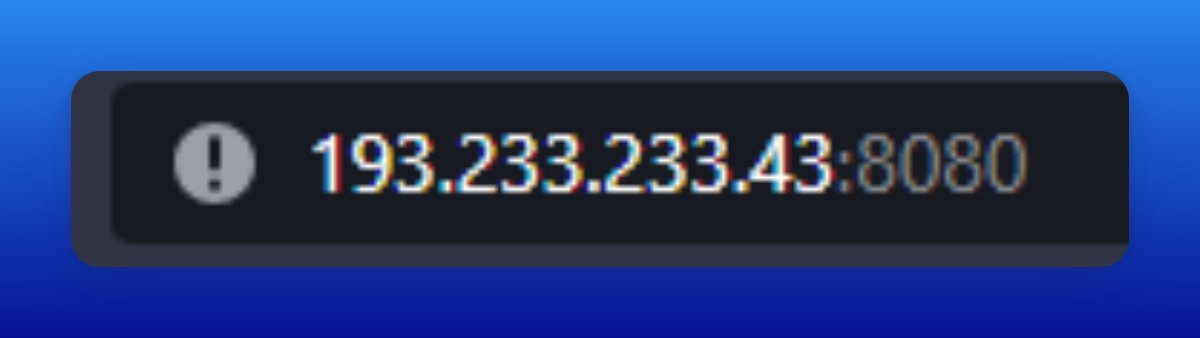
16/ Open the Dashboard
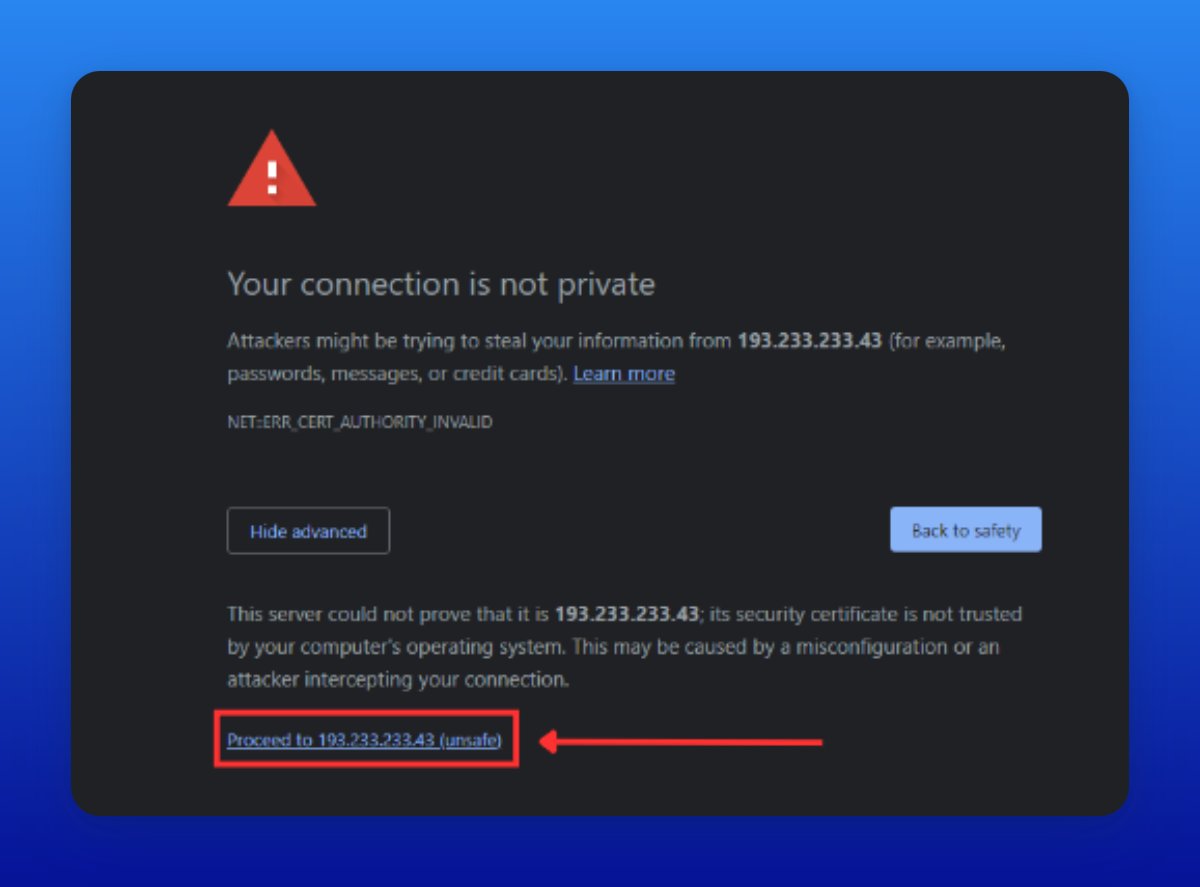
• Go to https://your_ip:8080/
• Click “Advanced”
• Then click “Proceed”
• Go to https://your_ip:8080/
• Click “Advanced”
• Then click “Proceed”

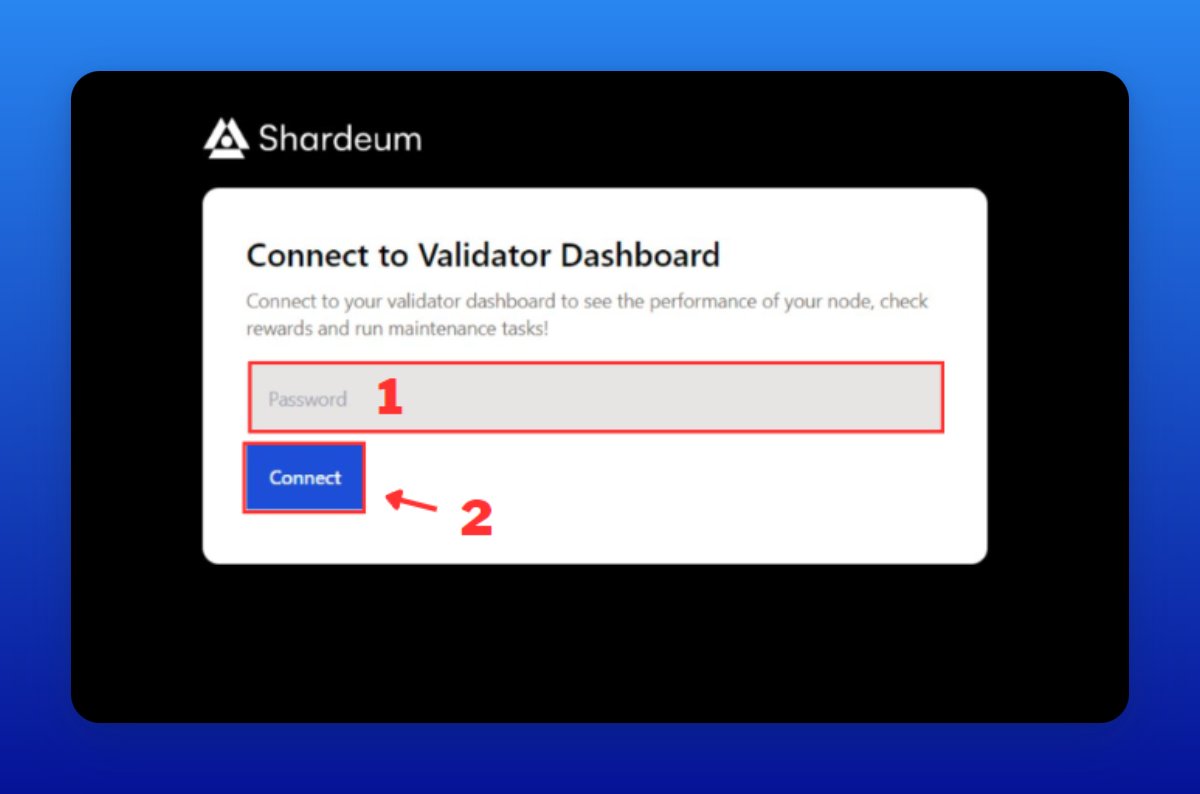
17/ Log in to the Dashboard
• Enter your password and click "Connect"
• Next, click on "Maintenance"
• Enter your password and click "Connect"
• Next, click on "Maintenance"
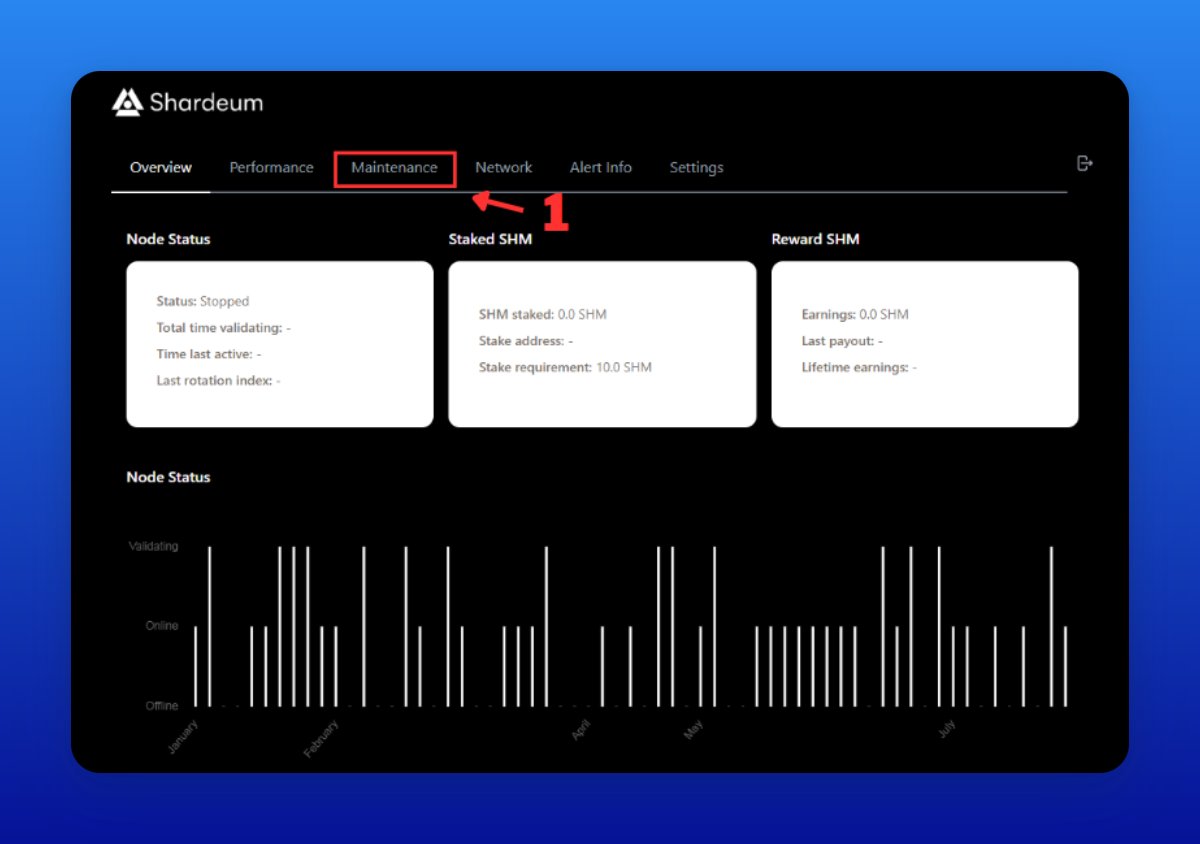
18/ Start Node & Stake $SHM
• Click “Start Node”
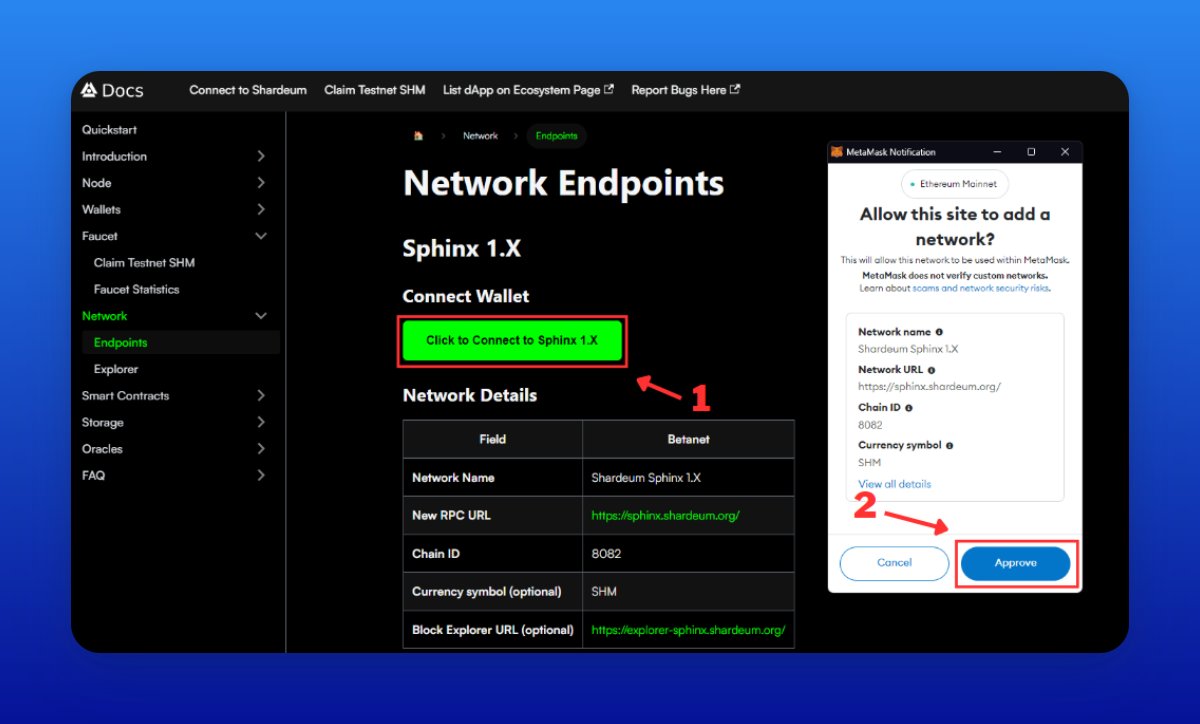
• Go to docs.shardeum.org/network/endpoi…
• Click "Connect to Sphinx 1.X"
• Approve the network in MetaMask
• Click “Start Node”
• Go to docs.shardeum.org/network/endpoi…
• Click "Connect to Sphinx 1.X"
• Approve the network in MetaMask

19/ Get test tokens
• Go to Discord - discord.gg/shardeum
• Go to faucet sphinx faucet 1.3 channel
• Write there /faucet (your address)
• Go to Discord - discord.gg/shardeum
• Go to faucet sphinx faucet 1.3 channel
• Write there /faucet (your address)

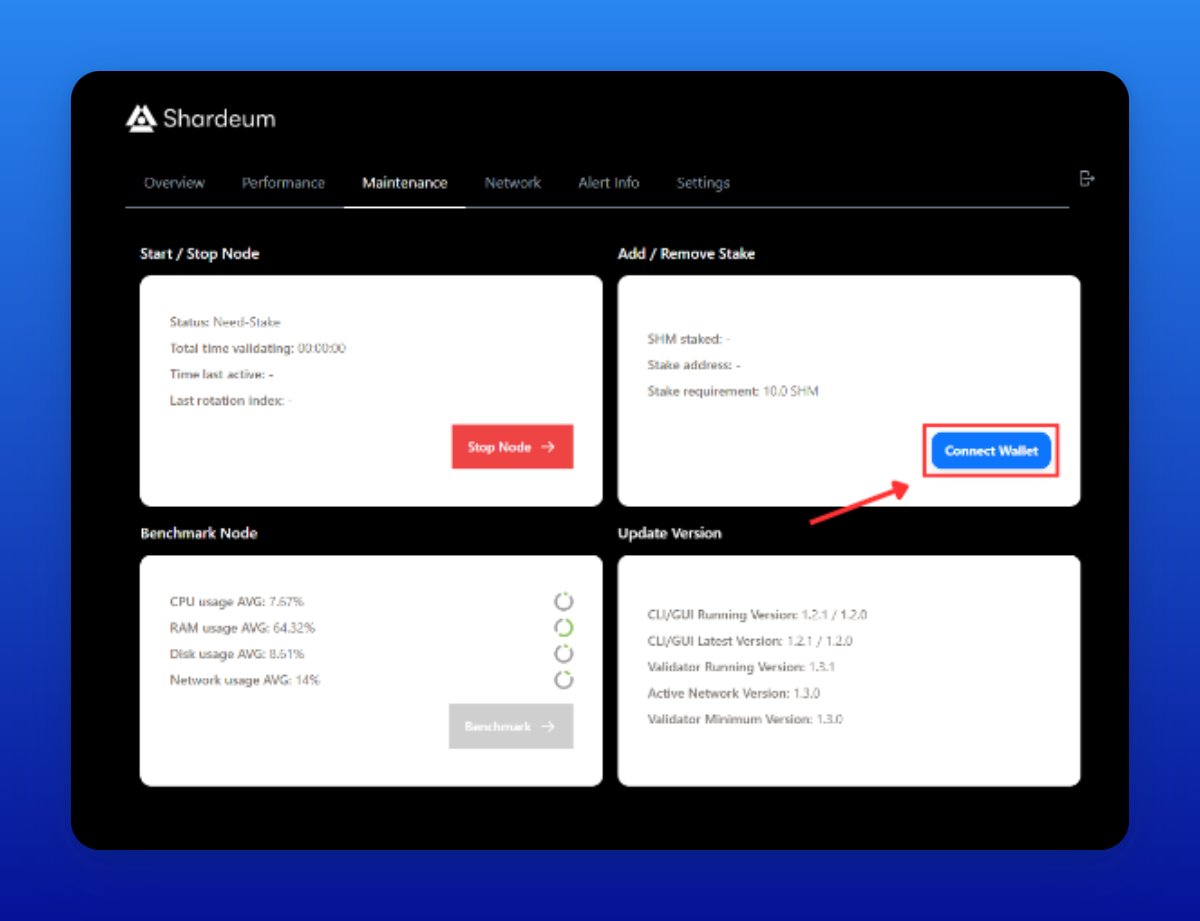
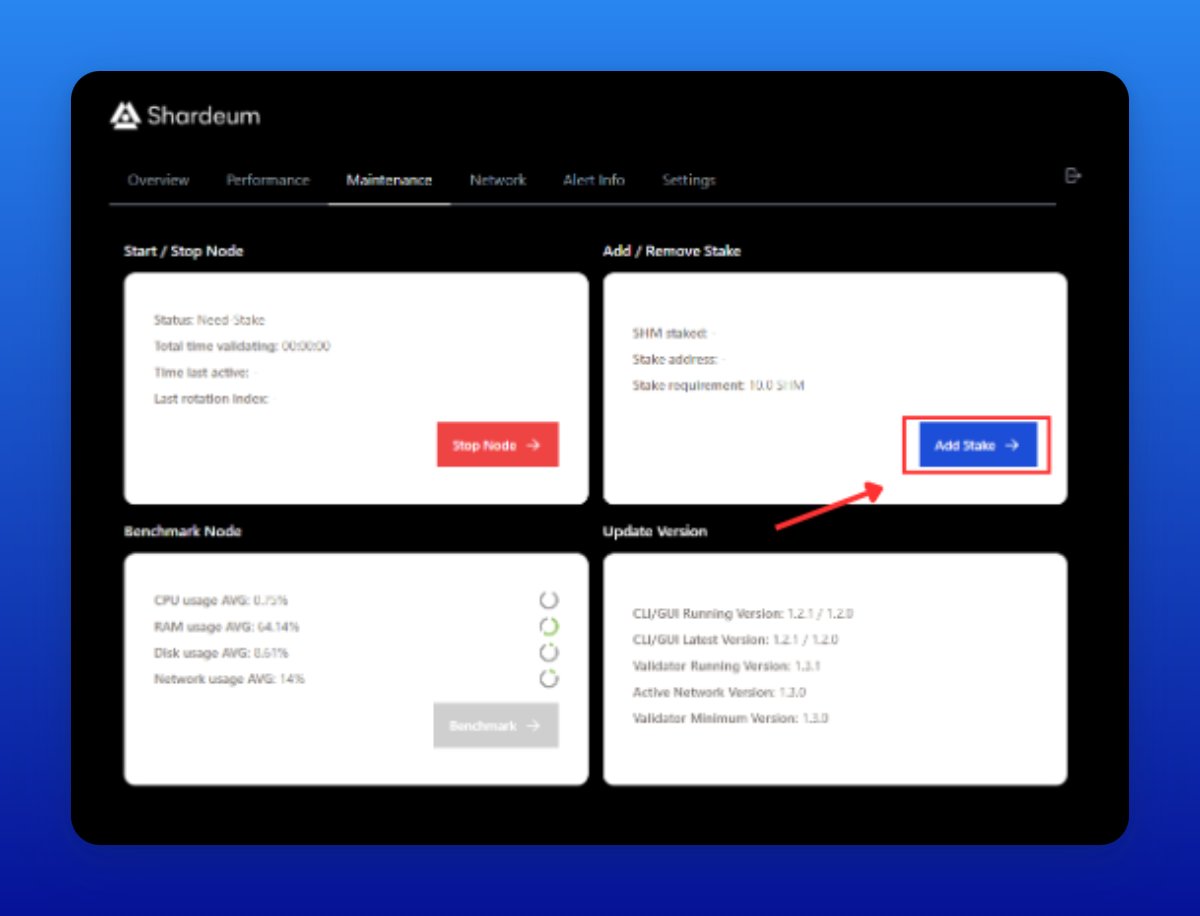
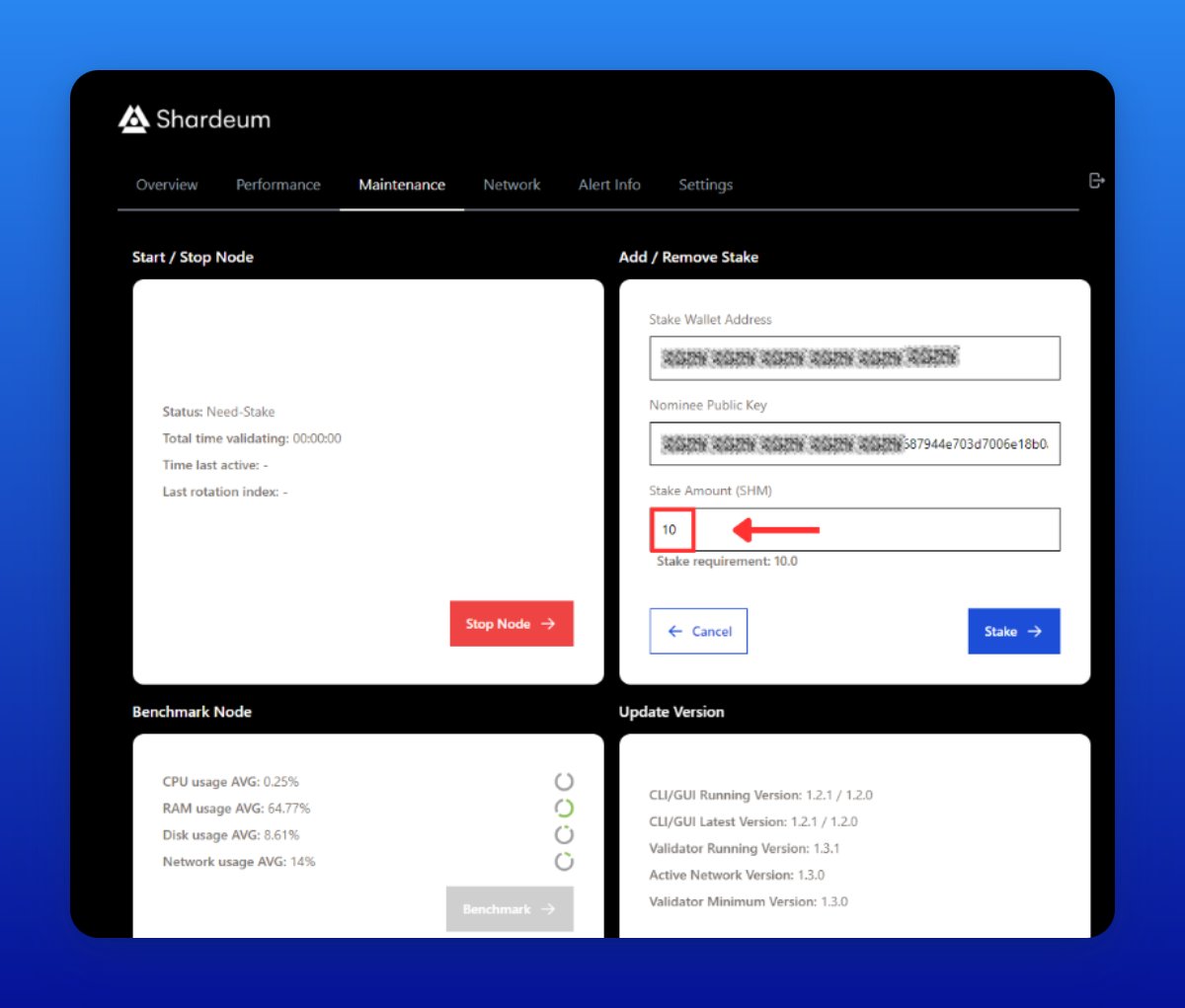
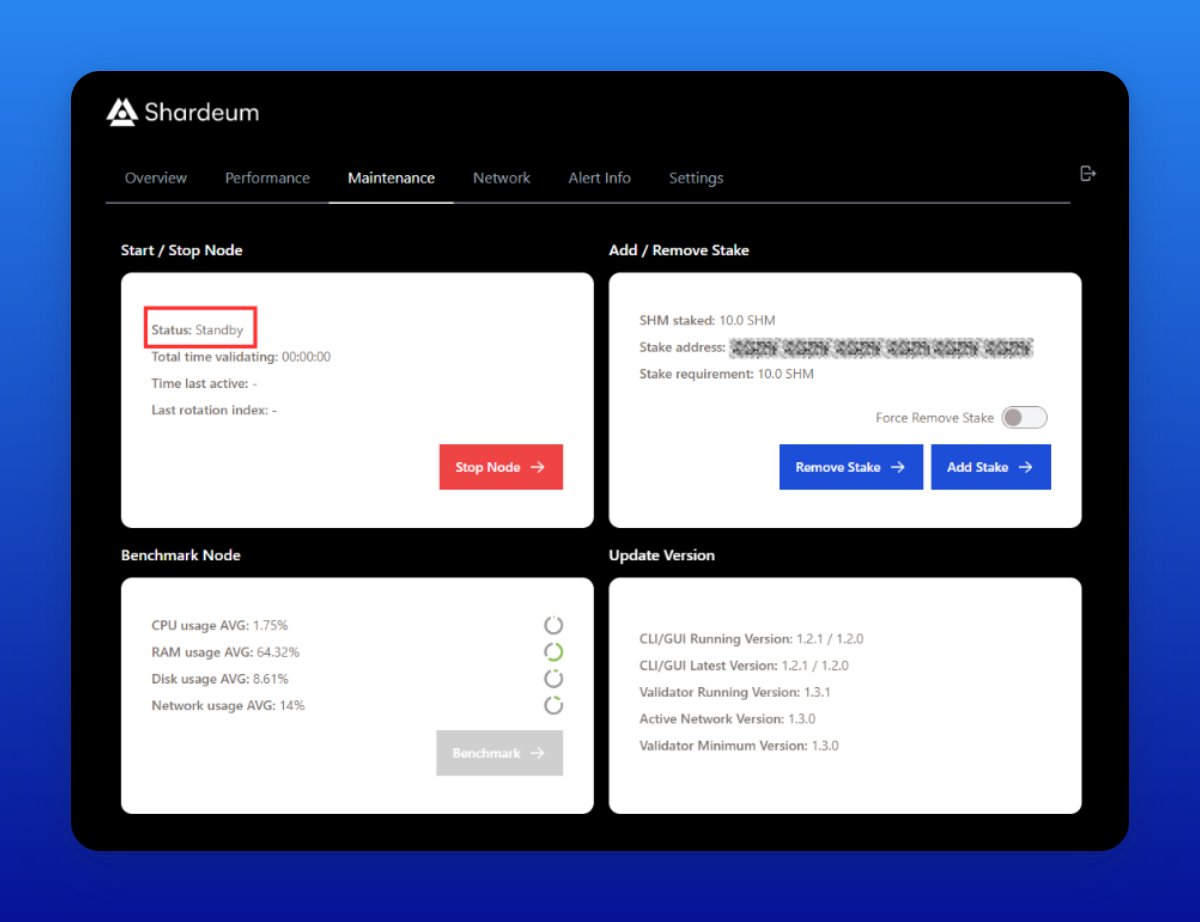
20/ Stake $SHM in the Dashboard
• Connect your wallet
• Click “Add Stake”
• Stake 10 tokens (minimum)
If you see a "Standby" status, it means everything is all good.
• Connect your wallet
• Click “Add Stake”
• Stake 10 tokens (minimum)
If you see a "Standby" status, it means everything is all good.
21/ Node Updates
• Go to https://your_ip:8080/maintenance & click Stop Node
• Remove Stake
• Run the command from the screenshot in PuTTY
• Repeat steps 18-20
• Go to https://your_ip:8080/maintenance & click Stop Node
• Remove Stake
• Run the command from the screenshot in PuTTY
• Repeat steps 18-20

I hope you've found this thread helpful.
Follow me @rektfencer for more.
Like/Comment/Retweet the first tweet below if you can.
Follow me @rektfencer for more.
Like/Comment/Retweet the first tweet below if you can.
https://twitter.com/rektfencer/status/1665657586207817729?s=20
• • •
Missing some Tweet in this thread? You can try to
force a refresh






