Gmail has 1.8 Billion users.
But 97% can't use it effectively.
Here're 10 Gmail hacks that you must know:
But 97% can't use it effectively.
Here're 10 Gmail hacks that you must know:

1. Regret sending that email? Undo it in 30 seconds.
Here's how:
1. Click the setting icon (top right).
2. Go to Settings > General.
3. Toggle on 'undo send'.
4. Choose 30 seconds.
No more email mishaps!
Here's how:
1. Click the setting icon (top right).
2. Go to Settings > General.
3. Toggle on 'undo send'.
4. Choose 30 seconds.
No more email mishaps!
2. Get rid of Promotional emails.
- Type "unsubscribe" in the Gmail search bar.
- Now select all emails with the unsubscribe tag.
- Now simply tap on delete btn to delete all.
- Type "unsubscribe" in the Gmail search bar.
- Now select all emails with the unsubscribe tag.
- Now simply tap on delete btn to delete all.
3. Send a confidential email.
You can make your email confidential by disabling the copying, printing, and forwarding functions.
To activate them, click on the padlock symbol when sending a new email.
You can make your email confidential by disabling the copying, printing, and forwarding functions.
To activate them, click on the padlock symbol when sending a new email.
Stay ahead of the curve with the latest updates from around the AI WORLD!
Subscribe to our newsletter for concise, timely insights delivered straight to your inbox.
INNOVATEX.BEEHIIV.COM
Subscribe to our newsletter for concise, timely insights delivered straight to your inbox.
INNOVATEX.BEEHIIV.COM
4. Check your Gmail offline.
Follow these simple steps to enable Gmail offline mode:
- Log in to your Gmail account.
- Click the gear icon or "Quick Settings".
- See all settings and click on them.
- Select "Offline".
Follow these simple steps to enable Gmail offline mode:
- Log in to your Gmail account.
- Click the gear icon or "Quick Settings".
- See all settings and click on them.
- Select "Offline".
5. Send your email later.
Look like you're working (when you're not)
Gmail offers scheduling:
- Click the down arrow next to ‘send’
- Choose ‘Schedule Send’
- Pick the date + time you want
Look like you're working (when you're not)
Gmail offers scheduling:
- Click the down arrow next to ‘send’
- Choose ‘Schedule Send’
- Pick the date + time you want
6. Snooze an email.
Have an email you don’t want to deal with immediately?
Set a reminder for later.
- Click on the clock icon on the right
- Choose how long you want to snooze the email
- It’ll appear back in your box on that date
Have an email you don’t want to deal with immediately?
Set a reminder for later.
- Click on the clock icon on the right
- Choose how long you want to snooze the email
- It’ll appear back in your box on that date
7. Use labels
Labels can help you organize your emails more effectively.
Create custom labels for different types of emails,
such as “Work,” “Personal,” or “Travel.”
👉 simply click on the “Labels” button in the toolbar and select the label
you want to use.
Labels can help you organize your emails more effectively.
Create custom labels for different types of emails,
such as “Work,” “Personal,” or “Travel.”
👉 simply click on the “Labels” button in the toolbar and select the label
you want to use.
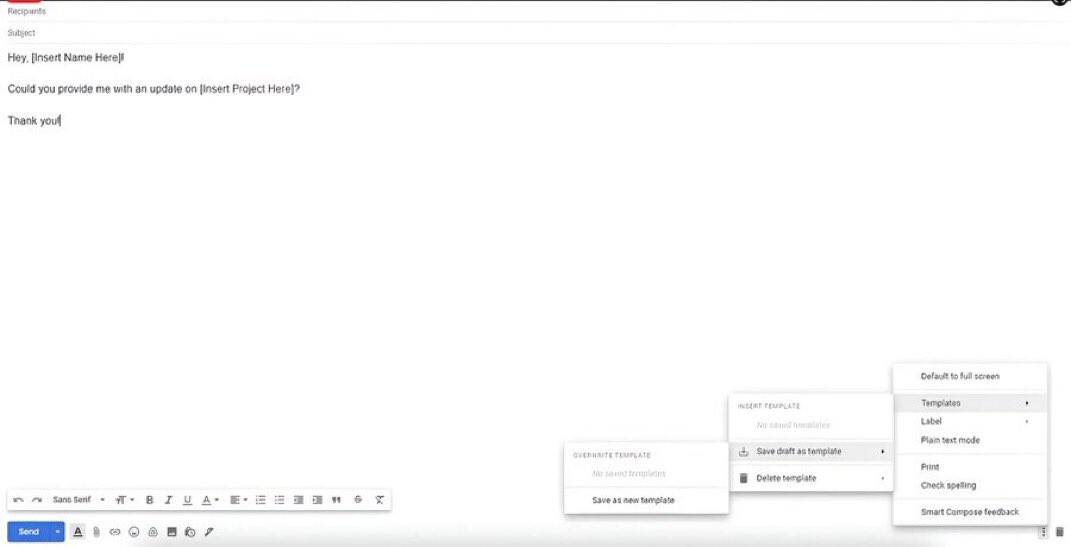
8. Create Templates.
Speed the process of creating customized email templates:
- Select Compose
- Enter the text you want to use for your template in the email field.
- Select the three-dot menu and then Templates.
- Select Save draft as template then Save as new template
Speed the process of creating customized email templates:
- Select Compose
- Enter the text you want to use for your template in the email field.
- Select the three-dot menu and then Templates.
- Select Save draft as template then Save as new template
9. Archive important emails (don’t delete them!).
10. Keyboard shortcuts:
Save time using Gmail's built-in shortcuts.
Navigate your inbox
- Head to settings > all-settings
- Locate general > keyboard shortcuts
-Select "on"
Need a complete list?
Type "shift + ?" with Gmail open.
Save time using Gmail's built-in shortcuts.
Navigate your inbox
- Head to settings > all-settings
- Locate general > keyboard shortcuts
-Select "on"
Need a complete list?
Type "shift + ?" with Gmail open.
Stay ahead of the curve with the latest updates from around the AI WORLD!
Subscribe to our newsletter for concise, timely insights delivered straight to your inbox.
INNOVATEX.BEEHIIV.COM
Subscribe to our newsletter for concise, timely insights delivered straight to your inbox.
INNOVATEX.BEEHIIV.COM
That's a wrap!
If you enjoyed this thread:
1. Follow me @manishkhosiya for more of these
2. RT the tweet below to share this thread with your audience
If you enjoyed this thread:
1. Follow me @manishkhosiya for more of these
2. RT the tweet below to share this thread with your audience
https://x.com/manishkhosiya/status/1914755261874725106
• • •
Missing some Tweet in this thread? You can try to
force a refresh