Thread of my favorite web performance tools 🚀
1) slowfil.es by @csswizardry and @RyanTownsend gives you a URL with a huge (and customizable) server response time.
Super convenient to test what happens when a CSS or JS files takes forever to load.
Super convenient to test what happens when a CSS or JS files takes forever to load.

2) input-delay.glitch.me by @notwaldorf shows how it feels to have a laggy input field. (It’s the most irritating tool ever.)
bl.ocks.org/esjewett/2b188… by @esjewett does the same – but for mouse cursor.
Both tools are 💯 for demos.
bl.ocks.org/esjewett/2b188… by @esjewett does the same – but for mouse cursor.
Both tools are 💯 for demos.

(Semi-related: a 3-minute Microsoft video that shows how *huge* a difference between a 100 ms latency and a 5 ms latency feels.)
3) statoscope.tech by @smelukov is a modern version of webpack.github.io/analyse/. A bit less detailed, but so much nicer!
My primary use case: drop a webpack stats file → see why exactly that specific huge file is bundled.
My primary use case: drop a webpack stats file → see why exactly that specific huge file is bundled.

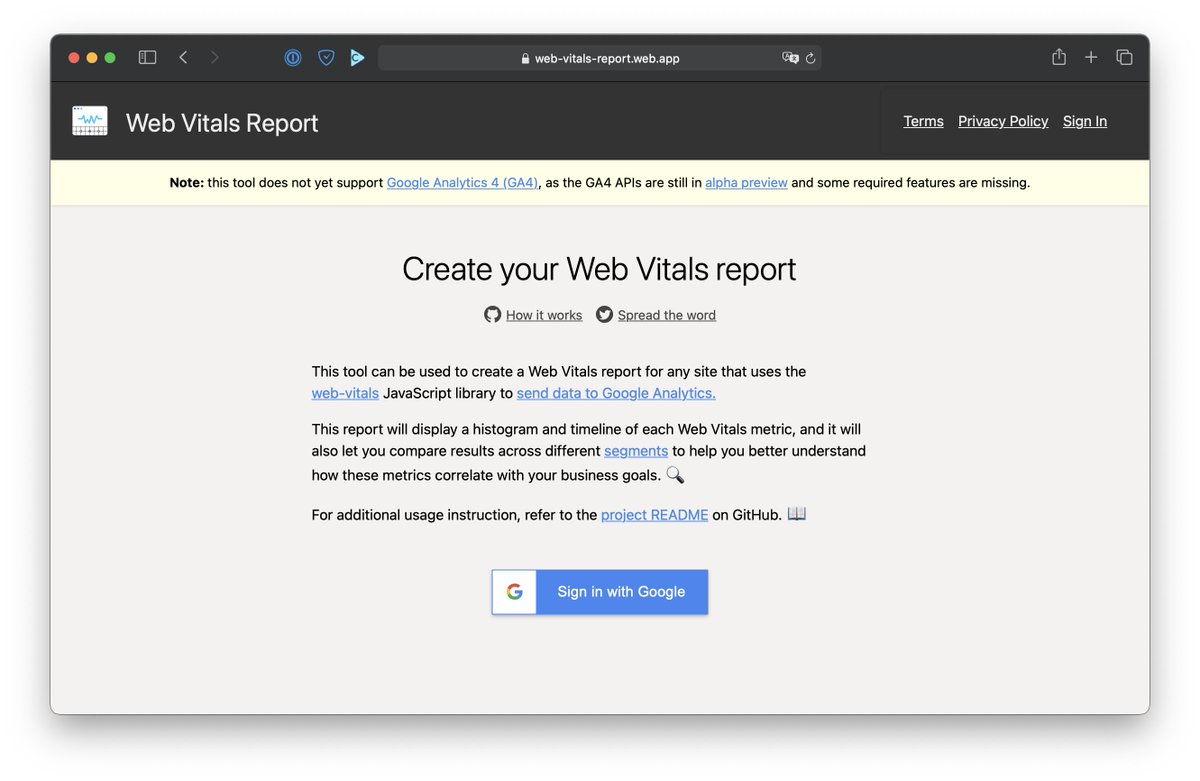
4) web-vitals-report.web.app builds a Core Web Vitals report based on your Google Analytics data (but you need to send CWV data into GA explicitly).
Haven’t had a chance to use it yet (don’t collect CWV data with GA), but should be a great helpful tool for some clients.
Haven’t had a chance to use it yet (don’t collect CWV data with GA), but should be a great helpful tool for some clients.
5) Also, datastudiohelp.com/core-web-vital… explains how to get a Core Web Vitals report in Google Data Studio. (It’s actually quick! Just clone a template and change the url.)
Unlike with the previous tool, you don’t need to collect any data yourself! The report uses CrUX data.
Unlike with the previous tool, you don’t need to collect any data yourself! The report uses CrUX data.

6) usehooks.com/useWhyDidYouUp… is a React hook that prints why a specific component rerendered. Just copy and paste it! Perfect for debugging runtime performance of a single component 💅
Like github.com/welldone-softw…, but much less invasive.
Like github.com/welldone-softw…, but much less invasive.

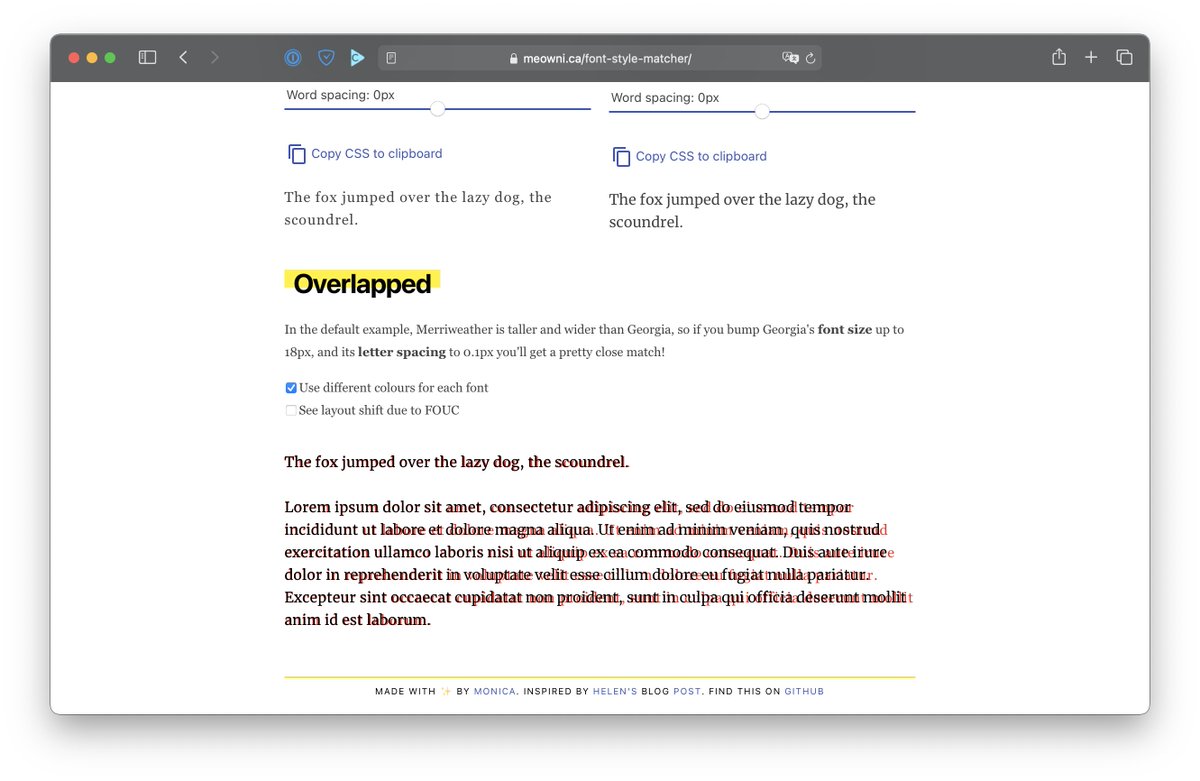
7) meowni.ca/font-style-mat… (yet another tool by @notwaldorf!) lets you find a fallback font that matches your custom font as closely as possible.
If you ever had a high CLS score because the layout jumped after a custom font loaded, this is for you.
If you ever had a high CLS score because the layout jumped after a custom font loaded, this is for you.
(Oh, and shameless plug: in addition to these tools above, I also have a GitHub list with 50+ webpack performance tools and plugins: github.com/iamakulov/awes…)

8) glyphhanger, which makes fonts smaller by removing any characters your page doesn’t need (and more). And it’s a one-line command!
https://twitter.com/jeff_r_knox/status/1458245207107981313

• • •
Missing some Tweet in this thread? You can try to
force a refresh