


Let me first give you a high-level overview. We're fairly small, so we only need one team account in Figma. Under our team, we've got separate projects for
⚡️ Feature
🎨 Baukasten (our Design System)
🔥 Marketing
And other non-regular projects like Feeback. Crash Course, etc.
⚡️ Feature
🎨 Baukasten (our Design System)
🔥 Marketing
And other non-regular projects like Feeback. Crash Course, etc.

⚡️ Feature
This project is dedicated to new features and improvement work on the product. At present, our web app is our only product, so it's relatively easier to keep everything feature-related under one project.
This project is dedicated to new features and improvement work on the product. At present, our web app is our only product, so it's relatively easier to keep everything feature-related under one project.
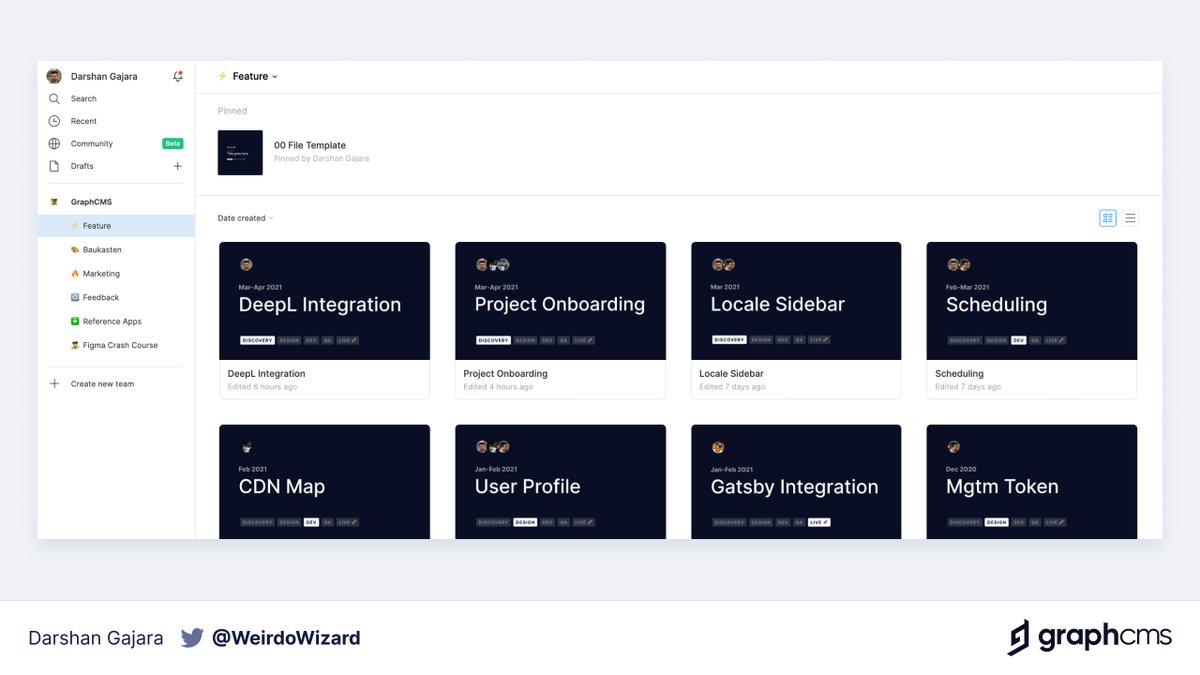
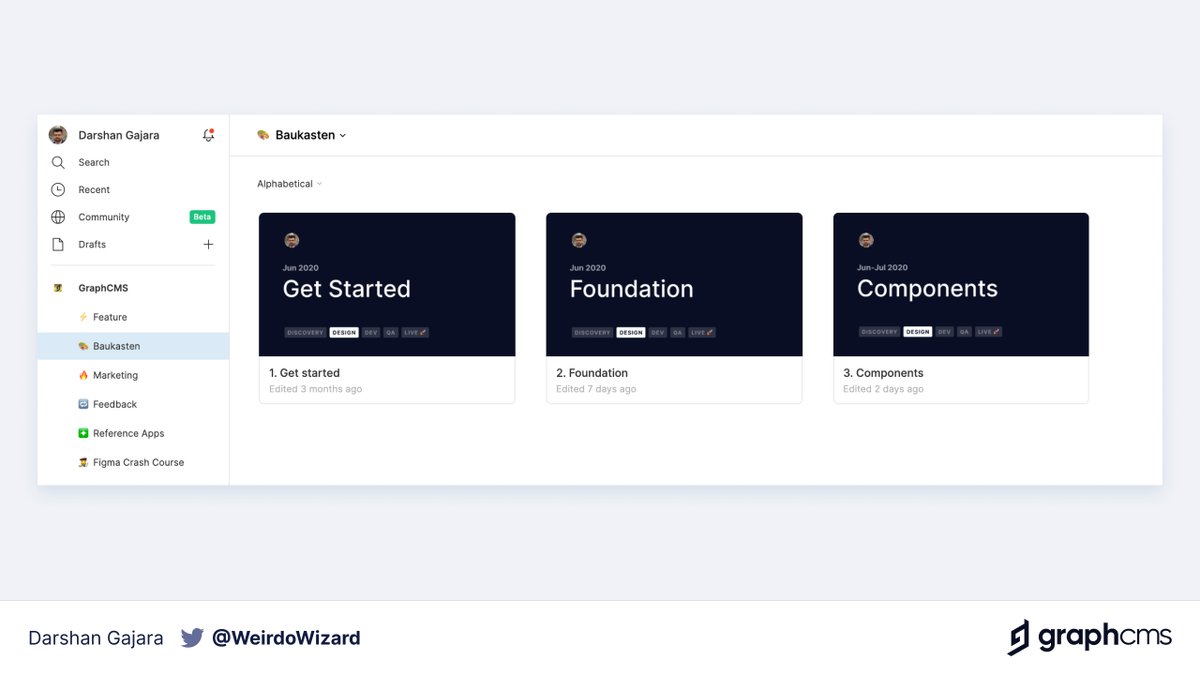
🎨 Baukasten
Baukasten is a German word for construction kit. Think of it as legos – the building blocks of our product.
This project holds our style guides and components.
P. S. I can do a separate thread on our design system later if there's enough interest.
Baukasten is a German word for construction kit. Think of it as legos – the building blocks of our product.
This project holds our style guides and components.
P. S. I can do a separate thread on our design system later if there's enough interest.
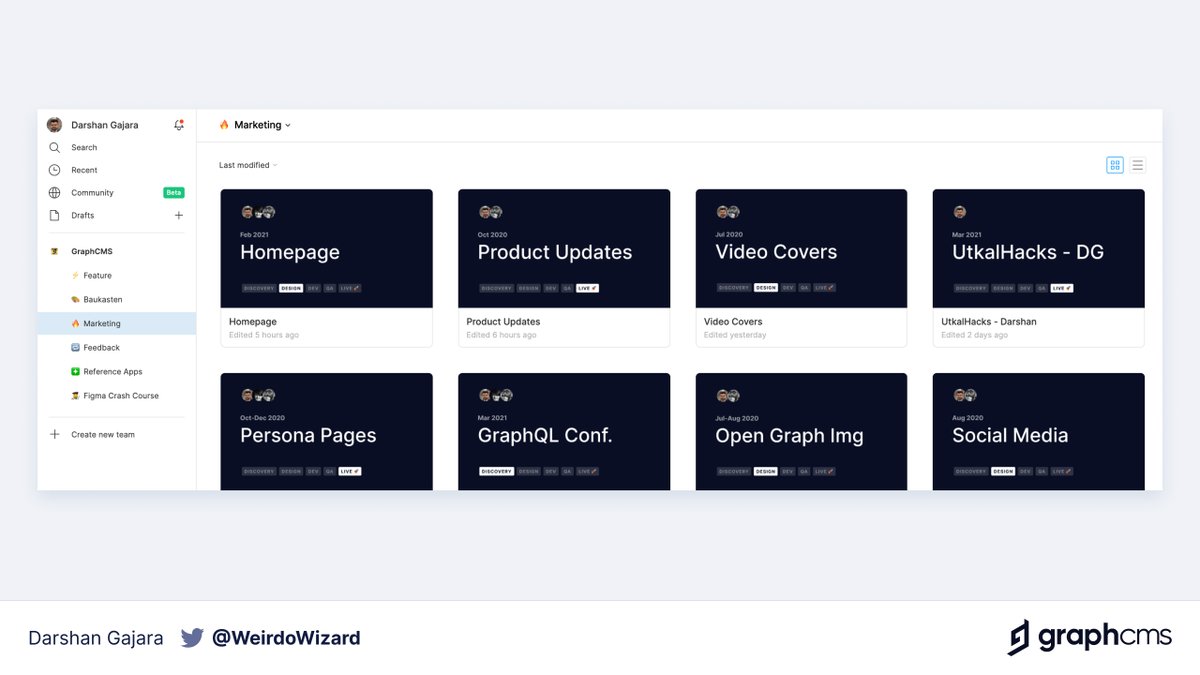
🔥 Marketing
A project dedicated to our marketing website and community work that includes docs, blog posts, videos, GitHub repos, conferences, social media, etc.
The community is central to our product and we try to support our dev advocates with graphics as much as we can.
A project dedicated to our marketing website and community work that includes docs, blog posts, videos, GitHub repos, conferences, social media, etc.
The community is central to our product and we try to support our dev advocates with graphics as much as we can.
Apart from these 3 regular projects, we create new projects for non-regular work. For example, I did a Figma training session for our team when we moved to Figma as our design tool. So we created a new project to use as a playground.
https://twitter.com/WeirdoWizard/status/1276185930500648961?s=20
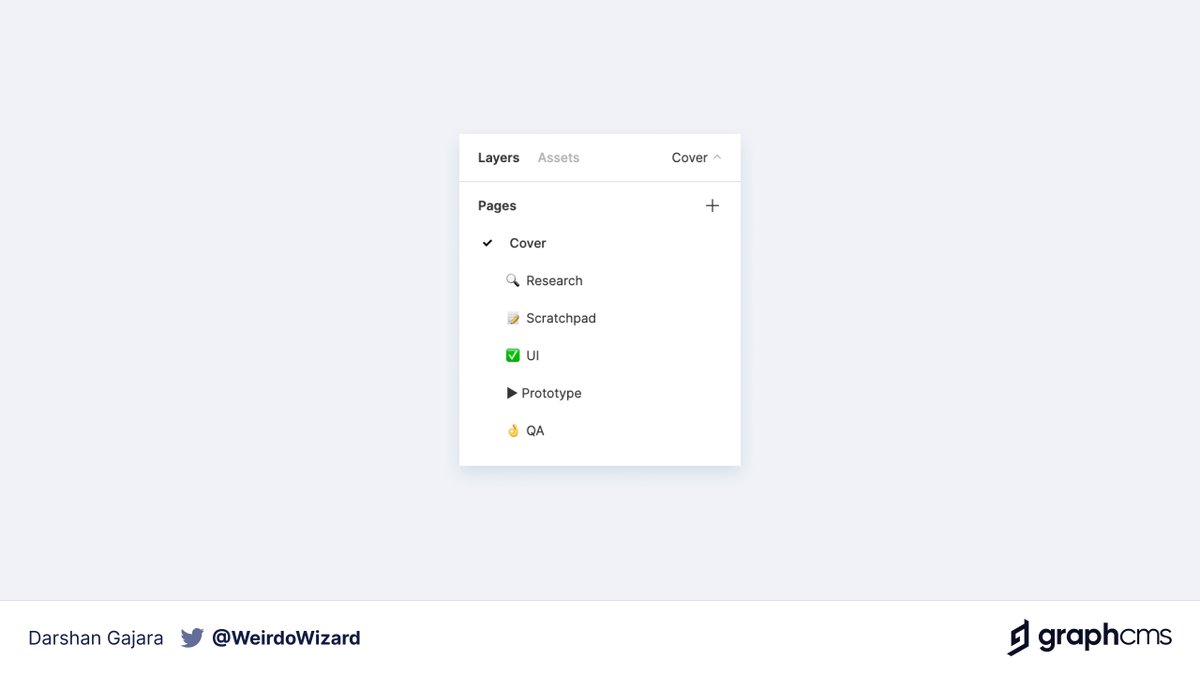
Now let's peek inside a feature file. Every feature file has these separate pages:
Cover
🔎 Research
📝 Scratchpad
✅ UI
▶️ Prototype
👌 QA
Cover
🔎 Research
📝 Scratchpad
✅ UI
▶️ Prototype
👌 QA
Cover
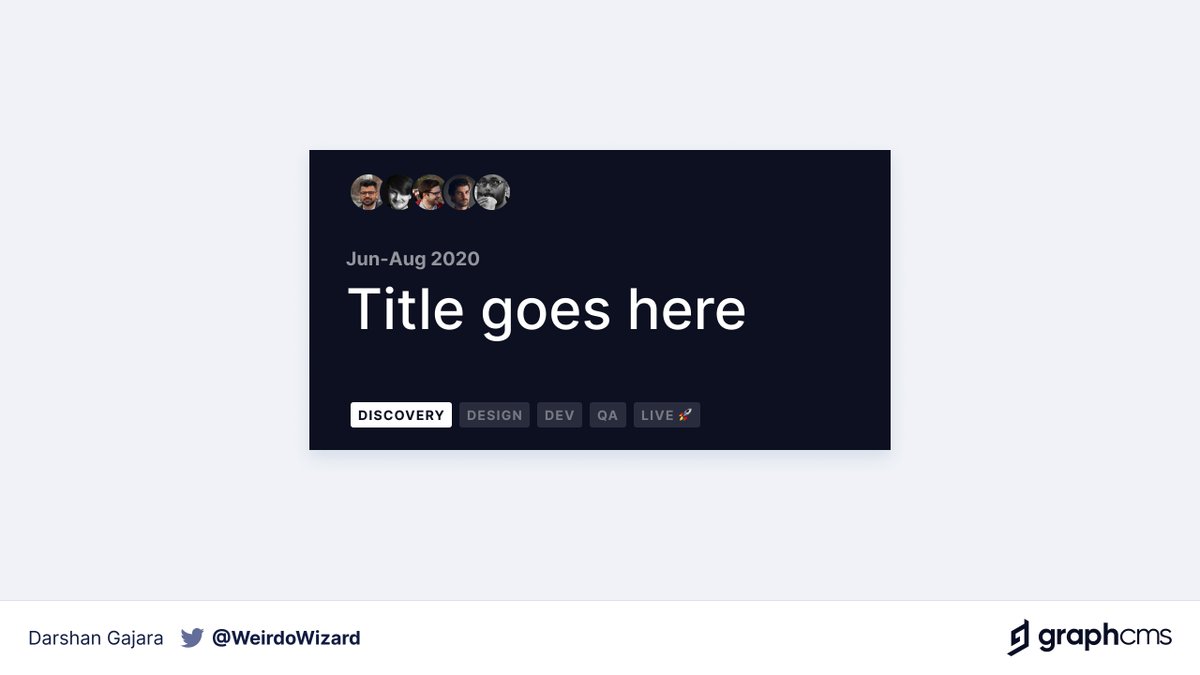
We dedicate the first page to the cover of the file. A cover can also be set by using a frame as a thumbnail but it doesn't scale well for different screen sizes. So it's better to set it up on a separate page with the same background.
We dedicate the first page to the cover of the file. A cover can also be set by using a frame as a thumbnail but it doesn't scale well for different screen sizes. So it's better to set it up on a separate page with the same background.
A file cover makes it easier to identify the relevant file in a sea of many files. We also use it to indicate the collaborators, timeline and status of the feature.
The cover template we use is based on @majouji's freebie 💙
The cover template we use is based on @majouji's freebie 💙
🔎 Research
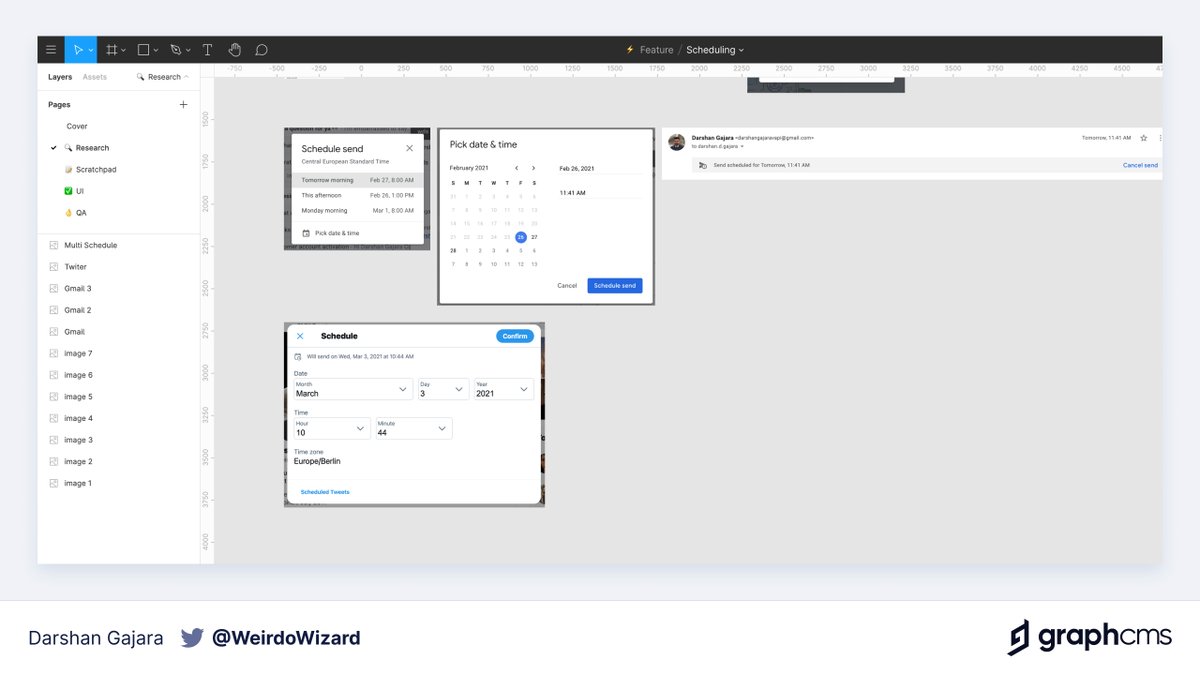
A page dedicated to all the research done around that feature. This includes things like specs, notes, competitor references, design moodboard, etc. Basically, everything that's needed to design the feature.
A page dedicated to all the research done around that feature. This includes things like specs, notes, competitor references, design moodboard, etc. Basically, everything that's needed to design the feature.
📝 Scratchpad
This is the messy middle, this is where the fun lies. It's an open canvas to explore ideas, try out different patterns, get feedback and iterate.
This is also the page where the most collaboration happens. And it's often flooded with comments from the team.
This is the messy middle, this is where the fun lies. It's an open canvas to explore ideas, try out different patterns, get feedback and iterate.
This is also the page where the most collaboration happens. And it's often flooded with comments from the team.
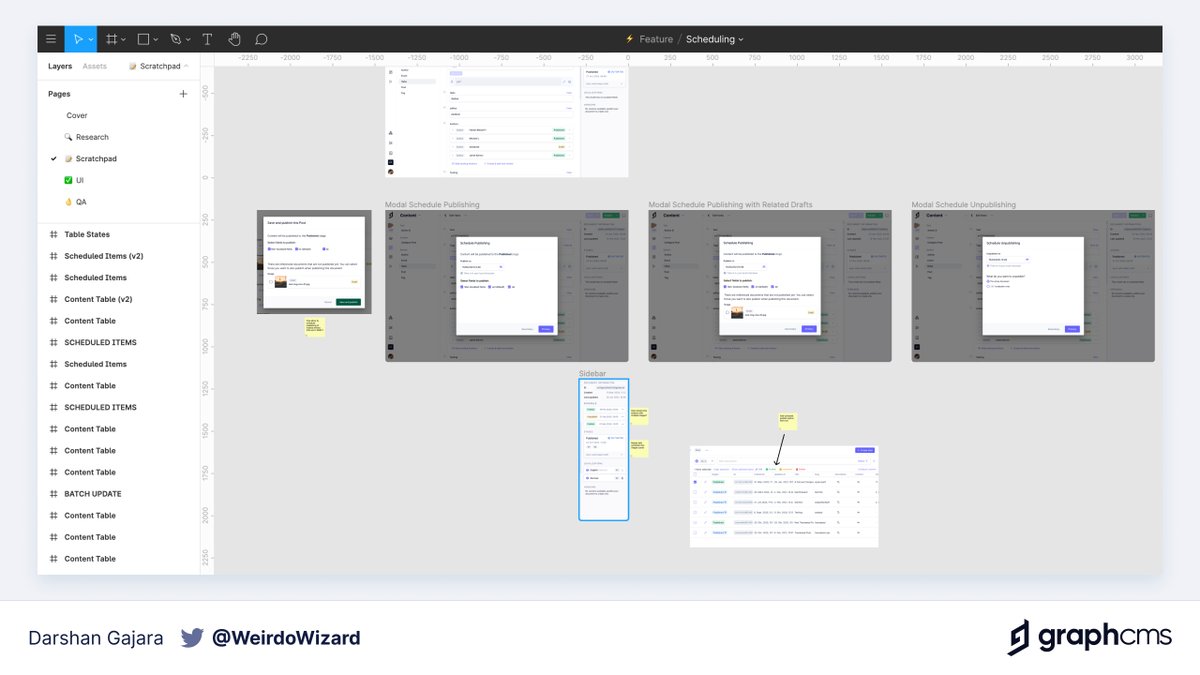
Here's an example from one of the recent feature files. Yes, it can get pretty crazy at times.
https://twitter.com/GraphCMS/status/1354712995138564096?s=20
✅ UI
This is the most organized page in the file. It's where the final designs/user flows stay. It's also the source of truth for our engineers working on the given feature. They would develop the feature by inspecting the designs from here.
This is the most organized page in the file. It's where the final designs/user flows stay. It's also the source of truth for our engineers working on the given feature. They would develop the feature by inspecting the designs from here.
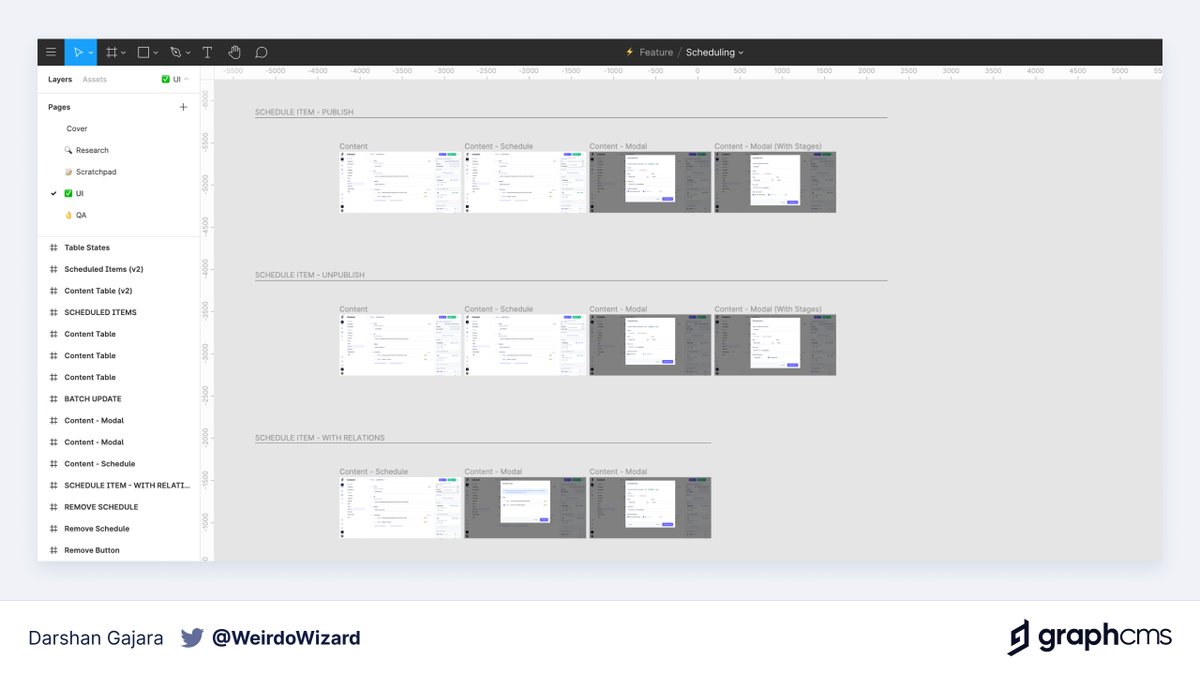
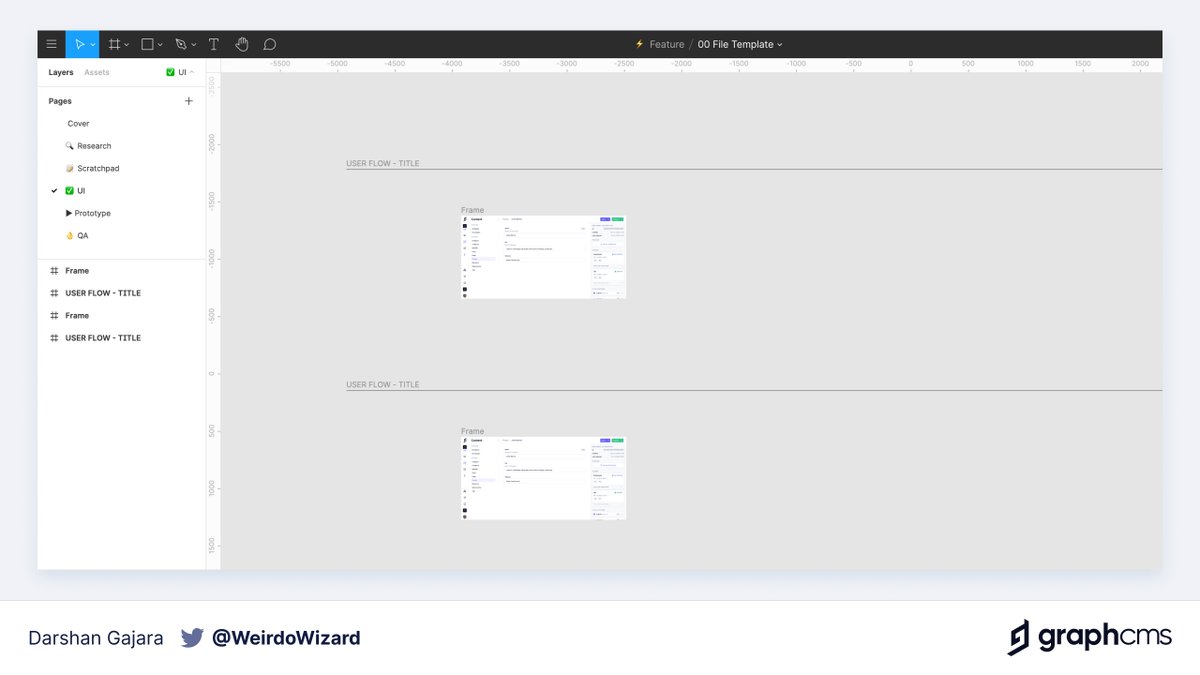
Frames on the ✅ UI page are organized based on user flows. You would notice that we use the default style to title them. That's to benefit from Figma's automatic scaling of frame titles on zoom in & out. We also use this page to leave relevant notes for our engineer friends.
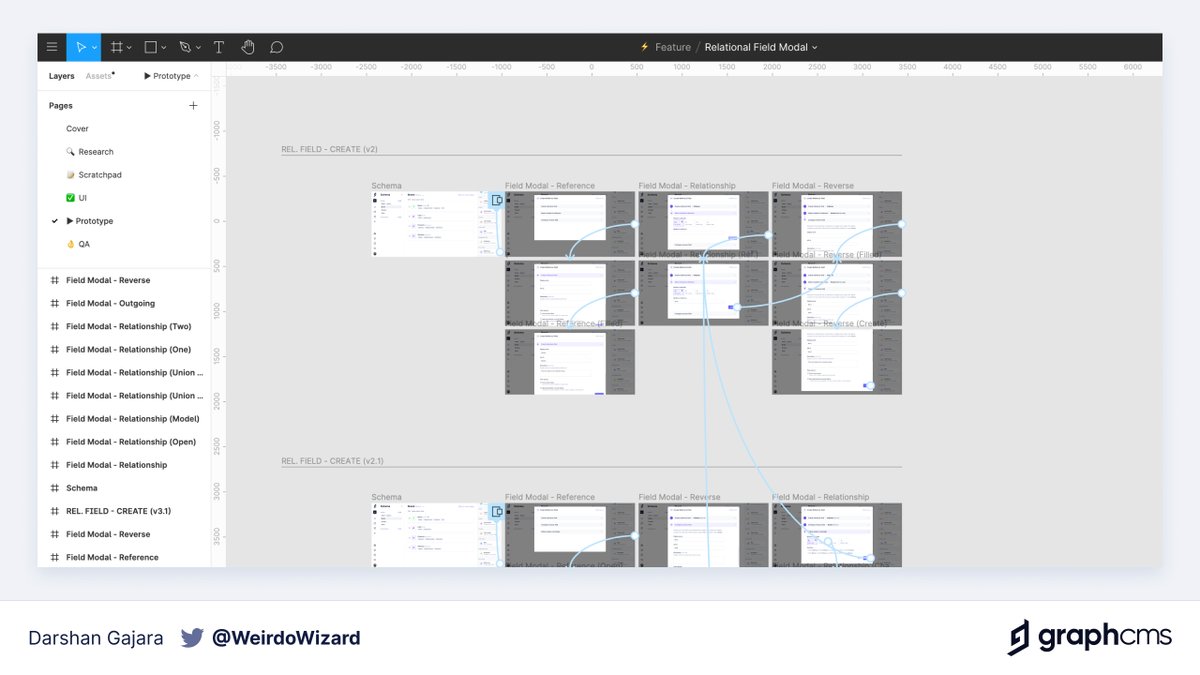
▶️ Prototype
This page is optional. We only make use of this page when we create prototypes for the given feature. Prototypes are usually only needed to communicate a complex design or to present the concept to other teams or customers.
This page is optional. We only make use of this page when we create prototypes for the given feature. Prototypes are usually only needed to communicate a complex design or to present the concept to other teams or customers.
👌 QA
When the feature gets developed, we're asked to review the PR on GitHub. We review the feature in our preview environment, take screenshots of where there's a mismatch in design, paste it on this page and leave comments for our engineering team.
When the feature gets developed, we're asked to review the PR on GitHub. We review the feature in our preview environment, take screenshots of where there's a mismatch in design, paste it on this page and leave comments for our engineering team.
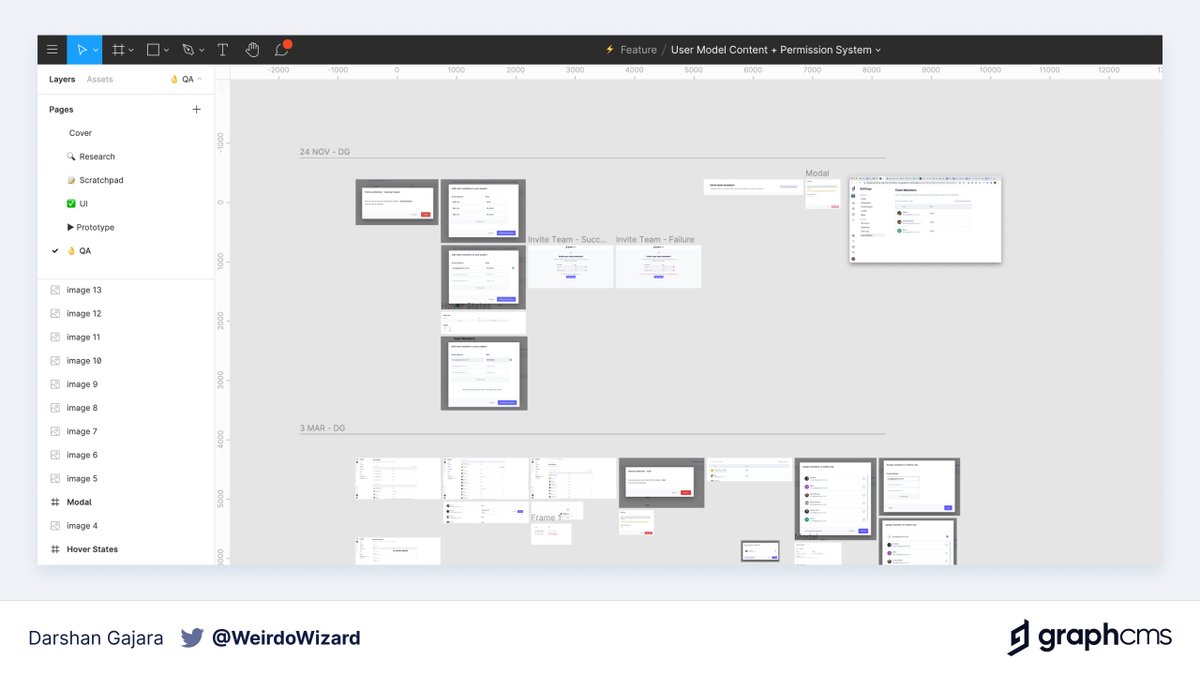
We know our QA process isn't ideal and we're constantly looking to improve it. So if you've got any recommendations or suggestions here, please do share.
Also, we've created a template file with all these pages and pinned it to the top to make the process of starting new feature work fast and easy.
Keeping our files and projects organized in @figmadesign has been massively beneficial for us and has made cross-collaboration so much efficient and fun.
I hope you found this useful. You can follow @GraphCMS for our latest product updates and follow me for more such threads.
I hope you found this useful. You can follow @GraphCMS for our latest product updates and follow me for more such threads.
• • •
Missing some Tweet in this thread? You can try to
force a refresh


