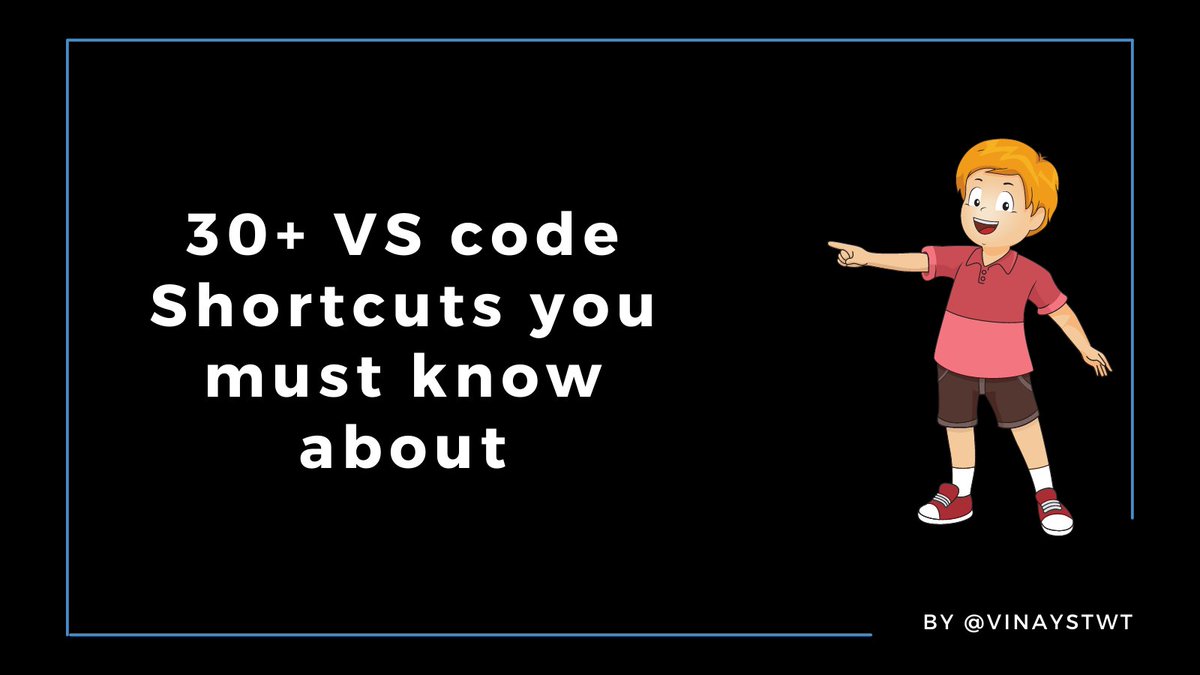
30+ VS Code Shortcuts to Increase your productivity
A Thread🧵
A Thread🧵
🔹Search Text Through All Files at Once: Ctrl+Shift+F
🔹Zen Mode(Distraction-free view): Ctrl+K Z
🔹Access Command Palette: Ctrl+Shift+P
🔹Trigger Suggestions: Ctrl+Space,Ctrl+I
🔹Trigger Parameter hints: Ctrl+Space+Shift
🔹Zen Mode(Distraction-free view): Ctrl+K Z
🔹Access Command Palette: Ctrl+Shift+P
🔹Trigger Suggestions: Ctrl+Space,Ctrl+I
🔹Trigger Parameter hints: Ctrl+Space+Shift
🔹Delete Previous Word: Ctrl+Backspace
🔹Show list of themes: Ctrl+K Ctrl+T
🔹Toggle Zen Mode: Ctrl K Z
🔹Select current line in the cursor: Ctrl+L
🔹Select text word by word: Ctrl+Shift+Left/Right Arrow
🔹Show list of themes: Ctrl+K Ctrl+T
🔹Toggle Zen Mode: Ctrl K Z
🔹Select current line in the cursor: Ctrl+L
🔹Select text word by word: Ctrl+Shift+Left/Right Arrow
🔹Move line Up/Down: Alt+Up/Down Arrow
🔹Add Multiple Cursors: Ctrl+Alt+Up/Down arrow
🔹Go to user settings: Ctrl+,
🔹Comment Lines: Ctrl+K Ctrl+C
🔹Uncomment a block of code: Ctrl+K Ctrl+U
🔹Add Multiple Cursors: Ctrl+Alt+Up/Down arrow
🔹Go to user settings: Ctrl+,
🔹Comment Lines: Ctrl+K Ctrl+C
🔹Uncomment a block of code: Ctrl+K Ctrl+U
🔹Add Multiple Cursors: Ctrl+Alt+Up/Down arrow
🔹Delete Line: Ctrl+Shift+K
🔹Replace: Ctrl+H
🔹Select all Result of a find operation: Alt+Enter
🔹Toggle Sidebar: Ctrl+b
🔹Delete Line: Ctrl+Shift+K
🔹Replace: Ctrl+H
🔹Select all Result of a find operation: Alt+Enter
🔹Toggle Sidebar: Ctrl+b
🔹Side by Side editing: Ctrl+\
🔹Keep Preview mode editor open: Ctrl+K Enter
🔹Switch between views: Ctrl+1, Ctrl+2, Ctrl+3
🔹Copy Line up/Down: Shift+Alt+Down
🔹Reveal active file in Explorer: Ctrl+K R
🔹Keep Preview mode editor open: Ctrl+K Enter
🔹Switch between views: Ctrl+1, Ctrl+2, Ctrl+3
🔹Copy Line up/Down: Shift+Alt+Down
🔹Reveal active file in Explorer: Ctrl+K R
🔹Shrink/Expand Selection: Shift+Alt+Right
🔹Create new terminal: Ctrl+Shift+`
🔹Navigate to a Specific line: Ctrl+g
🔹Undo Cursor Postion: Ctrl+u
🔹Trim Trailing whitespace: Ctrl+k Ctrl+x
🔹Create new terminal: Ctrl+Shift+`
🔹Navigate to a Specific line: Ctrl+g
🔹Undo Cursor Postion: Ctrl+u
🔹Trim Trailing whitespace: Ctrl+k Ctrl+x
🔹Code formatting: Ctrl+k
🔹Code Folding: Ctrl+Shift+[ and Ctrl+Shift+]
🔹Open Markdown Preview: Ctrl+Shift+v
🔹Side by side Markdown edit and preview:ctrl+k v
🔹Show integrated Terminal: Ctrl+`
🔹Code Folding: Ctrl+Shift+[ and Ctrl+Shift+]
🔹Open Markdown Preview: Ctrl+Shift+v
🔹Side by side Markdown edit and preview:ctrl+k v
🔹Show integrated Terminal: Ctrl+`
Are you are switching into the field of Programming, Designing or Startups in 2022?
Then, I have curated some really crucial tools for you which you didn’t know exists
Go Grab this Ebook for free
vinaystwt.gumroad.com/l/developertoo…
Then, I have curated some really crucial tools for you which you didn’t know exists
Go Grab this Ebook for free
vinaystwt.gumroad.com/l/developertoo…
Thank you for Reading
I am Vinay, a developer from India, sharing some of the knowledge I gain in my daily life as a programmer and as a Human being
If you like this post, Make sure to
✅Like this post
✅Retweet it
✅ Follow @Vinaystwt for more such content
I am Vinay, a developer from India, sharing some of the knowledge I gain in my daily life as a programmer and as a Human being
If you like this post, Make sure to
✅Like this post
✅Retweet it
✅ Follow @Vinaystwt for more such content
If you don’t want to miss your weekly parcel of learning, then don’t forget to subscribe to the "Insane Learner" newsletter
getrevue.co/profile/vinays…
getrevue.co/profile/vinays…
Don't forget to Retweet it from below, so that you'll not miss this
https://twitter.com/Vinaystwt/status/1478393465968992256?s=20
• • •
Missing some Tweet in this thread? You can try to
force a refresh