

Zotero is the best citation management software — it's free and does not monetize your data
But many folks have a hard time starting out on it.
Here's how you can get started on Zotero in 15min:
Zotero for beginners: a step-by-step tutorial 🧵
But many folks have a hard time starting out on it.
Here's how you can get started on Zotero in 15min:
Zotero for beginners: a step-by-step tutorial 🧵
Go to Zotero's website, click on the "Download" button. 
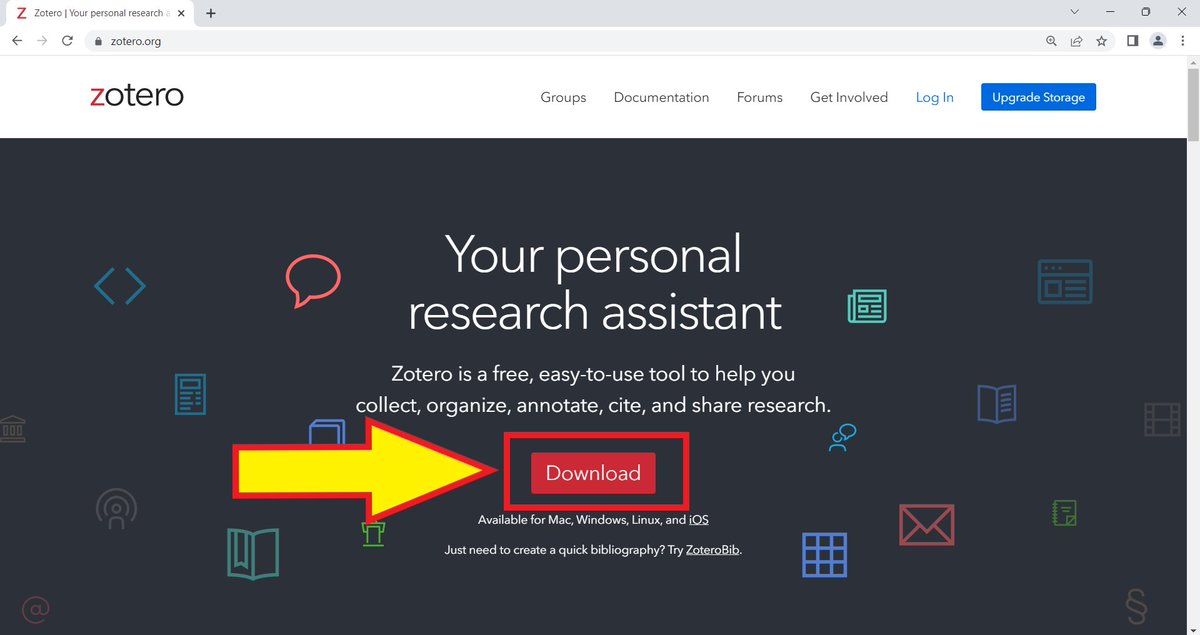
You'll need to install two things:
1. Zotero desktop app
2. Zotero Connector to connect your app to your web browser
Download and install the desktop app first.
[For this tutorial, I'm using a Windows PC, and Google Chrome.]
1. Zotero desktop app
2. Zotero Connector to connect your app to your web browser
Download and install the desktop app first.
[For this tutorial, I'm using a Windows PC, and Google Chrome.]
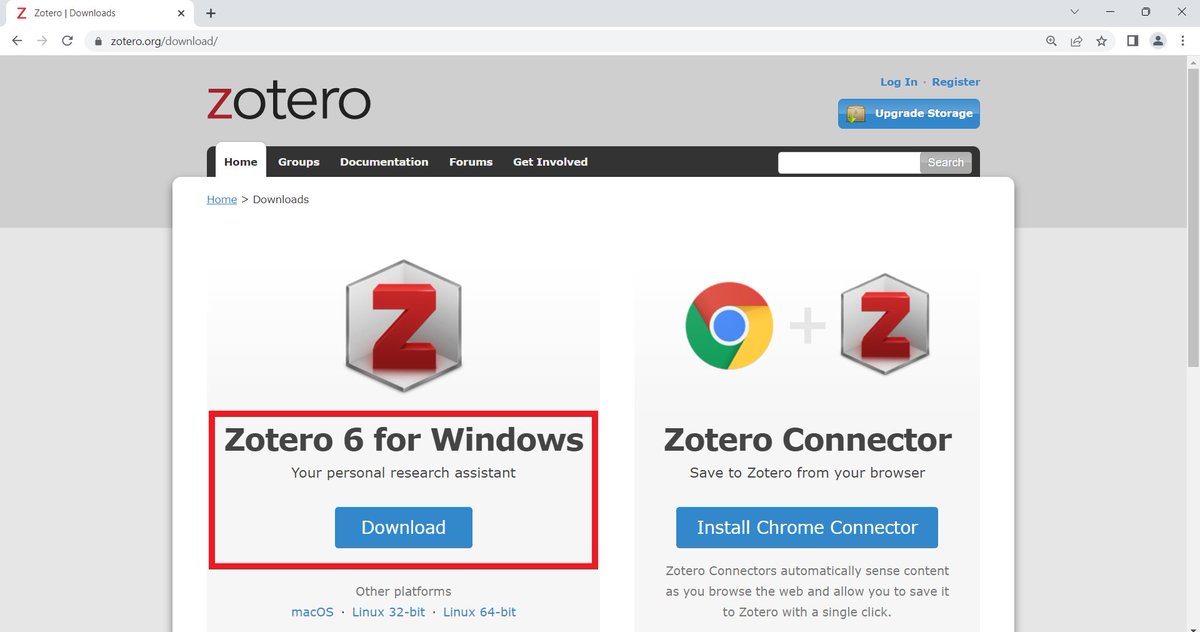
Open the Zotero desktop app once it's installed. It's interface will look like this.
[I couldn't take a screenshot of the welcome message. If anyone does, please share.]
[I couldn't take a screenshot of the welcome message. If anyone does, please share.]

Go back to Zotero's homepage.
Click on "Install Chrome Connector."
[Zotero Connectors are also available for Microsoft Edge and Firefox. The Connector for Safari is bundled with Zotero. You can enable it form the Extension pane of the Safari preferences.]
Click on "Install Chrome Connector."
[Zotero Connectors are also available for Microsoft Edge and Firefox. The Connector for Safari is bundled with Zotero. You can enable it form the Extension pane of the Safari preferences.]

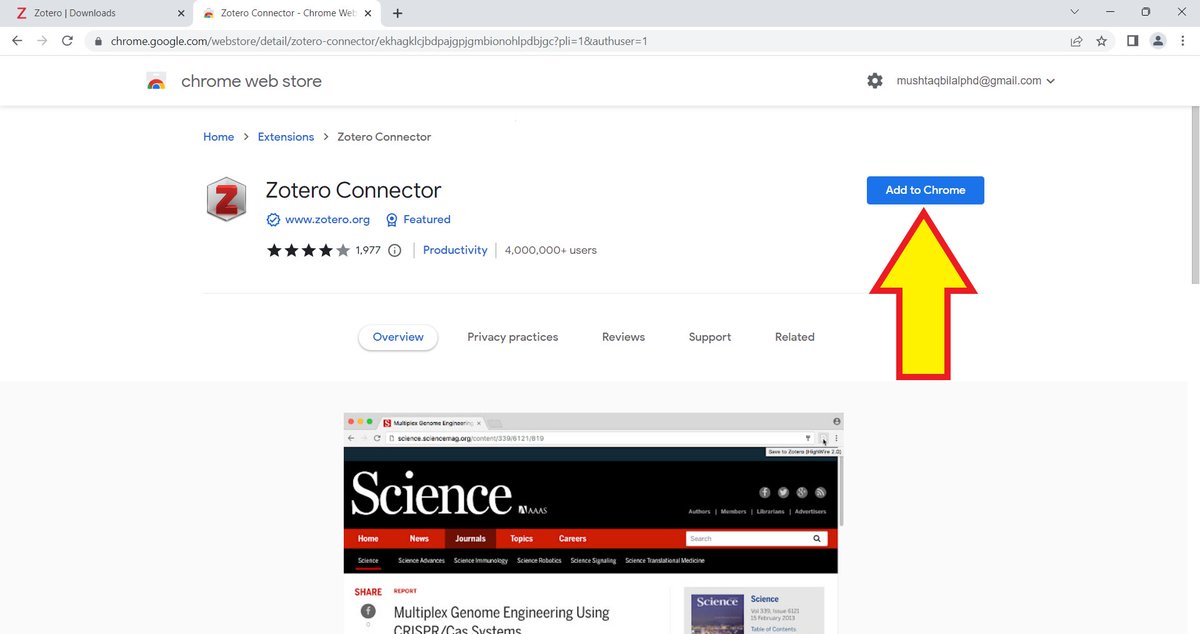
You'll be taken to the Zotero Connector in the Chrome Web Store.
Click on "Add to Chrome."
Click on "Add to Chrome."
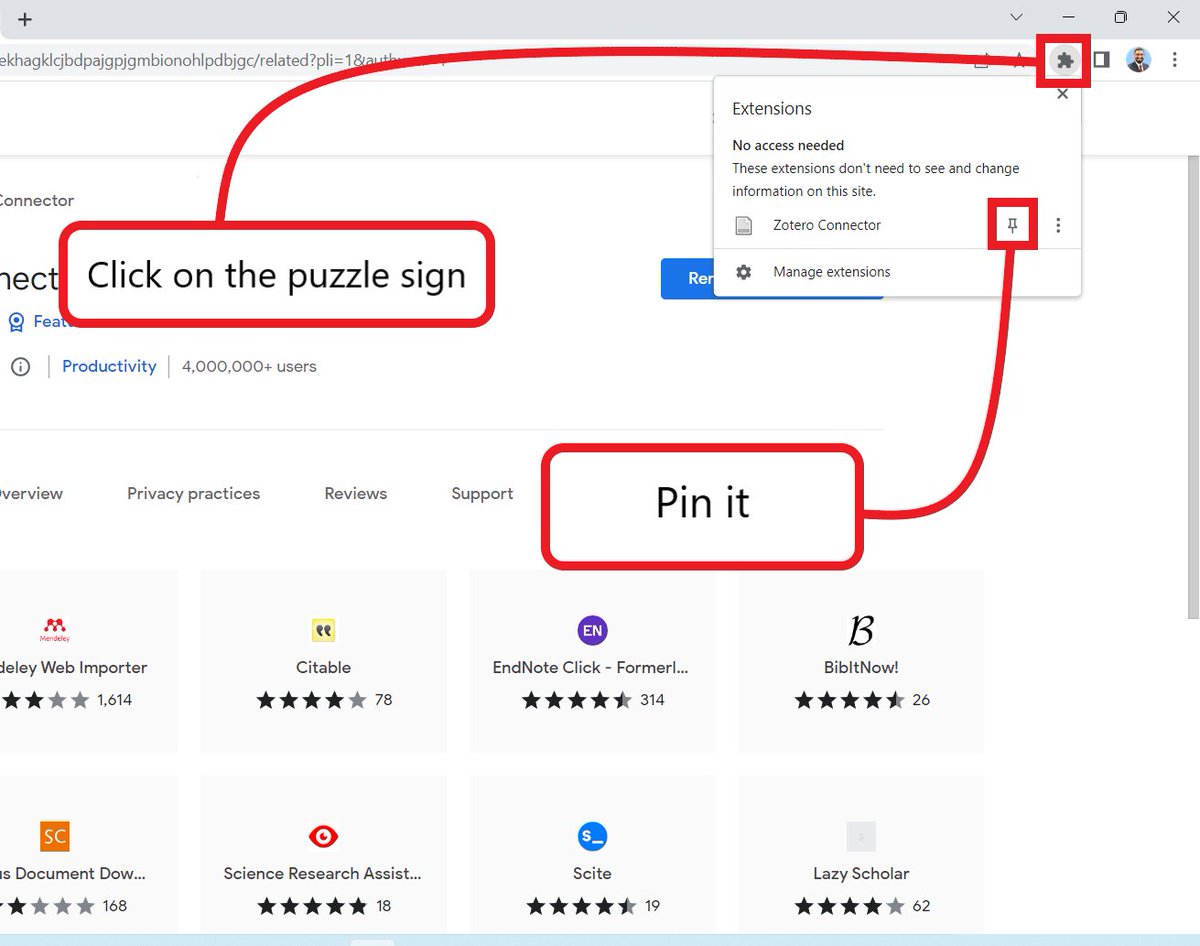
After adding the Zotero Connector, click on the puzzle-like sign in the top right corner of Chrome.
It will open your Chrome Extensions.
Go to Zotero and pin it to your Chrome.
It will open your Chrome Extensions.
Go to Zotero and pin it to your Chrome.
Now go back to Zotero's landing page and create a free account.
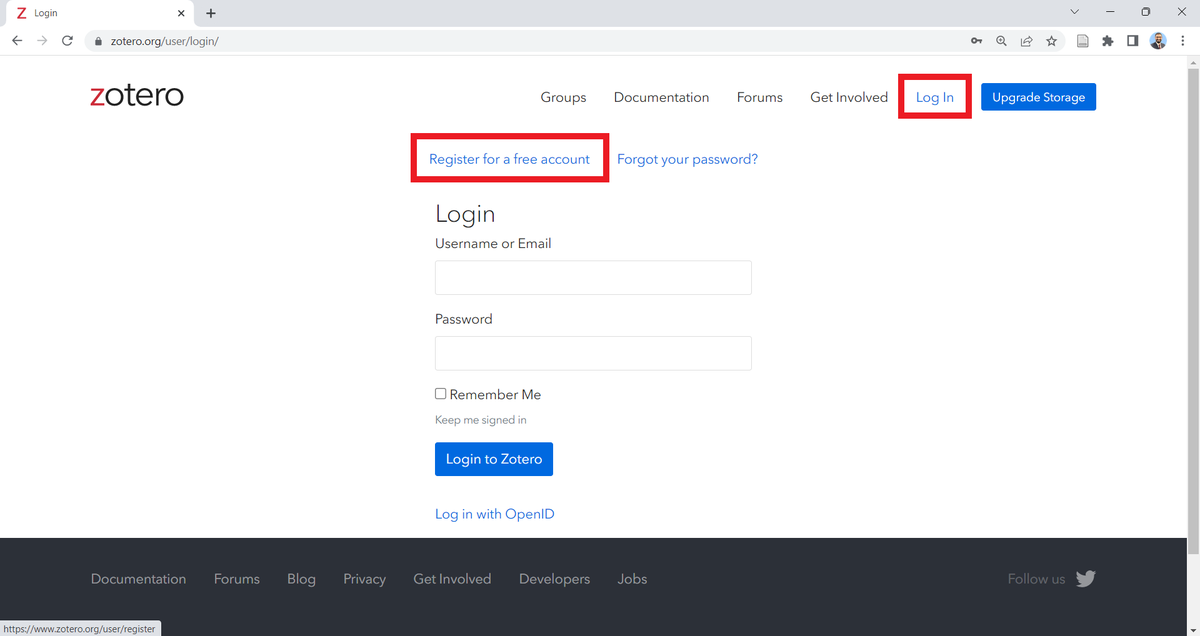
Now go to the Zotero desktop app and click on "File" and then "New Collections."
[Zotero's collections are *like* folders but they aren't exactly folders. Tell us if you know what the difference is.]
[Zotero's collections are *like* folders but they aren't exactly folders. Tell us if you know what the difference is.]
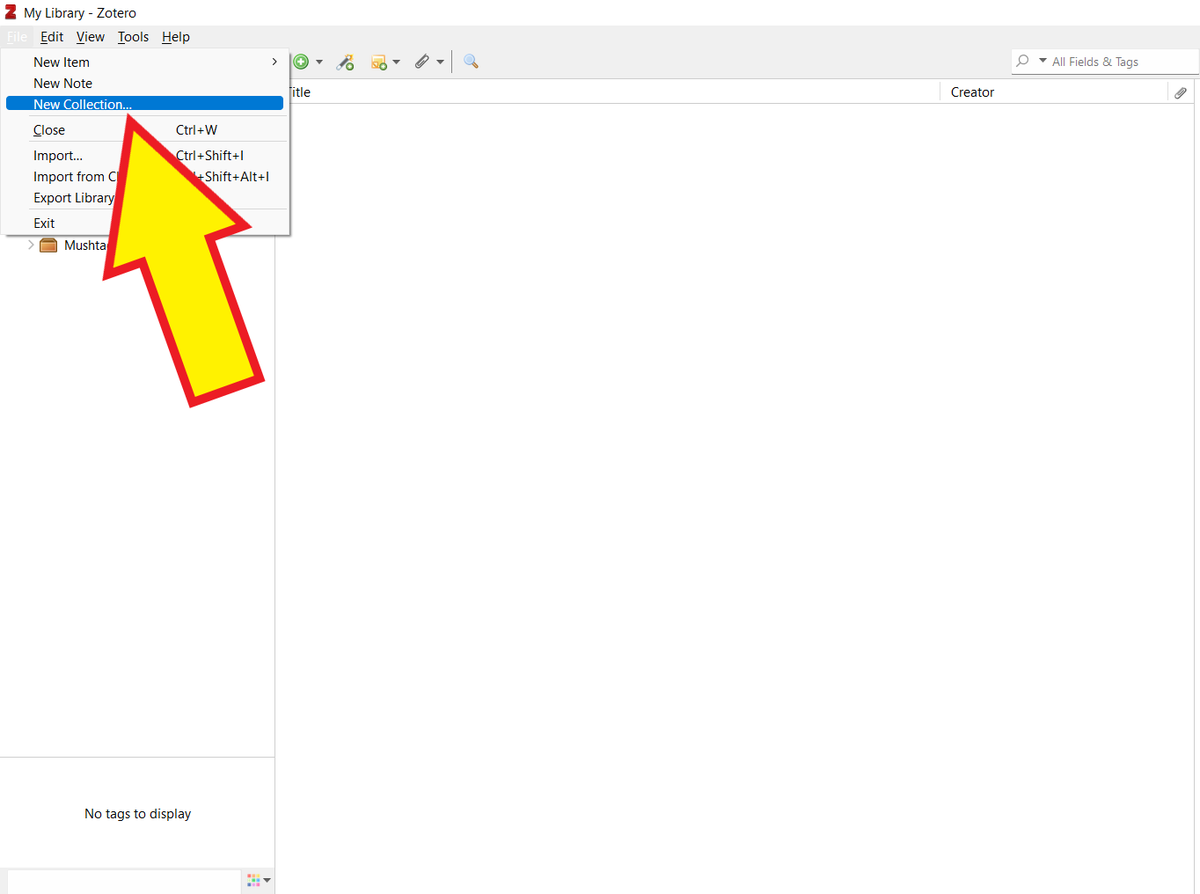
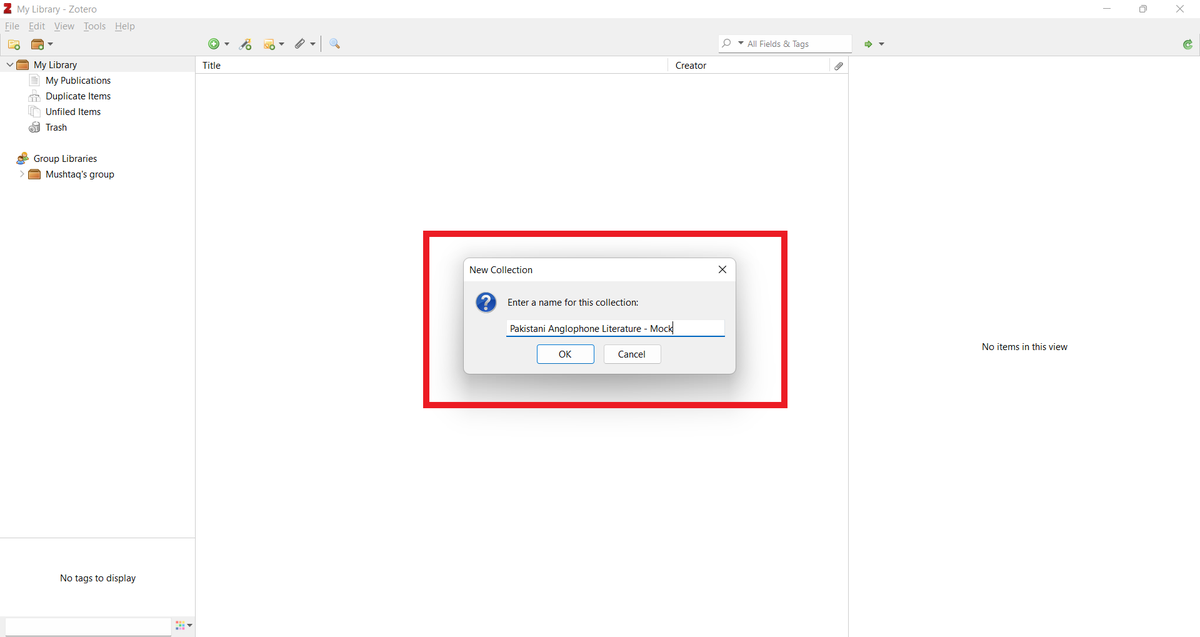
Think of a project you've worked on in the past and use its title to name the collection: [Project Name]-Mock.
Avoid doing it with a work-in-progress when starting out.
[For illustrative purposes, I'm naming the collection "Pakistani Anglophone Literature - Mock."]
Avoid doing it with a work-in-progress when starting out.
[For illustrative purposes, I'm naming the collection "Pakistani Anglophone Literature - Mock."]
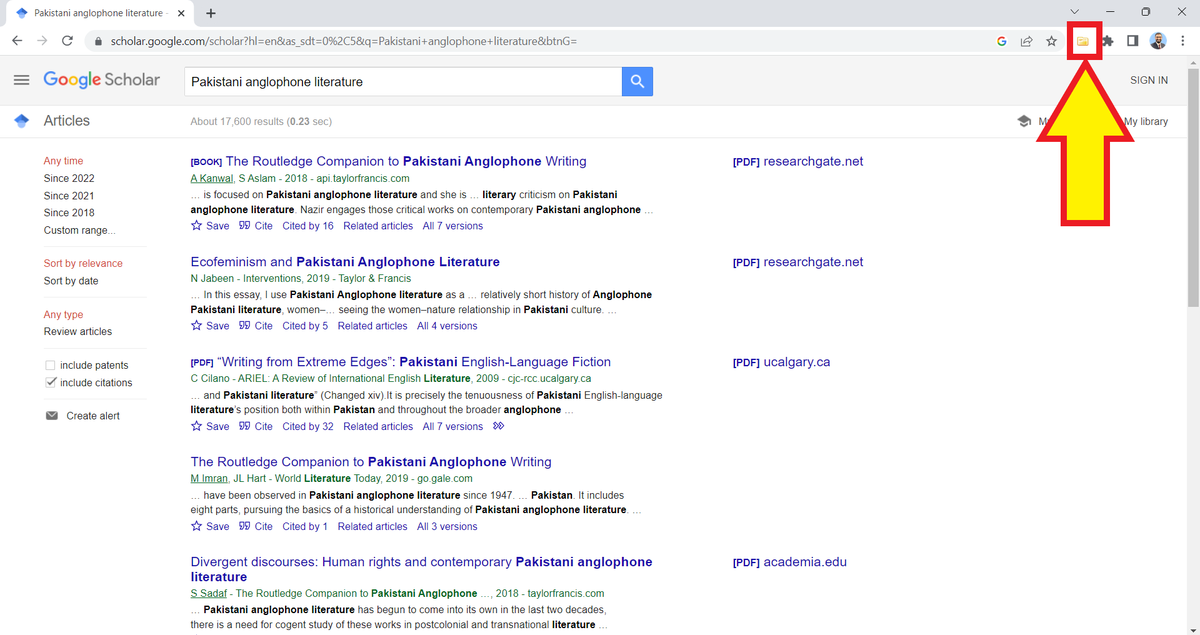
Go to Google Scholar and look up keywords related to your project.
[I'm looking up "Pakistani Anglophone Literature."]
Then click on the Zotero Connector in the top right corner.
[You can also do this with your university's library or a search engine like PubMed.]
[I'm looking up "Pakistani Anglophone Literature."]
Then click on the Zotero Connector in the top right corner.
[You can also do this with your university's library or a search engine like PubMed.]
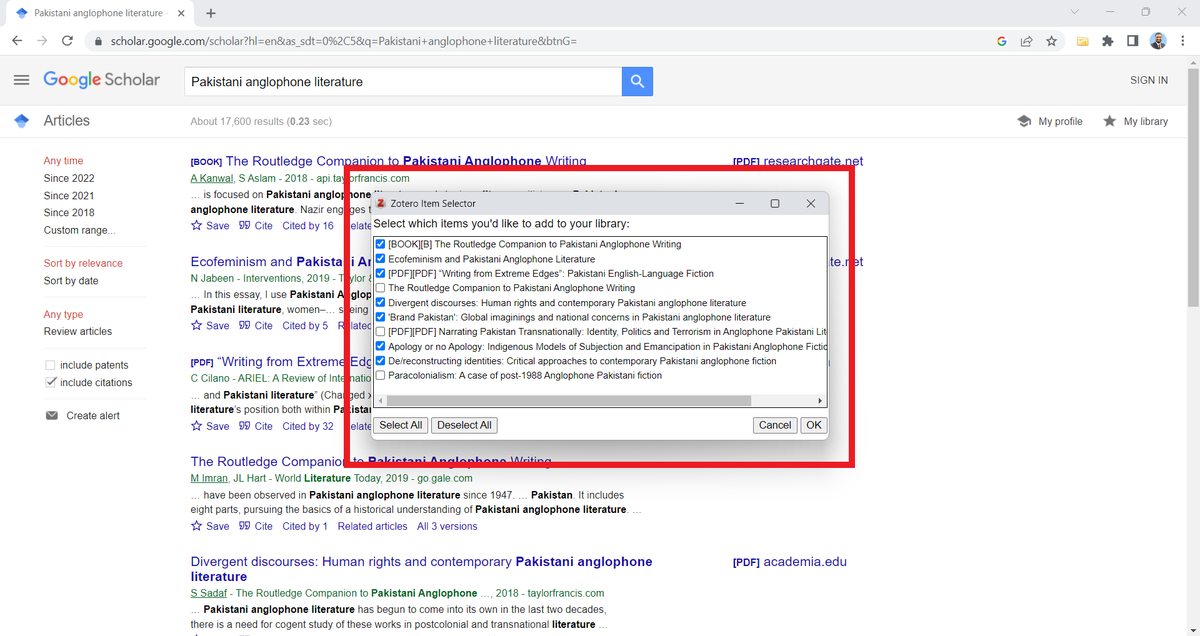
This will open a "Zotero Item Selector" box with all the search results on the page.
Select the items relevant to your project.
Select the items relevant to your project.
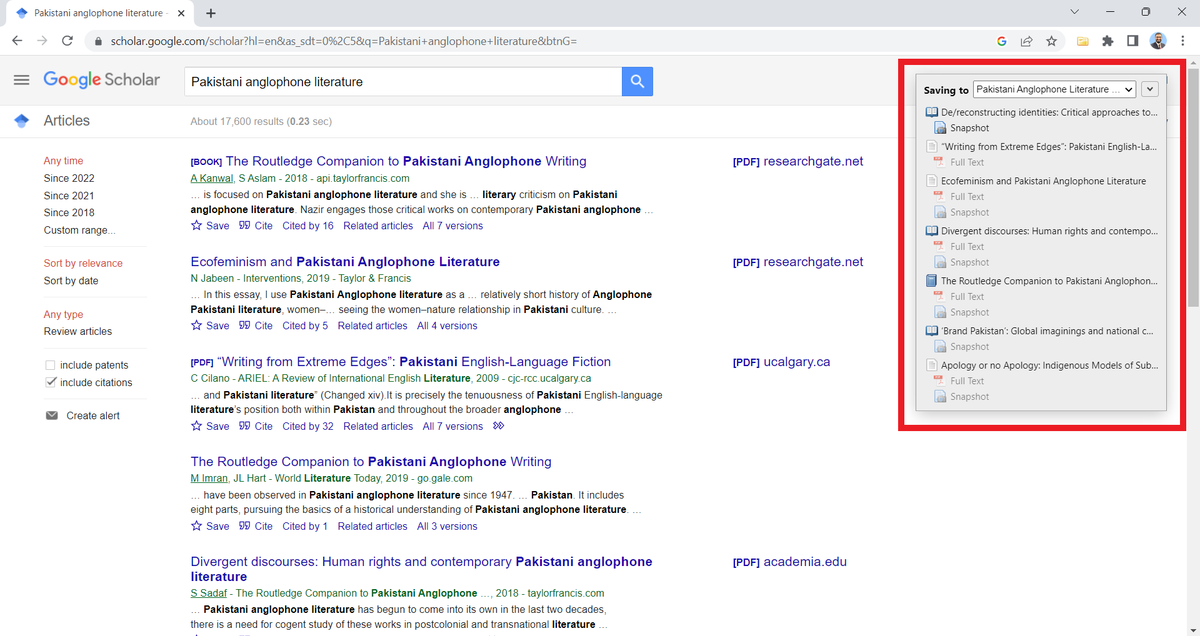
Zotero will show that it's saving the items in your library.
Since I named the collection "Pakistani Anglophone Literature" and looked up the same words, Zotero automatically knows where to save these items.
Since I named the collection "Pakistani Anglophone Literature" and looked up the same words, Zotero automatically knows where to save these items.
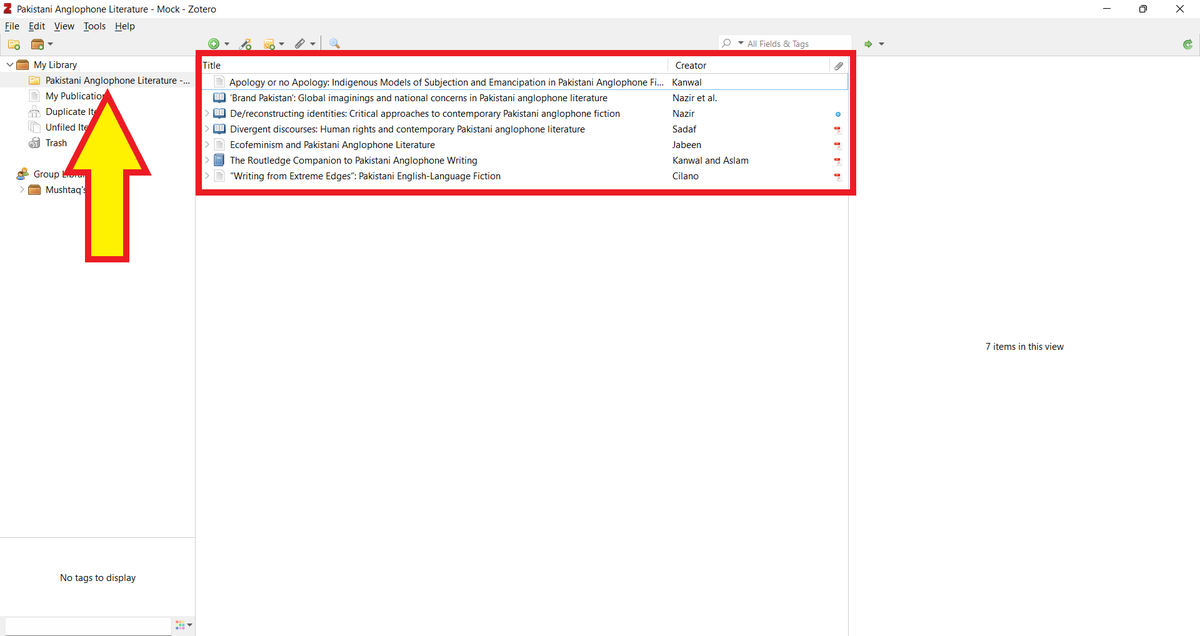
Go to the Zotero desktop app and you will see all the selected items in the relevant collection.
But that's not it.
Zotero will also look for un-paywalled PDFs of these items from around the web and add them to your collection.
But that's not it.
Zotero will also look for un-paywalled PDFs of these items from around the web and add them to your collection.
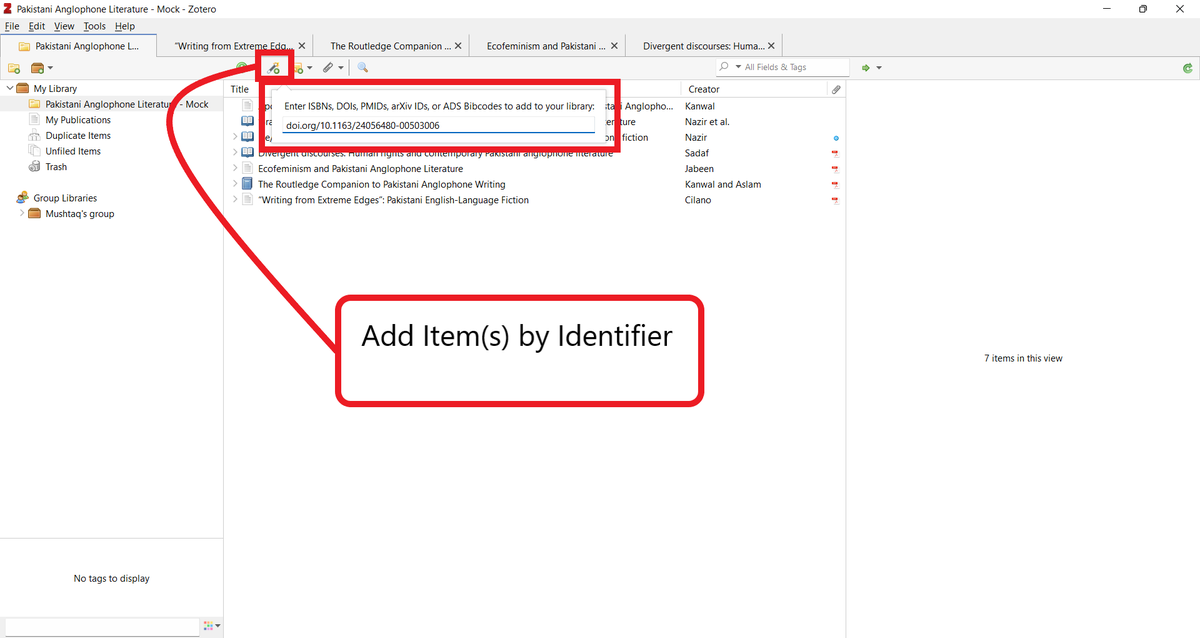
You can also add items using DOIs, PMIDs, and ISBNs.
To do so, click on the "Add Item(s) by Identifier" button and paste the relevant identifier.
Here I'm adding an item using its DOI.
[Quiz: the first person to tell me the title of this item will get a free Zotero workshop.]
To do so, click on the "Add Item(s) by Identifier" button and paste the relevant identifier.
Here I'm adding an item using its DOI.
[Quiz: the first person to tell me the title of this item will get a free Zotero workshop.]
Once you've added the items, you can open them up by double clicking on them.
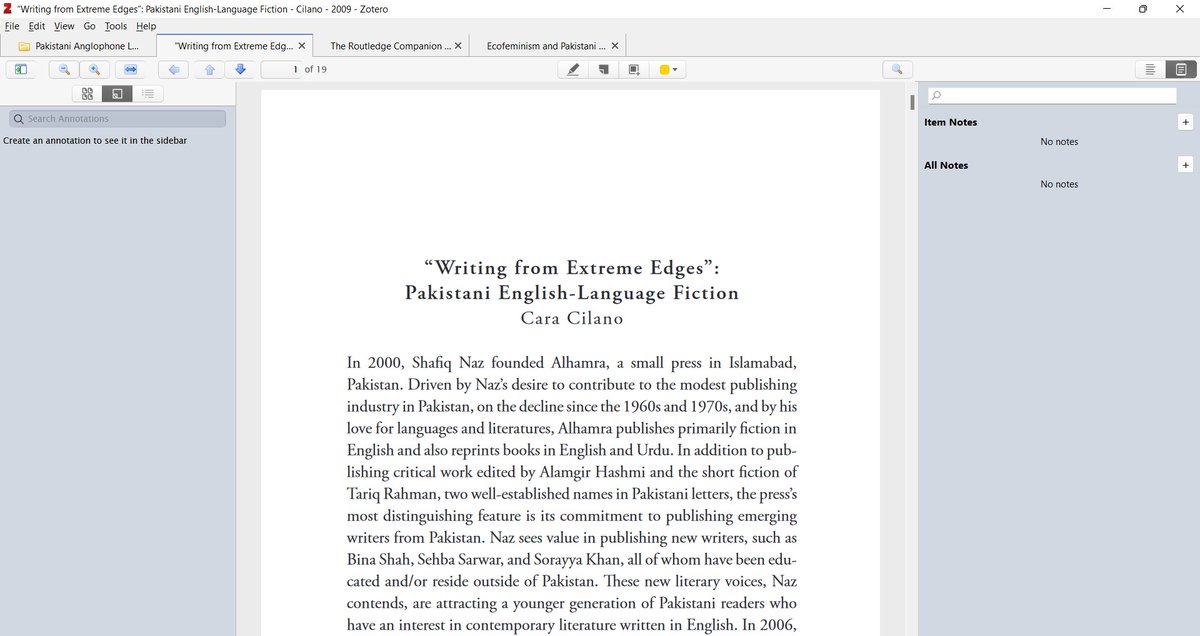
You can annotate a PDF (left pane) and take notes (right pane) *in* Zotero.
You can annotate a PDF (left pane) and take notes (right pane) *in* Zotero.
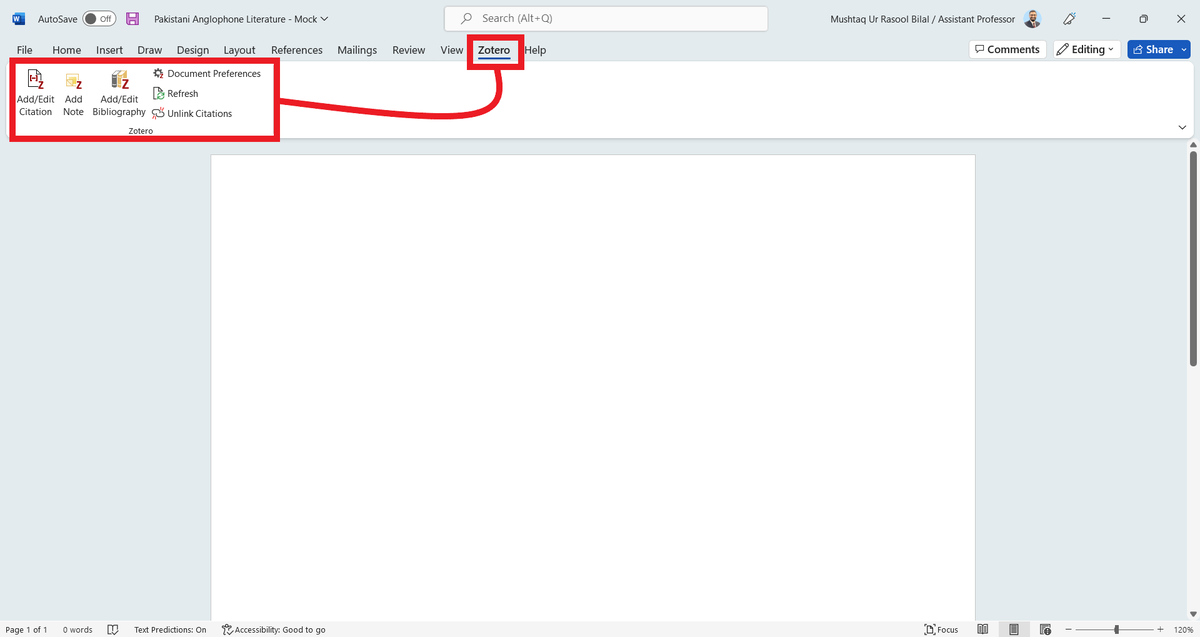
Now open a blank document in MS Word.
You'll see that Zotero has automatically installed a plugin.
You'll see that Zotero has automatically installed a plugin.
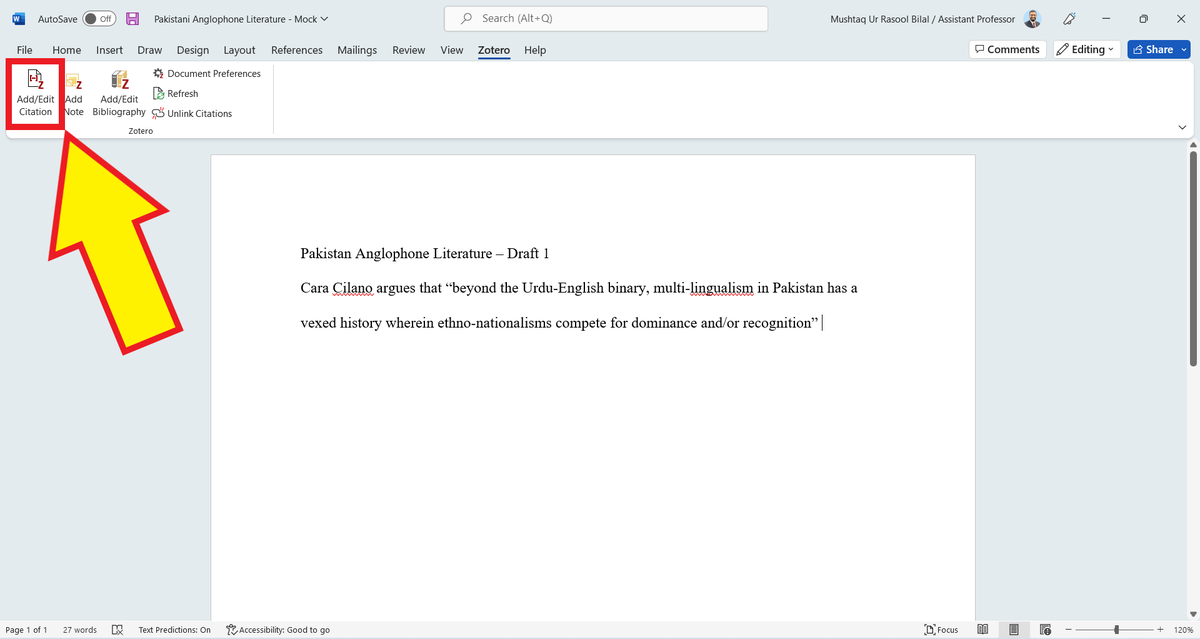
Select a quote from one of the papers in your collection, and type it in the document.
To add an in-text citation, click on "Add/Edit Citation" in the Zotero menu.
To add an in-text citation, click on "Add/Edit Citation" in the Zotero menu.
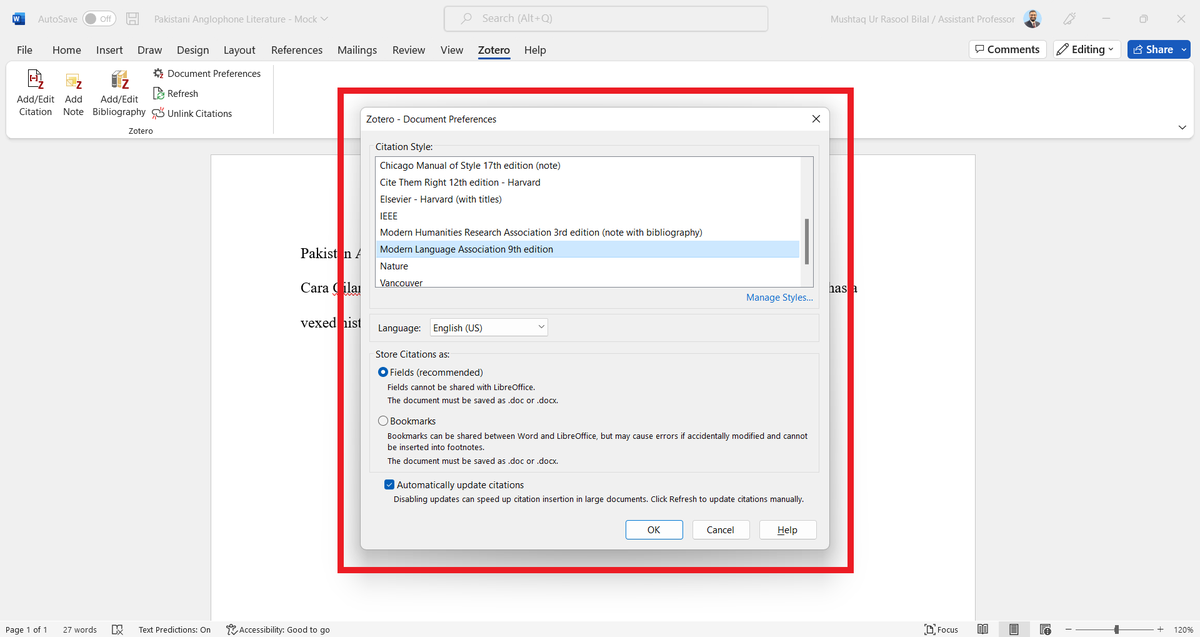
Zotero may open "Document Preferences" with a list of available citation styles.
Select the style appropriate to your field.
Select the style appropriate to your field.
Zotero will open a red search bar.
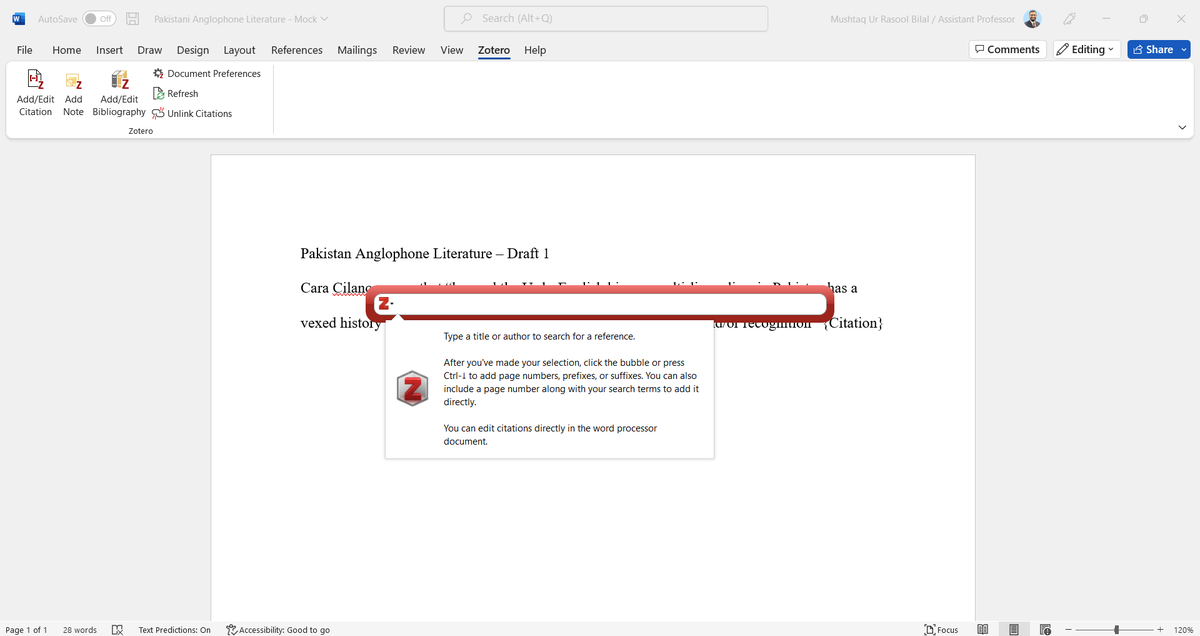
Enter the name of the author you want to cite.
Zotero will show you the relevant item in your library.
Select the item.
Zotero will show you the relevant item in your library.
Select the item.
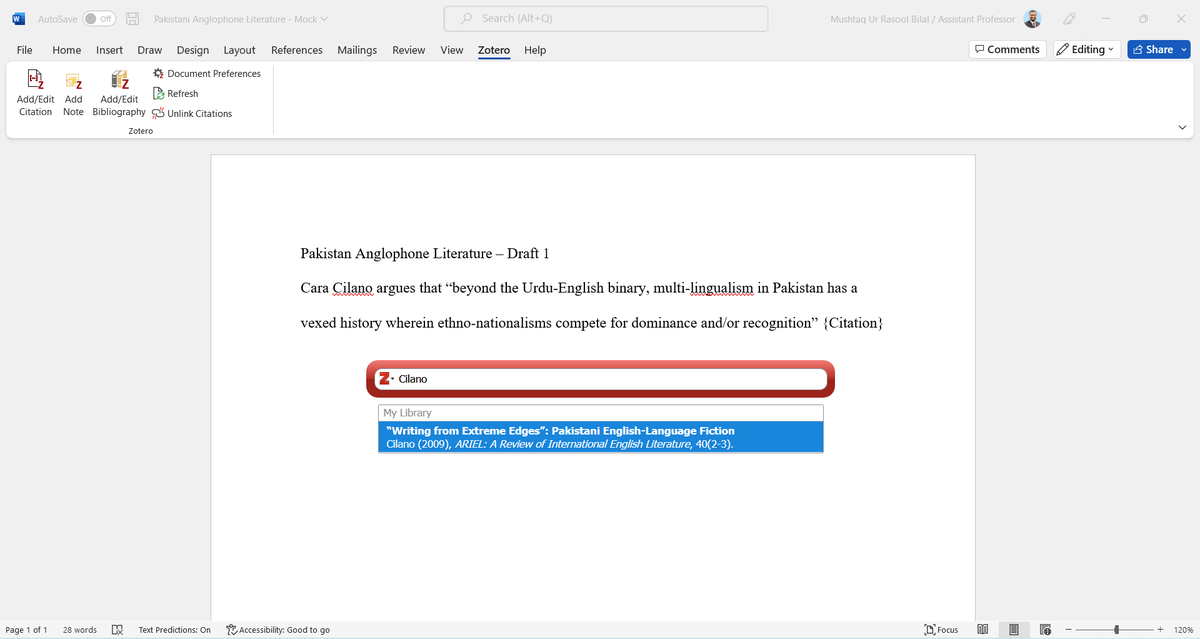
Zotero will prepare the citation for insertion.
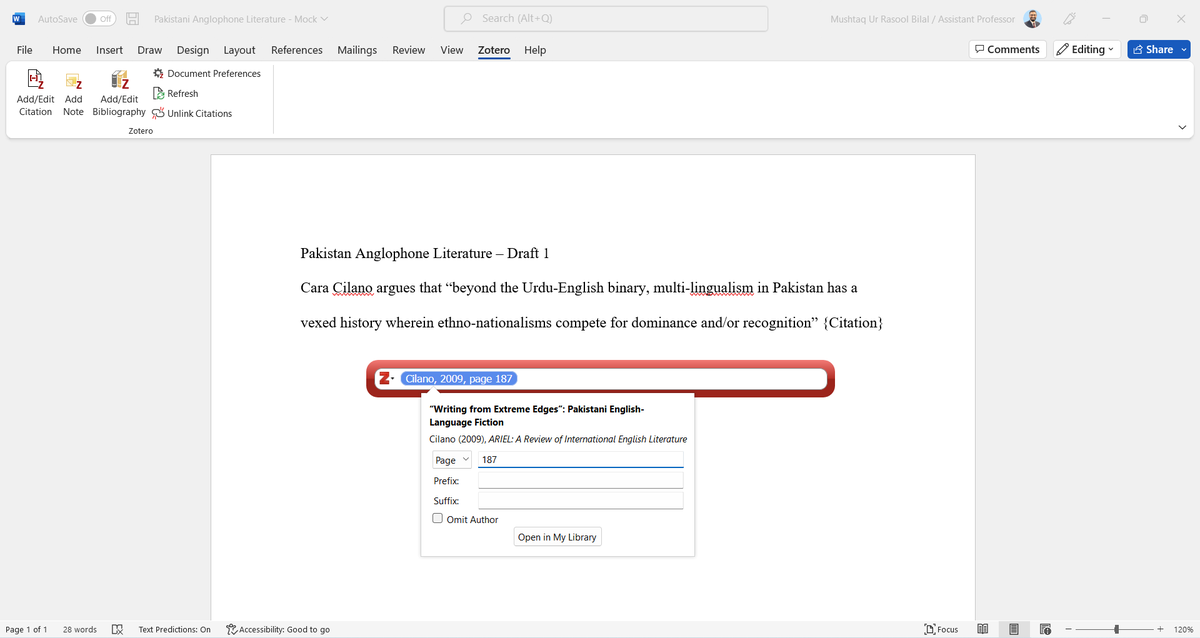
You can also add page numbers by clicking on the citation in the search bar.
Add a few in-text citations from different items in your collection.
You can also add page numbers by clicking on the citation in the search bar.
Add a few in-text citations from different items in your collection.
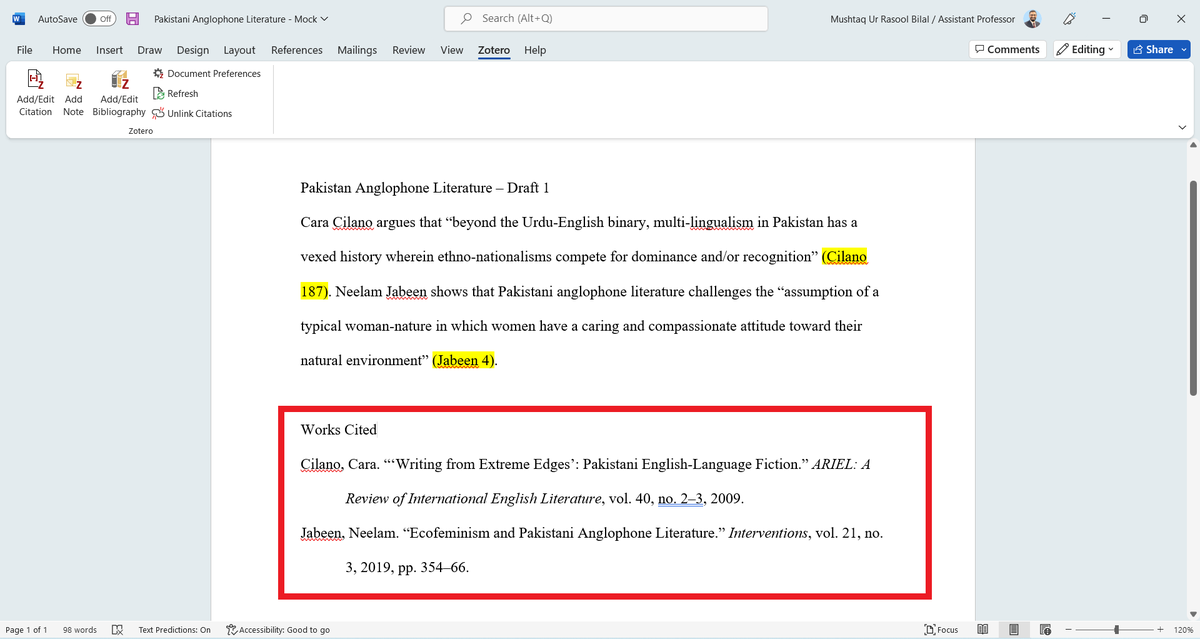
Once you're done with in-text citations, click on "Add/Edit Bibliography" in the Zotero tab.
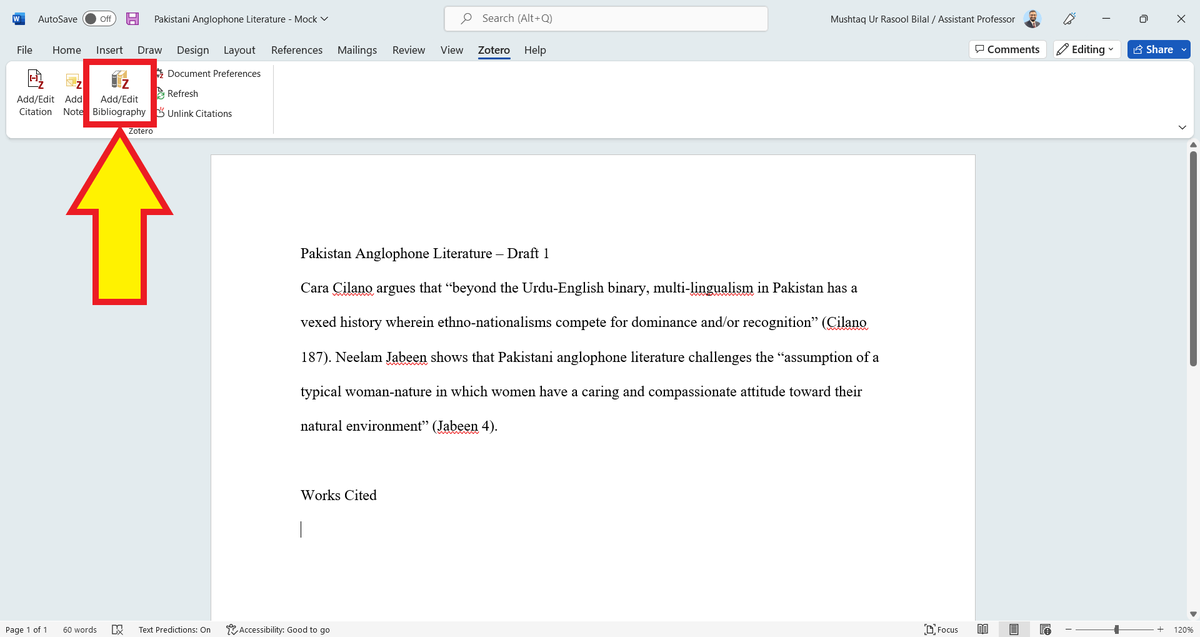
Zotero will add the bibliography according to the style you had selected.
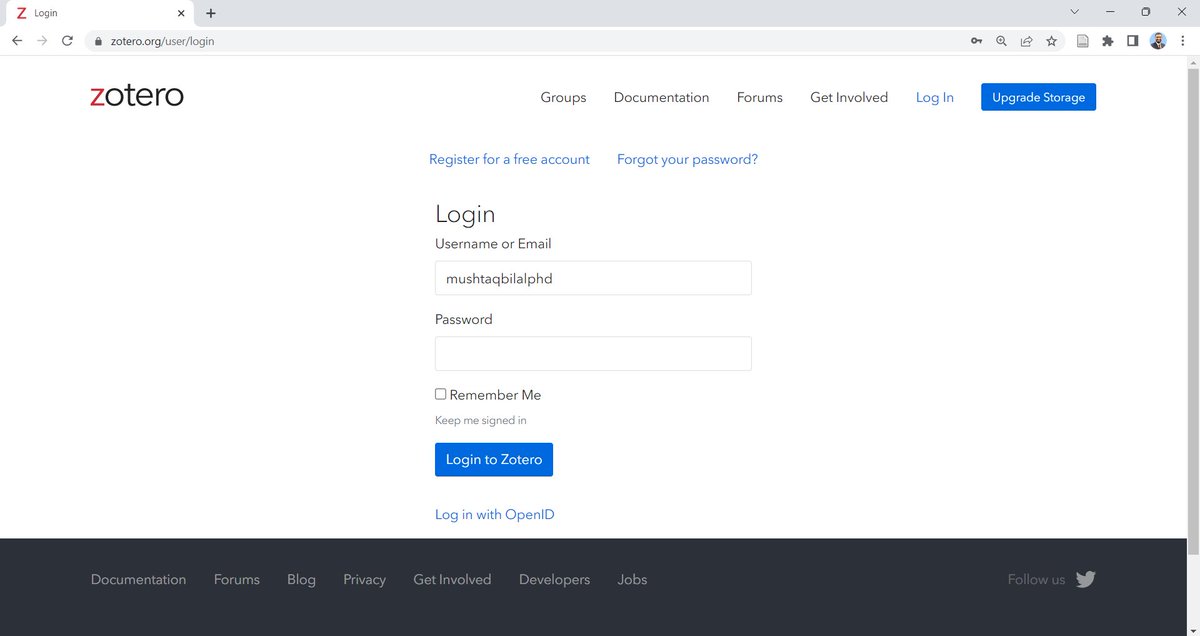
One last thing: go and log in to your Zotero account.
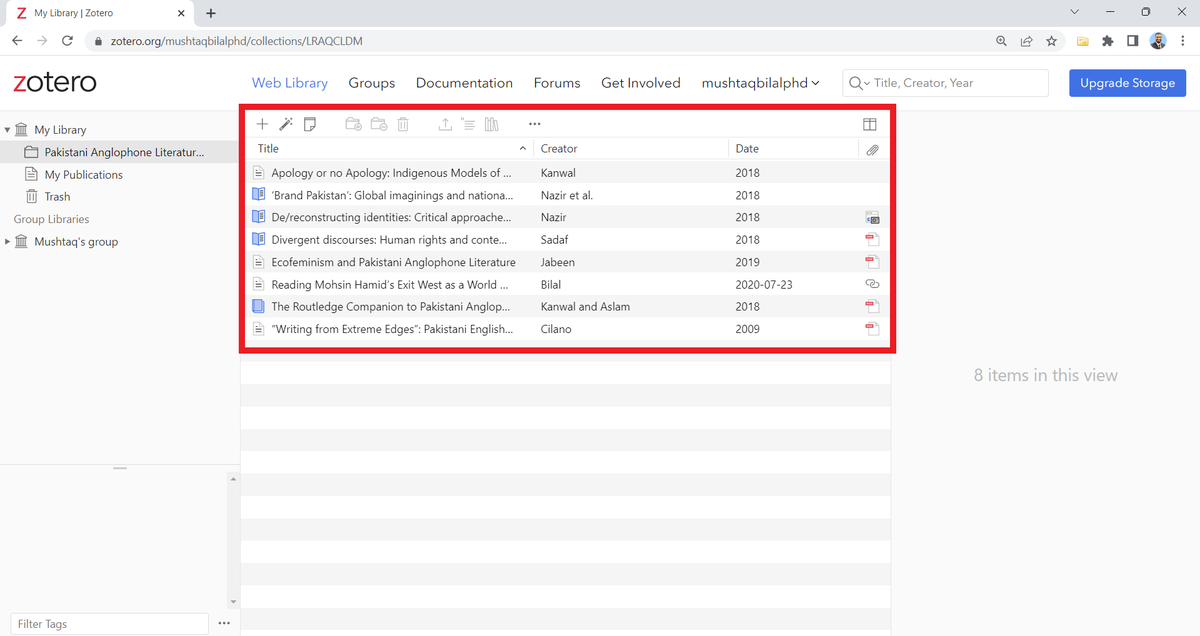
Click on "Web Library" and you will see that your library in the Zotero desktop app is available in your web library too.
Hope you found this tutorial useful.
And if you did:
1. Scroll to the top and retweet the first tweet to share it with your friends and colleagues.
2. Follow me @MushtaqBilalPhD for more Zotero tutorials.
And if you did:
1. Scroll to the top and retweet the first tweet to share it with your friends and colleagues.
2. Follow me @MushtaqBilalPhD for more Zotero tutorials.
If you're interested in learning more about Zotero, here are a few more tutorials for you.
Ignore the first one since it's quite similar to this one.
Ignore the first one since it's quite similar to this one.
https://twitter.com/MushtaqBilalPhD/status/1584103787941150720
• • •
Missing some Tweet in this thread? You can try to
force a refresh






