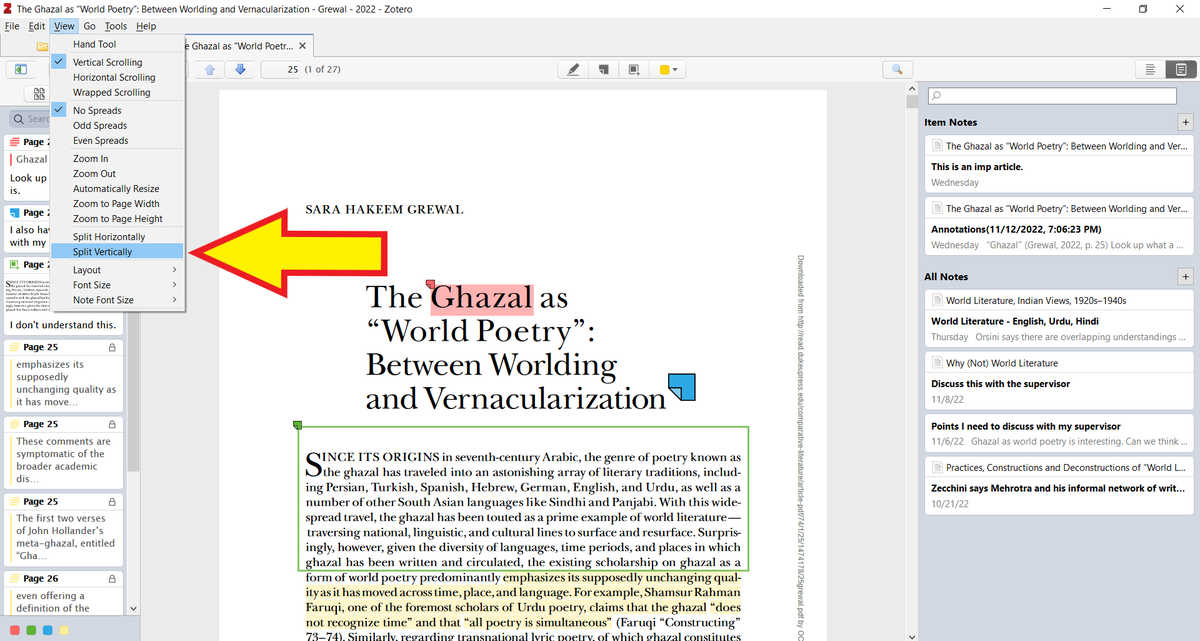
You can connect Zotero with your Google Drive if you don't want to pay $ for extra storage.
But most folks don't know how to go about it.
Here's how to connect Zotero with Google Drive 👇
A step-by-step tutorial with screenshots 🧵
But most folks don't know how to go about it.
Here's how to connect Zotero with Google Drive 👇
A step-by-step tutorial with screenshots 🧵
Start by downloading and installing Google Drive for desktop. 

While installing, Google Drive may or may not ask you to sign in with browser.
If it does, go ahead and sign in with browser.
If it does, go ahead and sign in with browser.

Once installed, Google Drive (G:) will show up in your computer along with other drives.
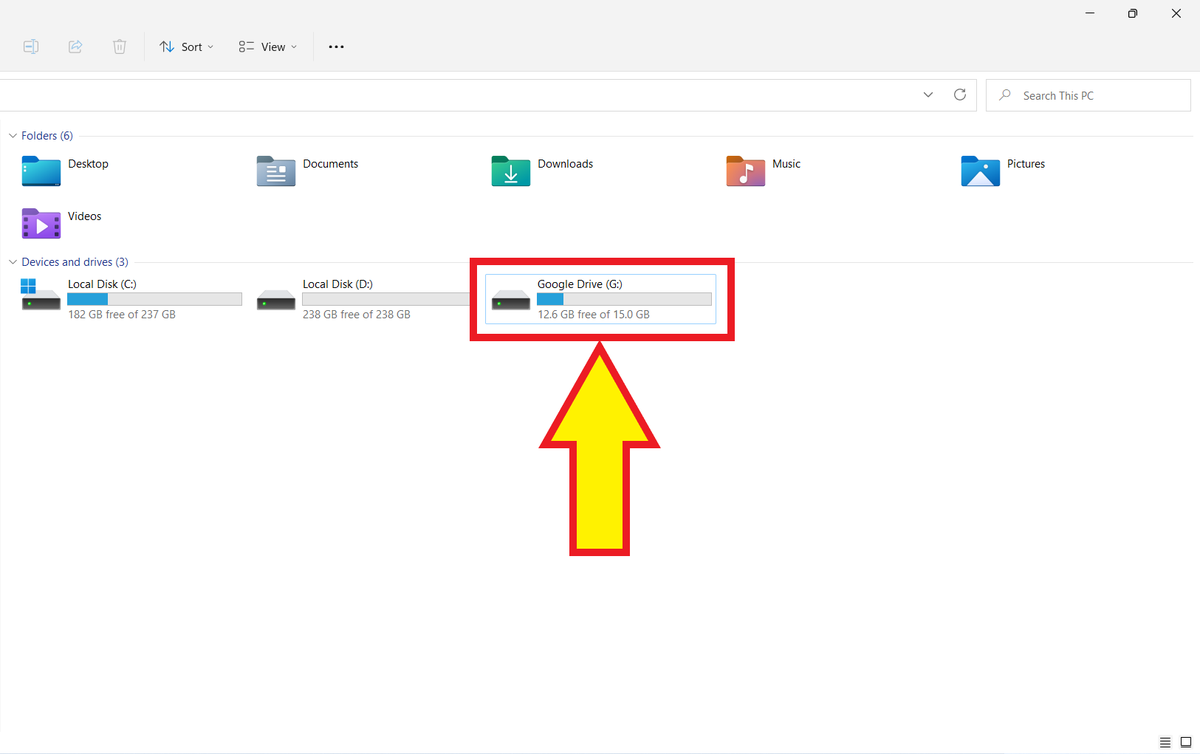
Click on Google Drive and then open "My Drive."
Create a folder titled "Zotero PDFs."
Create a folder titled "Zotero PDFs."

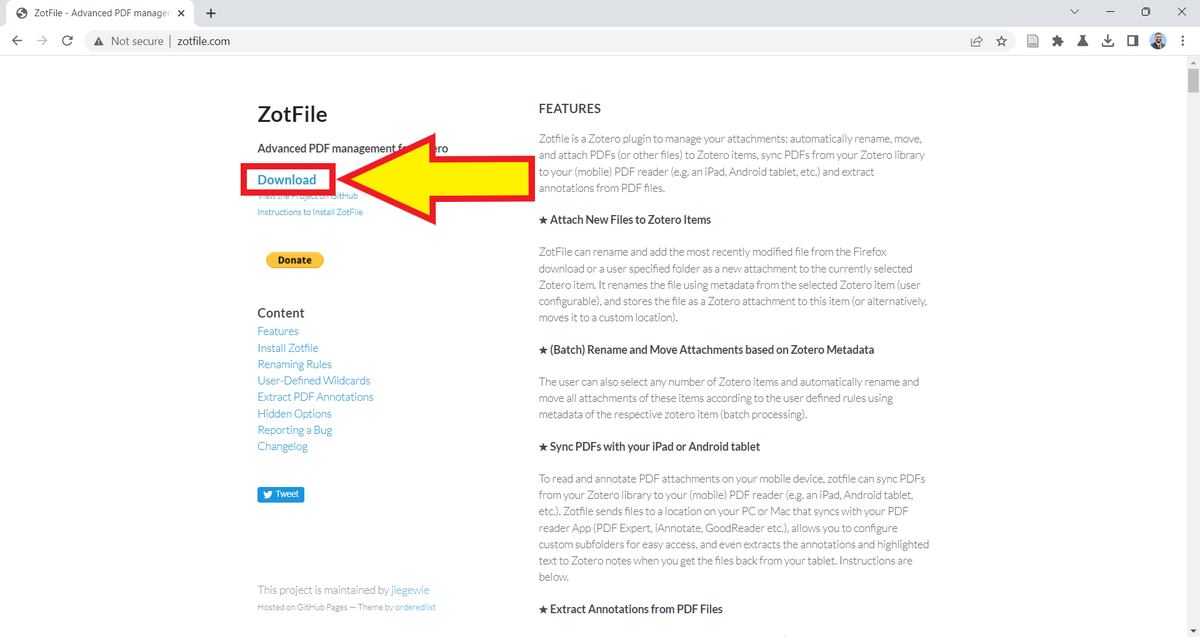
Next, go to zotfile.com and download the ZotFile add-on.
It will download a .xpi (pronounced zippy) file to your computer.
It will download a .xpi (pronounced zippy) file to your computer.
Open your Zotero desktop app and click on "Tools" and then "Add-ons."
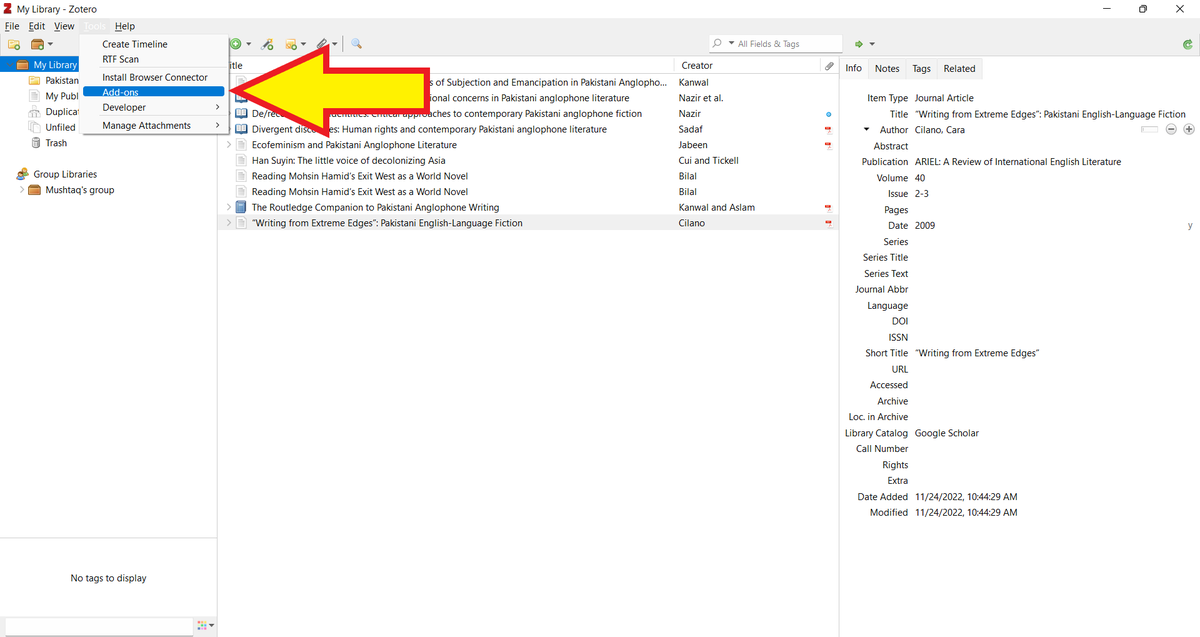
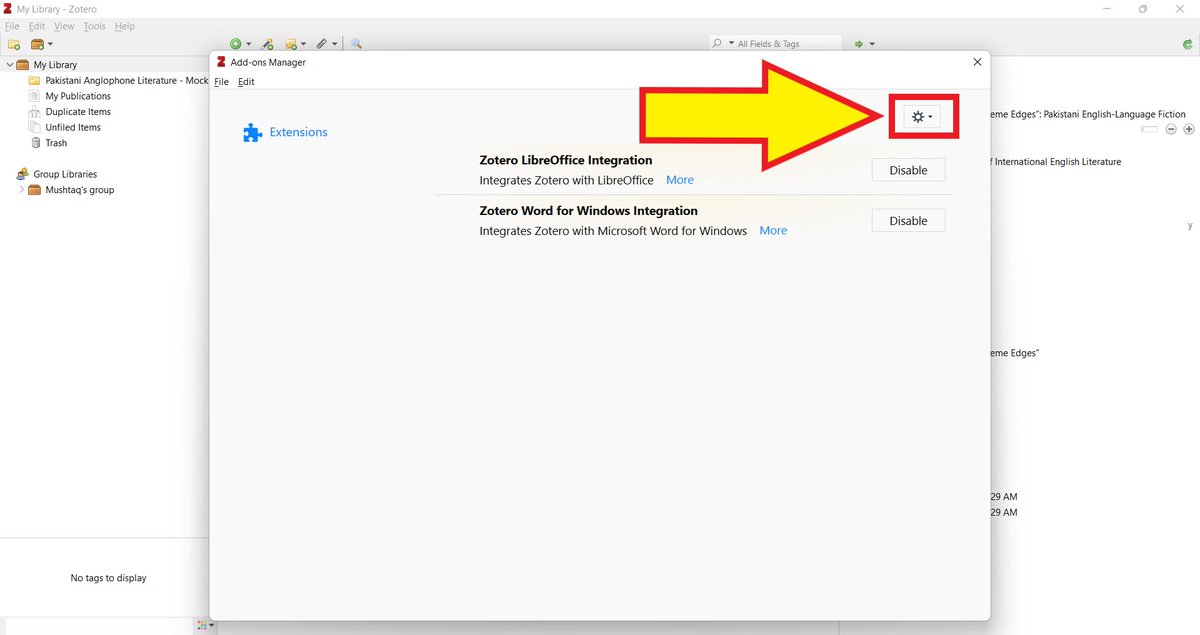
You will be taken to Zotero's "Add-on Manager."
Click on the "Settings" button in the top-right corner.
Click on the "Settings" button in the top-right corner.
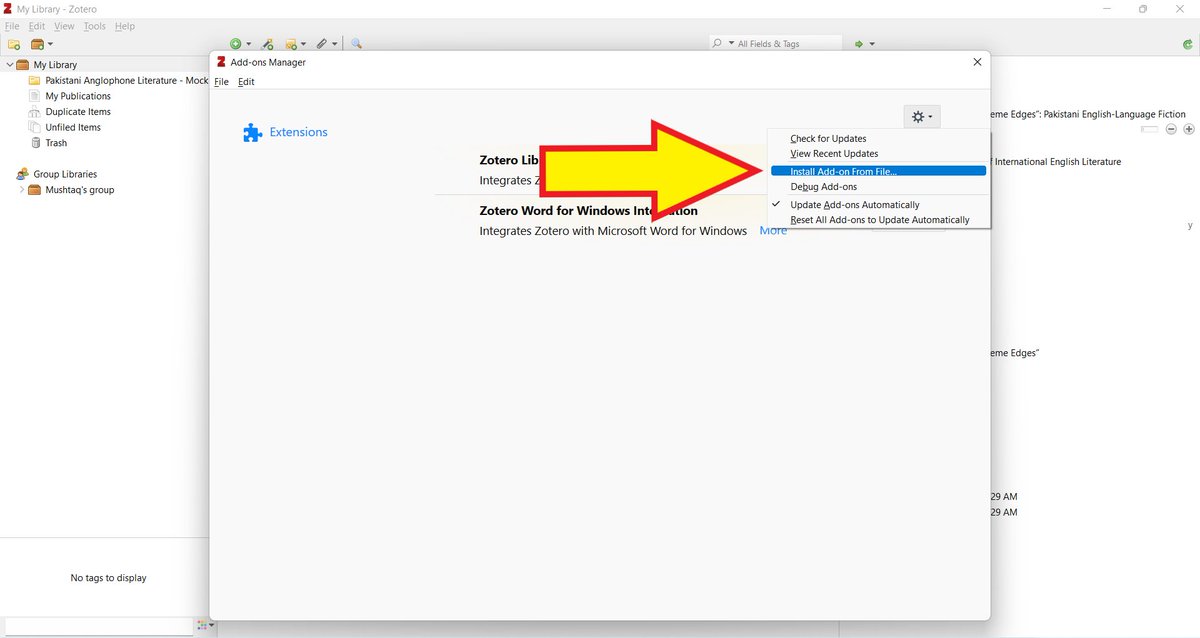
Select "Install Add-on From File."
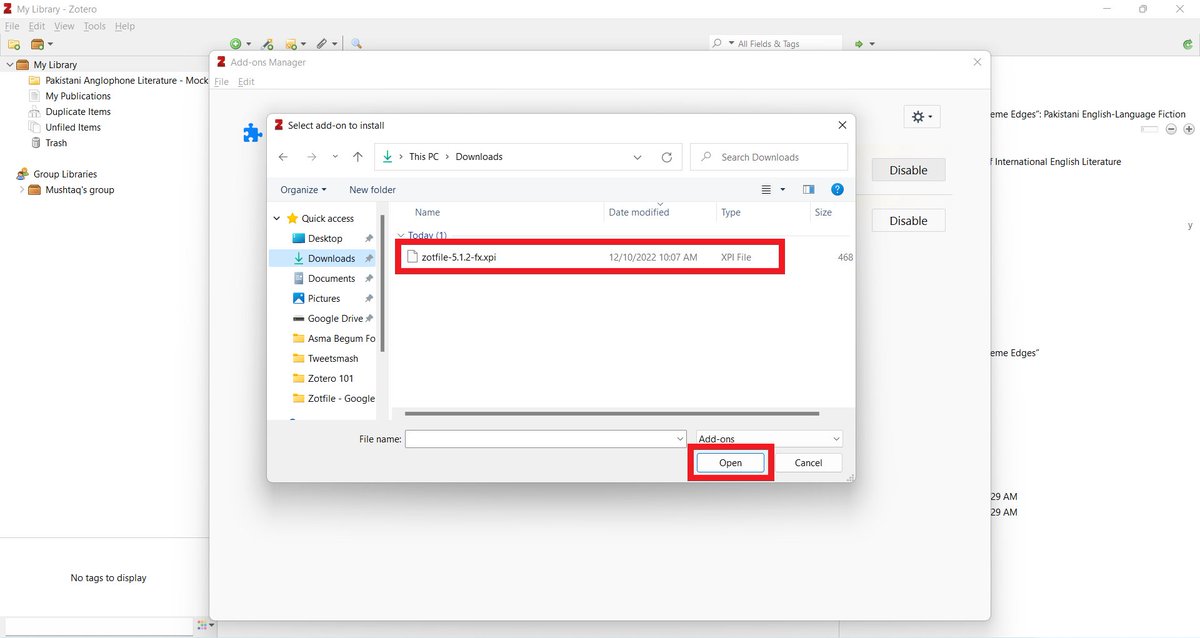
Go to your Downloads folder and select the ZotFile (.xpi) file.
Click on the "Open" button.
Click on the "Open" button.
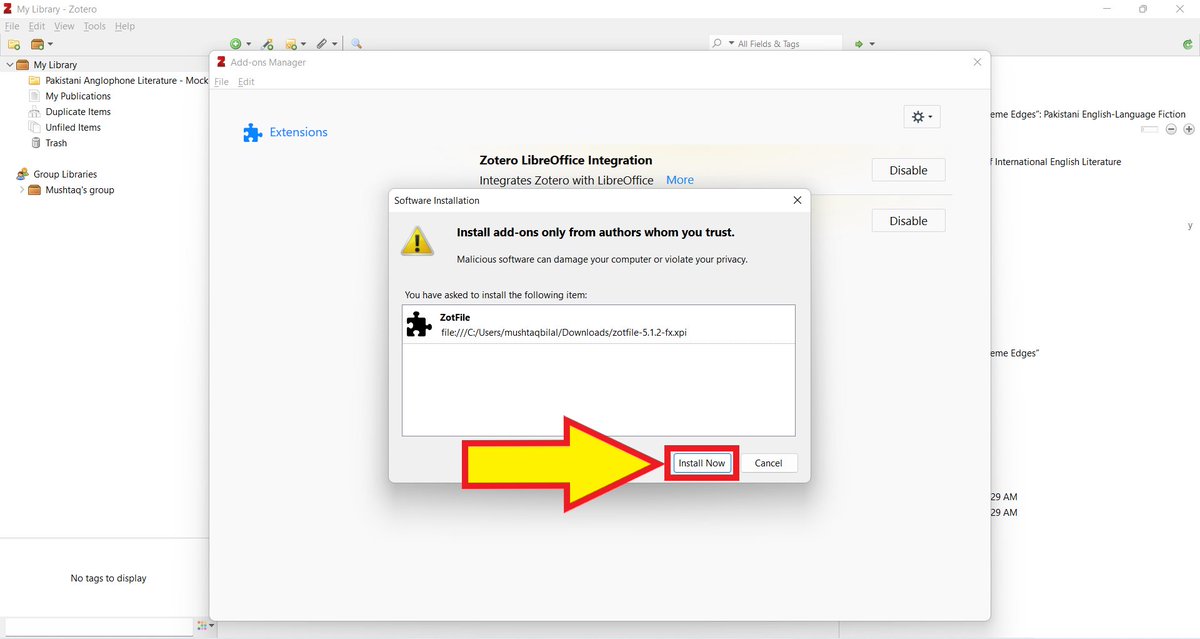
You will be alerted to be cautious of malicious software.
Since ZotFile is not a malicious software, click on "Install Now."
Since ZotFile is not a malicious software, click on "Install Now."
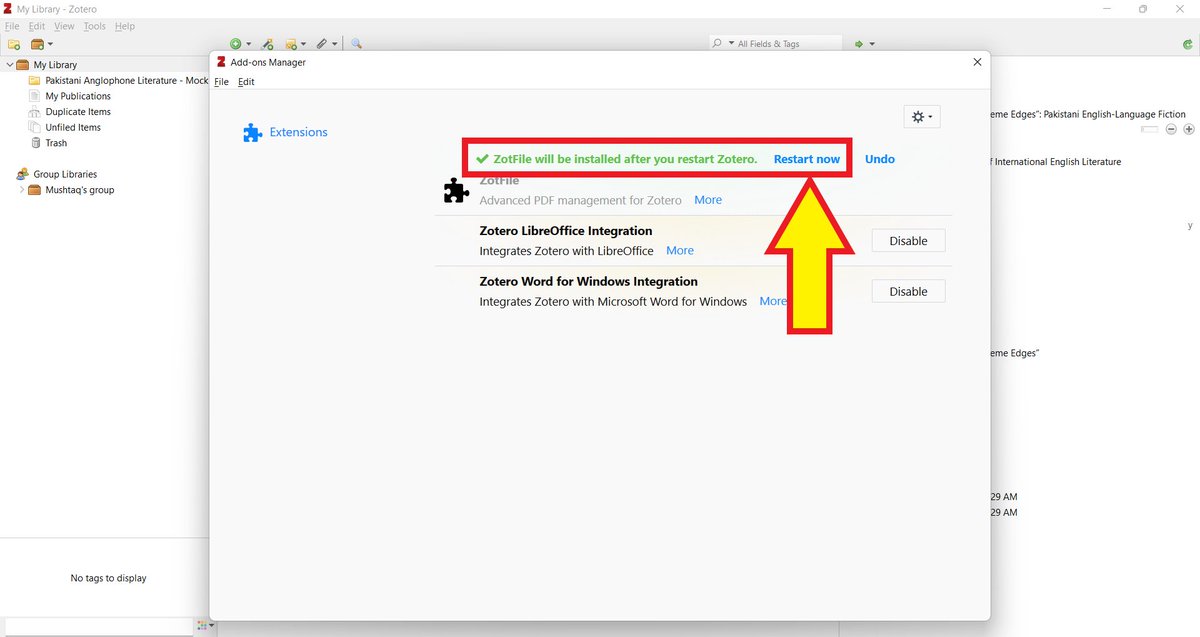
Zotero will inform you that it needs to restart for ZotFile to work.
Go ahead and click on "Restart now."
Go ahead and click on "Restart now."
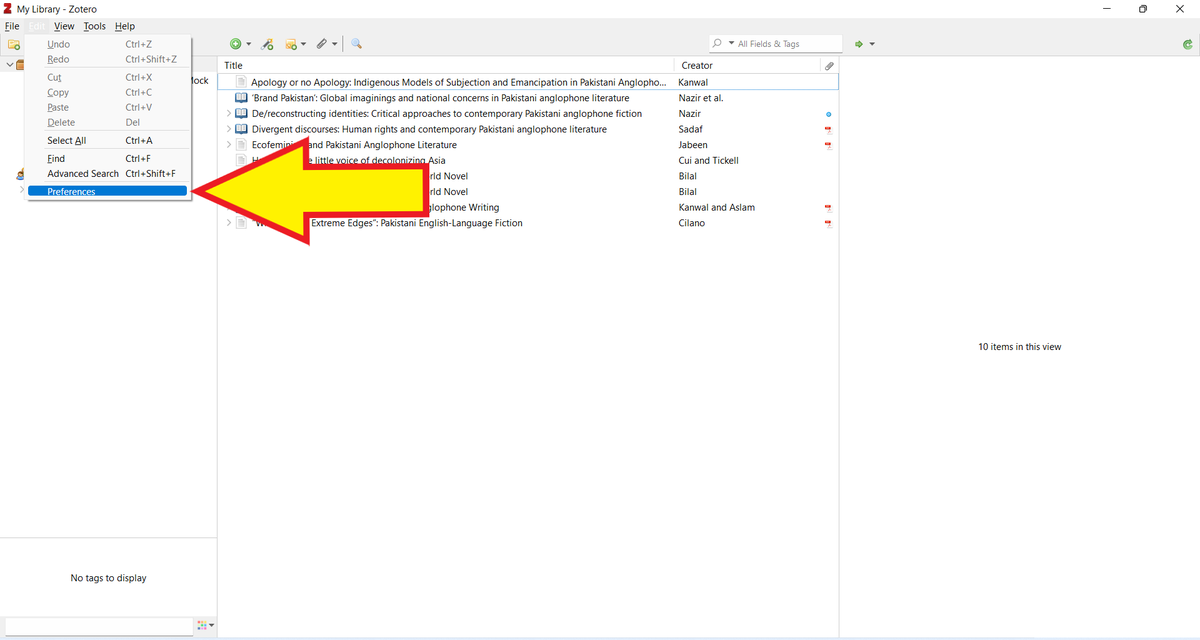
Now that you have ZotFile installed, you need to find out where Zotero stores your PDFs.
To do so, click on "Edit" and then "Preferences."
To do so, click on "Edit" and then "Preferences."
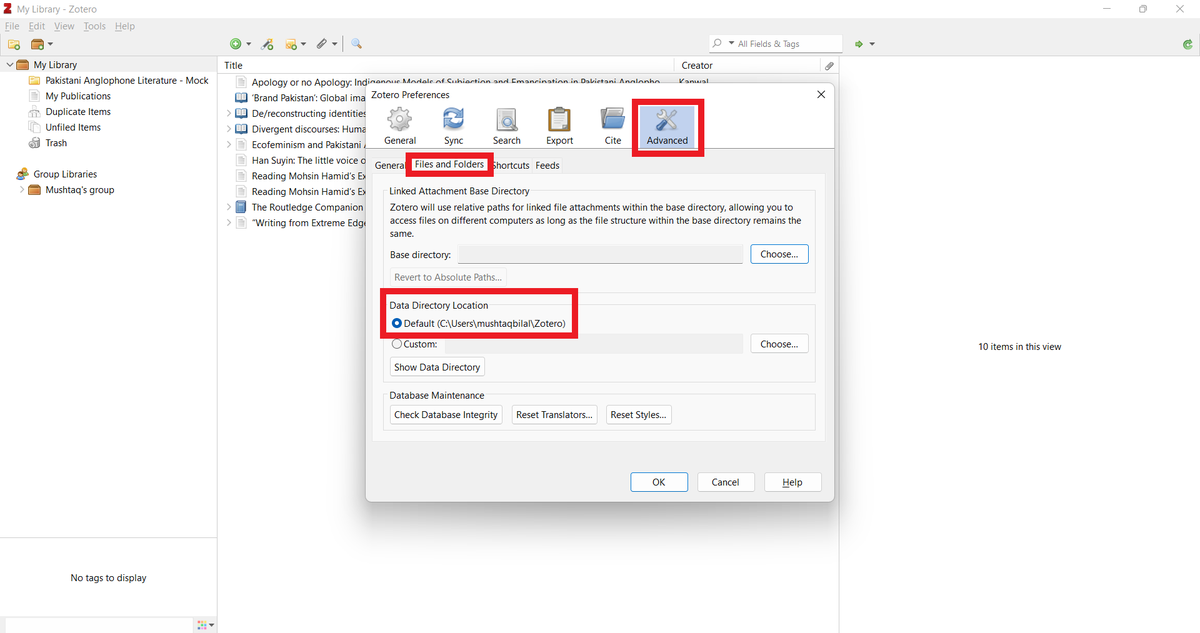
In "Zotero Preferences," go to "Advanced" and then "Files and Folders."
Zotero will show you the default location of the data directory.
In my case, it's C:\Users\mushtaqbilal\Zotero
Note it down.
Zotero will show you the default location of the data directory.
In my case, it's C:\Users\mushtaqbilal\Zotero
Note it down.
Next, go to "Tools" and then "ZotFile Preferences."
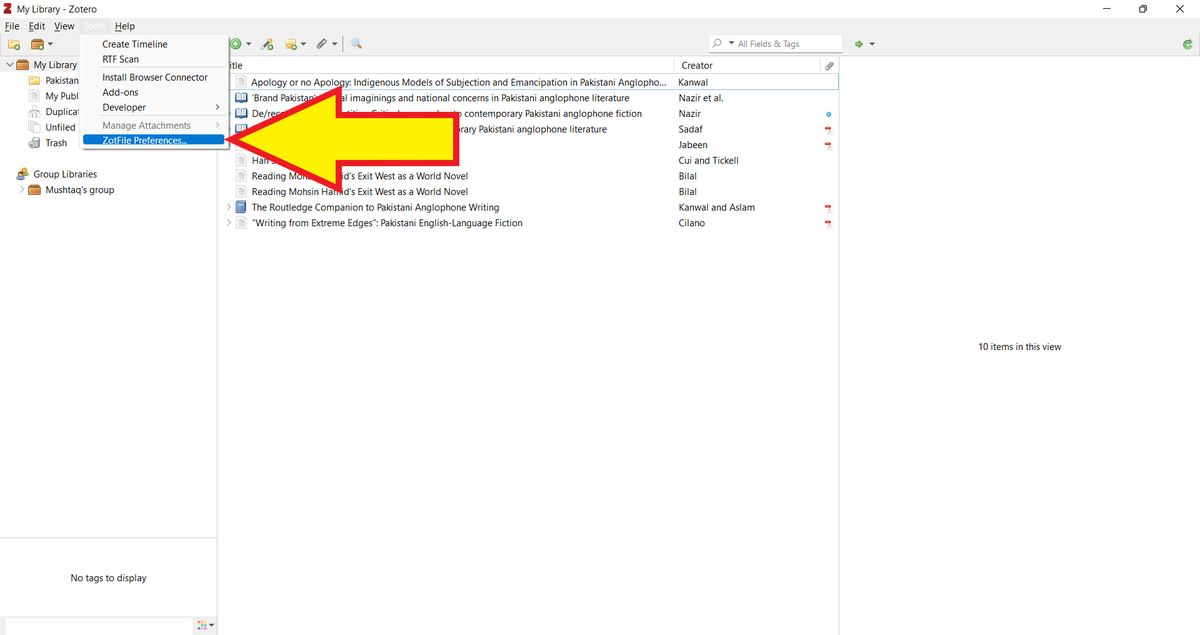
In "General Settings" of "ZotFile Preferences," you will see "Source Folder for Attaching New Files."
In the search bar, type in the default location of the data directory.
In the search bar, type in the default location of the data directory.
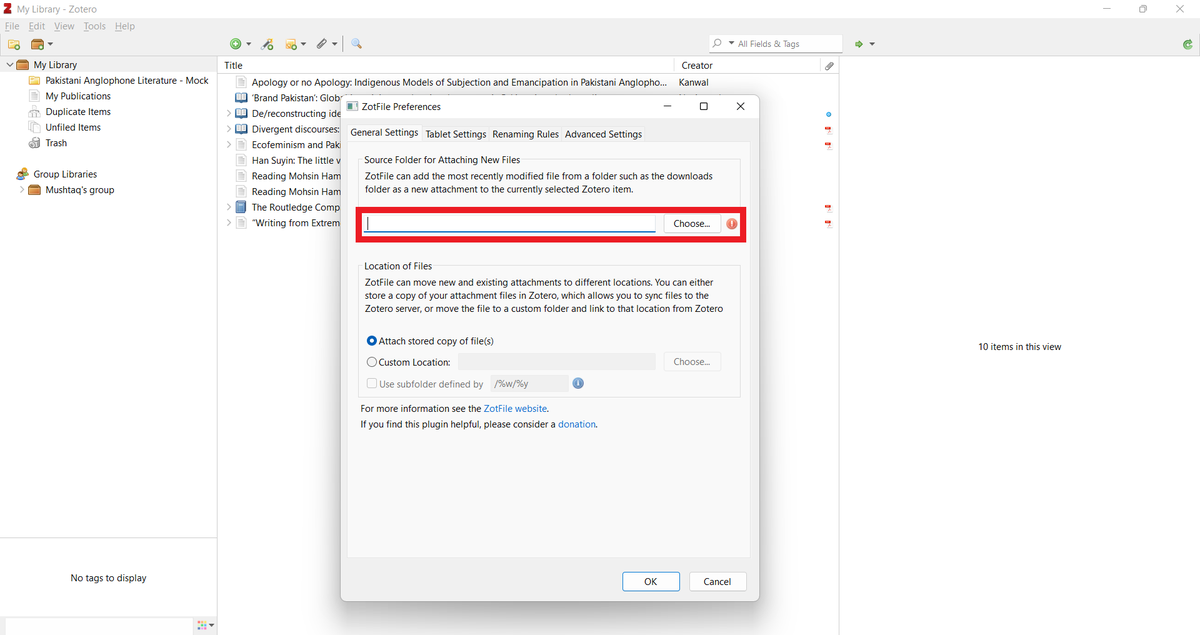
In my case, it's C:\Users\mushtaqbilal\Zotero
You can also use the "Choose" button to reach the default location.
You can also use the "Choose" button to reach the default location.
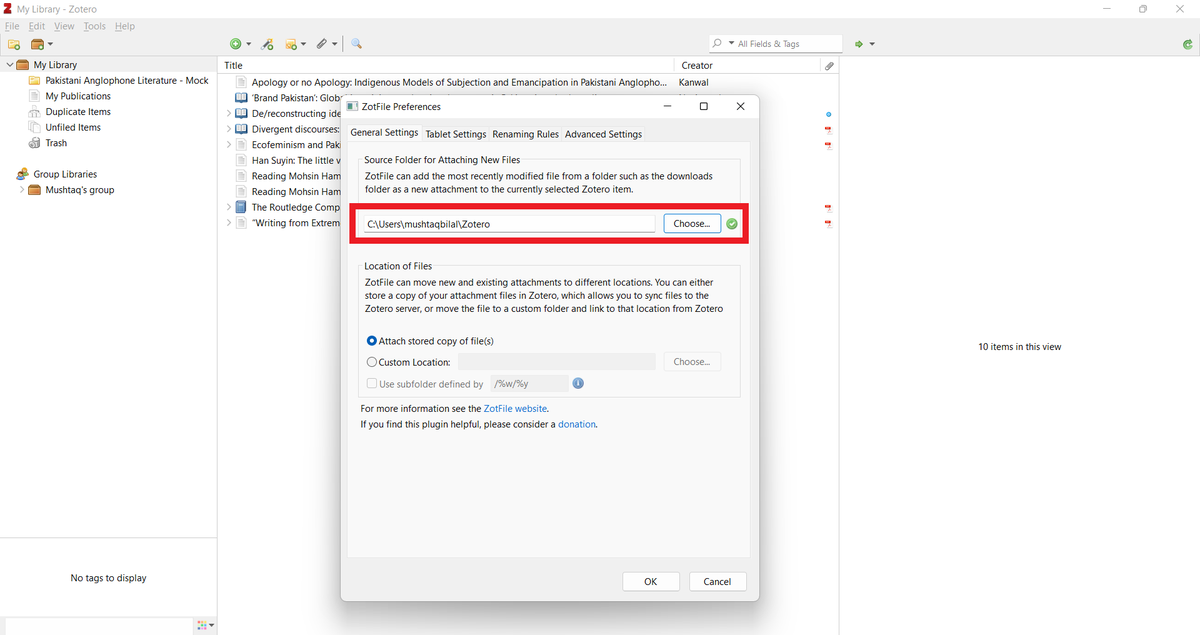
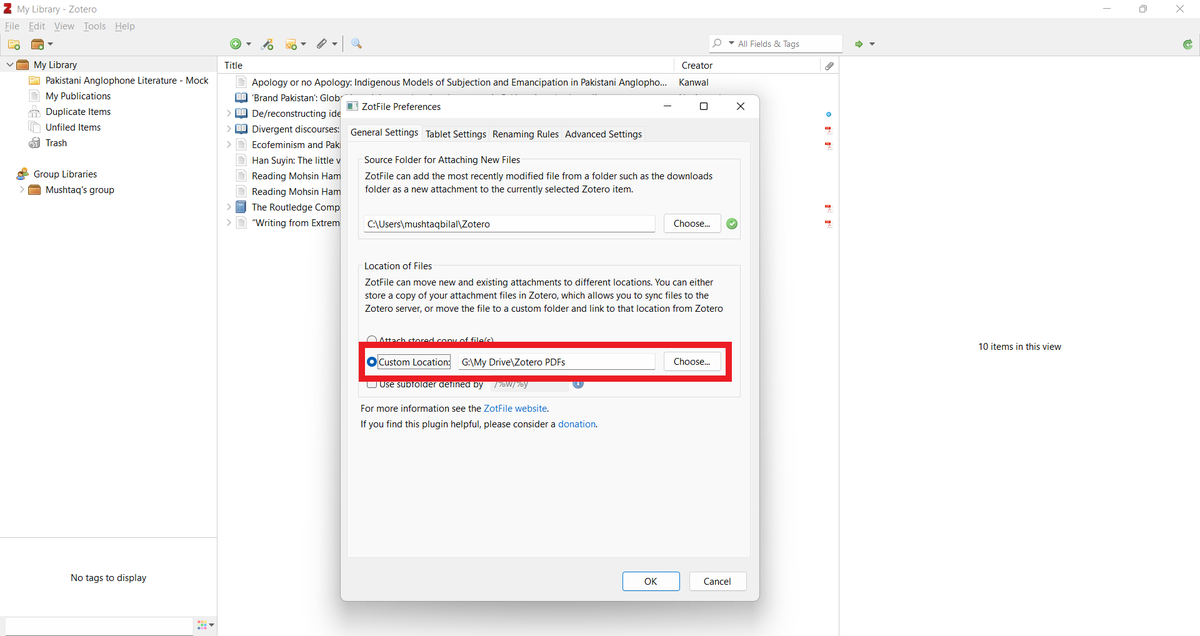
Next, select "Custom Location." Using the "Choose" button, enter the location of the Zotero PDFs folder you created a little while ago in G: drive.
In my case, it's G:\My Drive\Zotero PDFs
Click "OK" once you are done.
In my case, it's G:\My Drive\Zotero PDFs
Click "OK" once you are done.
Next, add a PDF to your Zotero library.
Here I am adding a PDF using its DOI.
Here I am adding a PDF using its DOI.
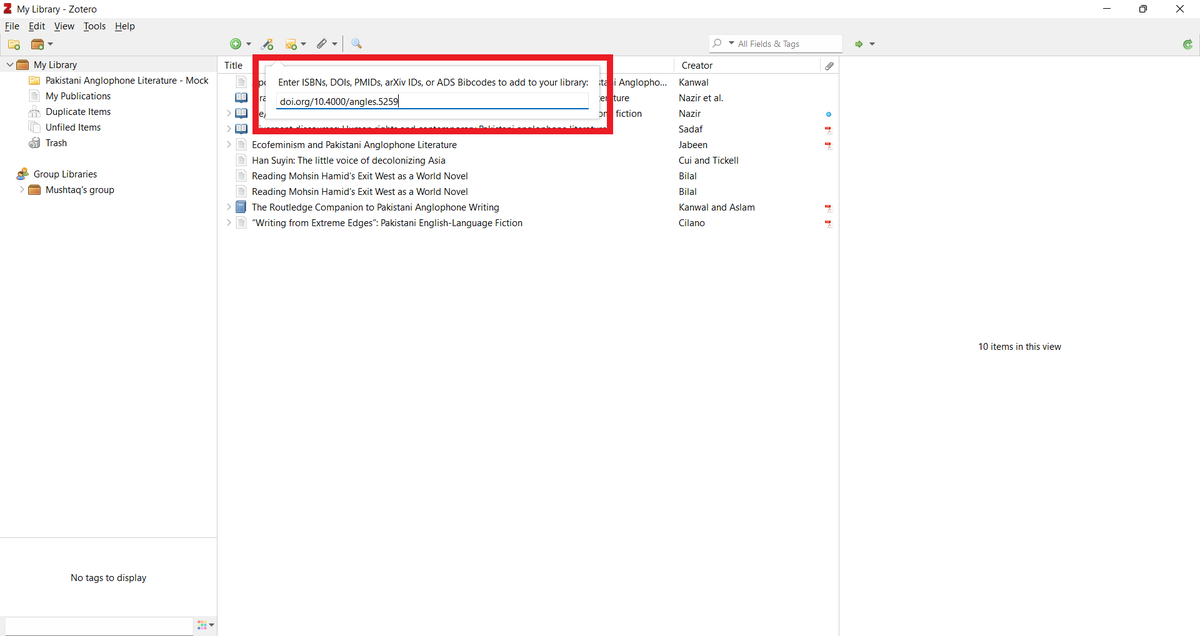
Your (unpaywalled) PDF will be downloaded and attached to an item.
ZotFile will rename your PDF.
ZotFile will rename your PDF.
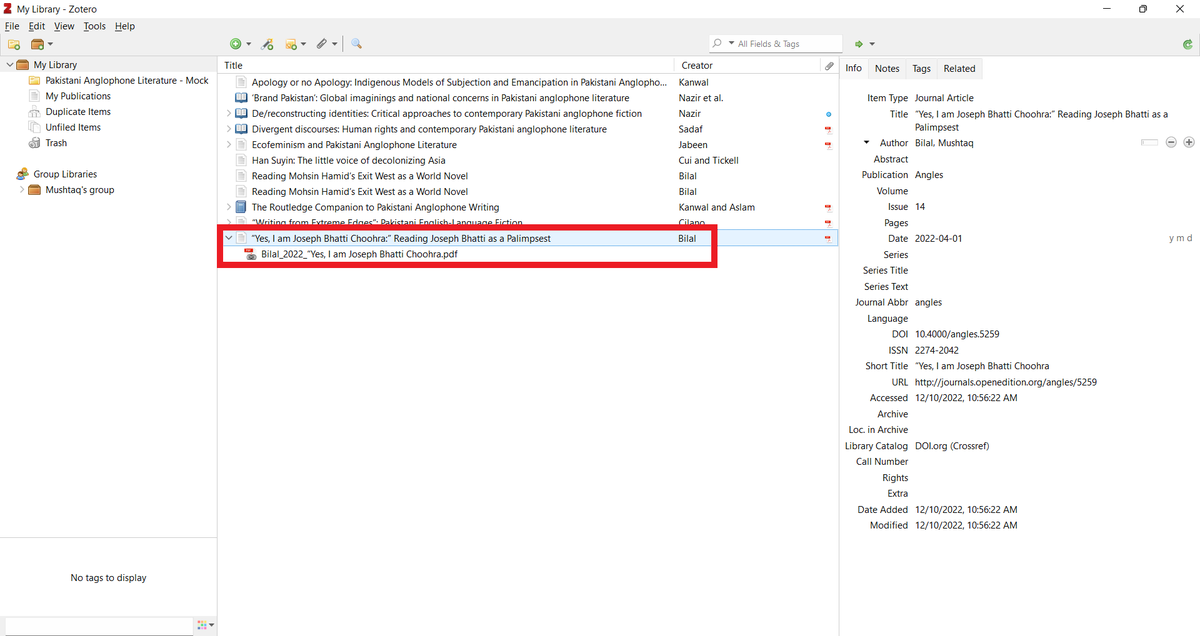
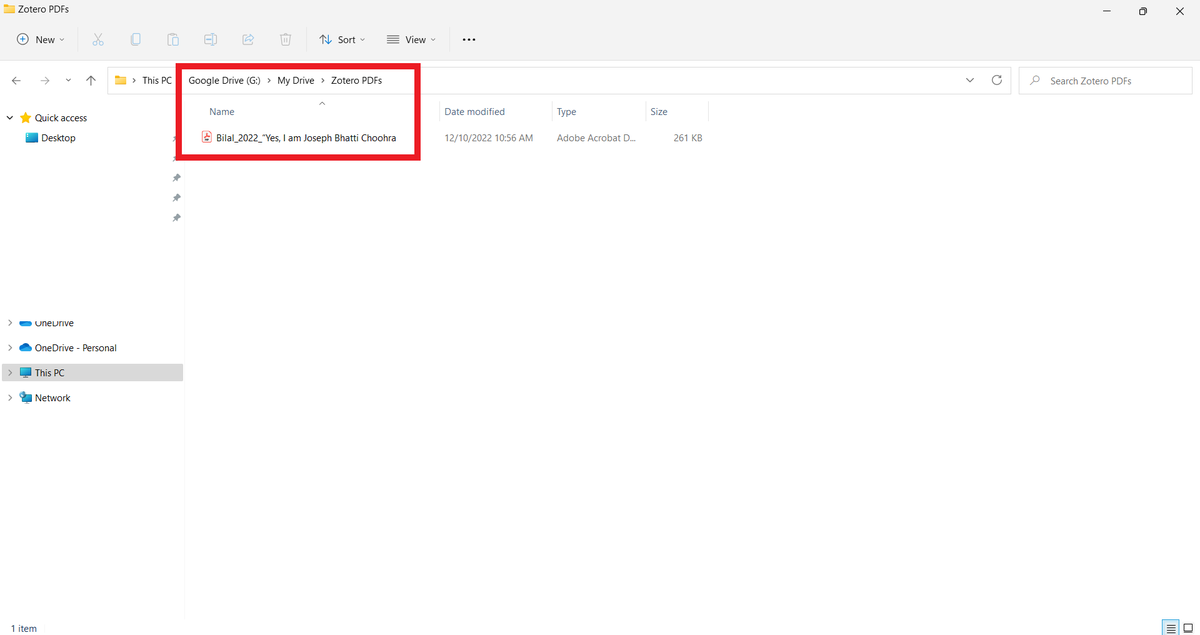
Now go to the "Zotero PDFs" folder in your G: drive and you will see the same PDF there with the same name.
And that's how you connect Zotero with your Google Drive.
And that's how you connect Zotero with your Google Drive.
I'd like to thank David Todd (@dtod) who took the time to teach me how to connect Zotero with Google Drive.
Found this thread helpful?
1. Scroll to the top and retweet it to share it with your friends and colleagues.
2. Follow me @MushtaqBilalPhD for regular tips on Zotero and academic writing.
1. Scroll to the top and retweet it to share it with your friends and colleagues.
2. Follow me @MushtaqBilalPhD for regular tips on Zotero and academic writing.
• • •
Missing some Tweet in this thread? You can try to
force a refresh