 Read on Twitter
Everyone plays chess with the same pieces.
But who wins? Always the person with a better strategy!
Research is not different - 3 strategies for an (unfair) advantage:
👇
1. Generate Ideas on auto-pilot
When you think of big research breakthroughs you might picture a talented genius obsessing over something for years. But in reality, scientific progress is done very often in small steps through a combination of existing ideas in a new way.
To combine ideas you need to:
💻 Start taking digital notes
🔗 Link them in smart ways
🔎 Review your notes
What happens is that every time you review a note you not only see the note itself but the every note that links to it (a concept called backlinks). This allows you to find relations in your notes you previously missed.
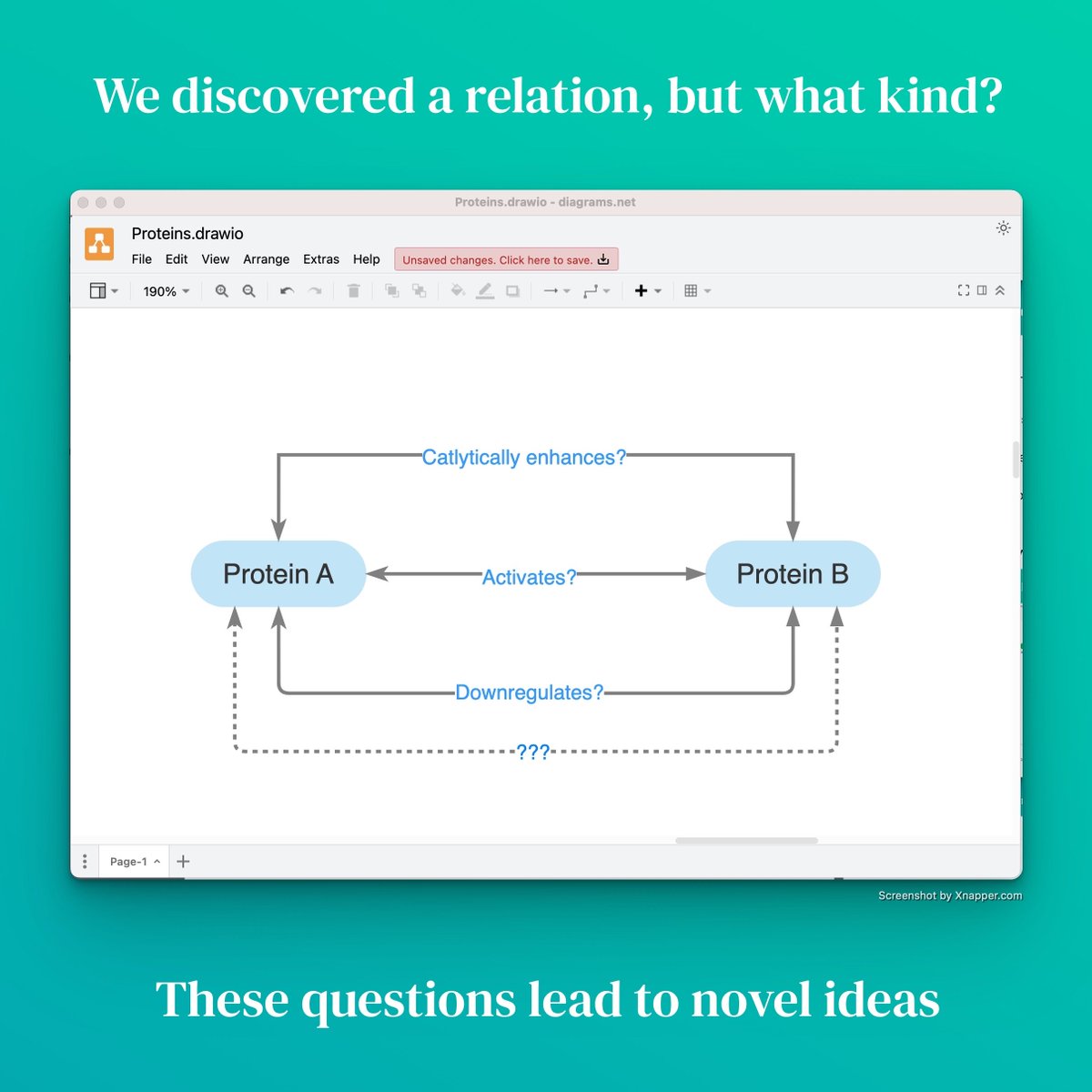
Example: You have a note on two proteins that are connected in some way (e.g. both play a role in cancer).
Discovering this connection is creativity - you can now create an experiment or do literature research and understand the nature of this connection.
You do not need to think hard but you continuously connect your information. At some point the connection between A and B became apparent. This leads you to a new and novel research idea.
Keep linking your content to keep having these surprise moments!
2. Don't think hard - be persistent
Everyone has a colleague that is incredibly well-read, knows every paper, or always has a great recommendation. But you feel like you forget 90% after a week? How is it possible for them?
They persistently build their knowledge base. Here are the steps:
🖍️ Do not highlight your papers, instead identify the concepts mentioned in this paper
📜 Take notes on each concept and add a link to the paper.
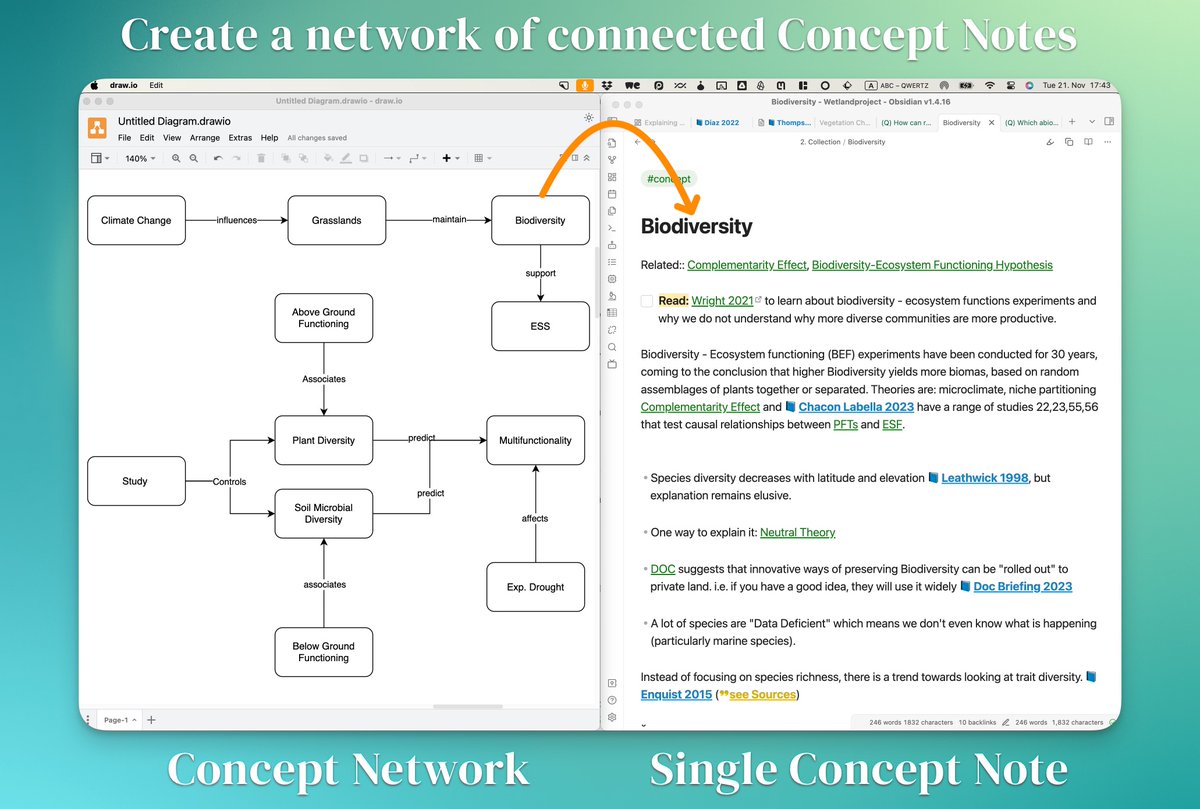
↔ Understand how each concept relates to one another and link accordingly.
The result is a network of notes and papers.
In order to know everything on a topic you do not need to think hard - you open the note on a concept to refresh your memory and find the relevant papers.
This is only possible if you slowly and consistently build your digital knowledge base. Do it for a few months and you will feel your mind being (literally) expanded!
3. Build a house, not a dump
Most folks who start to take notes do it wrong. It goes like this:
- Write a note, put it into a folder e.g. "notes on X".
- Add more notes
- Add more folders
After a few weeks of doing this it becomes a dump:
- It is not clear into which folder to put a new note
- It is not easy to find notes (other than by searching)
- Nowhere to "start your day" from
As it is easy to add but hard to retrieve, there is no point in adding anything in the long run.
False conclusion: "Note Taking is useless" 😞
Avoid this by:
📂 Relying on tables of contents, not folders for tightly related notes
🏷️Using Tags for loosely related ideas
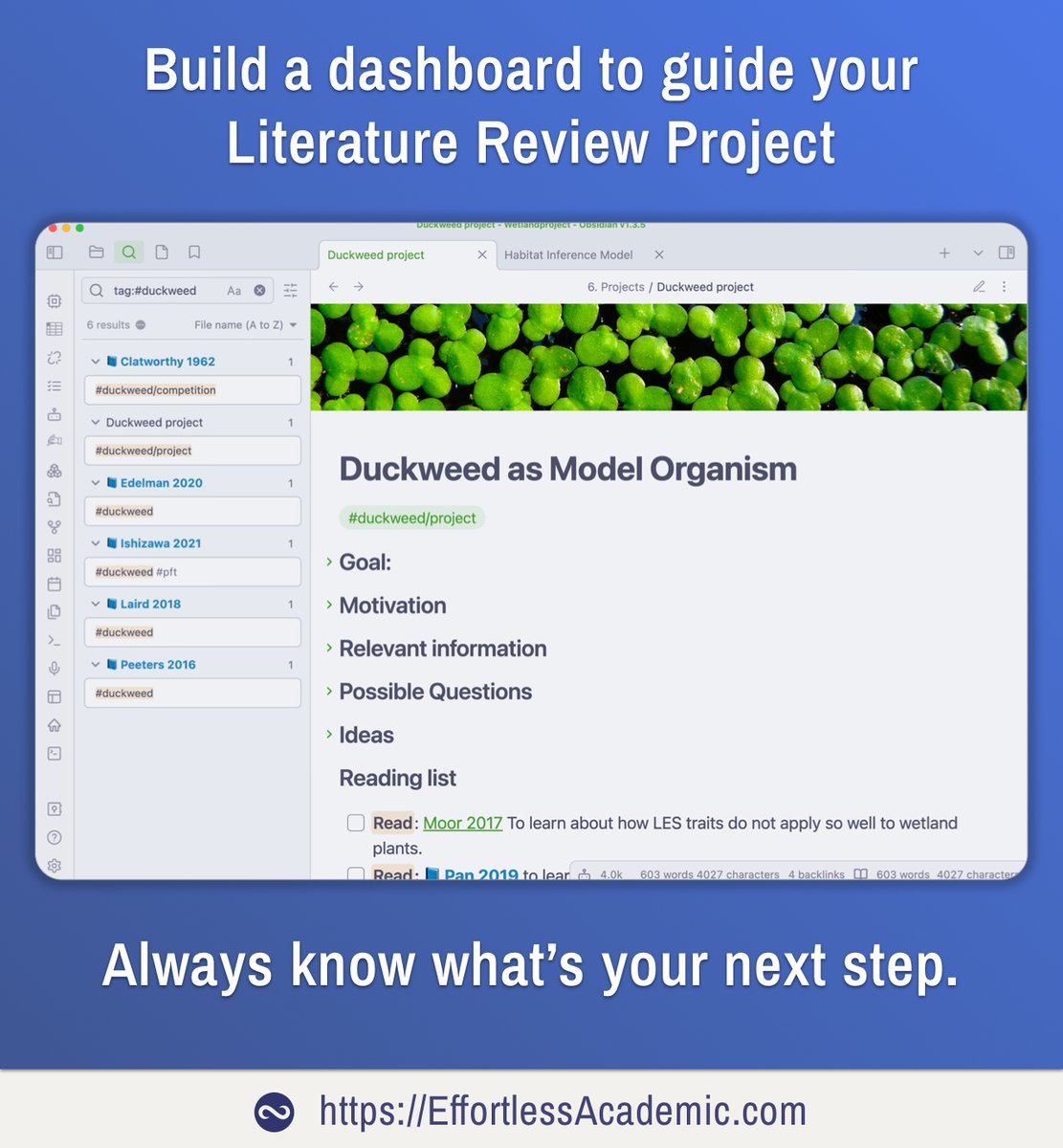
🧱 Creating organizational notes that bundle one set of ideas or project together.
This last step is especially crucial. Here is an example:
This "Project Dashboard" is your starting point into your day. You start your day by making coffee and opening this note.
From here you will find your tasks, ideas, notes, etc to start working.
Webinar
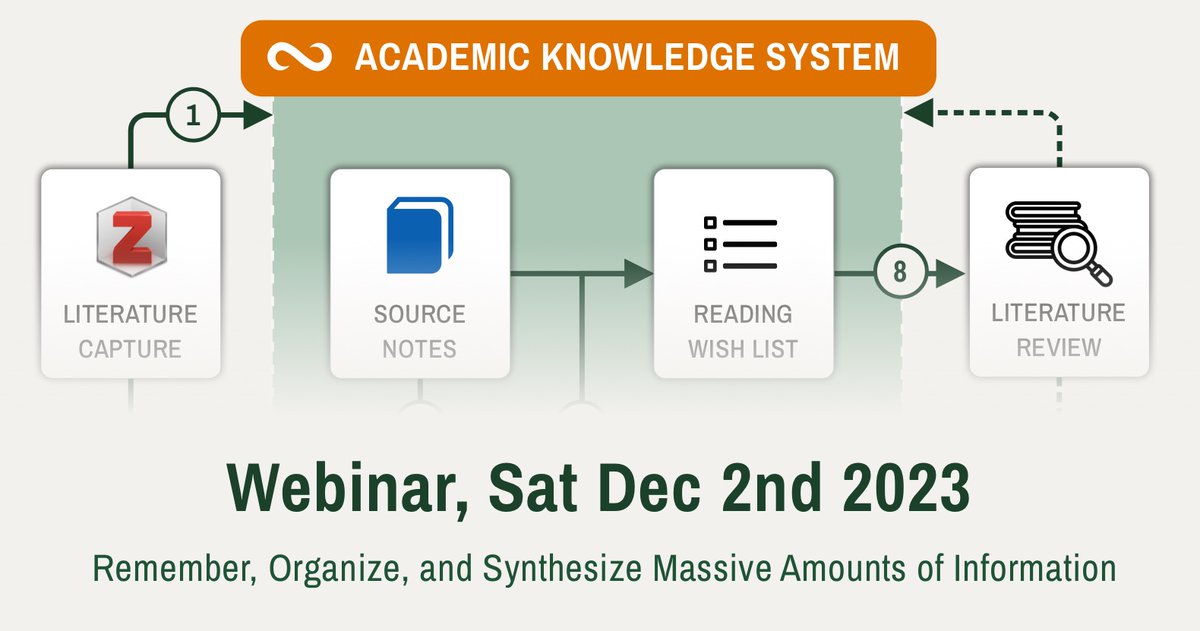
If you like the ideas expressed here I cordially invite you to join my webinar on
Academic Knowledge Management
link in bio
You will learn how to supercharge your academic journey by using these and dozens of other techniques that I developed over years of experimenting.
- Learn the best tools for digital note-taking
- Synthesize novel insights from your notes
- Remember any paper using your digital notes
- Organize large and long projects
- Showcase: My massive 330.000 words vault of notes and how I organize it
- Starter kit: Templates to start your own vault
Result: Faster and better research!
EffortlessAcademc . com / academic-knowledge-management
or link in bio.

But who wins? Always the person with a better strategy!
Research is not different - 3 strategies for an (unfair) advantage:
👇
1. Generate Ideas on auto-pilot
When you think of big research breakthroughs you might picture a talented genius obsessing over something for years. But in reality, scientific progress is done very often in small steps through a combination of existing ideas in a new way.
To combine ideas you need to:
💻 Start taking digital notes
🔗 Link them in smart ways
🔎 Review your notes
What happens is that every time you review a note you not only see the note itself but the every note that links to it (a concept called backlinks). This allows you to find relations in your notes you previously missed.
Example: You have a note on two proteins that are connected in some way (e.g. both play a role in cancer).
Discovering this connection is creativity - you can now create an experiment or do literature research and understand the nature of this connection.
You do not need to think hard but you continuously connect your information. At some point the connection between A and B became apparent. This leads you to a new and novel research idea.
Keep linking your content to keep having these surprise moments!
2. Don't think hard - be persistent
Everyone has a colleague that is incredibly well-read, knows every paper, or always has a great recommendation. But you feel like you forget 90% after a week? How is it possible for them?
They persistently build their knowledge base. Here are the steps:
🖍️ Do not highlight your papers, instead identify the concepts mentioned in this paper
📜 Take notes on each concept and add a link to the paper.
↔ Understand how each concept relates to one another and link accordingly.
The result is a network of notes and papers.
In order to know everything on a topic you do not need to think hard - you open the note on a concept to refresh your memory and find the relevant papers.
This is only possible if you slowly and consistently build your digital knowledge base. Do it for a few months and you will feel your mind being (literally) expanded!
3. Build a house, not a dump
Most folks who start to take notes do it wrong. It goes like this:
- Write a note, put it into a folder e.g. "notes on X".
- Add more notes
- Add more folders
After a few weeks of doing this it becomes a dump:
- It is not clear into which folder to put a new note
- It is not easy to find notes (other than by searching)
- Nowhere to "start your day" from
As it is easy to add but hard to retrieve, there is no point in adding anything in the long run.
False conclusion: "Note Taking is useless" 😞
Avoid this by:
📂 Relying on tables of contents, not folders for tightly related notes
🏷️Using Tags for loosely related ideas
🧱 Creating organizational notes that bundle one set of ideas or project together.
This last step is especially crucial. Here is an example:
This "Project Dashboard" is your starting point into your day. You start your day by making coffee and opening this note.
From here you will find your tasks, ideas, notes, etc to start working.
Webinar
If you like the ideas expressed here I cordially invite you to join my webinar on
Academic Knowledge Management
link in bio
You will learn how to supercharge your academic journey by using these and dozens of other techniques that I developed over years of experimenting.
- Learn the best tools for digital note-taking
- Synthesize novel insights from your notes
- Remember any paper using your digital notes
- Organize large and long projects
- Showcase: My massive 330.000 words vault of notes and how I organize it
- Starter kit: Templates to start your own vault
Result: Faster and better research!
EffortlessAcademc . com / academic-knowledge-management
or link in bio.
✨ More Info on my upcoming webinar:
--
Threads on generating more ideas with digital notes:
Create project notes:
Advanced Technique for Knowledge Synthesis:
--
Threads on generating more ideas with digital notes:
Create project notes:
Advanced Technique for Knowledge Synthesis:
https://twitter.com/Artifexx/status/1725979095023190290
https://twitter.com/Artifexx/status/1627623856759312385
https://twitter.com/Artifexx/status/1625877851827236867
https://twitter.com/Artifexx/status/1671105242748862467
• • •
Missing some Tweet in this thread? You can try to
force a refresh