Paul Couvert Profile picture
Feb 12 5 tweets 2 min read Read on X
Copilot's integration in Excel is impressive

You can process data and create charts without formulas.

Here's how to do it with a single prompt 🧵 Image
1. Turn your data into a table

- Select the first cell of your data.

- In the top menu, click on "Format as a Table".

- Then choose the appearance of your table

Note:

This step is necessary to enable Copilot to read the data.
2. Write your prompt

Select any cell in your table and open Copilot.

Here's a sample prompt you can use:

"Create a [CHART TYPE] that shows [DESCRIPTION]"

For my data, my prompt is:

"Create a bar chart that shows the average weight for each sport"

Copilot takes care of understanding the data, calculating (here the average weight) and displaying a preview of the chart.
3. Insert the chart

Copilot automatically suggests that you insert the chart.

Click on this button to create the new sheet.

It contains the necessary data and the new chart.

Note:

You can, of course, modify the chart's appearance and layout just like any other Excel chart.
I'm still working on a project involving Copilot and Copilot for Microsoft 365.

So feel free to subscribe to my personal newsletter and follow me if you're interested.

And of course, ask me any question you may have!

• • •

Missing some Tweet in this thread? You can try to force a refresh

 

Keep Current with Paul Couvert

Paul Couvert Profile picture

Stay in touch and get notified when new unrolls are available from this author!

Read all threads

This Thread may be Removed Anytime!

PDF

Twitter may remove this content at anytime! Save it as PDF for later use!

Try unrolling a thread yourself!

how to unroll video
  1. Follow @ThreadReaderApp to mention us!

  2. From a Twitter thread mention us with a keyword "unroll"
@threadreaderapp unroll

Practice here first or read more on our help page!

More from @itsPaulAi

Feb 11
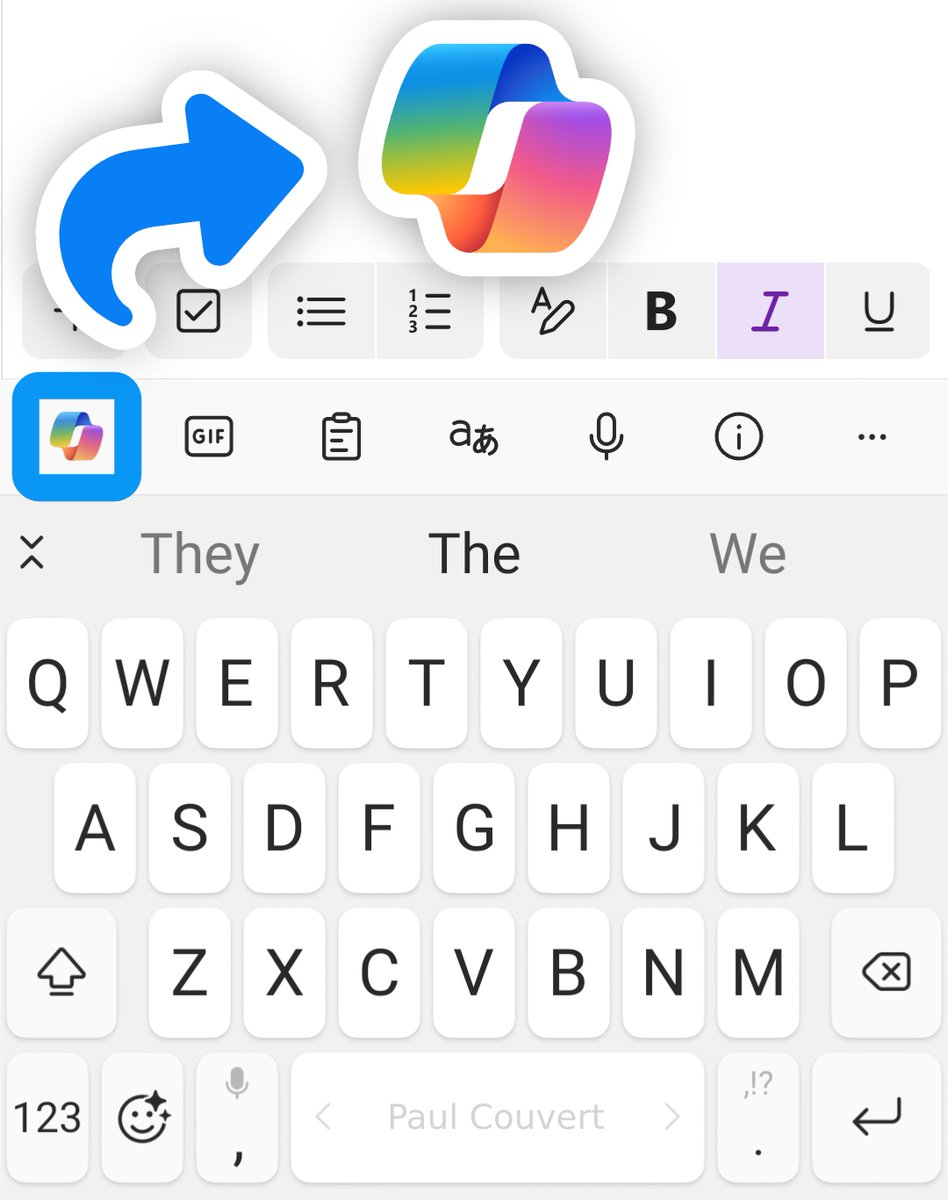
Copilot is now available in any app

You can use it anywhere on iOS and Android.

Here's an overview of how to activate and use it: Image
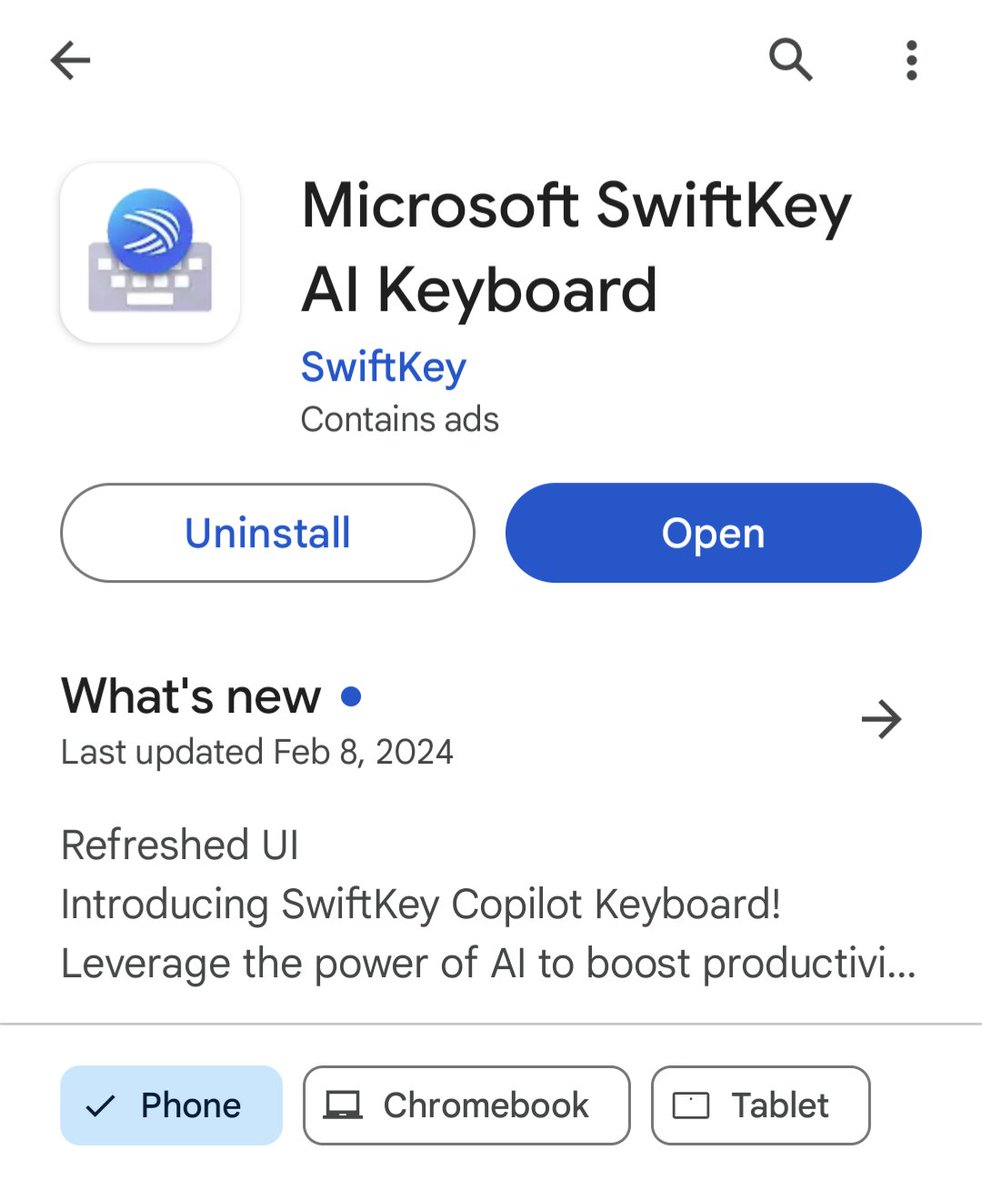
1. Install Swiftkey

Start by installing the Microsoft Swiftkey keyboard.

Available on the App Store and Google Play. Image
2. Use Copilot anywhere

In any app, tap on the Copilot icon at the top left of the keyboard.

You can then type your prompt as usual.

Now all you have to do is copy/paste the answer into your app!
Read 5 tweets
Feb 10
Gemini Advanced is REALLY good at writing

It can reproduce your own writing style perfectly.

I'll show you how to do it using Ultra 1.0 in Gemini: Image
1. Prepare your document(s)

Create a Google Docs containing examples of your texts.

Make sure to use texts of the same type:

- Essays
- Newsletters
- Social media posts
- ...

You can also use several different Google Docs if you like.
2. Enter the prompt

Open Gemini Advanced and use this prompt template:

"Act as a professional copywriter. Find my doc "[GDOCS NAME]" in my Drive. It contains X examples of [DESCRIPTION]. Analyze the writing style, redundant elements, introductions, conclusions and structure of the [DOCUMENT TYPE] examples in this document.

Then write a new [DOCUMENT TYPE] with exactly the same writing style, structure and elements about [TOPIC]."

Ultra 1.0 takes care of copying your writing style and writing new content.

Important Notes:

Make sure you enable the Google Workspace extension to allow Gemini to find your doc.

You can also use Gemini free, but Gemini Advanced has much better analysis and writing capabilities.
Read 7 tweets
Feb 8
Google just released Gemini Advanced

It's the new version of Bard that uses Ultra.

Here's everything you need to know and how to access it: Image
1. Bard becomes Gemini

- Bard has been renamed Gemini
- Gemini uses Pro 1.0
- Gemini Advanced uses Ultra 1.0

Ultra 1.0 is on paper equivalent if not more powerful than GPT-4.
2. Access Gemini Advanced

Gemini Advanced is available in 150 countries.

You can try it for free for 2 months (with Google One).

The price is $19.99/month after.
Read 6 tweets
Feb 7
I've been looking forward to this

You can now edit images generated with Dall-E 3.

It works directly in Copilot thanks to Designer (and for free) 🧵
1. Generate your image in Copilot

Go to copilot .microsoft .com and generate your image.

Prompt (e.g.):

"Create an image of an astronaut dog running on the moon with the earth in the background"
2. Change image style

You can change the style of your image with a single click:

- Click on the image you prefer
- Select a new style in the bottom bar

Designer takes care of modifying your image with the style you've selected!
Read 6 tweets
Feb 6
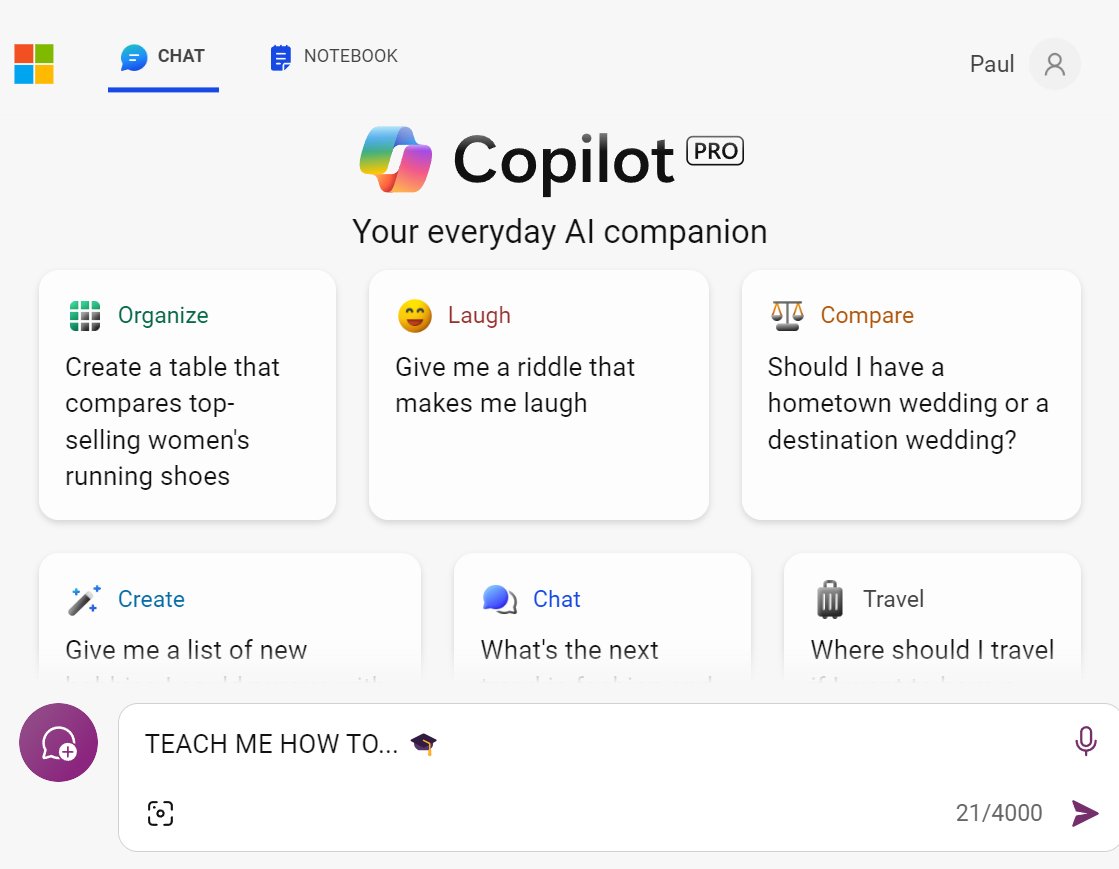
I use Copilot to educate myself every day

It's by far one of the best way to learn with AI.

Here's how to use it to teach you anything you want: Image
1. Learn from complex webpages

Copilot can (of course) explain any web page.

But it can also turn it into an easy-to-learn course.

Prompt:

"Analyze the content of this webpage to develop a comprehensive course plan.

This plan should cater to adult learners looking to enhance their skills in the subject matter presented on the webpage. Ensure the course plan includes modules, learning objectives, assessment methods, and recommended resources for further study."
2. Leverage YouTube videos

YouTube has some of the best educational content.

First, click on the summarize button.

Then enter this prompt:

Prompt:

"Summarize its main points, focusing on the underlying technical knowledge it conveys. It should clearly outline the key concepts, technologies, or processes discussed in the video, explaining their significance and how they contribute to the field in question.

Present your analysis in a well-organized format, starting with a brief overview of the video content, followed by a detailed explanation of the technical knowledge shared. Adopt an informative yet accessible tone for beginners."
Read 6 tweets
Feb 4
Google has released a new AI image generator.

Its interface is easy to use and totally free.

I'll show you how to access it and compare it with Dall-E 3 below ⬇
1. How to find ImageFX

(The model used is Imagen 2, the same as on Bard)

- Go to labs .google
- Scroll down to IMAGEFX and click on "Try it now"
- Accept the conditions and you're in!

Note: this is not yet available everywhere, so use a VPN if you need to.
2. Generate your images

Enter your prompt and click on "Generate".

But the big difference with other tools is below ⬇
Read 10 tweets

Did Thread Reader help you today?

Support us! We are indie developers!


This site is made by just two indie developers on a laptop doing marketing, support and development! Read more about the story.

Become a Premium Member ($3/month or $30/year) and get exclusive features!

Become Premium

Don't want to be a Premium member but still want to support us?

Make a small donation by buying us coffee ($5) or help with server cost ($10)

Donate via Paypal

Or Donate anonymously using crypto!

Ethereum

0xfe58350B80634f60Fa6Dc149a72b4DFbc17D341E copy

Bitcoin

3ATGMxNzCUFzxpMCHL5sWSt4DVtS8UqXpi copy

Thank you for your support!

Follow Us!

:(