Paul Couvert Profile picture
Mar 9 6 tweets 3 min read Read on X
Big update for Microsoft Copilot

Custom Copilot GPTs are now available.

This means you can create your own GPTs and share them.

Here's how to create yours and what you can do with them: Image
1. Create a Copilot GPT

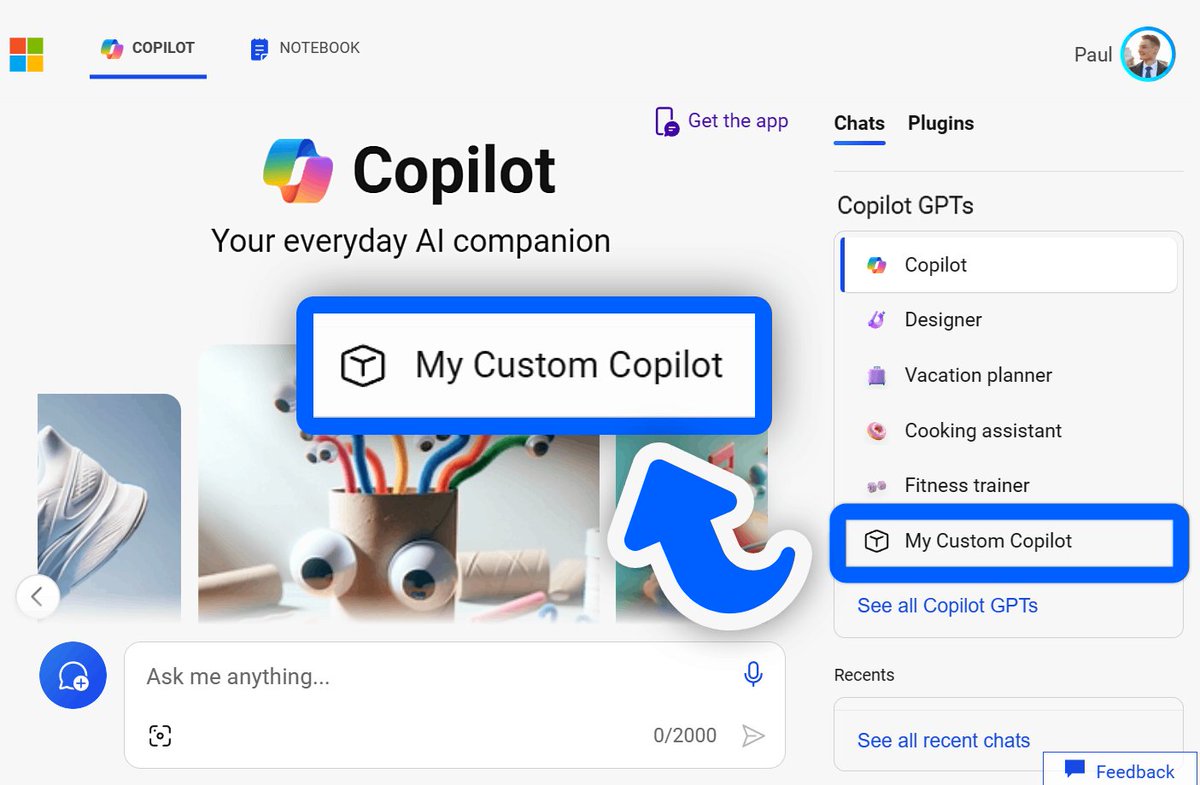
→ Visit copilot .microsoft .com

→ Click on "See all Copilot GPTs" on the right

→ Then select "Create a new Copilot GPT"

Important:

You need a Copilot Pro account to create Copilot GPTs, BUT...

Anyone can use a GPT even with a free account!
2. Set up your Copilot

→ Follow the creation chat

→ You'll set up the name, tasks, and more

→ The process is the same as on ChatGPT Plus without the profile photo

The creation wizard will automatically save your settings as you go along.
2.5. Configure your Copilot

→ You can also click on the "Configure" tab

→ Here you can directly specify the name, description, prompt, ...

→ You can also add knowledge files and enable/disable internet access and Dall-E 3

Important:

The length of the prompt is currently limited to 2k characters.

You'll get an error at registration time if you exceed.
3. Publish and use

→ Click on the Preview button to try before you publish

→ You can publish your Copilot for yourself only or for anyone with a link

→ It will be added automatically to the list of GPTs on the right

Note:

You can edit or delete it at any time by clicking "See all Copilot GPTs" again.
It's great that even free accounts can use GPTs created by Pro accounts!

Now's the time to create specialized Copilot GPTs for every task.

One more piece for my future project around Copilot and Copilot for Microsoft 365 that I'll be sharing with you soon!

• • •

Missing some Tweet in this thread? You can try to force a refresh

 

Keep Current with Paul Couvert

Paul Couvert Profile picture

Stay in touch and get notified when new unrolls are available from this author!

Read all threads

This Thread may be Removed Anytime!

PDF

Twitter may remove this content at anytime! Save it as PDF for later use!

Try unrolling a thread yourself!

how to unroll video
  1. Follow @ThreadReaderApp to mention us!

  2. From a Twitter thread mention us with a keyword "unroll"
@threadreaderapp unroll

Practice here first or read more on our help page!

More from @itsPaulAi

Mar 8
Google has just integrated AI into Sheets

It helps you process spreadsheets much more easily.

You can understand data, generate formulas and tables.

I'll show you how to access it and what you can do with it 🧵 Image
1. Access Collaborate with Gemini

→ Open Google Sheets and click on the button to the left of your profile picture.

→ Collaborate with Gemini opens and automatically summarizes your spreadsheet

→ Click on the arrow to bring up the suggestions

Important:

If you don't see the button, take a look at the end of the thread.
2. Generate a formula

→ Ask Gemini to create a custom formula for you

→ AI understands your data and adapts the formula to your table

Prompt example:

"Write a formula that finds the policy with the highest insured value."
Read 8 tweets
Mar 3
Important: Code interpreter is now available on Copilot

This means you can use and analyze files for free with GPT-4.

Here's how to access it and 3 detailed use cases 🧵 Image
1. Access the Code interpreter

→ Go to the Copilot website on any browser
(copilot .microsoft .com)

→ Click on the new paperclip icon to upload a file

→ Or drag and drop your file directly

The rollout is gradual, so it's possible that the feature will arrive a little later on your side.

Note:

You'll also be able to access it directly in Windows 11's Copilot integration.
2. Chat with PDF file

→ Upload your PDF file

→ Select creative mode to use GPT-4

→ Ask Copilot to explain it or extract information

Prompt examples:

- "Explain in simple words to a beginner in ML and LLM how this paper is a breakthrough."

- "According to this document, how many times faster is this model and how many times more energy-efficient is it?"
Read 6 tweets
Mar 1
Copilot in Excel takes data analysis into a new era

Anyone can now question, analyze, visualize and refine data effortlessly.

I'll show you how without writing a single formula 🧵 Image
1. Turn your data into a table

→ Place your cursor in your data

→ Click on "Format as a Table" in the top menu

→ Choose the appearance of your table

This will activate Copilot, which only works if there's a table.
2. Ask Questions

→ Open Copilot

→ Place your cursor inside your table

→ Ask any question about your data

Prompt example:

"What is the average InsuredValue for the Farming BusinessType?"

Copilot performs the necessary calculations before giving you an answer.
Read 7 tweets
Feb 28
Best productivity upgrade:

Copilot can now be used in ANY text field of your web browser.

No more need to open a new tab or sidebar to write with AI.

I'll show you how to activate the "Rewrite with Copilot" button anywhere: Image
1. Set up Microsoft Edge

- Update to the latest version of Edge (Windows or macOS)

- Open the settings and check that "Use Compose (Al-writing) on the web" is enabled in the language menu

Note:

If you don't see this setting, take a look at the bottom of the thread to make it appear.
2. Rewrite with Copilot

Describe the text you want to generate in any text field.

Then highlight your text and click on "Rewrite with Copilot" or the Alt+I shortcut.

Copilot will generate a first version of your content.

Important:

You can also write a first version of your text instead of describing it.

Copilot can then help you refine it, change the tone, etc.
Read 6 tweets
Feb 25
Continuous training is an essential skill.

YouTube and Copilot are the perfect combo to learn anything.

Here's how I use both to optimize my daily learning: Image
1. Find a YouTube video

- Access Copilot from Edge browser
(Windows, macOS, Mobile)

- Search for a video suitable for the subject and level you want

Prompt template:

"Find 5 YouTube videos to teach me [topic] as a [level]."

Of course, you can also use a video you find directly on YouTube.
2. Open Copilot in Edge

- Click on Copilot in the top right-hand corner of Edge

- Select Creative mode to use GPT-4

This will allow Copilot to access the content of the YouTube video.
Read 8 tweets
Feb 24
I used to spend hours dealing with my emails

But Copilot in Outlook has solved this problem.

It allows you to summarize conversations and reply in seconds, here's how: Image
1. Activate the new Outlook

Open either the Outlook desktop app or the web version.

Check that the "New Outlook" toggle is activated.

Note:

You obviously also need to have Copilot Pro or Copilot for Microsoft 365 for Copilot to appear next. Image
2. Summarize an email thread

- Choose the conversation that you want

- Select Summary by Copilot at the top

Copilot will scan the thread to look for key points and create a summary for you. Image
Read 9 tweets

Did Thread Reader help you today?

Support us! We are indie developers!


This site is made by just two indie developers on a laptop doing marketing, support and development! Read more about the story.

Become a Premium Member ($3/month or $30/year) and get exclusive features!

Become Premium

Don't want to be a Premium member but still want to support us?

Make a small donation by buying us coffee ($5) or help with server cost ($10)

Donate via Paypal

Or Donate anonymously using crypto!

Ethereum

0xfe58350B80634f60Fa6Dc149a72b4DFbc17D341E copy

Bitcoin

3ATGMxNzCUFzxpMCHL5sWSt4DVtS8UqXpi copy

Thank you for your support!

Follow Us!

:(