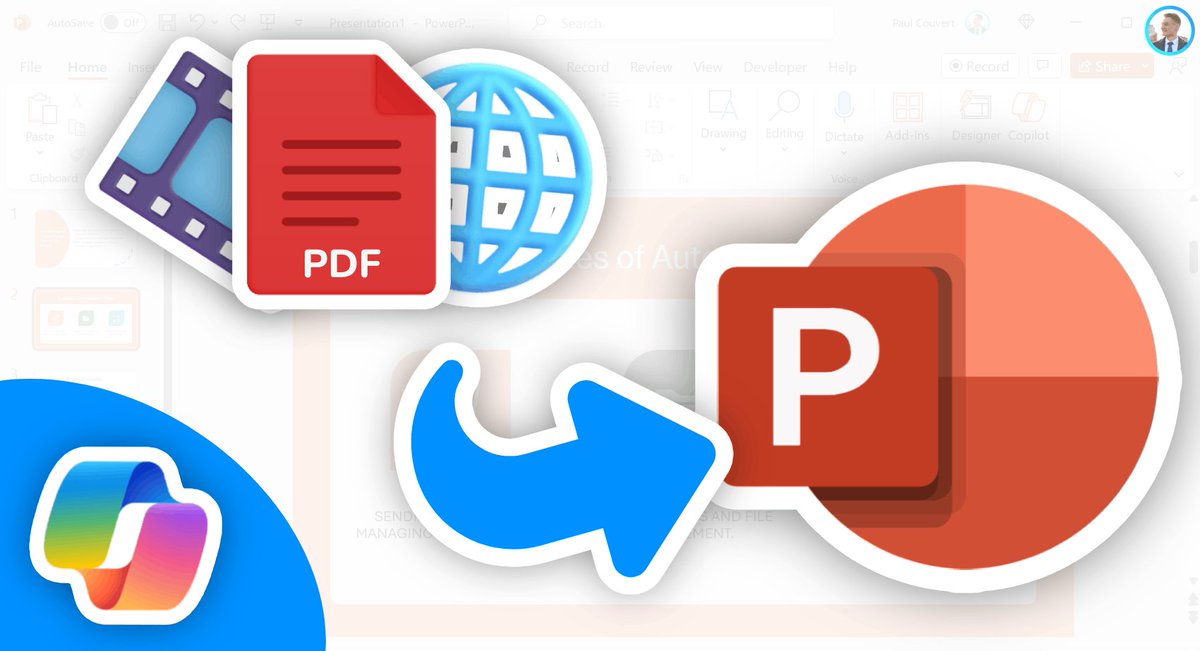
I figured out how to create a PowerPoint presentation from any web page or PDF
You can do this using the free version of Copilot and a handy PPT feature.
It works with all types of content and uses GPT-4 Turbo:
You can do this using the free version of Copilot and a handy PPT feature.
It works with all types of content and uses GPT-4 Turbo:
1. Create slide content
→ Open Microsoft Edge and access the content you want to turn into a presentation
(This works with a YT video, a web page, a PDF opened with Edge, etc.).
→ Click on the Copilot icon in the top right-hand corner
→ Activate "Precise" mode to use GPT-4 Turbo for free
→ Enter the prompt below
Copilot will then write the content of your slides based on your content.
→ Open Microsoft Edge and access the content you want to turn into a presentation
(This works with a YT video, a web page, a PDF opened with Edge, etc.).
→ Click on the Copilot icon in the top right-hand corner
→ Activate "Precise" mode to use GPT-4 Turbo for free
→ Enter the prompt below
Copilot will then write the content of your slides based on your content.
Prompt (template):
"Read and analyze the current [web page/video/document], then create a [number]-slide PowerPoint presentation, each containing a title and a really detailed text with at least 3 factual and informative points for the audience. Example:
Title 1
Information 1
Information 2
Information 3
Title 2
…"
"Read and analyze the current [web page/video/document], then create a [number]-slide PowerPoint presentation, each containing a title and a really detailed text with at least 3 factual and informative points for the audience. Example:
Title 1
Information 1
Information 2
Information 3
Title 2
…"
2. Format the answer
To be able to import slides into PowerPoint, Copilot can format the content for you properly.
Prompt:
"Format your previous answer by deleting "Slide X: " each time. Transform the slide titles into H1 markdown and the rest of the content into H2, removing the bullet points but retaining the information:
Slide title in H1
H2 content
H2 content
H2 content
Slide title in H1
…"
To be able to import slides into PowerPoint, Copilot can format the content for you properly.
Prompt:
"Format your previous answer by deleting "Slide X: " each time. Transform the slide titles into H1 markdown and the rest of the content into H2, removing the bullet points but retaining the information:
Slide title in H1
H2 content
H2 content
H2 content
Slide title in H1
…"
3. Paste into a document
You're almost done, you just need to create the document that PowerPoint will use to create the slides:
→ Open a Word (or txt) document
→ Paste the previous answer from Copilot
→ Remove any links or reference numbers
→ Save your document
You're almost done, you just need to create the document that PowerPoint will use to create the slides:
→ Open a Word (or txt) document
→ Paste the previous answer from Copilot
→ Remove any links or reference numbers
→ Save your document
4. Import slides
→ Open PowerPoint
→ Click on "New Slide" then "Slides from Outline"
→ Find your previous Word document
PowerPoint imports all content automatically!
→ Open PowerPoint
→ Click on "New Slide" then "Slides from Outline"
→ Find your previous Word document
PowerPoint imports all content automatically!
5. Design your slides with one click
Last but not least: you can make your slides much more beautiful with one click.
→ Select "Designer" in the top right-hand corner
→ PowerPoint generates design ideas for you to use
Do this for all your slides, and your presentation is ready!
Last but not least: you can make your slides much more beautiful with one click.
→ Select "Designer" in the top right-hand corner
→ PowerPoint generates design ideas for you to use
Do this for all your slides, and your presentation is ready!
Honestly one of the workflows I'm most proud of!
Don't forget that I'm sending a free Copilot tutorial in my weekly personal newsletter.
You can receive it by subscribing right here:
paulcouvert.com
Don't forget that I'm sending a free Copilot tutorial in my weekly personal newsletter.
You can receive it by subscribing right here:
paulcouvert.com
• • •
Missing some Tweet in this thread? You can try to
force a refresh