Paul Couvert Profile picture
Jul 1, 2025 6 tweets 3 min read Read on X
You can add a local "=AI" formula in Excel

Excel can then process data using a free and open-source AI model like Gemma.

This means that it understands what's in the cells and returns a tailored response based on your prompt even offline.

Steps to set it up and examples below Image
Keep in mind that everything runs locally, even the AI model (LLM): no remote servers or APIs!

EXAMPLE 1 - Categorize data

Formula:
=AI("Is this a basketball or baseball team? Just write one word: Basketball or Baseball. Team name: ",A1)
EXAMPLE 2 - Sentiment analysis

Formula:
=AI("Is this sentence negative or positive? Just write one word: Positive or Negative. The sentence is: '",A1,"'")

And you can do much more like data extraction, summarizing, etc.!

Tutorial ↓
1. Run the AI model locally

- Download and install LM Studio for your OS:

- In the search tab type "gemma-3n-4B" and download the Unsloth version (Q4_0)

- Load the model in the dev tab and activate the local server lmstudio.ai
2. Excel settings

- Open Excel and press Alt + F11

- Click on Insert then Module and paste this code:


- Open Tools then References and in the list check Microsoft XML, v6.0 docs.google.com/document/d/e/2…
You can now use the "=AI" formula anywhere in your spreadsheet:

- 100% free
- 100% private

And of course, you can also host the model on any local machine and access it remotely if you want to!

Feel free to ask any question below (and follow if it was useful to you!)

• • •

Missing some Tweet in this thread? You can try to force a refresh

 

Keep Current with Paul Couvert

Paul Couvert Profile picture

Stay in touch and get notified when new unrolls are available from this author!

Read all threads

This Thread may be Removed Anytime!

PDF

Twitter may remove this content at anytime! Save it as PDF for later use!

Try unrolling a thread yourself!

how to unroll video
  1. Follow @ThreadReaderApp to mention us!

  2. From a Twitter thread mention us with a keyword "unroll"
@threadreaderapp unroll

Practice here first or read more on our help page!

More from @itsPaulAi

Sep 18, 2025
Genspark has released a new AI browser that gives you access to:

- 169 open source models that run LOCALLY
- Automation of browsing and workflows
- Agents on any page

And much more.

Available on Mac and Windows (use cases below)
1. Local on-device models

@genspark_ai browser is basically one of the fastest (and free) way to use open weights models locally so you can chat offline and privately:

- Download genspark.ai/browser for your OS
- Click on the button on the new tab page “On-Device Free AI”
- Choose the model you prefer

I recommend Qwen 3 4B Instruct or Gemma 3n 2B if you have a less powerful laptop.

And you can start chatting offline!
2. E-commerce tools

You also have access to many tools on e-commerce sites:

- Find the cheapest
- Compare to similar products
- Searching for reviews
- Ask Genspark whatever you want

The one I find most useful by far is automatically searching for reviews since you’ve real feedback before purchasing the item.
Read 6 tweets
Sep 11, 2025
Google has published AI Edge Gallery on the store 🔥

So you can do everything 100% locally on your phone:

- Upload images and ask questions
- Transcribe/translate audio files
- Summarize, rewrite, code
- Engage in multi-turn conversations

Steps to use it below (open source):
1. Download Google AI Edge Gallery

- Go to the Play Store
- Search for “Google Al Edge Gallery”
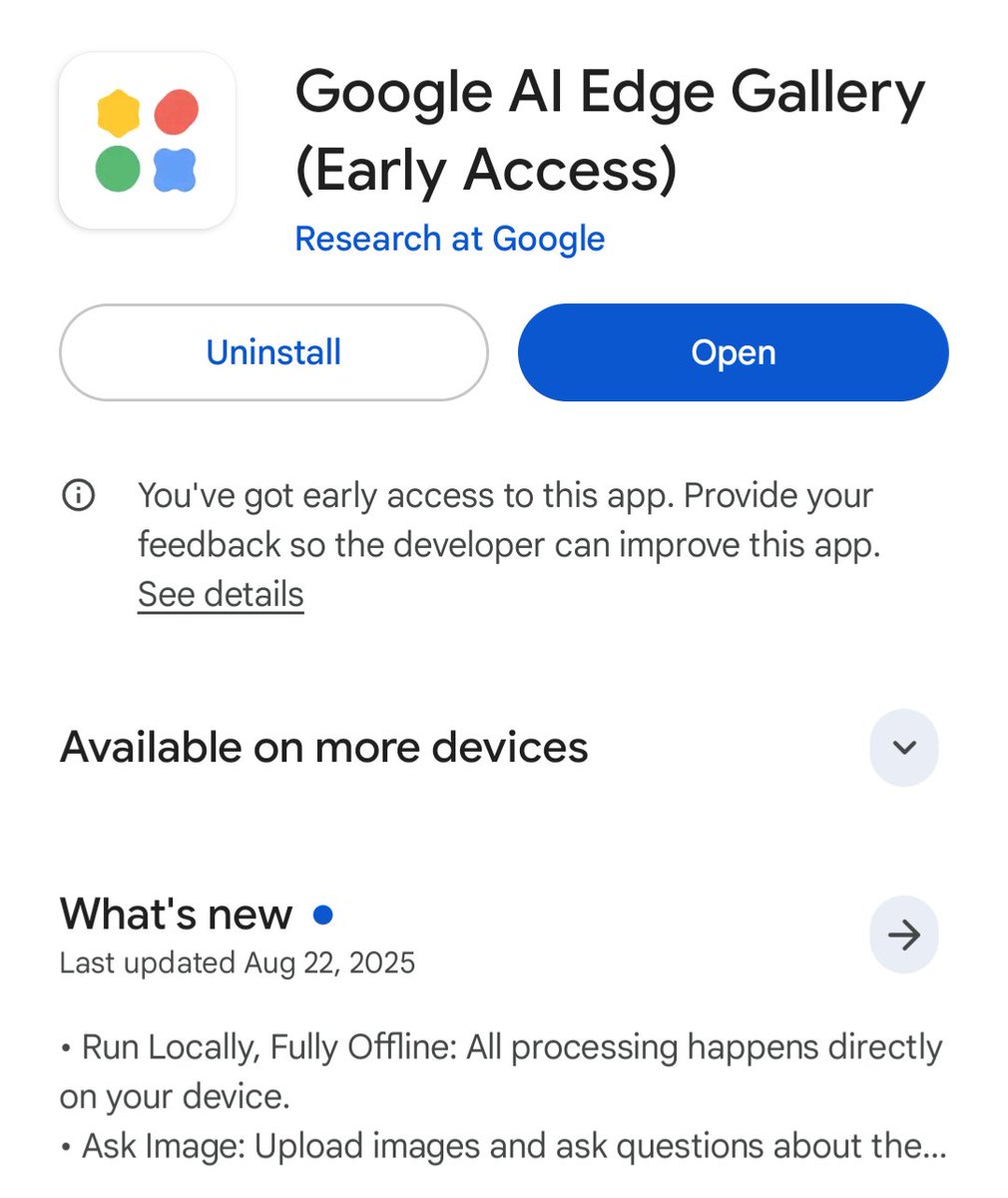
- Download the app shown in the screenshot below Image
2. Select a mode

- Click on the mode you want to use.
- Select the Gemma model.

Note: the larger it is, the better it'll perform, but the slower it'll be.

If you've a less powerful phone, choose the smallest model.
Read 5 tweets
Aug 31, 2025
You can combine Nano Banana with a video model to generate impressive results!

It literally takes just a few minutes.

Steps of the workflow below
1. Nano Banana

Import your original image into Gemini App or AI Studio.

Then simply ask it to transform the room (or other object) into an isometric view.

Repeat the process for your second image. Image
Image
2. Video

You're almost done:

- Import your images into an image-to-video template.

- Use the first one as the start frame and the last one as the end frame

I personally use Kling (I've created a quick tutorial right here) ↓

Read 4 tweets
Aug 25, 2025
Ok AI video gen is evolving really fast

You can now set the EXACT start and end frames before generating.

This means you can literally control your entire video with just 2 images and let AI fill the video in between.

Steps to do it using Kling 2.1
You just need 2 images:

- First frame of your scene (where the video begins)
- Last frame (where it ends)

In Kling 2.1, select "AI Video Generator" then "Image to video."

1. Upload your start image then your end image
2. Type a prompt if you wish
3. Click "Generate" and voilà!
Here’s another quick example:

You can easily control the whole scene and the transition by choosing the right start and end frames.
Read 4 tweets
Aug 15, 2025
Google has released a new open source model...

That runs on just 0.5 GB of RAM. Yes.

You can fine-tune it for free to make it better than the giant models at your tasks.

Quick steps to fine-tune Gemma 3 270M below Image
We're going to use the free Google Colab from Unsloth.

Steps:

- You've a general-purpose base model
- You want to teach it to work like you (eg. newsletter writing)
- Show it examples of past work (=training data)
- It'll learn your style, tone, formatting...

Link at the end Image
1. Setup and installation

This part installs Unsloth and all the other tools needed to fine-tune the model.

You don't need to change anything here; just run it. Image
Read 12 tweets
Aug 13, 2025
Gemini released the best AI tools for learning

You can now learn anything by using:

- Step-by-step guided learning
- Generate unlimited quizzes and flashcards
- Understand complex things w/ visuals and YT videos

Suitable for any topic you want to explore.

More below
1. Quiz generation

Gemini can now generate interactive quizzes on any topic.

- Start a new conversation
- Enter a prompt such as: “Generate a quiz to learn...”
- Gemini generates 10 questions

At the end, you can choose to generate new questions, analyze your weak points, or create flashcards.
2. Flashcards

You can generate sets of 25 flashcards... with audio!

Perfect for language learning or memorizing technical terms.

Example for vocabulary (audio on):
Read 6 tweets

Did Thread Reader help you today?

Support us! We are indie developers!


This site is made by just two indie developers on a laptop doing marketing, support and development! Read more about the story.

Become a Premium Member ($3/month or $30/year) and get exclusive features!

Become Premium

Don't want to be a Premium member but still want to support us?

Make a small donation by buying us coffee ($5) or help with server cost ($10)

Donate via Paypal

Or Donate anonymously using crypto!

Ethereum

0xfe58350B80634f60Fa6Dc149a72b4DFbc17D341E copy

Bitcoin

3ATGMxNzCUFzxpMCHL5sWSt4DVtS8UqXpi copy

Thank you for your support!

Follow Us!

:(