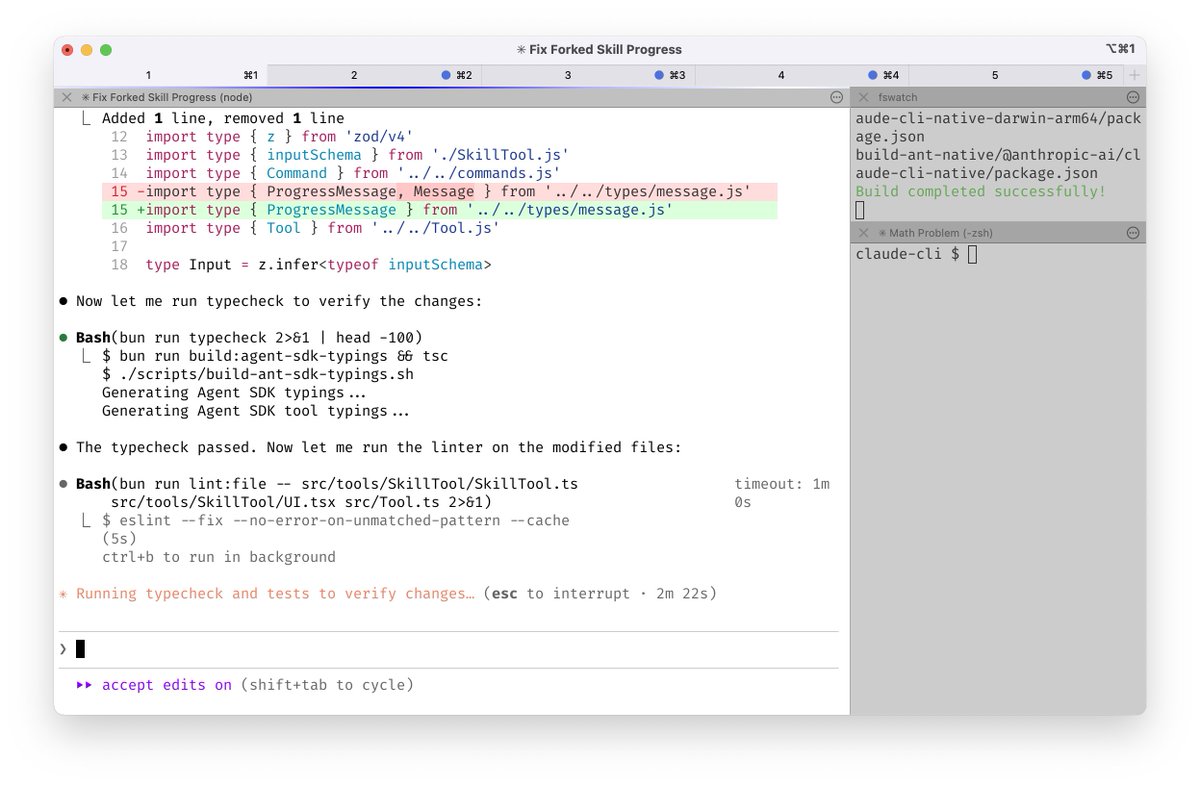
I wanted to share a bunch of my favorite hidden and under-utilized features in Claude Code. I'll focus on the ones I use the most.
Here goes.
Here goes.
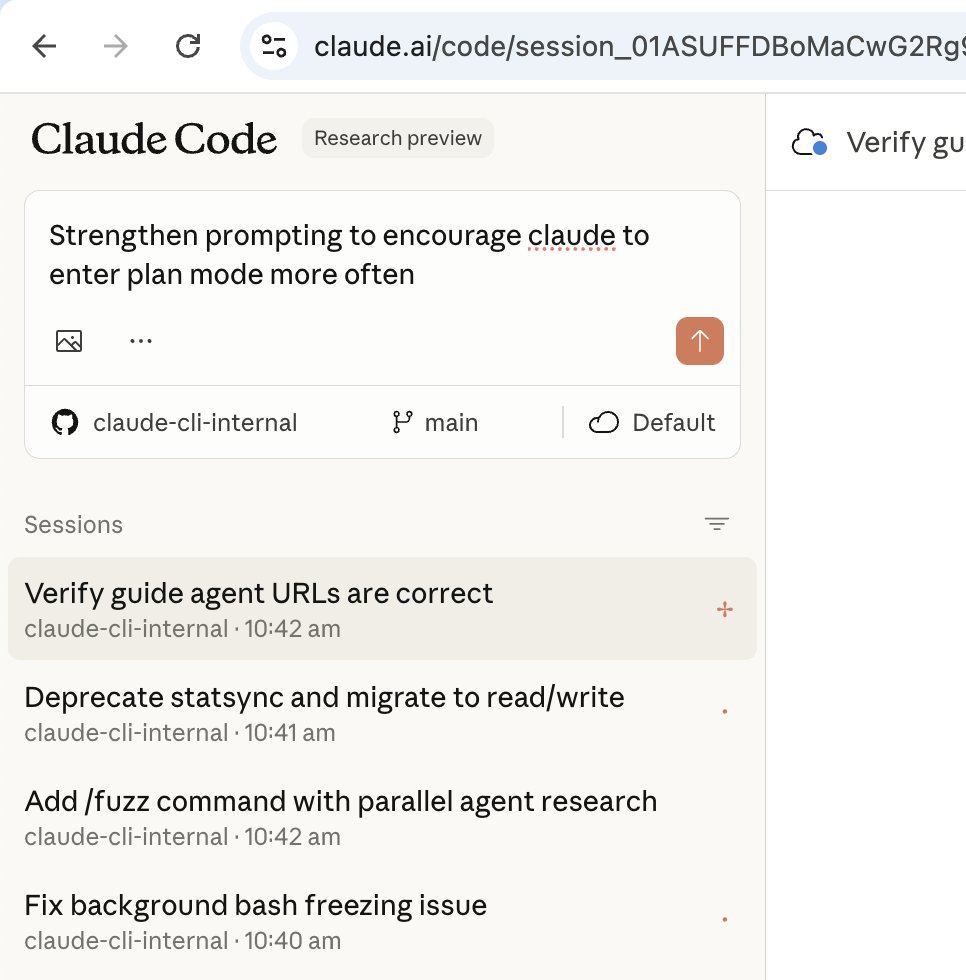
1/ Did you know Claude Code has a mobile app?
Personally, I write a lot of my code from the iOS app. It's a convenient way to make changes without opening a laptop.
Download the Claude app for iOS/Android > Code tab on the left.
Personally, I write a lot of my code from the iOS app. It's a convenient way to make changes without opening a laptop.
Download the Claude app for iOS/Android > Code tab on the left.

2/ Move sessions back and forth between mobile/web/desktop and terminal
Run "claude --teleport" or /teleport to continue a cloud session on your machine.
Or run /remote-control to control a locally running session from your phone/web. Personally, I have "Enable Remote Control for all sessions" set in my /config.
code.claude.com/docs/en/remote…
Run "claude --teleport" or /teleport to continue a cloud session on your machine.
Or run /remote-control to control a locally running session from your phone/web. Personally, I have "Enable Remote Control for all sessions" set in my /config.
code.claude.com/docs/en/remote…
3/ Two of the most powerful features in Claude Code: /loop and /schedule
Use these to schedule Claude to run automatically at a set interval, for up to a week at a time.
I have a bunch of loops running locally:
- /loop 5m /babysit, to auto-address code review, auto-rebase, and shepherd my PRs to production
- /loop 30m /slack-feedback, to automatically put up PRs for Slack feedback every 30 mins
- /loop /post-merge-sweeper to put up PRs to address code review comments I missed
- /loop 1h /pr-pruner to close out stale and no longer necessary PRs
- lots more!..
Experiment with turning workflows into skills + loops. It's powerful.
code.claude.com/docs/en/schedu…
Use these to schedule Claude to run automatically at a set interval, for up to a week at a time.
I have a bunch of loops running locally:
- /loop 5m /babysit, to auto-address code review, auto-rebase, and shepherd my PRs to production
- /loop 30m /slack-feedback, to automatically put up PRs for Slack feedback every 30 mins
- /loop /post-merge-sweeper to put up PRs to address code review comments I missed
- /loop 1h /pr-pruner to close out stale and no longer necessary PRs
- lots more!..
Experiment with turning workflows into skills + loops. It's powerful.
code.claude.com/docs/en/schedu…
4/ Use hooks to deterministically run logic as part of the agent lifecycle
For example, use hooks to:
- Dynamically load in context each time you start Claude (SessionStart)
- Log every bash command the model runs (PreToolUse)
- Route permission prompts to WhatsApp for you to approve/deny (PermissionRequest)
- Poke Claude to keep going whenever it stops (Stop)
See code.claude.com/docs/en/hooks
For example, use hooks to:
- Dynamically load in context each time you start Claude (SessionStart)
- Log every bash command the model runs (PreToolUse)
- Route permission prompts to WhatsApp for you to approve/deny (PermissionRequest)
- Poke Claude to keep going whenever it stops (Stop)
See code.claude.com/docs/en/hooks
5/ Cowork Dispatch
I use Dispatch every day to catch up on Slack and emails, manage files, and do things on my laptop when I'm not at a computer. When I'm not coding, I'm dispatching.
Dispatch is a secure remote control for the Claude Desktop app. It can use your MCPs, browser, and computer, with your permission.
claude.com/product/cowork…
I use Dispatch every day to catch up on Slack and emails, manage files, and do things on my laptop when I'm not at a computer. When I'm not coding, I'm dispatching.
Dispatch is a secure remote control for the Claude Desktop app. It can use your MCPs, browser, and computer, with your permission.
claude.com/product/cowork…
6/ Use the Chrome extension for frontend work
The most important tip for using Claude Code is: give Claude a way to verify its output. Once you do that, Claude will iterate until the result is great.
Think of it like any other engineer: if you ask someone to build a website but they aren't allowed to use a browser, will the result look good? Probably not. But if you give them a browser, they will write code and iterate until it looks good.
Personally, I use the Chrome extension every time I work on web code. It tends to work more reliably than other similar MCPs.
Download the extension for Chrome/Edge here: code.claude.com/docs/en/chrome
The most important tip for using Claude Code is: give Claude a way to verify its output. Once you do that, Claude will iterate until the result is great.
Think of it like any other engineer: if you ask someone to build a website but they aren't allowed to use a browser, will the result look good? Probably not. But if you give them a browser, they will write code and iterate until it looks good.
Personally, I use the Chrome extension every time I work on web code. It tends to work more reliably than other similar MCPs.
Download the extension for Chrome/Edge here: code.claude.com/docs/en/chrome
7/ Use the Claude Desktop app to have Claude automatically start and test web servers
Along the same vein, the Desktop app bundles in the ability for Claude to automatically run your web server and even test it in a built-in browser.
You can set up something similar in CLI or VSCode using the Chrome extension, or just use the Desktop app.
code.claude.com/docs/en/deskto…
Along the same vein, the Desktop app bundles in the ability for Claude to automatically run your web server and even test it in a built-in browser.
You can set up something similar in CLI or VSCode using the Chrome extension, or just use the Desktop app.
code.claude.com/docs/en/deskto…
8/ Fork your session
People often ask how to fork an existing session. Two ways:
1. Run /branch from your session
2. From the CLI, run claude --resume <session-id> --fork-session
People often ask how to fork an existing session. Two ways:
1. Run /branch from your session
2. From the CLI, run claude --resume <session-id> --fork-session

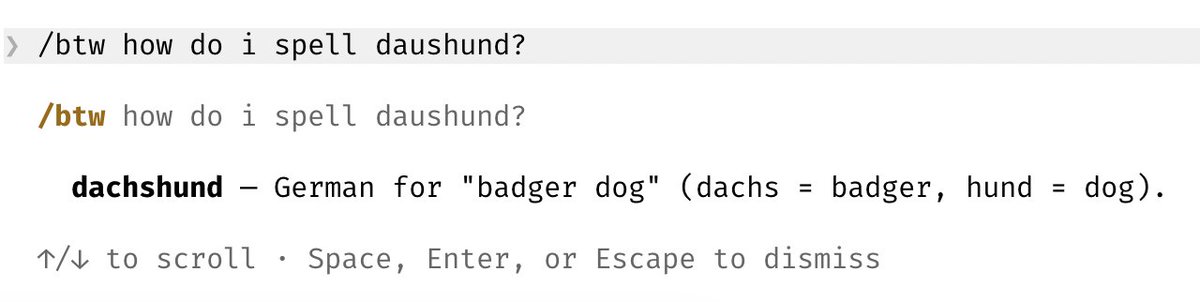
9/ Use /btw for side queries
I use this all the time to answer quick questions while the agent works
I use this all the time to answer quick questions while the agent works
10/ Use git worktrees
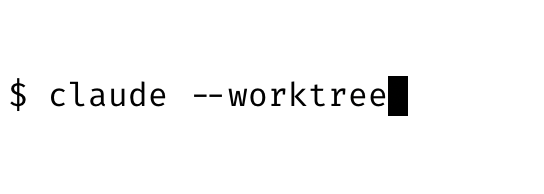
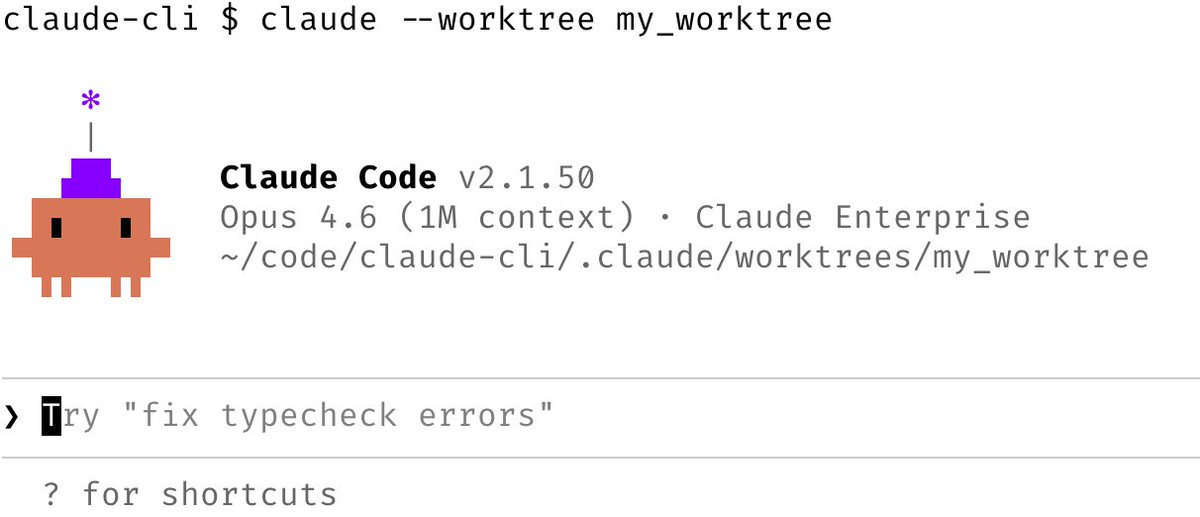
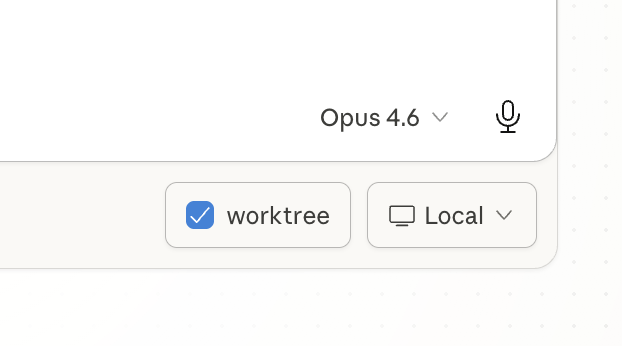
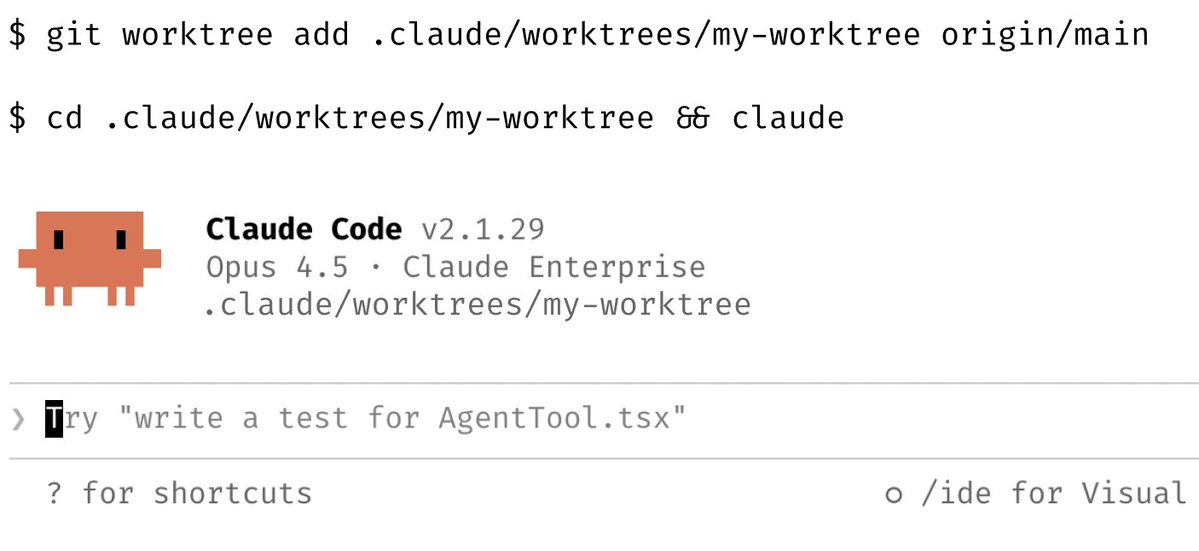
Claude Code ships with deep support for git worktrees. Worktrees are essential for doing lots of parallel work in the same repository. I have dozens of Claudes running at all times, and this is how I do it.
Use claude -w to start a new session in a worktree, or hit the "worktree" checkbox in the Claude Desktop app.
For non-git VCS users, use the WorktreeCreate hook to add your own logic for worktree creation.
Learn more: x.com/bcherny/status…
Claude Code ships with deep support for git worktrees. Worktrees are essential for doing lots of parallel work in the same repository. I have dozens of Claudes running at all times, and this is how I do it.
Use claude -w to start a new session in a worktree, or hit the "worktree" checkbox in the Claude Desktop app.
For non-git VCS users, use the WorktreeCreate hook to add your own logic for worktree creation.
Learn more: x.com/bcherny/status…
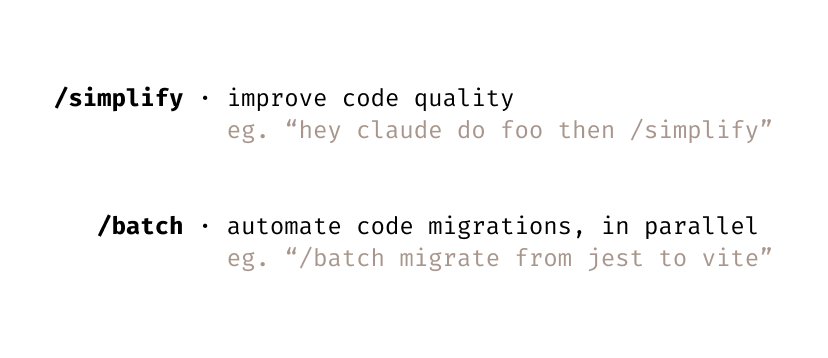
11/ Use /batch to fan out massive changesets
/batch interviews you, then has Claude fan out the work to as many worktree agents as it takes (dozens, hundreds, even thousands) to get it done.
Use it for large code migrations and others kinds of parallelizable work.
/batch interviews you, then has Claude fan out the work to as many worktree agents as it takes (dozens, hundreds, even thousands) to get it done.
Use it for large code migrations and others kinds of parallelizable work.
https://x.com/bcherny/status/2027534984534544489
12/ Use --bare to speed up SDK startup by up to 10x
By default, when you run claude -p (or the TypeScript or Python SDKs) we search for local CLAUDE.md's, settings, and MCPs.
But for non-interactive usage, most of the time you want to explicitly specify what to load via --system-prompt, --mcp-config, --settings, etc.
This was a design oversight when we first built the SDK, and in a future version, we will flip the default to --bare. For now, opt in with the flag.
By default, when you run claude -p (or the TypeScript or Python SDKs) we search for local CLAUDE.md's, settings, and MCPs.
But for non-interactive usage, most of the time you want to explicitly specify what to load via --system-prompt, --mcp-config, --settings, etc.
This was a design oversight when we first built the SDK, and in a future version, we will flip the default to --bare. For now, opt in with the flag.

13/ Use --add-dir to give Claude access to more folders
When working across multiple repositories, I usually start Claude in one repo and use --add-dir (or /add-dir) to let Claude see the other repo. This not only tells Claude about the repo, but also gives it permissions to work in the repo.
Or, add "additionalDirectories" to your team's settings.json to always load in additional folders when starting Claude Code.
code.claude.com/docs/en/cli-re…
When working across multiple repositories, I usually start Claude in one repo and use --add-dir (or /add-dir) to let Claude see the other repo. This not only tells Claude about the repo, but also gives it permissions to work in the repo.
Or, add "additionalDirectories" to your team's settings.json to always load in additional folders when starting Claude Code.
code.claude.com/docs/en/cli-re…
14/ Use --agent to give Claude Code a custom system prompt & tools
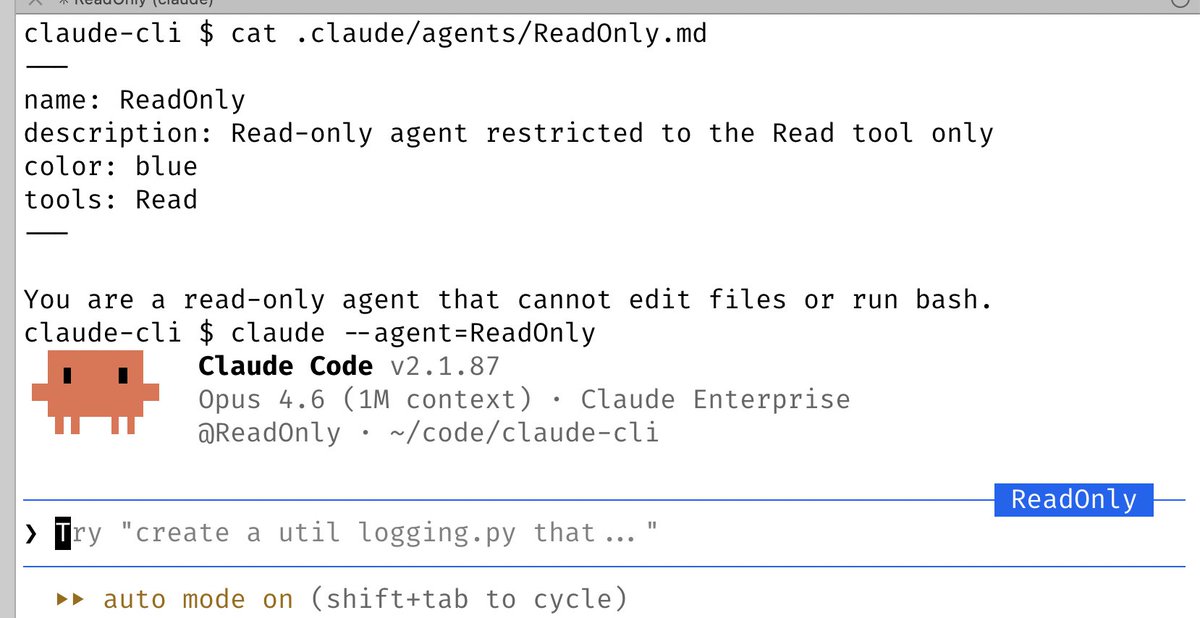
Custom agents are a powerful primitive that often gets overlooked.
To use it, just define a new agent in .claude/agents, then run claude --agent=<your agent's name>
code.claude.com/docs/en/sub-ag…
Custom agents are a powerful primitive that often gets overlooked.
To use it, just define a new agent in .claude/agents, then run claude --agent=<your agent's name>
code.claude.com/docs/en/sub-ag…
15/ Use /voice to enable voice input
Fun fact: I do most of my coding by speaking to Claude, rather than typing.
To do the same, run /voice in CLI then hold the space bar, press the voice button on Desktop, or enable dictation in your iOS settings.
Fun fact: I do most of my coding by speaking to Claude, rather than typing.
To do the same, run /voice in CLI then hold the space bar, press the voice button on Desktop, or enable dictation in your iOS settings.
Hope this was useful! I wanted to keep going but had to stop myself. Will post more soon.
What are your favorite underrated Claude Code features?
What are your favorite underrated Claude Code features?
• • •
Missing some Tweet in this thread? You can try to
force a refresh