Dogfooding Opus 4.7 the last few weeks, I've been feeling incredibly productive. Sharing a few tips to get more out of 4.7 🧵
1/ Auto mode = no more permission prompts
Opus 4.7 loves doing complex, long-running tasks like deep research, refactoring code, building complex features, iterating until it hits a performance benchmark.
In the past, you either had to babysit the model while it did these sorts of long tasks, our use --dangerously-skip-permissions.
We recently rolled out auto mode as a safer alternative. In this mode, permission prompts are routed to a model-based classifier to decide whether the command is safe to run. If it's safe, it's auto-approved.
This means no more babysitting while the model runs. More than that, it means you can run more Claudes in parallel. Once a Claude is cooking, you can switch focus to the next Claude.
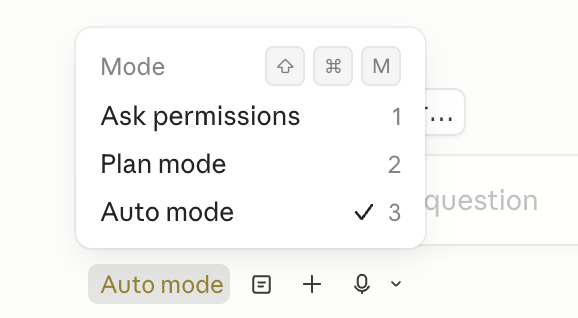
Auto mode is now available for Opus 4.7 for Max, Teams, and Enterprise users. Shift-tab to enter auto mode in the CLI, or choose it in the dropdown in Desktop or VSCode.
Opus 4.7 loves doing complex, long-running tasks like deep research, refactoring code, building complex features, iterating until it hits a performance benchmark.
In the past, you either had to babysit the model while it did these sorts of long tasks, our use --dangerously-skip-permissions.
We recently rolled out auto mode as a safer alternative. In this mode, permission prompts are routed to a model-based classifier to decide whether the command is safe to run. If it's safe, it's auto-approved.
This means no more babysitting while the model runs. More than that, it means you can run more Claudes in parallel. Once a Claude is cooking, you can switch focus to the next Claude.
Auto mode is now available for Opus 4.7 for Max, Teams, and Enterprise users. Shift-tab to enter auto mode in the CLI, or choose it in the dropdown in Desktop or VSCode.
2/ The new /fewer-permission-prompts skill
We've also released a new /fewer-permission-prompts skill. It scans through your session history to find common bash and MCP commands that are safe but caused repeated permission prompts.
It then recommends a list of commands to add to your permissions allowlist.
Use this to tune up your permissions and avoid unnecessary permission prompts, especially if you don't use auto mode.
code.claude.com/docs/en/permis…
We've also released a new /fewer-permission-prompts skill. It scans through your session history to find common bash and MCP commands that are safe but caused repeated permission prompts.
It then recommends a list of commands to add to your permissions allowlist.
Use this to tune up your permissions and avoid unnecessary permission prompts, especially if you don't use auto mode.
code.claude.com/docs/en/permis…
3/ Recaps
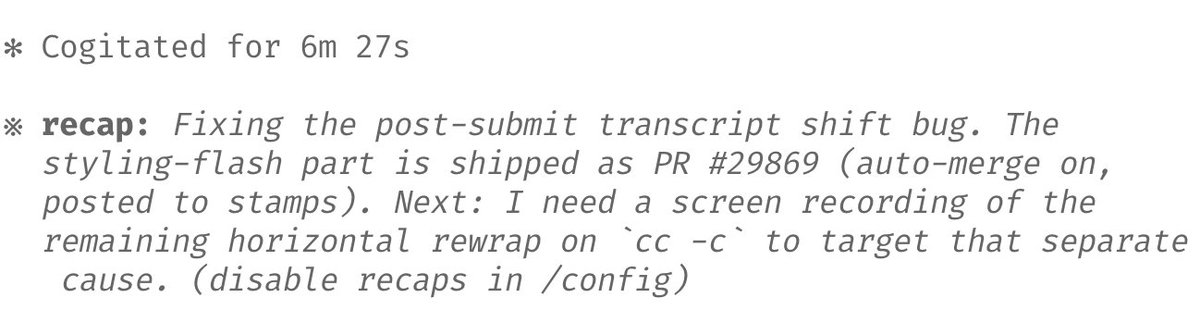
We shipped recaps earlier this week, to prep for Opus 4.7. Recaps are short summaries for what an agent did & what's next.
Very useful when returning to a long-running session after a few minutes or a few hours.
We shipped recaps earlier this week, to prep for Opus 4.7. Recaps are short summaries for what an agent did & what's next.
Very useful when returning to a long-running session after a few minutes or a few hours.
4/ Focus mode
I've been loving the new focus mode in the CLI, which hides all the intermediate work to just focus on the final result. The model has reached a point where I generally trust it to run the right commands and make the right edits. I just look at the final result.
/focus to toggle on/off.
I've been loving the new focus mode in the CLI, which hides all the intermediate work to just focus on the final result. The model has reached a point where I generally trust it to run the right commands and make the right edits. I just look at the final result.
/focus to toggle on/off.
5/ Configure your effort level
Opus 4.7 uses adaptive thinking instead of thinking budgets. To tune the model to think more/less, we recommend tuning effort.
Use lower effort for faster responses and lower token usage. Use higher effort for the most intelligence and capability.
Personally, I use xhigh effort for most tasks, and max effort for the hardest tasks. Max applies to just your current session; other effort levels are sticky and persist for your next session also.
/effort to set your effort level.
Opus 4.7 uses adaptive thinking instead of thinking budgets. To tune the model to think more/less, we recommend tuning effort.
Use lower effort for faster responses and lower token usage. Use higher effort for the most intelligence and capability.
Personally, I use xhigh effort for most tasks, and max effort for the hardest tasks. Max applies to just your current session; other effort levels are sticky and persist for your next session also.
/effort to set your effort level.
6/ Give Claude a way to verify its work
Finally, make sure Claude has a way to verify its work. This has always been a way to 2-3x what you get out of Claude, and with 4.7 it's more important than ever.
Verification looks different depending on the task. For backend work, make sure Claude knows how to start up your server/service to test it end to end; for frontend work, use the Claude Chromium extension to give Claude a way to control your browser; for desktop apps, use computer use.
Personally, many of my prompts these days look like "Claude do blah blah /go". /go is a skill that has Claude
1. Test itself end to end using bash, browser, or computer use
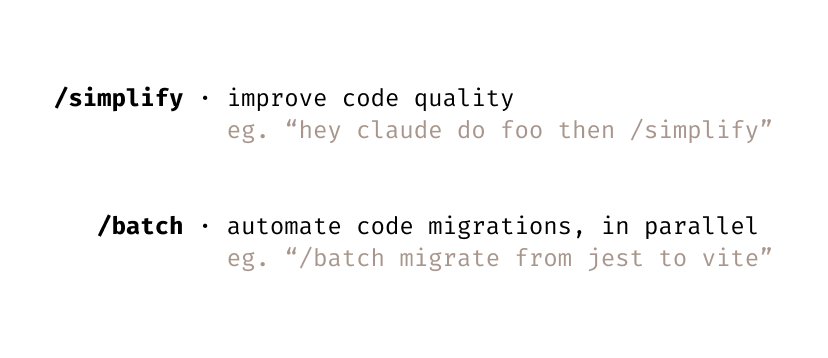
2. Run the /simplify skill
3. Put up a PR
For long running work, verification is important because that way when you come back to a task, you know the code works.
Finally, make sure Claude has a way to verify its work. This has always been a way to 2-3x what you get out of Claude, and with 4.7 it's more important than ever.
Verification looks different depending on the task. For backend work, make sure Claude knows how to start up your server/service to test it end to end; for frontend work, use the Claude Chromium extension to give Claude a way to control your browser; for desktop apps, use computer use.
Personally, many of my prompts these days look like "Claude do blah blah /go". /go is a skill that has Claude
1. Test itself end to end using bash, browser, or computer use
2. Run the /simplify skill
3. Put up a PR
For long running work, verification is important because that way when you come back to a task, you know the code works.
Happy coding! Opus 4.7 is a significant step up. To get the most out of it, take the time to adjust your workflow to take advantage of Claude running for longer & being more agentic. It feels like a nice improvement with old workflows, and a significant leap once you take the time to adjust.
• • •
Missing some Tweet in this thread? You can try to
force a refresh