Elias Al Profile picture
Apr 17 12 tweets 4 min read Read on X
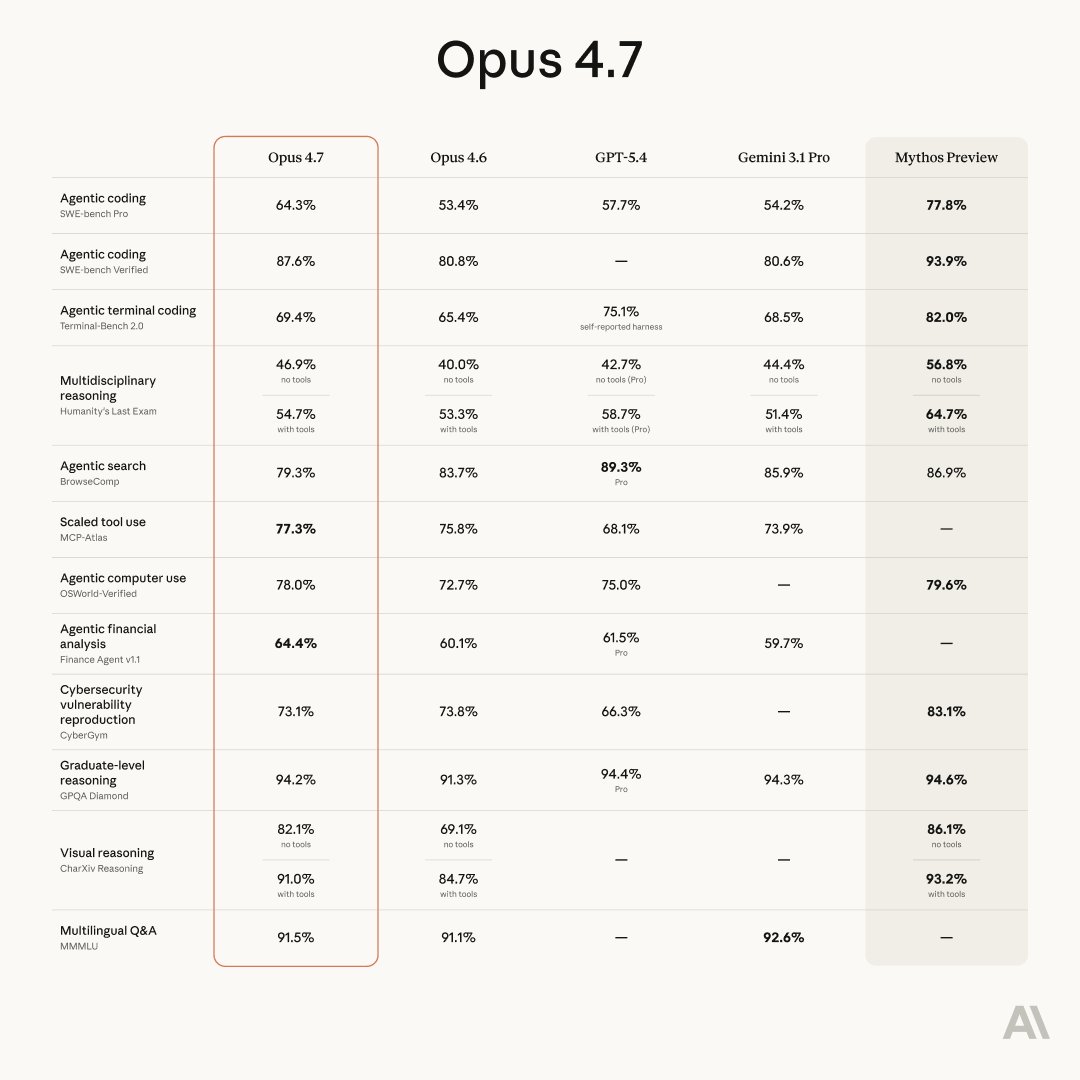
CLAUDE JUST LAUNCHED OPUS 4.7.

It's the most powerful model they've ever released.

But 95% of people are using it exactly like ChatGPT — and getting 10% of what it can actually do.

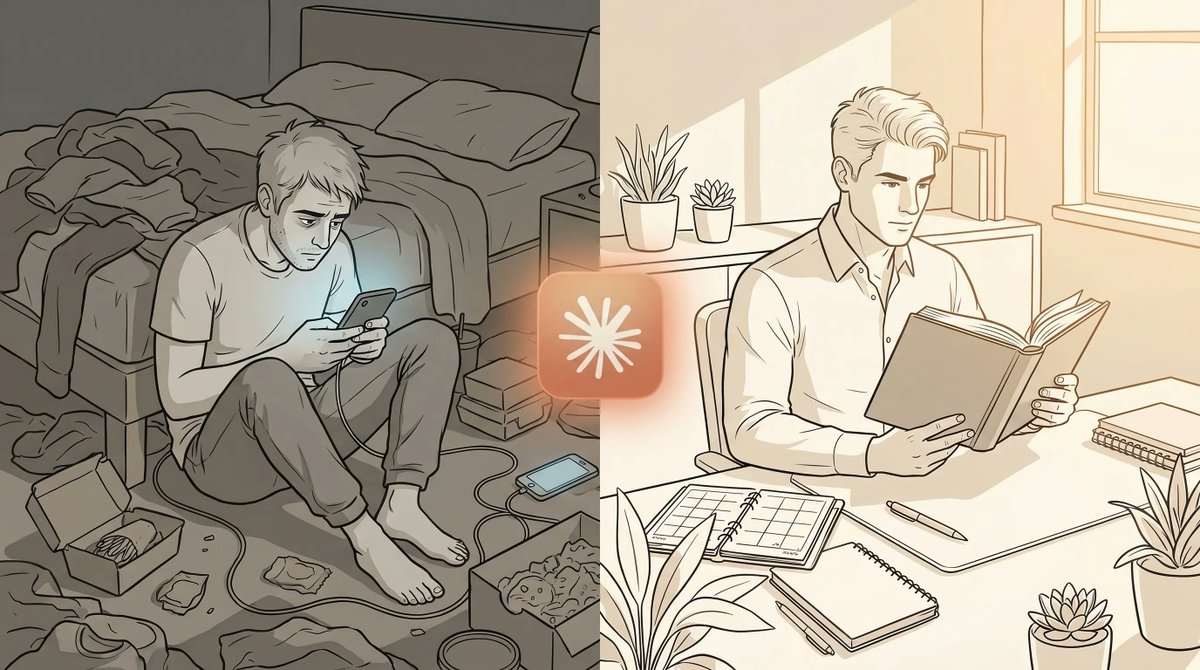
Here's how to unlock the other 90%. 🧵 Image
1. Stop writing prompts. Start writing briefs.

Most people open Claude and type one sentence.

Opus 4.7 isn't a search bar. It's a senior collaborator.
Give it:
— Who you are
— What you're trying to build
— Who it's for
— What "good" looks like
— What to avoid

The quality of your output is a direct function of the quality of your brief. Every time.
2. Use XML tags to structure your prompt.

Claude was literally trained on XML-style structure. It reads it better than plain text.

Instead of one wall of instructions, wrap your context in tags:

your situation

what you want

what good looks like

rules to follow

Output quality jumps noticeably the moment you switch to this format. It's the single biggest lever nobody uses.
3. Give it examples. Always.

Telling Claude "write like this" doesn't work
Showing Claude "write like this" works every time

Paste 2 to 3 real examples of the tone, format, or style you want. Then tell it to match

One example = guessing
Three examples = pattern recognition

This single technique will outperform any prompt engineering trick you've ever learned ......
4. Ask Opus to think before it answers.

Opus 4.7 has extended thinking built in — but it won't always use it unless you ask.

Start complex prompts with:

"Before answering, think step by step about the problem. Consider edge cases. Then write your response."

You'll watch it reason through the problem in a thinking block before producing the final output.

The difference on hard tasks is night and day.
5. Use it as a writing partner, not a writing machine.

The fastest way to get generic output is to ask for the final version on the first try.

Instead, iterate:

First prompt: "Give me 10 angles on this topic."

Second: "Expand angle #3 into a rough draft."

Third: "Rewrite it in my voice — here are 3 samples of how I write."

Fourth: "Now tighten it. Remove anything that doesn't earn its place."

Four prompts. Completely different output than one prompt asking for the final piece.
6. Give it a role it can actually inhabit.

"You are a helpful assistant" does nothing
"You are a senior copy editor at The New Yorker with 20 years of experience cutting bloat from feature writing" — that changes the output dramatically

Be specific. Give it:
— A title
— A company or publicatio
— Years of experienc
— What they're known for

The more defined the role, the more defined the response .
7. Use Projects for anything you'll work on more than once.

This is the feature most people ignore and it's the biggest quality multiplier Claude offers.

Create a Project. Upload your style guide, brand docs, past work, or reference material.

Every conversation inside that Project inherits all of it automatically.

You stop re-explaining yourself every time. Claude stops producing generic output. Everything compounds.

If you use Claude daily and aren't using Projects, you're doing it on hard mode.
8. Ask Claude to critique its own output before you do.

After it gives you a response, send one follow up:

"Now critique that response as if you were reviewing someone else's work. What's weak? What's missing? Rewrite it stronger."

Opus 4.7 is remarkably good at self-evaluation.

You'll get a second version that's noticeably sharper — and you didn't have to know why the first one was weak.
9. Turn off your instinct to prompt politely.

"Could you maybe help me with…" produces worse output than "Do X. Here's the context. Here's the format."

Claude doesn't need please or thank you. It needs clarity.

Direct, specific, structured instructions will outperform polite vague ones every single time.

Be kind to humans. Be clear with model
10. Match the model to the task.

Opus 4.7 is the most powerful model Anthropic has ever shipped.

But it's not always the right one.
— Quick drafts, summaries, short rewrites → Haiku 4.5 (faster, cheaper)
— Most daily work → Sonnet 4.6 (the workhorse)
— Complex reasoning, research, critical writing → Opus 4.7

Using Opus for a one-line task is like using a Ferrari to pick up groceries.

Use the right model for the right job and your workflow gets faster AND better.
The real unlock:

Opus 4.7 is not a better ChatGPT.

It's a reasoning partner that rewards preparation, structure, and iteration.

Treat it like a senior collaborator and it will out-think you on problems you've been stuck on for weeks.

Treat it like a search bar and you'll wonder what the hype is about.

The model is extraordinary. Most people just never learn to use it properly.

RT this so more people stop wasting the smartest tool they've ever had access to.

• • •

Missing some Tweet in this thread? You can try to force a refresh

 

Keep Current with Elias Al

Elias Al Profile picture

Stay in touch and get notified when new unrolls are available from this author!

Read all threads

This Thread may be Removed Anytime!

PDF

Twitter may remove this content at anytime! Save it as PDF for later use!

Try unrolling a thread yourself!

how to unroll video
  1. Follow @ThreadReaderApp to mention us!

  2. From a Twitter thread mention us with a keyword "unroll"
@threadreaderapp unroll

Practice here first or read more on our help page!

More from @iam_elias1

May 30
Her Apple Watch battery dropped to 78% after just one year.

She wore it daily. She charged it overnight. She used it like every other Apple Watch owner she knew.

Yet her battery had degraded faster in 12 months than her iPhone had in 3 years.

She took it to the Genius Bar, expecting them to confirm it was defective.

The technician ran every diagnostic.

"Your watch isn't broken. It's just been running 24 hours a day doing things it doesn't need to do. There are 4 default settings on every Apple Watch that hammer the battery overnight. Apple knows. They've known since the first Series 1 launched. They don't change the defaults."

She asked why.

He gave the same answer Apple Store employees have learned to give silence.

Then he opened the Watch app on her iPhone and walked her through everything.

Here's what he showed her. 🧵
The first culprit: "Always On Display."

This is the single biggest battery killer on any modern Apple Watch.

The Always On feature keeps the screen dimly lit 24/7 instead of turning off when your wrist drops. It looks beautiful. It's also one of the most aggressive battery drains Apple has ever shipped.

The technician put it plainly:

"Most Apple Watch owners think their battery is degrading. It's not. It's being used twice as much as it needs to be. The screen is on all day, even when the watch is just sitting on your wrist while you're working."

The fix:

Open the Watch app on iPhone → My Watch → Display & Brightness → Always On → Off

Or do it directly on the watch:

Settings → Display & Brightness → Always On → Off

Battery life on most watches jumps 30-50% the same day. The screen now turns off when you drop your wrist, exactly the way Apple Watches worked for the first 7 years they existed.

You lose nothing functional. You gain hours of battery life and years of battery health.
The second culprit: "Wake Screen on Wrist Raise."

This setting sounds harmless. It isn't.

Every time your wrist moves when you're walking, typing, brushing your teeth, gesturing during a conversation, your Apple Watch wakes the screen.

For most users, that's hundreds of unnecessary screen activations per day. Every one of them costs battery and contributes to wear.

Then there's the bigger problem: the watch also activates during sleep. Every time you roll over, every time your arm shifts under the covers, the screen lights up.

That's why your battery drains overnight even when you're not using the watch.

The fix:

Watch app on iPhone → My Watch → Display & Brightness → Wake Screen → adjust to "Tap to Wake Only"

Or on the watch directly:

Settings → Display & Brightness → Wake on Wrist Raise → Off

The watch now only turns on when you tap it or press the side button. Your battery stops being drained by hundreds of accidental wake cycles per day.
Read 10 tweets
May 29
His internet has been slow for 6 months. So, he paid Comcast to upgrade his tier.

Speeds got worse.

He called Comcast again. They blamed his router. He bought a new one. Still slow.

He called a third time. They sent a technician out. The tech ran a speed test from inside the modem and said:"Speeds are fine on our end. Must be your devices."

A neighbor who works in IT came over the next weekend with his laptop.

He looked at the router for two minutes, opened the admin panel, and pointed at four settings on the screen.

"Comcast pushed a firmware update last year. They enabled all four of these silently. This is why your internet is slow. This is why every Comcast customer's internet got slower around the same time."

Here's exactly what he found and turned off. 🧵
The first setting: "Xfinity Wi-Fi Hotspot."

He didn't even know it existed.

Every Comcast-issued router by default broadcasts a ''second public Wi-Fi network'' called "xfinitywifi" meant for any nearby Comcast subscriber to connect to.

That sounds friendly. It isn't.

That second network uses ''your home's bandwidth.'' Your router's processing power. Your electricity bill. To provide free Wi-Fi to strangers walking by your house.

Comcast turned it on for every customer without explicit consent.

The neighbor showed him the fix:

1. Log into your Xfinity account at xfinity. com
2. Go to Services → Internet → Manage Internet → Xfinity Wi-Fi Hotspot Network
3. Toggle it OFF

It took 30 seconds. The router immediately freed up bandwidth that had been routing through it for strangers for months.
The second setting: "Automatic Channel Selection."

The router was set to "Auto" for both 2.4 GHz and 5 GHz Wi-Fi channels.

Sounds smart. In practice, it's the worst default in modern networking.

Here's why: in any apartment complex or dense neighborhood, dozens of routers all set to "Auto" end up fighting for the same handful of channels.

The neighbor pulled out a Wi-Fi analyzer app on his phone and showed him the problem: 14 other routers in range, all crammed onto channels 1, 6, and 11.

The fix:

1. Log into the router (usually 10.0.0.1 for Comcast)
2. Wireless Settings → Channel → manually set to a less-crowded channel (use a Wi-Fi analyzer to find one)
3. For 5 GHz, set to channel 36, 40, 44, or 149

He set it to channel 161 on 5 GHz. Speeds doubled instantly.
Read 9 tweets
May 28
A man saw his phone storage was ''full'' after 18 months but he barely had any photos.

He had deleted apps. Cleared messages. Removed downloads. The warning kept coming back every two weeks:

"Storage Almost Full.''

He went to the Apple Store ready to buy a new iPhone.

The employee at the Genius Bar held up a hand: *"Before you spend a thousand dollars, let me show you something."*

She opened Settings → General → iPhone Storage and shook her head.

"There are 7 things eating your storage right now. Apple ships every iPhone with all of them turned on. Nobody tells you they exist. Let's go through them."

Here's what she showed him in the next 8 minutes. 🧵
The first thing she pointed at: "System Data."

His System Data alone was using 24 GB.

He had no idea what System Data even was. Most iPhone users don't.

She explained: it's a catch-all category Apple uses for cached files, logs, temporary downloads, Safari residue, leftover update files, and dozens of other invisible things that accumulate over time.

Apple gives you no way to directly view or manage what's inside it.

The fix isn't perfect, but it works:

1. Restart the phone (clears short-term caches)
2. Settings → Safari → Clear History and Website Data
3. Settings → General → iPhone Storage → Offload unused apps
4. In extreme cases: back up and restore the phone (this nukes most of it)

He restarted the phone first. System Data dropped from 24 GB to 14 GB instantly.

10 GB recovered in 30 seconds.
Then she opened the Messages section. His jaw dropped.

Messages was using 18 GB.

He thought he had deleted his old conversations. He hadn't.

Here's what Apple doesn't make obvious: every photo, video, GIF, and audio message ever sent to you over iMessage is stored on your device forever — unless you explicitly tell it not to.

That funny meme your friend sent in 2019? Still on your phone. Every group chat photo from 5 years ago? Still there.

She walked him through the fix:

1. Settings → Messages → Keep Messages → change from "Forever" to 30 Days or 1 Year
2. Settings → General → iPhone Storage → Messages → Review Large Attachments → delete what you don't need

He went from 18 GB to 3 GB in Messages alone.

15 more gigabytes back.
Read 10 tweets
May 26
A man took his macbook to a repair shop because the battery was at 78% after just 14 months.

"Is this normal?"

The technician ran every diagnostic. Everything came back clean.

No defects. No damage. No manufacturing issue.

Then the technician turned the screen toward him and said something he wasn't expecting:
"There's a setting Apple built in 2020 specifically to prevent this. They didn't turn it on for you. Your battery is dying twice as fast as it should and they make money when it does."

He asked the obvious question: "So Apple is wearing out my own laptop on purpose?"
The technician didn't answer.

He just opened System Settings and walked him through every hidden setting that was secretly killing his MacBook.

Here's everything he showed him in the next 8 minutes (save this if you own a Mac): 🧵
The first thing the technician pointed at: Optimized Battery Charging.

It was OFF.

He explained that the moment a MacBook is plugged in at a desk, it charges to 100% and holds it there for hours.

That is the worst possible state for a lithium battery.

Battery University data: a battery held at 80% lasts 3 times longer than one held at 100%.
Apple built Optimized Battery Charging in 2020 to fix this exact problem.
They did not turn it on by default for most users.

System Settings → Battery → click the small "i" next to Battery Health → toggle ON Optimized Battery Charging.
Twenty seconds. The single biggest battery-saver on the entire machine.
Then the technician scrolled down and pointed at "Manage battery longevity."

This setting only appears on M2 chips and later.
What it does: caps the battery at 80% when the MacBook stays plugged in at the same location for long stretches, like a home desk or office.
This is the gold-standard recommendation from every lithium battery scientist on earth.

It's not turned on by default.

The technician said something the customer hadn't thought about:

"Most MacBooks now live their entire life plugged into a single desk. Apple knows this. The default settings are designed for the 2008 user who carried their laptop everywhere, not the 2026 user whose laptop never moves."
Turn it on. Same menu.
Read 9 tweets
May 4
YOUR EMAIL ADDRESS IS WORTH MORE THAN YOUR SOCIAL SECURITY NUMBER ON THE DARK WEB.

A working SSN sells for around $1.

A working email with active accounts attached sells for $80 to $150.

Most people guard the wrong thing — and leave the door wide open on the one that actually matters. 🧵
1/ A Social Security number is almost worthless to a hacker on its own.

There's a misconception that SSNs are the holy grail of identity theft.

They aren't. They haven't been for years.

There have been so many breaches — Equifax leaked 147 million of them in 2017 alone — that SSNs are basically a commodity now. Bulk sold for pennies on the dollar.

A criminal can buy 10,000 of them for $50.

What they actually need is the thing that connects to all your active accounts.

Your email.
2/ Your email isn't a communication tool. It's a master key.

Stop and think about what your primary email controls right now.

1. Every bank account you've ever opened
2. Every social media platform you use
3. Every shopping site, subscription, and saved card
4. Every cloud storage service holding your photos and documents
5. Every "forgot password" link you'll ever need
6. Your tax filings
7. Your medical portals
8. Your work credentials

Crack the email and the attacker doesn't need to crack anything else.

Every other account on the internet has a "Reset via email" button.

You've built your entire digital life on a single foundation. And you probably haven't checked that foundation in years.
Read 10 tweets
Apr 29
Claude can now coach your entire daily reset — dopamine detox, phone addiction, sleep, focus, energy — like a $400/hour neuroscientist from Stanford.

All the stuff productivity apps try to fix and fail at.

Here are 8 prompts that rewire your habits and give you back control of your day:

Save this thread 🧵👇Image
Prompt 1: The Full Daily Diagnostic

You can't reset what you haven't diagnosed.

This prompt exposes every leak in your day:

Act as a behavioral neuroscientist who has
worked with high-performing executives and
chronic burnouts.

Here's an honest snapshot of my day:
- Wake-up time: [TIME]
- Sleep time: [TIME]
- Hours of actual sleep: [HOURS]
- Average daily screen time: [HOURS]
- Top 3 apps by usage: [LIST]
- First thing I do when I wake up: [HONEST ANSWER]
- Last thing I do before sleep: [HONEST ANSWER]
- Energy across the day (1-10 by hour): [DESCRIBE]
- Focus quality at work (1-10): [X]
- Mood baseline (1-10): [X]

Run a full diagnostic across 5 systems:

1. Dopamine — where am I overstimulating my brain?
2. Phone — what's the real cost of my current usage?
3. Sleep — what's broken: quantity, quality, or
timing?
4. Focus — am I distracted, depleted, or both?
5. Energy — where is it leaking that I don't see?

End with the ONE system to fix first (with reasoning)
and a grade (A-F) for each.

Be direct. No motivational filler.
Prompt 2: Engineer a Phone-Free Morning

The first hour decides the next 15.

Most people lose the day before 9am:

You are a peak performance coach who designs
mornings for executives and operators.

My current morning:
- First action after waking: [HONEST ANSWER]
- Phone time before getting out of bed: [MINUTES]
- Apps I check first: [LIST]
- How I feel by 9am: [TIRED / ANXIOUS / SCATTERED
/ FOCUSED]
- Wake-up time: [TIME]
- Alarm device: [PHONE / OTHER]

Redesign my morning:

1. A phone-free first hour (exact structure,
minute by minute)
2. Where my phone should physically live overnight
3. A 10-minute morning routine that actually
moves the needle (no 5am cold plunge fantasy)
4. What to do INSTEAD of checking my phone in
the first 60 minutes
5. The 3 anchor habits to stack for compounding
benefit
6. A "minimum viable morning" for chaotic days
7. The hardest rule to keep — and how to keep it

The day belongs to whoever owns the first hour.
Read 10 tweets

Did Thread Reader help you today?

Support us! We are indie developers!


This site is made by just two indie developers on a laptop doing marketing, support and development! Read more about the story.

Become a Premium Member ($3/month or $30/year) and get exclusive features!

Become Premium

Don't want to be a Premium member but still want to support us?

Make a small donation by buying us coffee ($5) or help with server cost ($10)

Donate via Paypal

Or Donate anonymously using crypto!

Ethereum

0xfe58350B80634f60Fa6Dc149a72b4DFbc17D341E copy

Bitcoin

3ATGMxNzCUFzxpMCHL5sWSt4DVtS8UqXpi copy

Thank you for your support!

Follow Us!

:(