I know it seems like there is a lot happening on the @unusual_whales website, so I will try to highlight some of the sections that may not get as much attention as others.
In addition to showing you the details of every transaction occurring across the exchanges, you can see how the flow is looking for the sectors and for specific tickers. unusualwhales.com/flow/sectors
unusualwhales.com/flow/hot_chains
You can configure your notification settings anyway you like. Here are some examples. To receive push notifications you will need to download the mobile application (Unusual Whales). unusualwhales.com/settings/notif…
Using the search bar you can look up any ticker, which will take you to the company page. From here you can see everything from past alert history, technical charts, FURU data, stocks alerts, and more.
unusualwhales.com/company/AAPL/a…
The EOD reports page will give you a birds-eye view of the bot's daily activity. You could use this to see if a particular sector has been being pushed and to get an idea of the daily bot performance. unusualwhales.com/reports
And lastly, you can refer friends and reduce your own subscription costs. unusualwhales.com/referrals As always, you can email support@unusualwhales.com or reach out in the Discord if you have any questions.

• • •

Missing some Tweet in this thread? You can try to force a refresh

 

Keep Current with SNORLAX (๑❛ ڡ ❛๑)

SNORLAX (๑❛ ڡ ❛๑) Profile picture

Stay in touch and get notified when new unrolls are available from this author!

Read all threads

This Thread may be Removed Anytime!

PDF

Twitter may remove this content at anytime! Save it as PDF for later use!

Try unrolling a thread yourself!

how to unroll video
  1. Follow @ThreadReaderApp to mention us!

  2. From a Twitter thread mention us with a keyword "unroll"
@threadreaderapp unroll

Practice here first or read more on our help page!

More from @snorlax_support

14 May
🐳 Quick guide on reading Flow Pie Charts

I took the last 10 lines from today's TSLA order flow and will recreate the pie charts based on the info we see. Hopefully it will help you understand how the information in the pie charts is calculated! Image
When you're on the flow and you click "Show Charts" you'll see 5 pie charts running across the bottom.
From left to right they are:
1. # Calls v Puts
2. Volume Calls v Puts
3. Premium Calls v Puts
4. Ask v Bid side
5. Bear/Bull flow
1. If we look through our 10 lines of Tesla data, we will see there are literally 5 calls and 5 puts. So our first chart will be 50/50 calls/puts.

2. Adding up call and put volume gives us 103 for calls (50+50+1+1+1) and 6 for puts (1+1+2+1+1). Image
Read 5 tweets
7 May
Quick guide on how to find an options purchase from an @unusual_whales alert in the Flow.

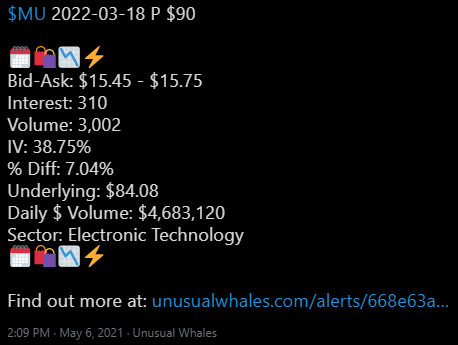
Let's use this $MU 2022-03-18 P $90 as an example ()
First we will need to visit the alert page. You can do so by clicking the hyperlink preceded by "Find out more at:". Alternatively, you can select the hyperlink in Discord, select the alert on the website, or on the app to view the alert page.
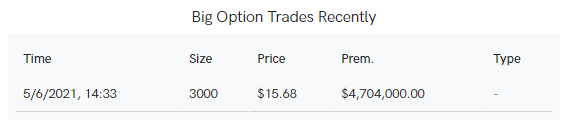
Once you've done so you'll you want to scroll down to where it says "Big Options Trades". In this case there is only one. "5/6/2021,14:33, Size 3000, Premium per $15.68, Total premium $4,704,000.00".

The displayed time is (for the time being) EST + 1. So, treat 14:33 as 13:33.
Read 4 tweets

Did Thread Reader help you today?

Support us! We are indie developers!


This site is made by just two indie developers on a laptop doing marketing, support and development! Read more about the story.

Become a Premium Member ($3/month or $30/year) and get exclusive features!

Become Premium

Too expensive? Make a small donation by buying us coffee ($5) or help with server cost ($10)

Donate via Paypal Become our Patreon

Thank you for your support!

Follow Us on Twitter!

:(